Payments
All modules
Track payment transactions
Payments · 4 of 5 · 4 min read
The Transactions tab of the Payment Settings page lists the payment attempts received through the payment providers. For example, the online payment of a customer invoice or a sales order. From here you can filter transactions by period, check their status, and cancel a transaction.
Opening the transaction list
Transactions are found on the same page as the payment providers, in a separate tab.
To view transactions you need the Payment User group; to cancel them, the Payment Manager group. You only see the transactions of your organization.
- Open Providers from the module menu. The Payment Settings page opens, with the subtitle «Manage payment providers and view transactions».
- Click the Transactions tab.
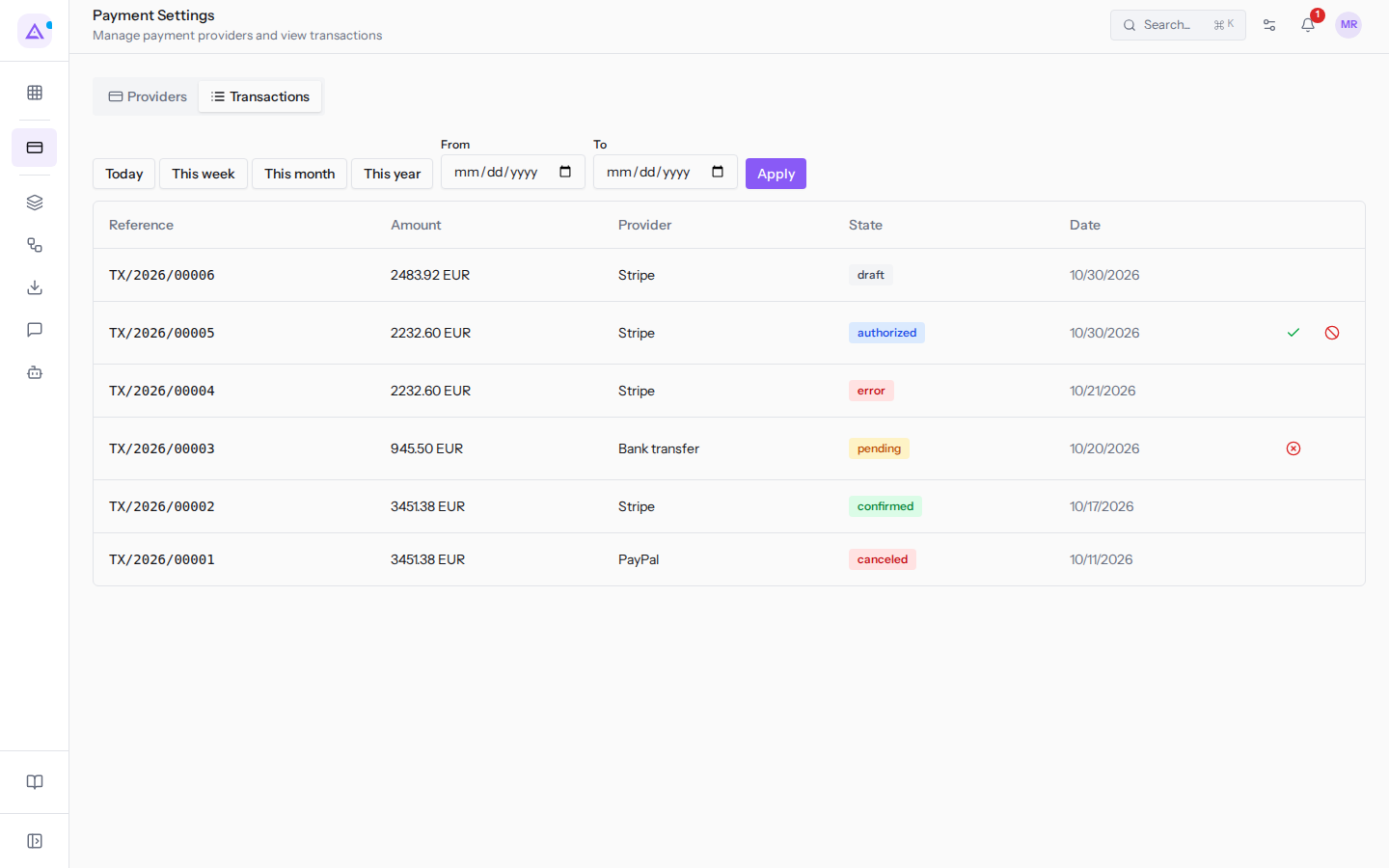
The list shows the most recent transactions first. Each row has these columns:
- Reference: the transaction code. It is assigned automatically in the format TX/year/sequential number, for example TX/2026/00001.
- Amount: the payment amount. The system always calculates it from the invoice balance or the order balance or deposit. The customer does not choose it.
- Provider: the payment provider used.
- State: the point in the payment process. Currently the column shows the technical value in English, see the section on statuses.
- Date: the creation date of the transaction, in the format of the browser's language, for example
10/28/2026with a US English browser.
If the transactions do not fit on a single page, use Previous and Next to scroll through the list. If there are no transactions, the message «No transactions» appears.
Filtering transactions by period
Filters limit the list to transactions created in a specific period. For example, you can view those from the current month.
Choose a period button for the most common intervals. Enter dates manually when you need a different interval.
- In the Transactions tab, click one of these buttons: Today, This week, This month or This year.
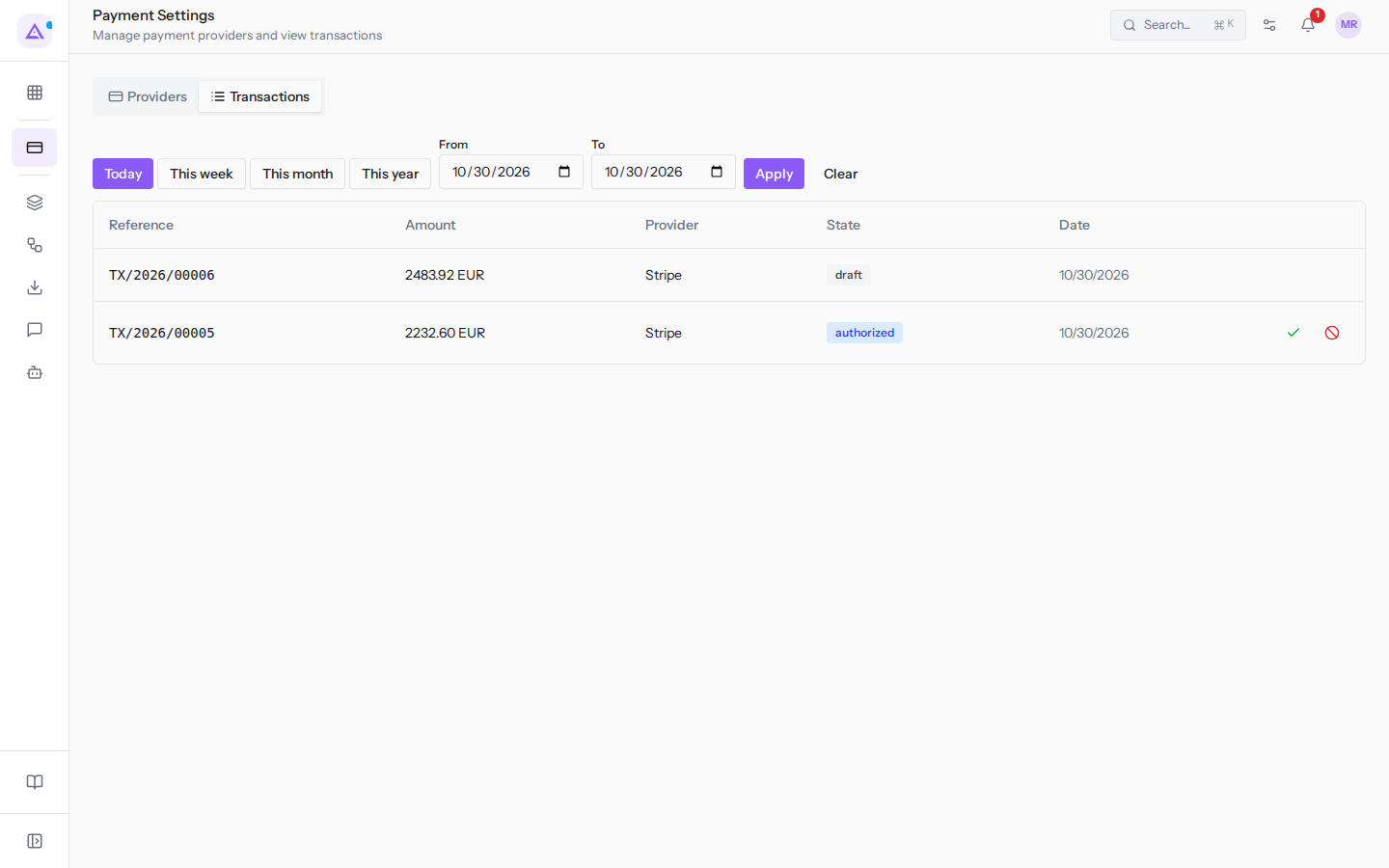
- The From and To fields are filled in automatically with the period dates. For example, Today sets both to today's date, and the two transactions from today remain,
TX/2026/00005andTX/2026/00006.
To set an interval manually:
- Enter the start date in the From field and the end date in the To field. Both dates are inclusive, and you can fill in just one: only From shows transactions from that date onwards, only To shows those up to that date.
- Click Apply.
When a filter is active, the Clear button appears. Click Clear to clear the fields and view all transactions.
Note: the filter uses the transaction creation date, i.e. the date in the Date column.
Transaction statuses
A transaction goes through several statuses, from creation to the payment outcome.
draftandpending: the customer has initiated payment from the payment link, but the outcome has not yet arrived. For exampleTX/2026/00003, the bank transfer from Rossi Arredamenti S.r.l. for FV/2026/0002.authorized: funds are held by the provider, but the collection has not yet occurred. For exampleTX/2026/00005from Verdi Costruzioni S.p.A. on S00002.confirmed: the provider has confirmed that the money has arrived. For exampleTX/2026/00002, which settles FV/2026/0001 from Studio Bianchi & Associati.canceledanderror: the payment did not go through. For exampleTX/2026/00004, the card from Verdi Costruzioni S.p.A. rejected by the bank.
Important: only a confirmed transaction means money received. Pending and authorized transactions do not count as collected: the order balance remains the same until the transaction is confirmed.
If a transaction is authorized and the provider supports manual collection, the Capture and Void icons appear at the end of the row. Their use is explained in Capture or void an authorized payment.
Canceling a transaction
You can only cancel a pending (pending) transaction, for example TX/2026/00003. You need the Payment Manager group.
- In the Transactions tab, find the transaction row.
- Click the red icon with the X at the end of the row.
- When asked «Cancel transaction?», confirm.
The transaction moves to the canceled status.
Note: to cancel an authorized transaction, use Void. This way the provider also releases the held funds. See Capture or void an authorized payment.
See it on your company, not on a slide deck.
In 30 minutes we map the software you use today.We show you how much work and how much margin Archimedes gives back.
Show me on my business →What industry are you in?
One tap — it lets us prepare the demo around your world.
What tools do you use today?
Pick the ones you recognise — or just type them. It helps us show you how they migrate.
Last step: your details.
We reply within one working day — and right after, if you like, you pick the demo slot yourself.
We couldn't send your request. Try again, or write to us at [email protected].
By sending, you agree to your data being processed so we can get back to you about the demo. Privacy notice.
Preview form — nothing is sent from this page.
Want to schedule the demo now?
Your call: book the slot you prefer yourself, or we'll call you to arrange it.
Live availability, 30 minutes, instant confirmation. The calendar opens in a new tab.
Lock in your slot ↗We'll get back to you within one working day — and we'll join the call already knowing your world.
The calendar is open in another tab: pick a slot and the demo is booked. Can't see it? Reopen it ↗
Preview page: nothing was sent.
Our calendar is live: take the slot that suits you and the demo is booked. 30 minutes, instant confirmation, no waiting.
Lock in your slot ↗