Attendance
All modules
Attendance
Attendance · 1 of 16 · 8 min read
The Attendance module records employees' working hours: clock-ins and clock-outs, declared hours, adjustments with approval, monthly timesheets, and export for payroll. It can require a check of the work location with a QR code, with a location check, or with both.
This article presents the module's elements, the menu items, the main screens, and the links with other modules.
How it works
The module's work is based on these elements.
- Punch: the single clock-in or clock-out record. It is never edited: a change adds a new punch.
- Session: a pair of clock-in and clock-out, with the calculated duration. One day can contain several sessions.
- Work location: the place where you clock in, with its check and the people assigned to it.
- Kiosk: the tablet at the entrance where you clock in without signing in, with a badge or with name and PIN.
- Recording mode: the ways a person can record their time.
- Declared hours: the hours worked on a day without a punch, which a manager approves.
- Adjustment: a change to a clock-in or clock-out time, subject to approval.
- Timesheet: a person's monthly summary.
Workers without a platform login clock in at the kiosk and are identified by their employee record in Human Resources.
The menu items
The module menu has three groups. The PERSONAL group concerns your own attendance.
- Attendance › Clock In/Out: records clock-in and clock-out.
- Attendance › My Attendance: the month summary and the sessions of each day.
- Attendance › Declared Hours: the declaration of hours worked without a punch.
The TEAM group is used to check other people's attendance.
- Attendance › Team View: who is at work right now.
- Attendance › Adjustments: the adjustments and their approval.
- Attendance › Reports: the monthly timesheets and the export.
The SETTINGS group contains the module configuration.
- Attendance › Locations: the work locations and their checks.
- Attendance › Kiosks: the kiosks and employees' PINs.
- Attendance › Attendance rules: how working time is counted.
- Attendance › Recording Modes: the available modes and the per-person exceptions.
Who can do what
The module has three permission groups. Each group includes the one before it.
- Employee: clocks in and views their own attendance in Clock In/Out, My attendance, and Declared hours.
- Manager: additionally views Team View, Adjustments, and Reports, and approves adjustments and declared hours.
- Administrator: additionally configures Locations, Kiosks, Attendance rules, and Recording Modes.
Declarations, automatic closings, and adjustments go to the manager registered in Human Resources, if they are active and have a login. Otherwise they go to someone with authority over the whole organisation, or to the Manager or Administrator group. Nobody approves the hours they declared themselves.
Choosing how to record time
The recording modes are chosen based on where the person works and whether they have a login.
- If the person has a login and you do not need to check where they clock in, use In-app clock.
- If you want to verify arrival on location, use Workplace QR: the person scans the QR code on the display at the entrance.
- If the person has no login, use Door kiosk: they clock in with a badge, or with name and PIN, at the kiosk.
- If the person works on a day without a punch, use Declared hours: a manager approves the hours before they are counted.
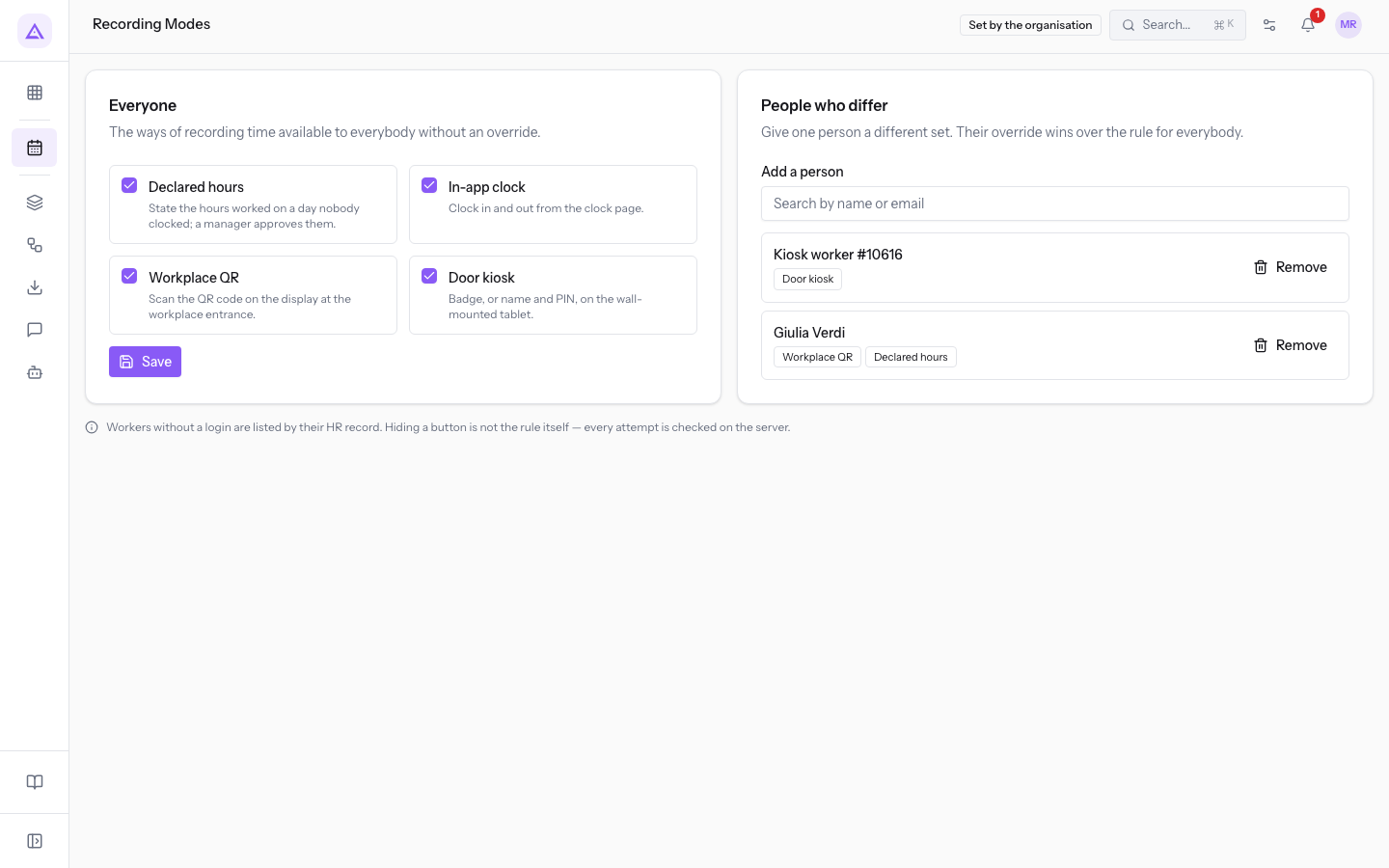
A mode is not forbidden by hiding a button: every attempt is verified on the server. The personal exception takes precedence over the general rule.
Clocking in and viewing your own attendance
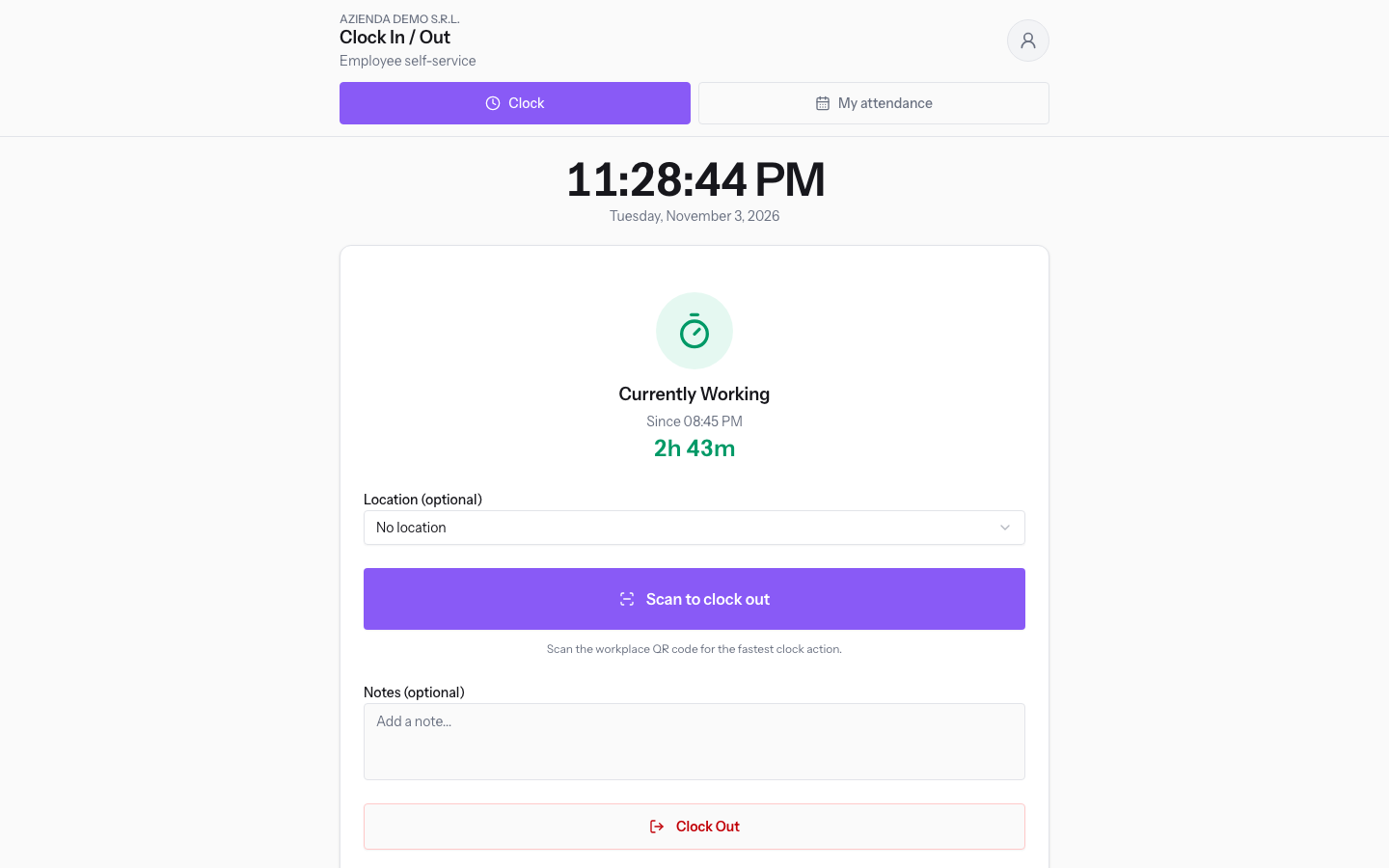
The screens in the PERSONAL group are used to record your own time and check it. Clock In/Out and My attendance open without the module menu: you switch between them with Clock and My attendance at the top.
Clock In/Out opens the Clock In / Out screen. It shows the date and time, the status of the current session, the Location (optional) field, and the note. When a session is open, it offers Clock Out and Scan to clock out.
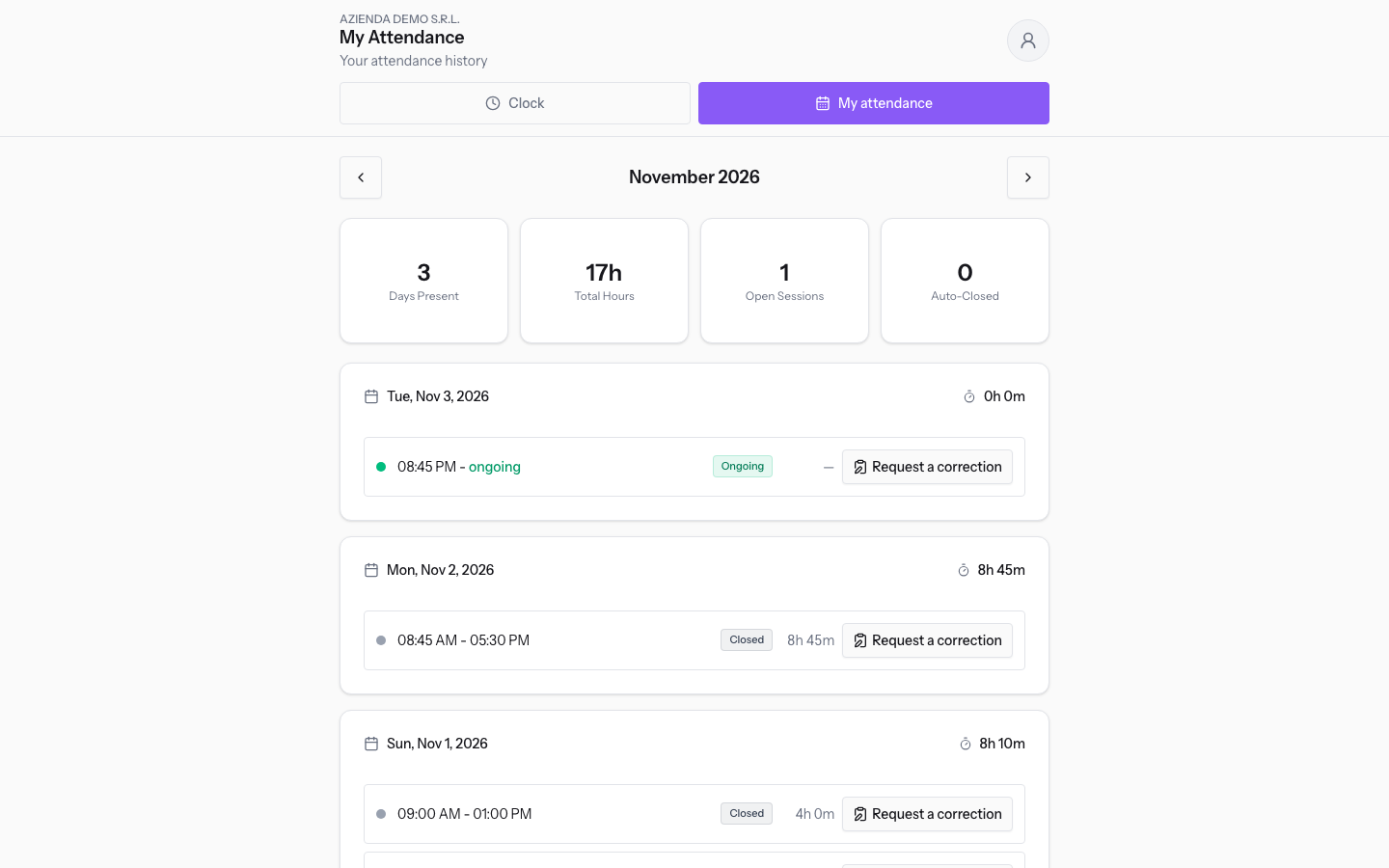
My attendance shows Days Present, Total Hours, Open Sessions, and Auto-Closed, then the sessions of each day. From here you scroll through months with Previous month and Next month. A wrong session is fixed with Request a correction, a missing day with A day is missing. The status of requests is in My correction requests.
Declared hours lets you declare one day or, with Declare a week, the whole week indicated in Week of. For each day you fill in Hours worked, choose Remote or On site, and you can add Start time (optional) and Note (optional). Leave a day empty if it was not worked. Submit week sends the days for approval.
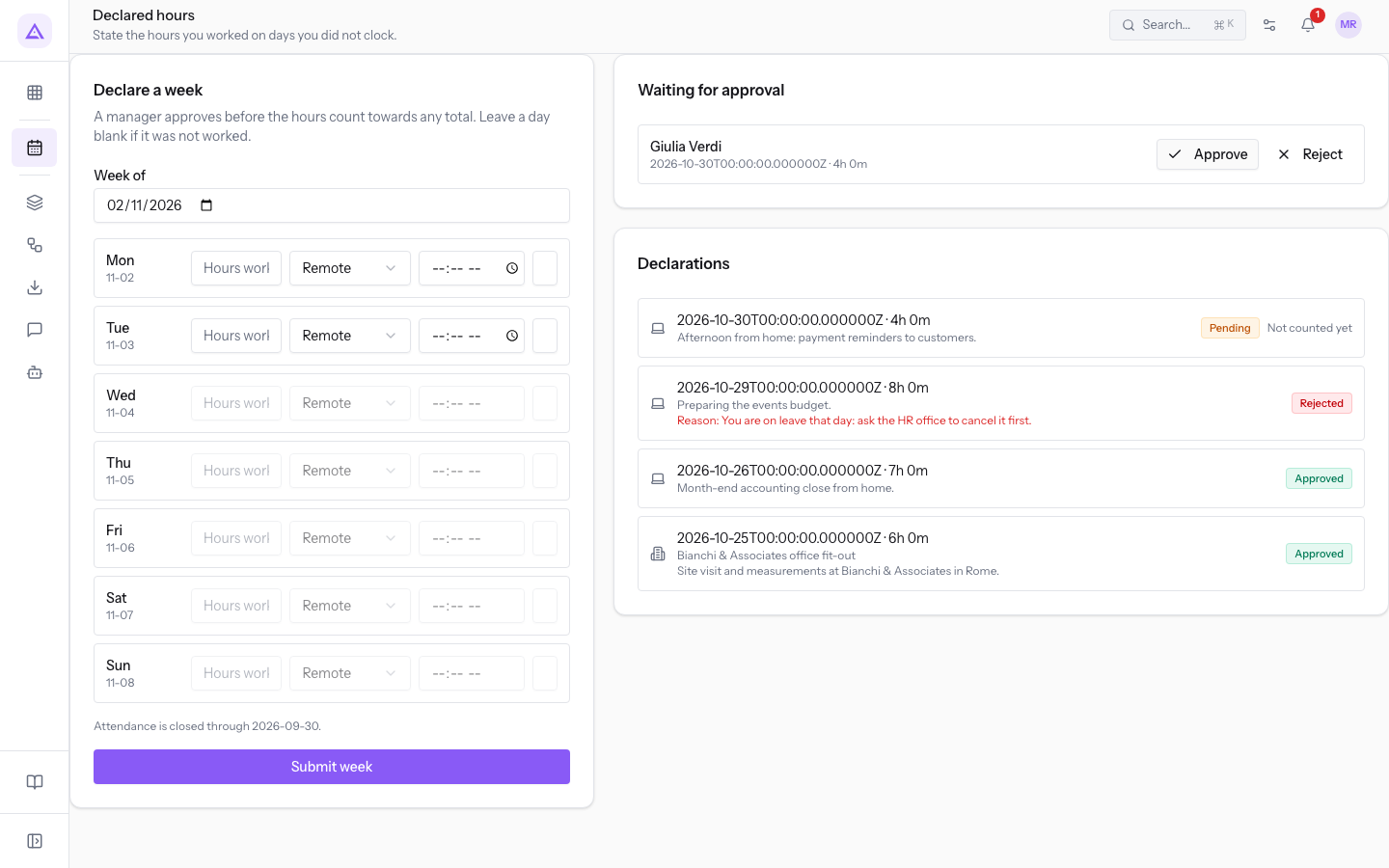
Important: a day is either clocked or declared. Someone who has declared the hours for a day cannot also clock it, and must contact their manager.
Checking the team
Before you start: these screens require the Manager or Administrator group.
The screens in the TEAM group are used to follow attendance, approve adjustments, and close the month.
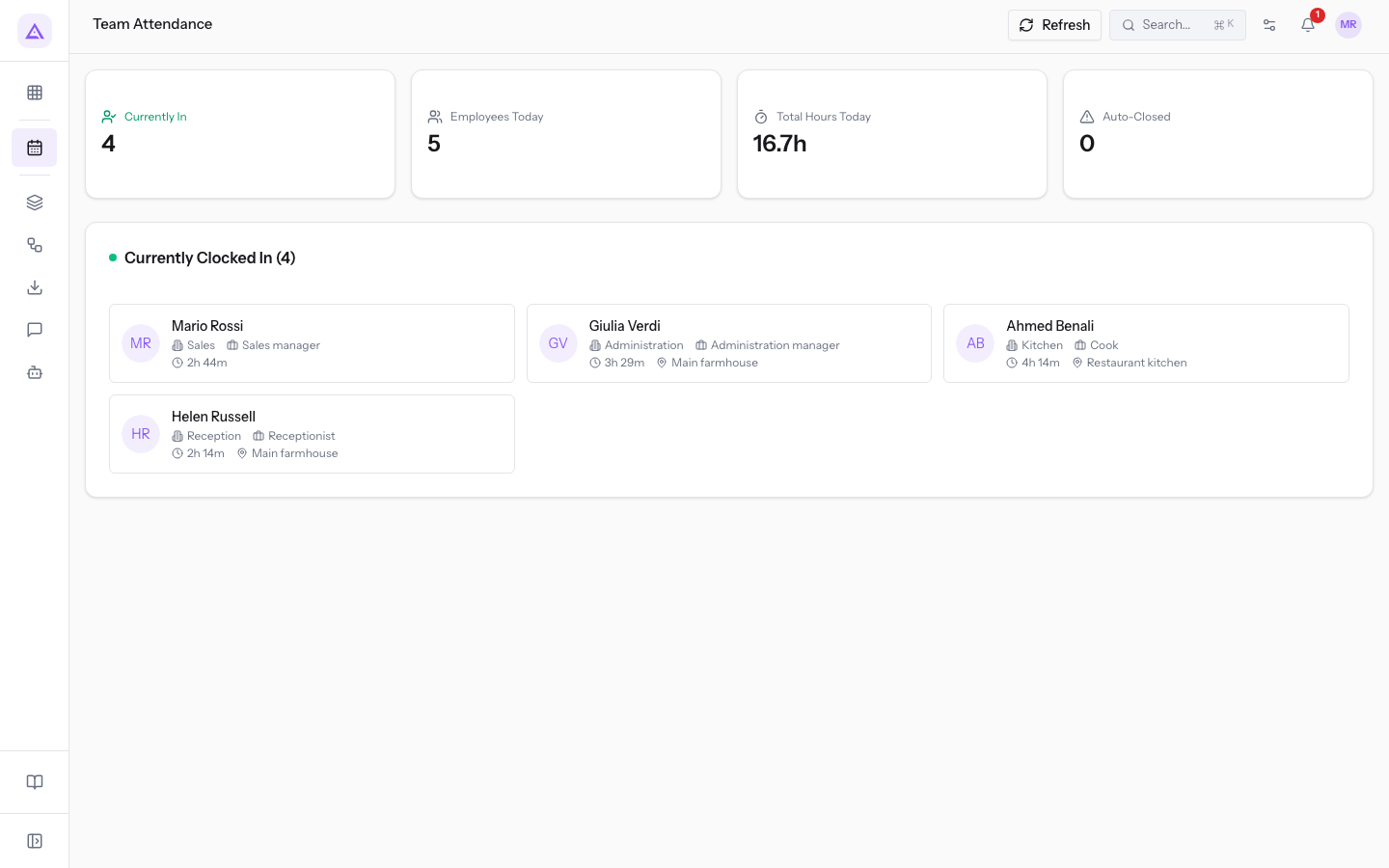
Team View opens the Team Attendance screen. It shows Currently In, Employees Today, Total Hours Today, and Auto-Closed, then the list of people clocked in at that moment, with department and location. Refresh reloads the data.
Adjustments lists the adjustments with the person, the status, the day, and the change. From here you decide with Approve or Reject. A new adjustment is created with Request Adjustment, which asks for Person, Day, and Reason.
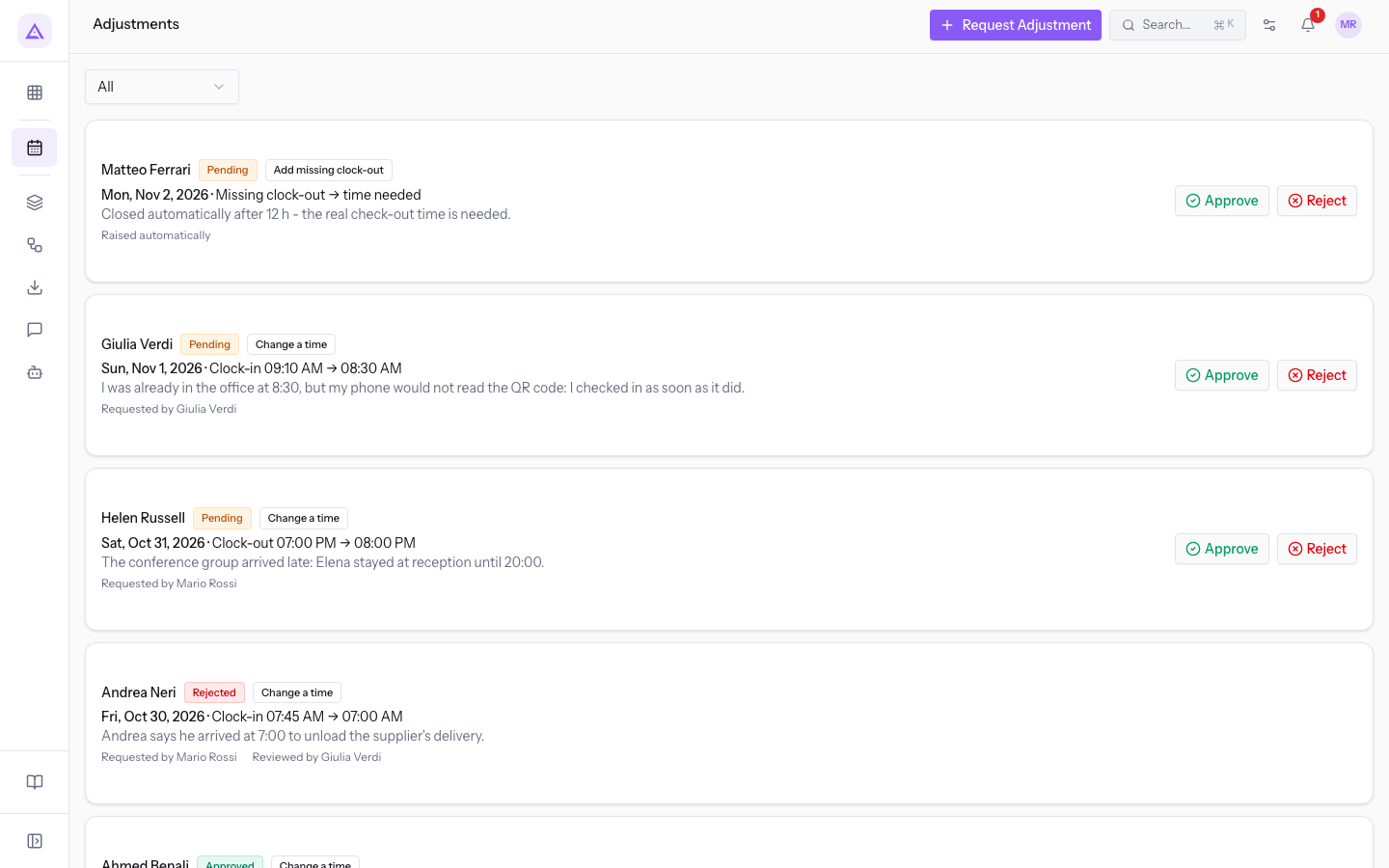
A session still open after the set period is closed automatically and flagged for review. The manager resolves it with Approve with the real time.
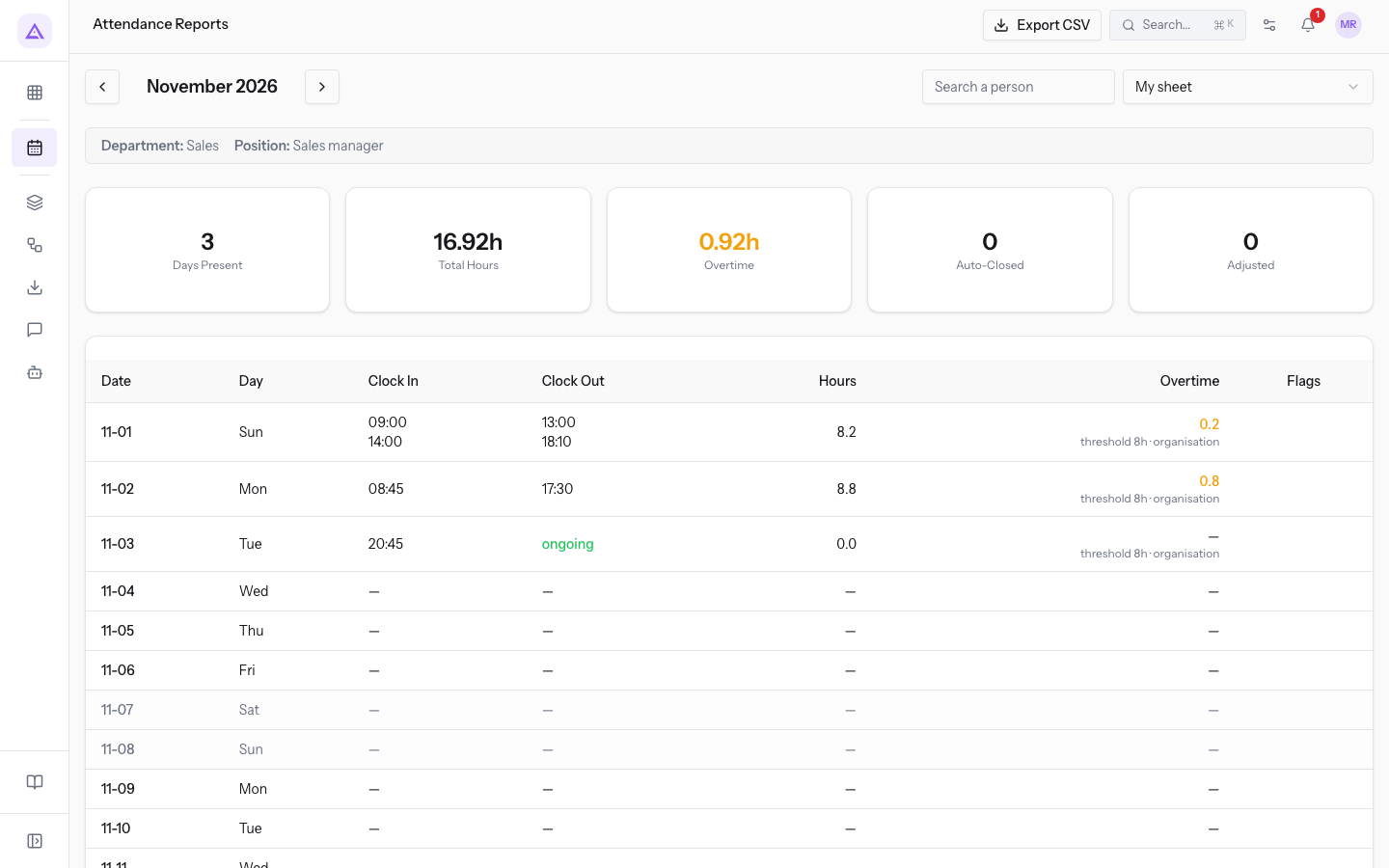
Reports opens the Attendance Reports screen with the timesheet for the month. The Person field suggests My sheet and the other people. Export CSV downloads the data for month-end closing.
Configure the module
Before you start: these screens require the Administrator group.
The screens in the SETTINGS group decide where, how and under which rules time is recorded.
Locations lists the work locations with the check set, the address, the coordinates and the Assigned people. A new location is created with Add Location. The check is chosen based on the verification you want to do.
- None (Self-service): no location verification.
- QR Code (TOTP): the person scans the QR code on the location display, which changes every 30 seconds. At clock-in the system also checks that the person is within the location area.
- Geofence: the system checks that the person is within the location area, defined by Geofence Radius (m).
- QR + Geofence: applies both checks.
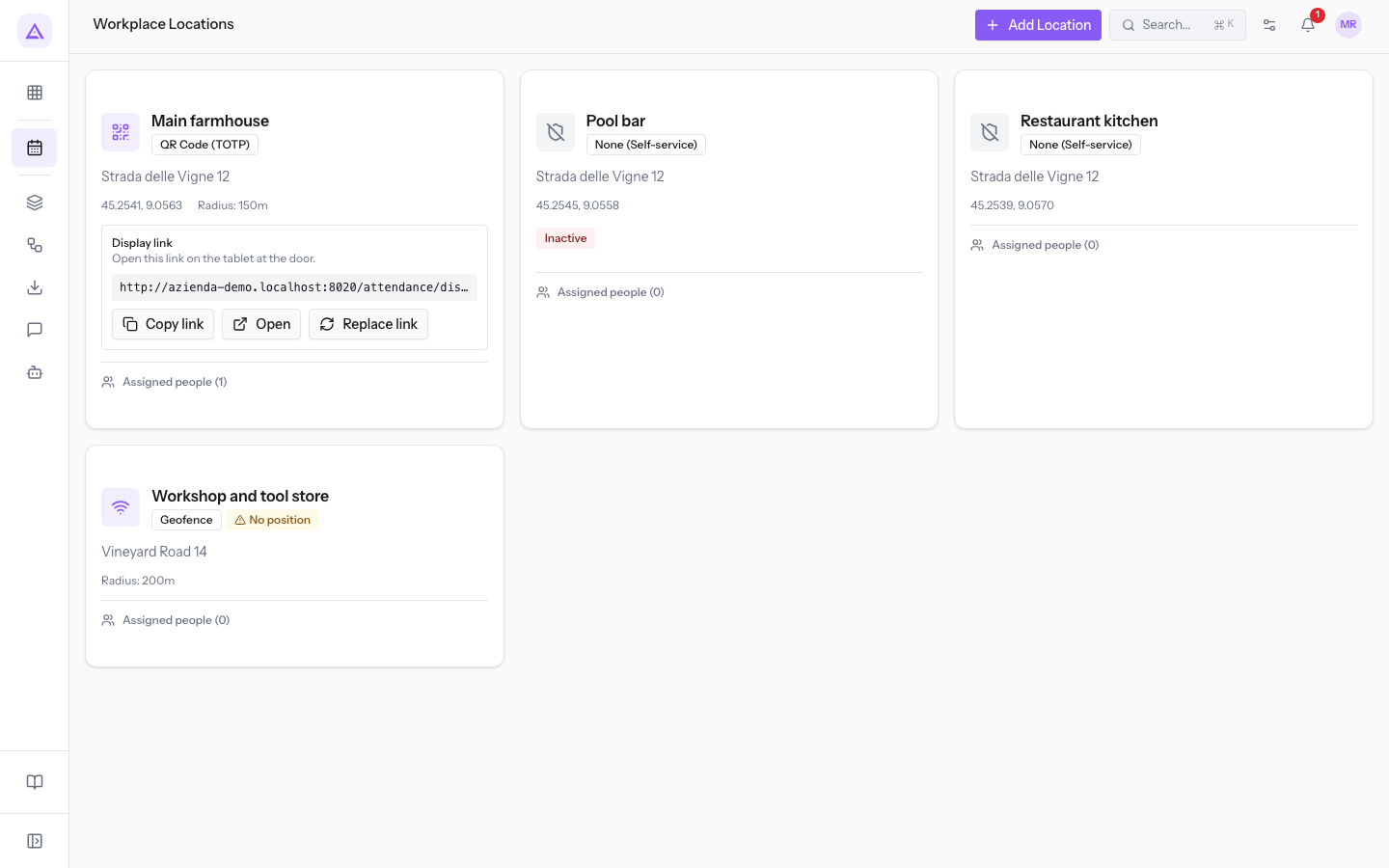
Someone assigned to a location can clock in only at the assigned locations and goes through the check of each. Someone not assigned to any location is not bound to any check.
Important: a location with the location check but no position rejects staff until the position is set. This is the case for
Workshop and tool store.
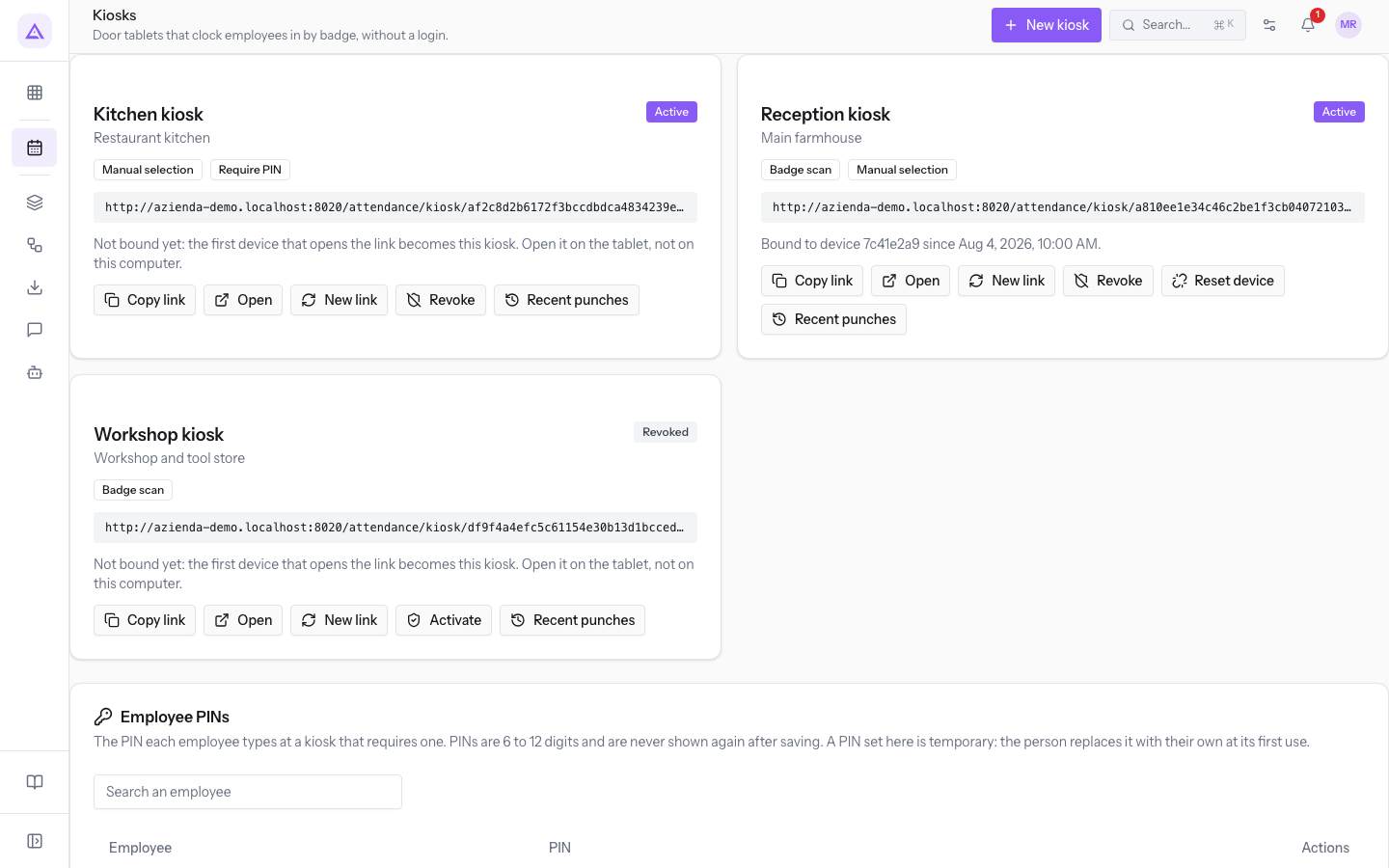
Kiosks lists the kiosks with location, identification, link and status. A new kiosk is created with New kiosk, entering Kiosk name, Site and how people identify themselves: Badge scan, Manual selection, Require PIN. The first device that opens the link becomes the kiosk: open it on the tablet, not on the computer. The same screen manages the Employee PINs.
Attendance rules opens the Attendance Settings screen. The rules have an Organisation default, which a single location can override. They cover rounding, break, overtime, shift tolerance, minimum session, Maximum sessions per day, automatic closing, the value credited to an unrecorded clock-out, Require a clock-out and Allow manual entry. Restaurant kitchen has its own rules: overtime after 540 minutes and automatic closing after 14 hours.
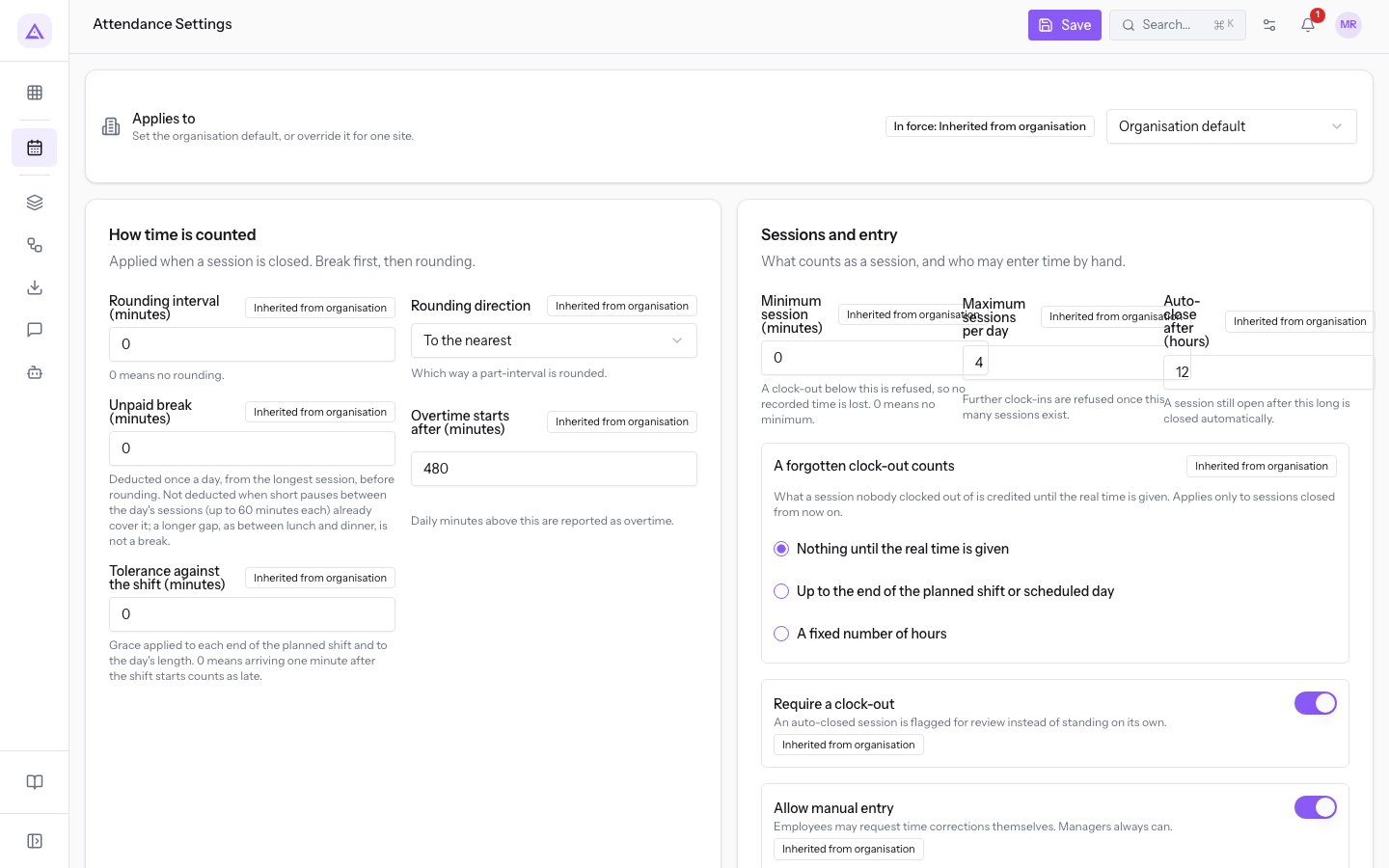
Note: the rules are not retroactive. A change applies to sessions closed from the day it is made. Sessions already closed keep their recorded totals.
Recording Modes sets in Everyone the modes available to anyone without an exception. With Add a person you assign a person a different set. Giulia Verdi has Workplace QR and Declared hours as her exception. At least one mode must stay active.
Rules to keep in mind
These rules apply to the whole module and explain the messages that appear when recording.
- Punches cannot be edited. Attendance is the record the Libro unico del lavoro is compiled from, and must be kept for five years. Every change goes through an adjustment.
- With attendance closed up to a date, a day within the period cannot be recorded until the administrator reopens the period.
- Once the Maximum sessions per day is reached, further clock-ins are rejected. A manager can still record the service as an adjustment.
- A login without an employee record records nothing, because the hours would not reach the monthly timesheet. The login must be linked to the employee record.
- The device position is read only at the moment of clocking. Position, IP address and device data are kept for twelve months.
Links with other modules
The module also works on its own: Human Resources and Projects are optional.
- Human Resources: the employee record identifies who clocks in at the kiosk without a login, and the reporting line decides who approves. Without the module active, approvals apply to the whole organisation. The declared hours panel is also available in the personal area.
- Projects: declared hours can refer to a project and a task, such as
Studio Bianchi office fit-out. - Shifts: the tolerance applies to the ends of the planned shift. A session without a clock-out can be credited up to the end of the planned shift.
- Payroll: when a day's payroll is closed, the employee is redirected to Human Resources.
See it on your company, not on a slide deck.
In 30 minutes we map the software you use today.We show you how much work and how much margin Archimedes gives back.
Show me on my business →What industry are you in?
One tap — it lets us prepare the demo around your world.
What tools do you use today?
Pick the ones you recognise — or just type them. It helps us show you how they migrate.
Last step: your details.
We reply within one working day — and right after, if you like, you pick the demo slot yourself.
We couldn't send your request. Try again, or write to us at [email protected].
By sending, you agree to your data being processed so we can get back to you about the demo. Privacy notice.
Preview form — nothing is sent from this page.
Want to schedule the demo now?
Your call: book the slot you prefer yourself, or we'll call you to arrange it.
Live availability, 30 minutes, instant confirmation. The calendar opens in a new tab.
Lock in your slot ↗We'll get back to you within one working day — and we'll join the call already knowing your world.
The calendar is open in another tab: pick a slot and the demo is booked. Can't see it? Reopen it ↗
Preview page: nothing was sent.
Our calendar is live: take the slot that suits you and the demo is booked. 30 minutes, instant confirmation, no waiting.
Lock in your slot ↗