Directory
All modules
Directory
Directory · 1 of 13 · 7 min read
The Directory module is used to build a public directory of local businesses from the back office and publish it on the organization's public site. In the demo it is a directory of suppliers for weddings and events: florists, photographers, wineries and musicians.
How it works
The directory is based on three elements.
- Listing: the description of a business, with address, coordinates, contacts, opening hours, services and photos. In the demo organization, the listings are the suppliers, for example
Fiori di CampoorTicino Vineyard Cellar. - Services and amenities catalogue: the entries from which listings choose their service types and amenities. On the public site, the catalogue becomes the search filters.
- Badge: the organization's quality badge, which the public site shows on the listings that have it. In the demo it is called
Recommended by us.
The module is not tied to any industry. The public site names the listings using the names chosen in the settings: in the demo supplier and fornitori, with public pages such as /fornitori/bereguardo/fiori-di-campo.
Who can do what
The module has two access levels.
- Operator: creates and edits listings, that is data, hours, photos, services and status. Does not edit the catalogue or the settings, does not grant the badge, and cannot delete listings.
- Manager: has all the operator's permissions. In addition, grants and revokes the badge, manages Services and amenities and Directory settings, and deletes listings.
Note: the Services and amenities and Directory settings entries appear in the menu only for managers.
The menu entries
Open the module from Directory. The menu has these entries:
- Directory › Listings: the list of listings and the detail of each one.
- Directory › Services and amenities: the catalogue of service types and amenities.
- Directory › Directory settings: the names, the public address, the badge, the language and the landing page copy of the public directory.
The list of listings
The list shows all the listings of the public directory, in any status.
- Open Directory › Listings.
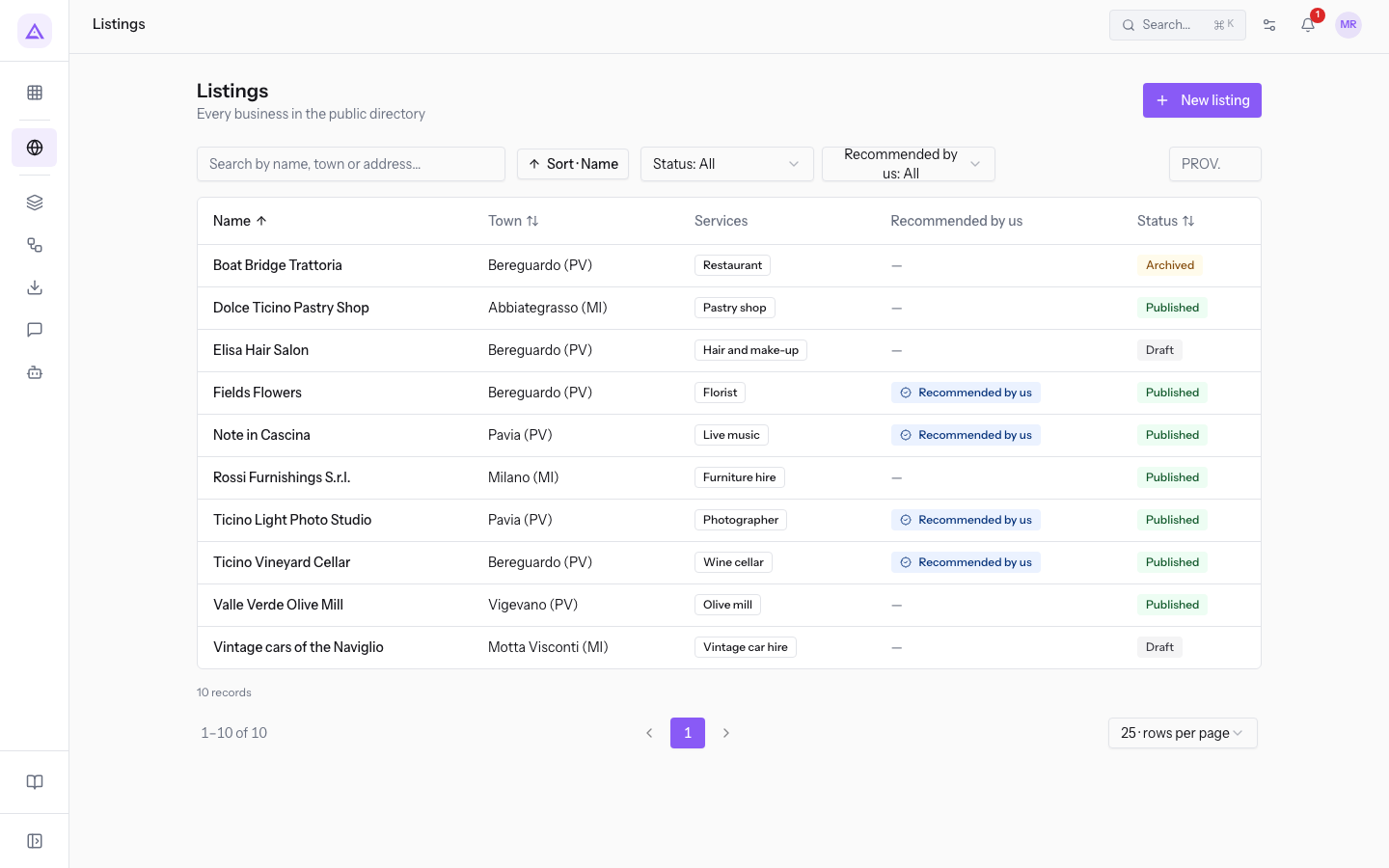
On the screen you will find:
- Search by name, town or address…: the search in the list.
- Status: filters the listings by status.
- Recommended by us: filters the listings with or without the badge. The filter takes the name of the badge chosen in the settings.
- PROV.: filters the listings by province code.
- New listing: creates a listing.
The columns are Name, Town, Services, Recommended by us and Status. You can sort the list by name, town or status. Press a row to open the listing.
The listing
A listing collects the data of a business. When you create a listing with New listing, enter at least Name and Town, which are required, then press Create: the listing is created as Draft.
The listing contains:
- Address and position: Address, Postal code, Town, Province and Region, plus Latitude and Longitude in decimal degrees. In the listing, the coordinates are a link that opens the point in OpenStreetMap.
- Contacts: Phone, Email and Website.
- Description and External reference, a code that links the listing to an external source, for example
GUIDA2025-14forAcconciature Elisa. - Opening hours: zero or more intervals per day, with opening time and closing time.
- Services: the entries chosen from the catalogue.
- Photos: the gallery of the listing. The first photo is the Cover.
The listing statuses are Draft, Published and Archived. You change the status with the listing's buttons: Publish appears on Draft and Archived listings, Archive on Published listings, Back to draft on Archived listings. The badge is granted and revoked with two buttons that carry the badge name; in the demo, Grant “Recommended by us” and Revoke “Recommended by us”.
Choose the button based on what you want to achieve:
- If the listing is complete and must appear on the public site, press Publish. In the demo,
Acconciature Elisais the draft ready to publish. - If the business has closed, press Archive, as for
Boat Bridge Trattoria. - If an archived listing needs review before going back to the public site, press Back to draft.
- If the listing must no longer exist, the manager presses Delete: the listing disappears from the public site.
The Services and amenities catalogue
The catalogue collects the entries from which listings choose; the public search turns them into filters.
- Open Directory › Services and amenities.
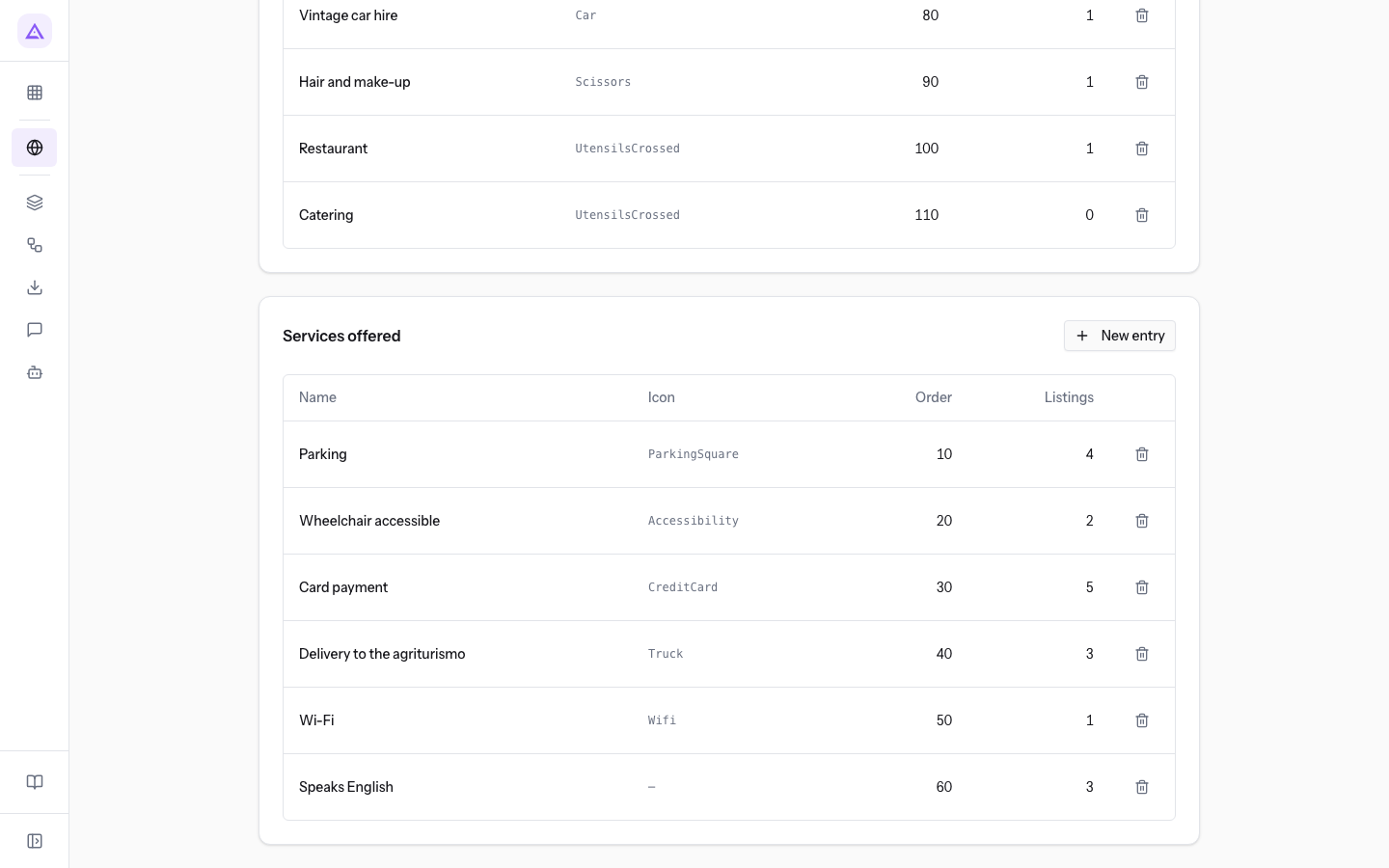
The entries are divided into two groups: the service types, which in the demo have the heading Supplier type (such as Florist, Photographer, Wine cellar), and the amenities, which in the demo have the heading Services offered (such as Parking, Wi-Fi, Card payment). For each entry the table shows Name, Icon, Order and the number of Listings that use it. With New entry you add an entry to the group.
Important: if you delete an entry, it is removed from all the listings that carry it. In the demo,
Cateringis not used by any listing.
The directory settings
The settings decide how the public site presents the directory.
Before you start: the settings are reserved for managers.
- Open Directory › Directory settings.
- Edit the fields and press Save.
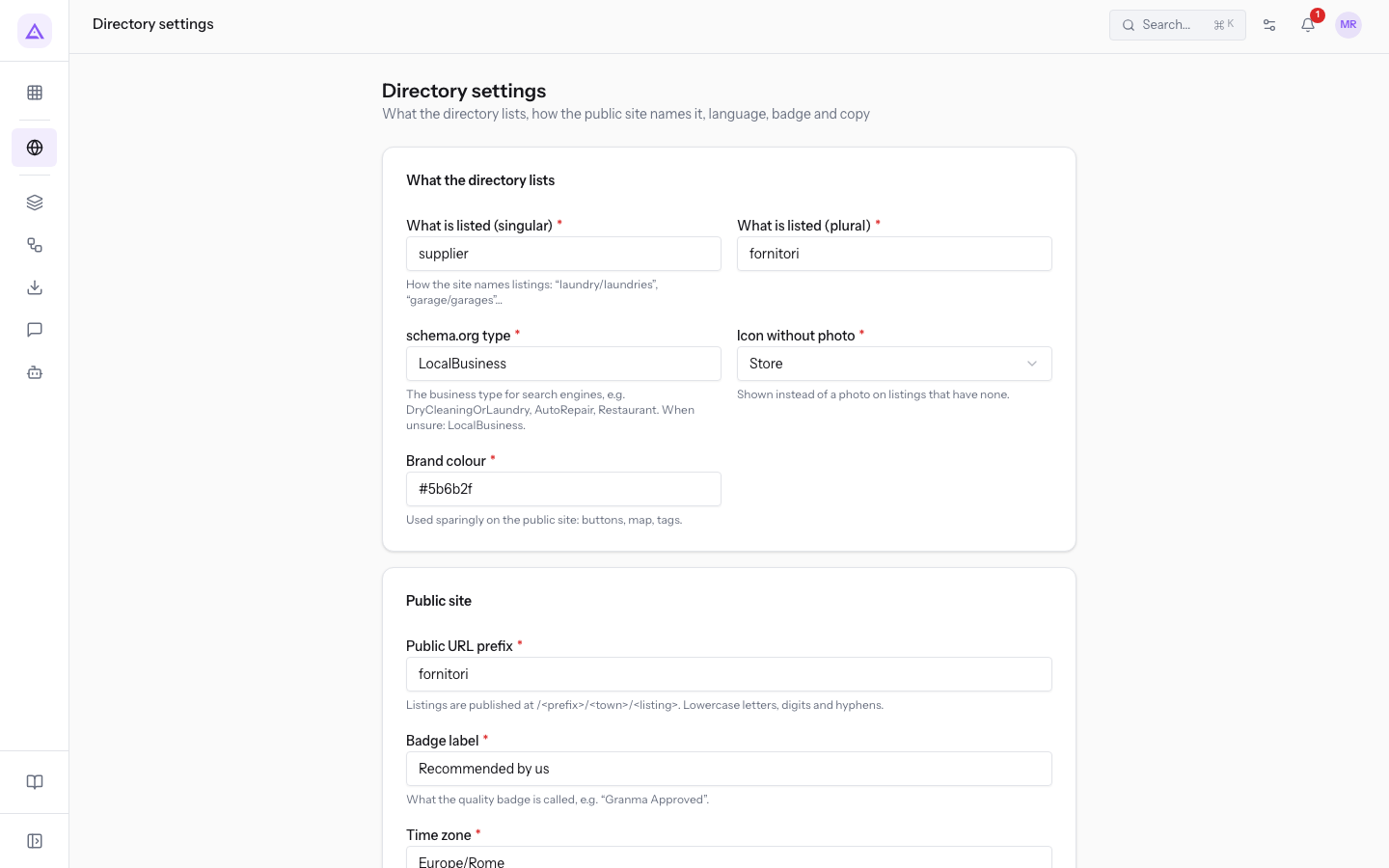
- What is listed (singular) and What is listed (plural): how the public site names the listings, in the demo
supplierandfornitori. They are required. - schema.org type: the type of business for search engines, in the demo
LocalBusiness. The field is required. - Icon without photo: the fallback icon for listings without a photo. The public site shows the initials of the listing's name and uses the icon only if no initials can be taken from the name. The field is required.
- Brand colour: the colour used on the public site for buttons, map and labels, in the demo
#5b6b2f. The field is required. - Public URL prefix: the first part of the address of the public pages, followed by the town and the listing. It accepts lowercase letters, digits and hyphens. In the demo it is
fornitori. The field is required. - Badge label: the name of the quality badge, in the demo
Recommended by us. The field is required. - Time zone: used to tell visitors whether a business is open right now, in the demo
Europe/Rome. The field is required. - Public site language: Italian or English. The field is required.
- Directory landing on the home page: shows the directory landing page at the root of the public site when no CMS page occupies it.
- Service types heading and Amenities heading: the headings of the public search filters, in the demo
Supplier typeandServices offered. They are required. - Tagline, Title, Lead and Cover image: the copy of the landing page. If you leave the texts empty, the public site uses the default copy, built from the names chosen for the listings. If the image is empty, the landing page shows the map.
The rules that matter
- The public site shows only Published listings. Draft and Archived listings are not visible.
- The badge is not changed by editing the listing: it is granted and revoked only with the dedicated buttons, and only a manager can do it.
- The public address of the listing is generated at the first save and does not change if you rename the listing, so already published links stay valid.
- Published on is set at the first publication and is not reset if the listing returns to draft.
- Without coordinates the listing does not appear on the map or in "near me" searches. Without hours the public site shows them as unavailable. Without photos the public site shows a placeholder.
- An interval whose closing time is equal to or earlier than the opening time runs past midnight and is marked (+1), for example
Note in Cascinaon Friday and Saturday. - The Region is calculated from the Province, which is written as a two-letter code.
Links with the other modules
- CMS: the module requires the CMS module. The public pages of the directory are served by the organization's public site. With Directory landing on the home page the directory occupies the root of the public site only if no CMS page is already in that position.
- Contacts: the module requires the Contacts module.
- The public site of the directory responds only if the module is active for the organization.
See it on your company, not on a slide deck.
In 30 minutes we map the software you use today.We show you how much work and how much margin Archimedes gives back.
Show me on my business →What industry are you in?
One tap — it lets us prepare the demo around your world.
What tools do you use today?
Pick the ones you recognise — or just type them. It helps us show you how they migrate.
Last step: your details.
We reply within one working day — and right after, if you like, you pick the demo slot yourself.
We couldn't send your request. Try again, or write to us at [email protected].
By sending, you agree to your data being processed so we can get back to you about the demo. Privacy notice.
Preview form — nothing is sent from this page.
Want to schedule the demo now?
Your call: book the slot you prefer yourself, or we'll call you to arrange it.
Live availability, 30 minutes, instant confirmation. The calendar opens in a new tab.
Lock in your slot ↗We'll get back to you within one working day — and we'll join the call already knowing your world.
The calendar is open in another tab: pick a slot and the demo is booked. Can't see it? Reopen it ↗
Preview page: nothing was sent.
Our calendar is live: take the slot that suits you and the demo is booked. 30 minutes, instant confirmation, no waiting.
Lock in your slot ↗