Payments
All modules
Payments
Payments · 1 of 5 · 5 min read
The Payments module connects Archimedes to online payment providers and records the resulting transactions. For example, you can charge a customer invoice by card, collect a sales order via a link, or track payments received during the month.
What it's for
The module has three purposes.
- Configure payment providers — the services that receive money on your behalf — with their live and test keys.
- Receive online payments for invoices and orders: the customer opens a link, chooses a provider, and pays, without logging into the application.
- Track transactions and, if the provider supports it, capture or void an authorised payment.
How the customer pays from the link, and what they see after paying, is explained in Receive an online payment with the payment link.
The amount to pay is never chosen by the customer: the system calculates it based on the invoice balance, or the balance or deposit of the order.
The Payment Settings screen
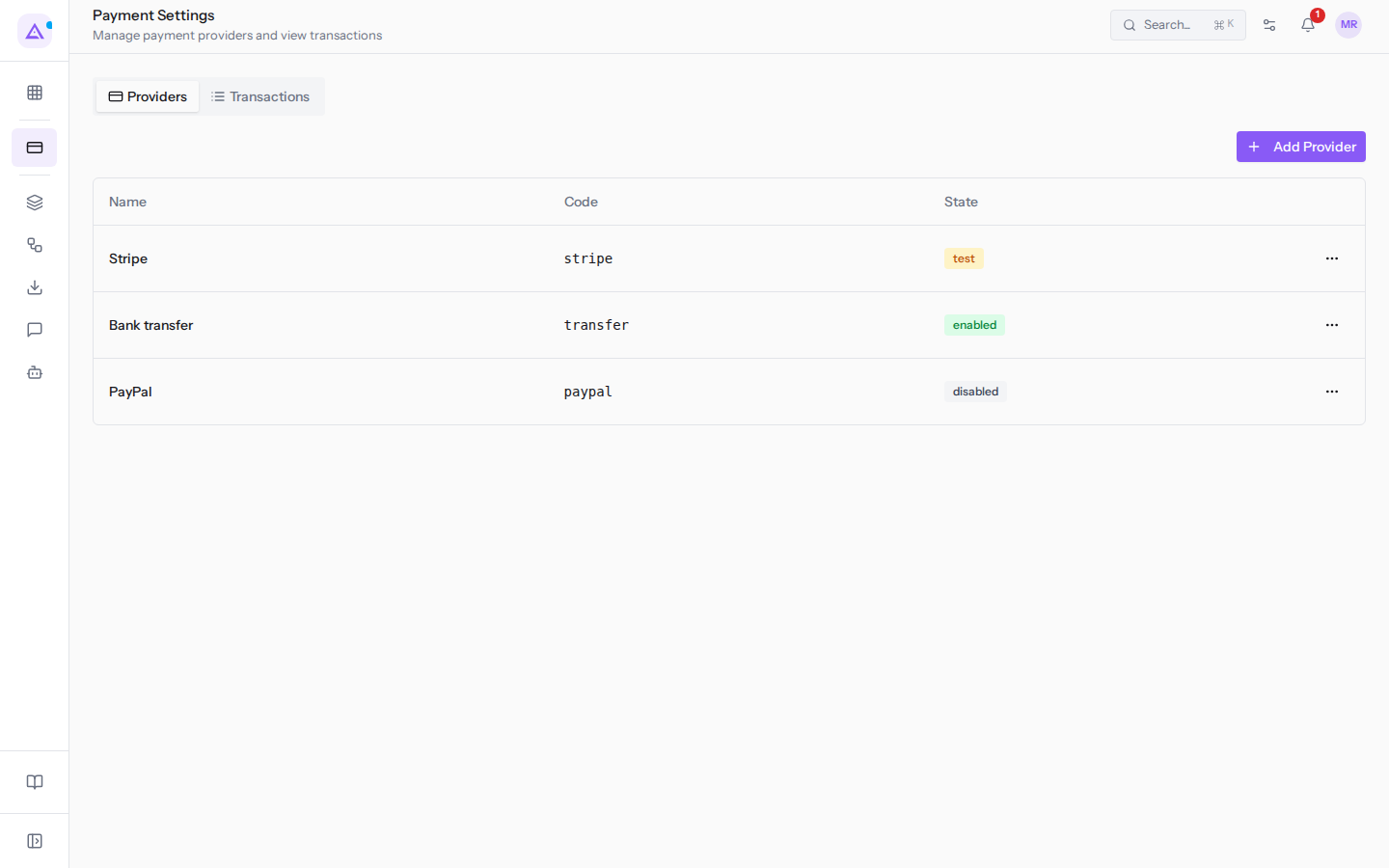
The entire module is managed from a single screen, Payment Settings, with the subtitle Manage payment providers and view transactions. The screen has two tabs: Providers and Transactions.
The Providers tab
The Providers tab lists the configured providers, with columns Name, Code, and State. For example Stripe (stripe), Bank transfer (transfer), and PayPal (paypal). The State column currently shows the technical English value instead of a readable label: test for Test Mode, enabled for Enabled, disabled for Disabled. If no providers are configured, the message No payment providers configured appears.
To add one, use Add Provider. The window contains Name, Code, State, and the provider's keys. To edit or delete a provider, open the ⋯ menu on its row and choose Edit or Delete: deletion asks for confirmation with Delete this provider?.
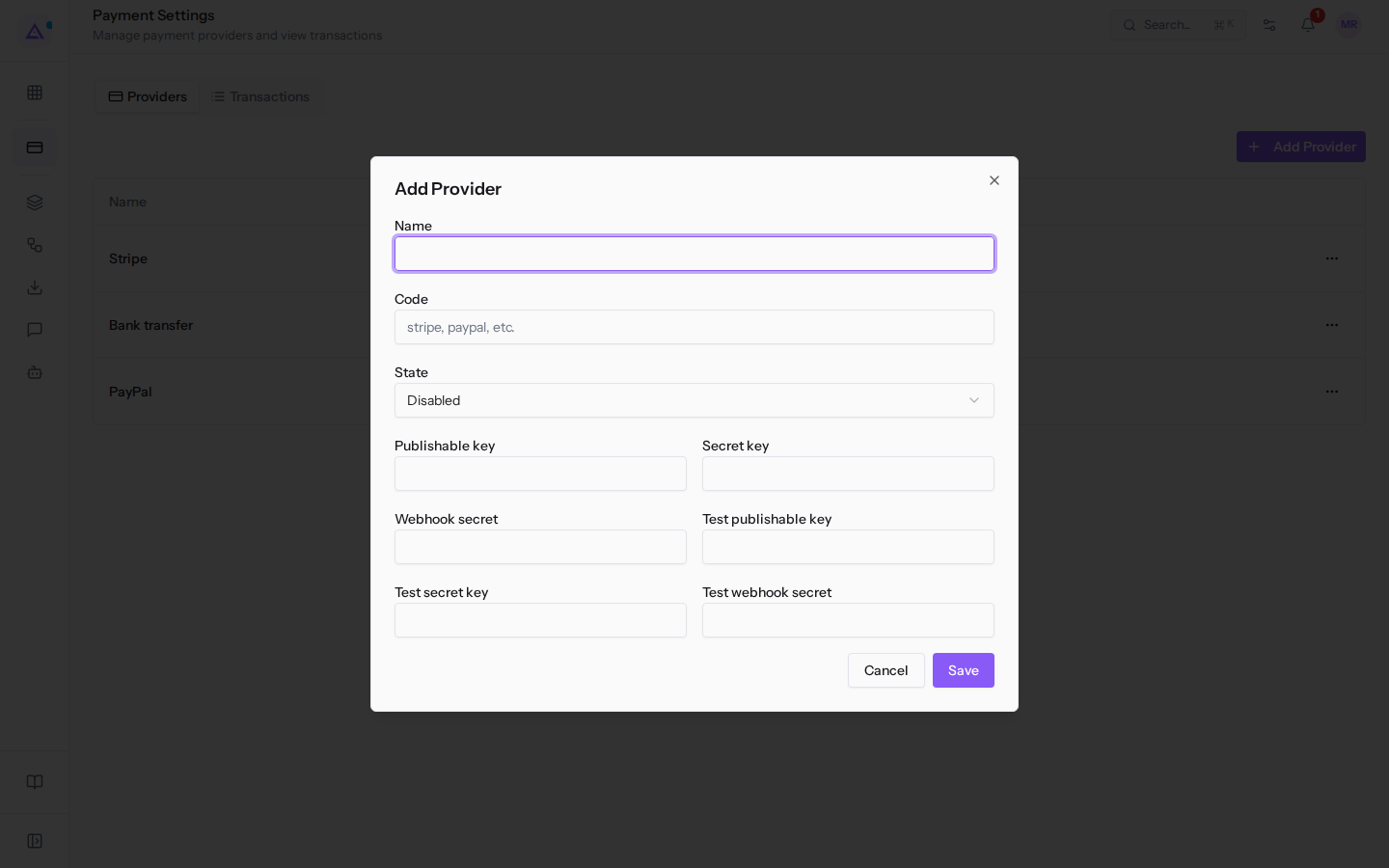
The State field determines whether the provider can receive payments:
- Disabled: the provider does not receive payments. This is the default value, so a newly created provider will not collect payments until you change its state.
- Enabled: the provider receives real payments and uses the live keys (Publishable key, Secret key, Webhook secret).
- Test Mode: the provider receives test payments and uses the test keys (Test publishable key, Test secret key, Test webhook secret).
If you want to try out payment before opening it to customers, choose Test Mode. If you want to actually collect money, choose Enabled.
Note: secret keys and webhook secrets are saved encrypted and are no longer shown after saving.
Important: the Code must correspond to a payment service available for your organisation. Otherwise, payments to that provider are rejected.
Details are in Configure payment providers.
The Transactions tab
Every payment attempt is a transaction. The reference is assigned automatically in the format TX/year/number, for example TX/2026/00001. A refund is a new transaction linked to the original one.
The Transactions tab lists transactions with Reference, Amount, Provider, State, and Date. As with providers, the State column shows the technical English value (draft, pending, authorized, confirmed, canceled, error), and the Date column uses the format of the browser's language. You can filter them with Today, This week, This month, or This year, or specify a range with From and To and then Apply. If there are no transactions, No transactions appears.
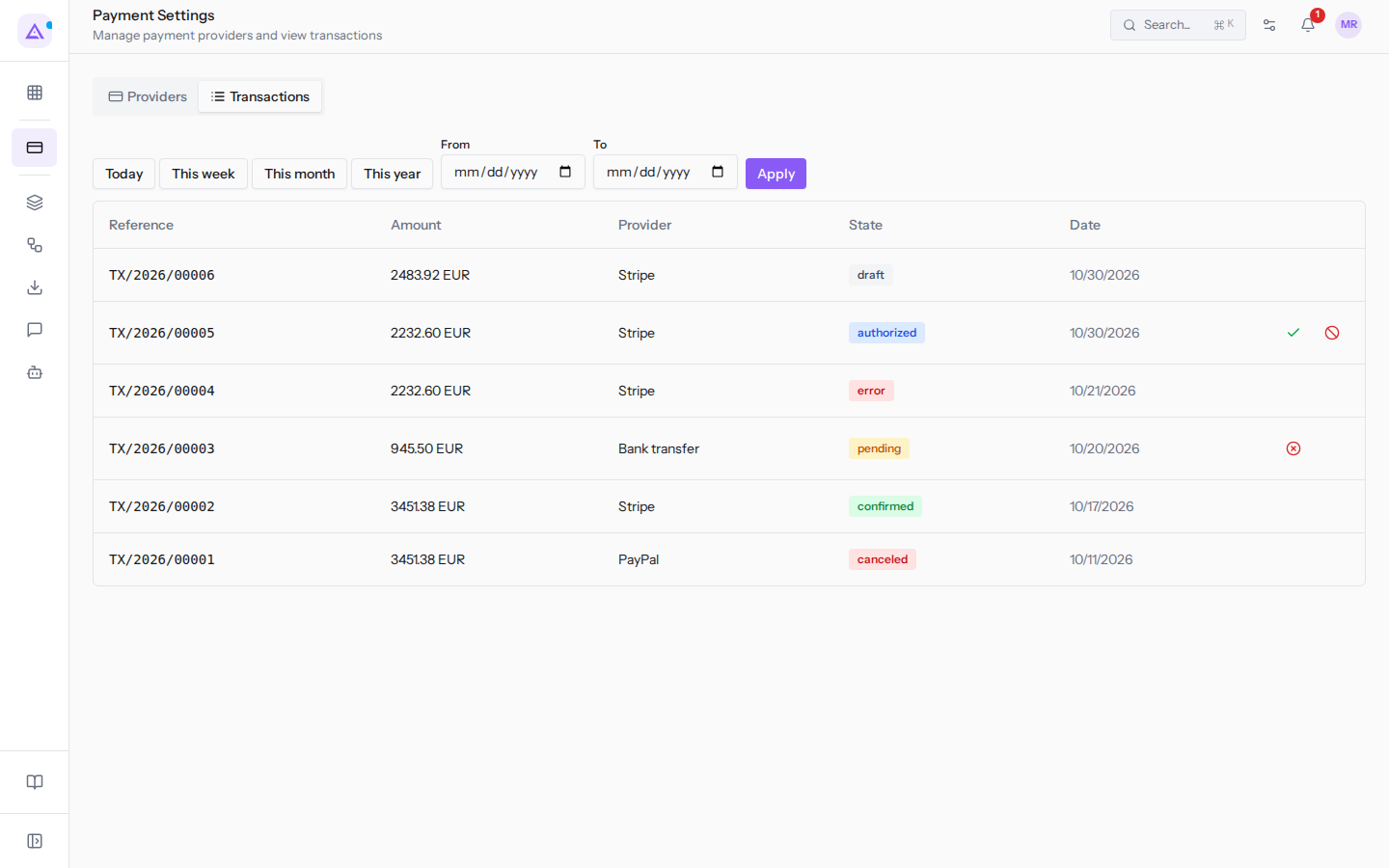
Only a confirmed transaction counts as collected — that is, when the provider communicates that the money has arrived. A pending or authorised transaction does not reduce the order balance.
On an authorised transaction you have two actions:
- Capture: opens the Capture payment window. In the Amount to capture field you can specify a partial capture; leave it empty to capture the full authorised amount.
- Void: releases the held funds, after the confirmation Void this authorization? The held funds will be released..
To capture or void an authorisation, the Payment Manager group is required, and the provider must support manual capture.
Details are in Track payment transactions and in Capture or void an authorised payment.
Who can do what
The module provides two levels of access.
- Payment User: can view providers and transactions, but cannot modify them.
- Payment Manager: creates, edits, and deletes providers, cancels pending transactions, and can capture — including partially — or void an authorised transaction.
Each user sees only the providers and transactions for their own organisation. To assign levels, see Access profiles — who sees what.
Links with other modules
- Invoicing: you can only pay online a posted customer invoice — not a pro forma — with an outstanding balance. The amount charged is the balance. A confirmed transaction is reconciled in accounting.
- Sales: you can pay a sales order online. The amount is the total minus what has already been collected; if the quote requires a deposit, the deposit is charged. A confirmed payment on a quote confirms it.
- Contacts: every transaction is linked to the customer of the invoice or order.
Cancelled orders, expired quotes, quotes replaced by a more recent revision, and already-paid orders cannot be paid. This way, an old link cannot confirm an offer that is no longer valid.
If an order already has an authorised transaction, it cannot be paid a second time. If the previous attempt is pending instead — for example after a card error — the new payment reuses the same transaction.
See it on your company, not on a slide deck.
In 30 minutes we map the software you use today.We show you how much work and how much margin Archimedes gives back.
Show me on my business →What industry are you in?
One tap — it lets us prepare the demo around your world.
What tools do you use today?
Pick the ones you recognise — or just type them. It helps us show you how they migrate.
Last step: your details.
We reply within one working day — and right after, if you like, you pick the demo slot yourself.
We couldn't send your request. Try again, or write to us at [email protected].
By sending, you agree to your data being processed so we can get back to you about the demo. Privacy notice.
Preview form — nothing is sent from this page.
Want to schedule the demo now?
Your call: book the slot you prefer yourself, or we'll call you to arrange it.
Live availability, 30 minutes, instant confirmation. The calendar opens in a new tab.
Lock in your slot ↗We'll get back to you within one working day — and we'll join the call already knowing your world.
The calendar is open in another tab: pick a slot and the demo is booked. Can't see it? Reopen it ↗
Preview page: nothing was sent.
Our calendar is live: take the slot that suits you and the demo is booked. 30 minutes, instant confirmation, no waiting.
Lock in your slot ↗