Shifts
All modules
Shifts
Shifts · 1 of 16 · 8 min read
The Shifts module is used to plan who works, when, in which role and at which location. You can use it, for example, for the dining room and kitchen of a restaurant, for the reception desk of an accommodation facility, or for the staff of an event.
What it is for
Each shift is a period of work for a person on a given day. It has a date, a start time, an end time, a role, a location, and notes.
The module covers all scheduling work:
- preparing the week on a grid with people and days;
- checking conflicts;
- publishing the plan to staff;
- managing open shifts and shift change requests;
- comparing the people planned against the coverage target;
- tracking labour cost and the budget;
- comparing planned hours against clocked hours.
Some rules apply throughout the module:
- If the end time is equal to or earlier than the start time, the shift crosses midnight and ends the following day. For example, a shift from 22:00 to 06:00 lasts 8 hours.
- A shift is never derived from the contracted schedule. If you change an employee's working hours, already-recorded shifts do not change.
- The plan remains a draft until you publish it. Published rota shows only the published plan.
Who uses it
The module distinguishes three usage profiles.
- Shift managers prepare the week, publish it, and decide on change requests. For example, requests are decided by Giulia Verdi.
- Staff see their published shifts, take open shifts, and request to drop or swap one of their shifts.
- Those who control costs see the labour cost, budgets, and cost settings.
There are three permissions: Shift Planner plans shifts and manages roles without the ability to delete; Shift Manager gives full access, including deletion and publishing; Shift Labour Cost gives access to labour costs and no planning power.
Important: full access to shifts does not grant access to costs. Planning the week and seeing how much it costs are two distinct permissions: all other planning functions work even without access to labour costs.
The Shifts menu only appears for those with Shift Planner or Shift Manager. Those without them open the staff pages from their address, for example /shift/open for open shifts and /shift/requests for requests.
Menu items
The module opens from Shifts. The menu items are as follows.
- Shifts › Planning: the weekly grid, where you create, move, and check shifts.
- Shifts › Team › Published rota: the published plan, person by person, as read by staff.
- Shifts › Team › Open shifts: the board of shifts offered to staff.
- Shifts › Team › Shift requests: drop and swap requests.
- Shifts › Team › Coverage: the staffing target by band, role, and location.
- Shifts › Team › Publications: published versions of the plan.
- Shifts › Team › Planned vs worked: the comparison between published shifts and clock-ins.
- Shifts › Settings › Roles, Shifts › Settings › Templates, Shifts › Settings › Labour budgets and Shifts › Settings › Cost settings: module settings.
Planning
The Shift planning screen shows the entire week for a location: rows are people, columns are days.
- All locations: the location filter. Choose a location, for example
Casale principale, or leave all locations. - The ‹ and › arrows move the grid by one week; This week returns to the current week.
- Repeat week: copies the shifts of one week onto another. It does not create shifts on days with approved leave or closures, and does not duplicate shifts already present; what is skipped is listed after the copy. The copy remains a draft.
Click an empty cell to add a shift and drag a shift to move it. A shift without a person is an open shift: with Offer this shift to staff it appears immediately in the Open shifts board, without publishing the period.
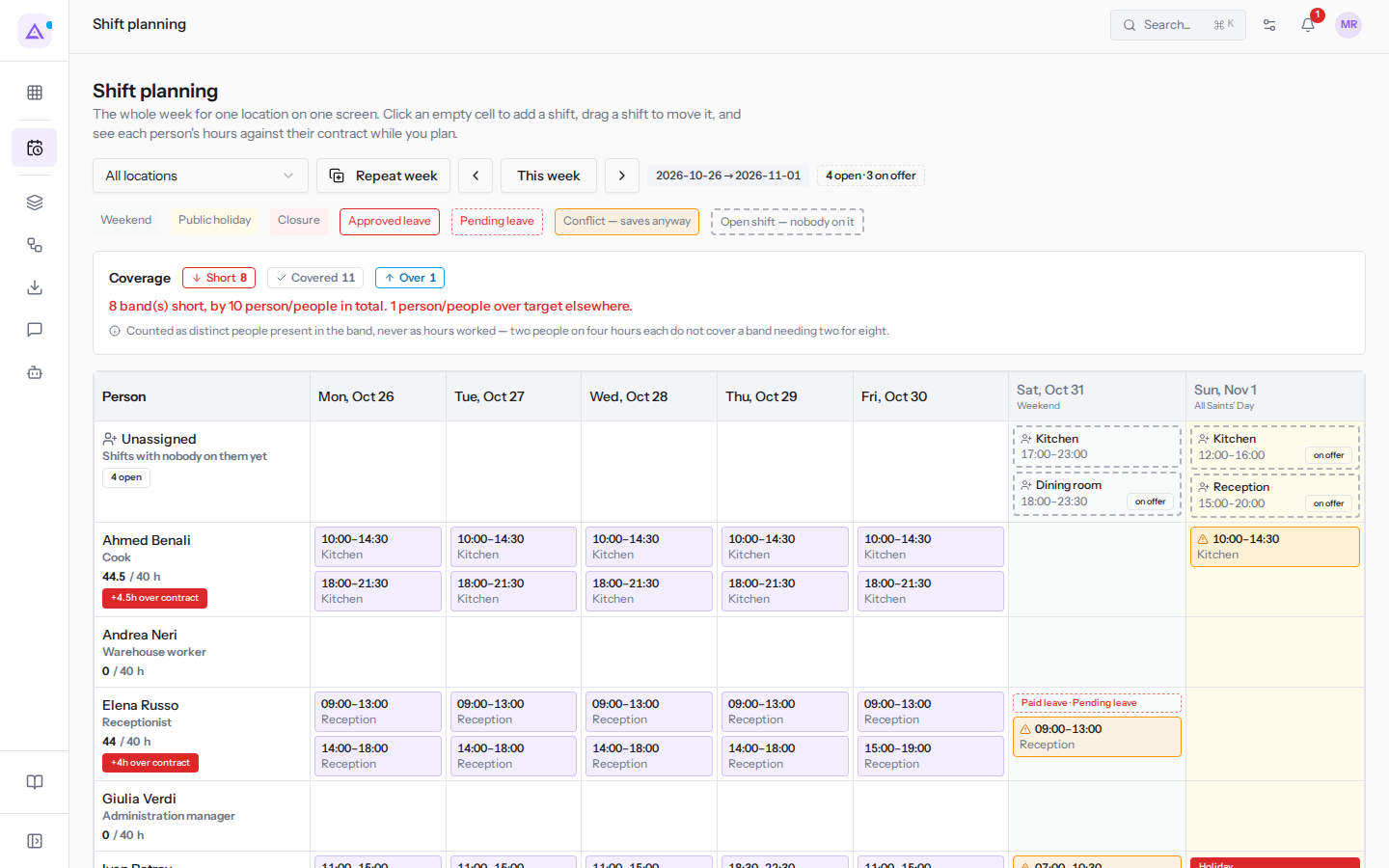
The grid signals each person's conflicts: Approved leave, Pending leave, overlaps with another shift at any location, closures and public holidays, insufficient rest between shifts on different days, and hours beyond the contract. It also shows the comparison with the coverage target, with the bands Covered, Short, or Over.
Note: a conflict never blocks saving. If you save anyway, the shift records the choice, with the author and the conflict types.
Below the grid you find What the week already holds, with data from other active modules, for example Rooms occupied, Arrivals and Appointments booked.
Publications
A publication is a copy of the plan for a period, for a location or for the entire organisation. It is what was communicated to staff.
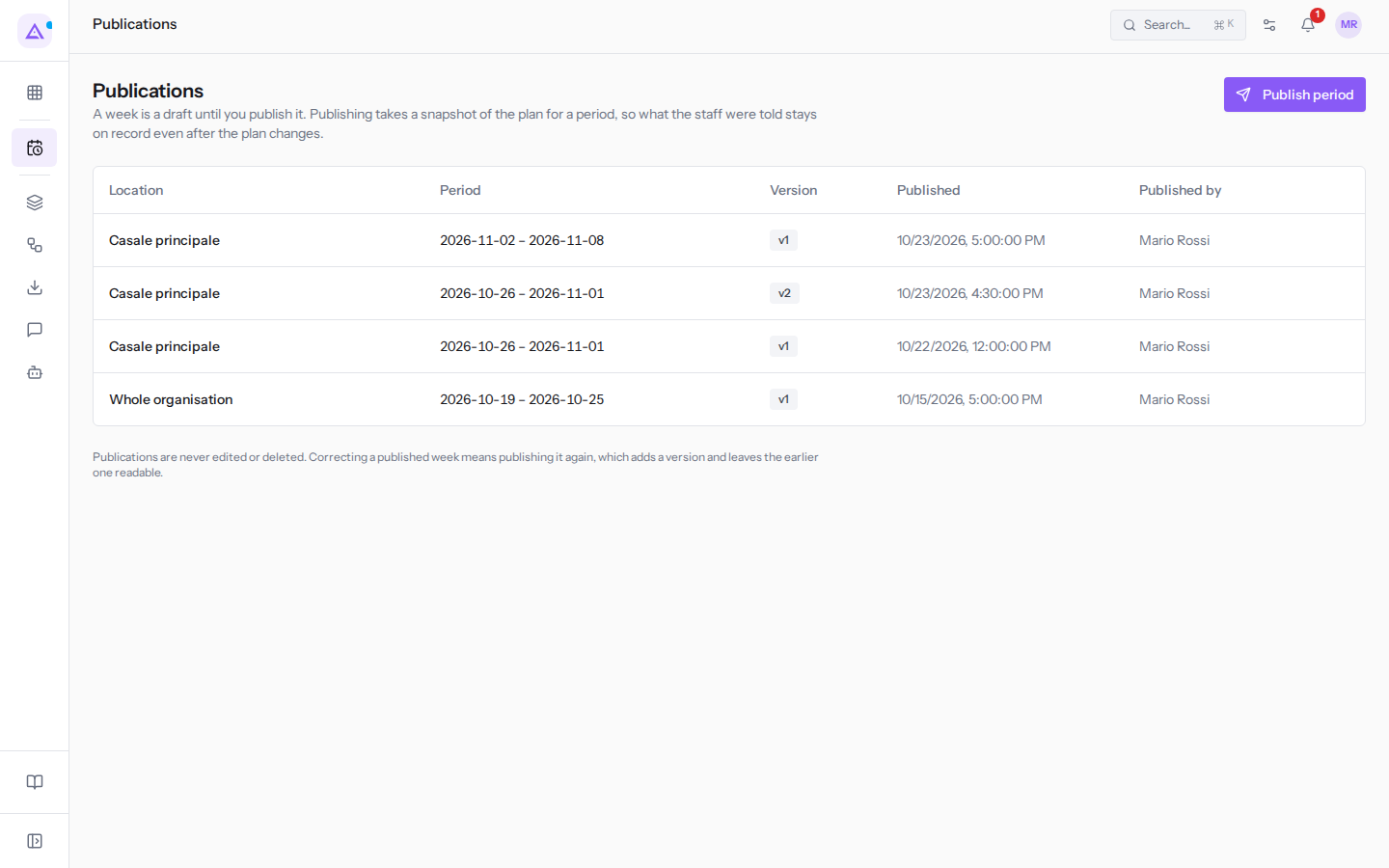
- Use Publish period, choose the location and period, preview, and confirm.
- A publication cannot be modified or deleted. If you publish the same period again, the system creates a new version and the previous one remains accessible.
- Each version shows What the staff were told and How the plan has changed since: each shift is Unchanged, Changed, Removed, or Added.
- A coverage shortage does not prevent publication.
For example, this week Casale principale is published in version 1 and 2 and the plan has since been modified.
Published shifts, open shifts, and requests
These screens are for staff after publication.
- Published rota: the published plan, person by person. Changes not yet published do not appear here. The Everyone filter selects which people to show. Staff can also see their shifts in the My shifts section of the personal area of the Employees module.
- Open shifts: shifts offered for the week. With Take this shift the shift is assigned to the person and the plan updates for everyone. If the shift overlaps with an existing shift in the person's week, the screen shows You cannot take this one.
- Shift requests: in the Ask for a change section the person selects the type in What are you asking for, for example Drop, one of their shifts in Your shift and a Reason, then clicks Send request. A swap must be accepted by the colleague with Accept the swap; then the manager decides with Approve or Refuse.
An approved drop puts the shift back among the open shifts, already offered to staff. An approved swap swaps the people of the two shifts. A pending or refused request does not change the plan. For details read Approve or decline shift requests.
Coverage and Planned vs worked
The Coverage targets screen shows how many people of a role are needed in each band, per location.
- Weekly norm: the target for each day of the week, created with New target.
- Dated exceptions: the target for a single date, created with New exception. The exception never modifies the norm.
- Distinct people present in the band are counted, not hours worked.
Note: to define a target, at least one role must exist in Shifts › Settings › Roles.
The Planned vs worked screen compares, in the period between From and To, the clock-ins from the Attendance module against the published shift, not the current plan. The difference is in signed minutes, with no grace period. The results are As planned, Late or early, Not worked (with Never clocked) and No shift planned. For details read Comparing published shifts with clocked hours.
Settings
The module settings are in four menu items.
- Shifts › Settings › Roles: the operational roles, for example Dining room, Kitchen and Reception. Create a role with New role. A role cannot be deleted: deactivate it with the Active toggle. A retired role disappears from new shifts and remains on already-recorded shifts. For example,
Tillis retired. - Shifts › Settings › Templates: bands with a name, a role and a schedule, for example
Dining room evening. Create a template with New template. When you select a template on the grid, the times fill in automatically. A retired template disappears from the grid and already-created shifts do not change. For example,Breakfastis retired. - Shifts › Settings › Labour budgets: how much a location, or the whole organisation, can cost in a period. Create a budget with New budget. The period status is Within budget or Over budget; overspending is flagged, never blocked.
- Shifts › Settings › Cost settings: the Employer burden (%) field converts gross pay into company cost. Save with Save or use Clear the rate. For example, the rate is 30.
Note: budgets and cost settings require the Shift Labour Cost group. If the Employer burden (%) field is empty, the company-contribution category rules set up in Payroll are used; if those are also missing, amounts are gross pay only.
Connections with other modules
The Shifts module uses data from other modules.
- Employees, required: the people who can be scheduled are active employees. Approved and pending leave generates conflicts. The work schedule provides the contracted weekly hours. A login not linked to an employee record has no shifts.
- Calendar, required: provides locations, closures and public holidays. For example, next Monday has the «Closed for kitchen maintenance».
- Attendance: clock-ins feed Planned vs worked.
- Payroll: provides burden rules when the rate is not set.
- Booking and appointment modules, if active: feed What the week already holds.
See it on your company, not on a slide deck.
In 30 minutes we map the software you use today.We show you how much work and how much margin Archimedes gives back.
Show me on my business →What industry are you in?
One tap — it lets us prepare the demo around your world.
What tools do you use today?
Pick the ones you recognise — or just type them. It helps us show you how they migrate.
Last step: your details.
We reply within one working day — and right after, if you like, you pick the demo slot yourself.
We couldn't send your request. Try again, or write to us at [email protected].
By sending, you agree to your data being processed so we can get back to you about the demo. Privacy notice.
Preview form — nothing is sent from this page.
Want to schedule the demo now?
Your call: book the slot you prefer yourself, or we'll call you to arrange it.
Live availability, 30 minutes, instant confirmation. The calendar opens in a new tab.
Lock in your slot ↗We'll get back to you within one working day — and we'll join the call already knowing your world.
The calendar is open in another tab: pick a slot and the demo is booked. Can't see it? Reopen it ↗
Preview page: nothing was sent.
Our calendar is live: take the slot that suits you and the demo is booked. 30 minutes, instant confirmation, no waiting.
Lock in your slot ↗