Contacts
All modules
Contacts
Contacts · 1 of 13 · 7 min read
The Contacts module is the organization's address book: it gathers the people and entities you work with — for example a business customer such as Rossi Arredamenti S.r.l. or a private customer such as Giulia Ferri — together with their contact details, their classification as customer or vendor, their addresses, bank accounts, categories and consents.
The other modules use contacts as counterparties: an invoice, an event or an opportunity refers to a contact from the address book. That is why the address book is kept clean: one contact per person or entity, with the correct classification.
What the module is for
The module distinguishes two things: people and entities. A person is an individual; an entity is a company, a public body, an association or a foundation, and can have members, that is, the people who belong to it.
If you are registering a private individual who buys or books on their own behalf, create a person. If you are registering an organization that places orders and receives invoices, create an entity and add its reference people as members.
- Entity: in the creation form the Type field offers Company, Non-Profit, Government, Association and Foundation.
- Person: the Person value of the Type field; a person can be linked to an entity with the Entities field.
Note: deleting a contact is reserved for the module manager; someone with user permission can create and edit contacts but not delete them.
Important: each user only sees the contacts of their own organization.
The Contacts list
The list is the module's starting point: it shows all contacts, the address book counters and the bulk actions.
- Open Contacts. The header shows the address book counters: in the demo organization 15 total, 4 entities, 11 people, 9 customers and 1 vendor.
- Choose the set to view with All, Entities or People, or My contacts for only the contacts assigned to you.
- Change the shape of the list with Table view, Grid view or List view.
- Search by text in the Search contacts or companies field.
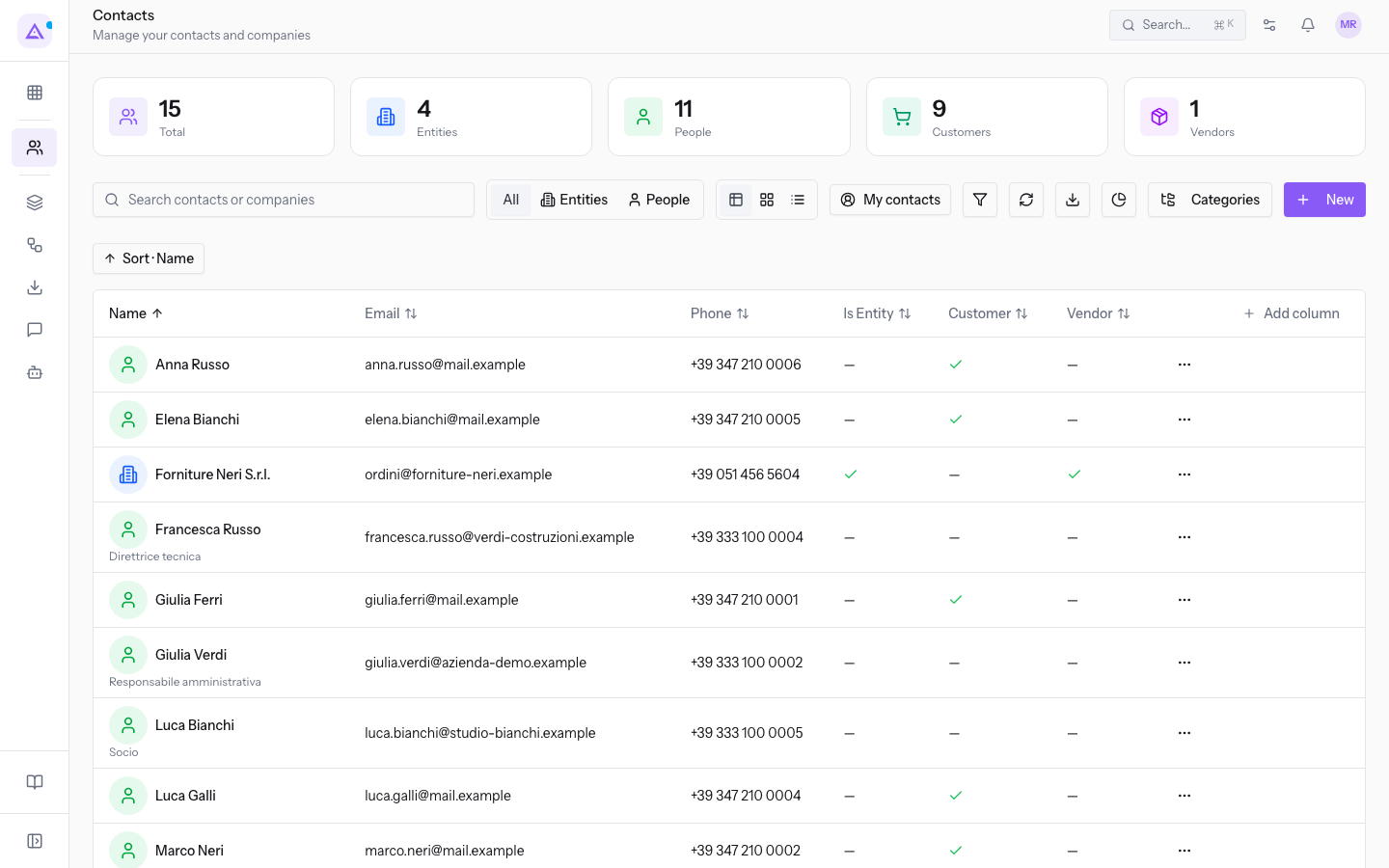
The columns can be sorted with Ordina per Name, Ordina per Email, Ordina per Phone, Ordina per Is Entity, Ordina per Customer and Ordina per Vendor; with Add column you add a column to the table.
The Actions menu on each row contains View, Edit Contact and Delete Contact.
New Contact opens the creation form, divided into the Basic Info and Classification tabs: the complete procedure and all the fields are in Creating and editing a contact.
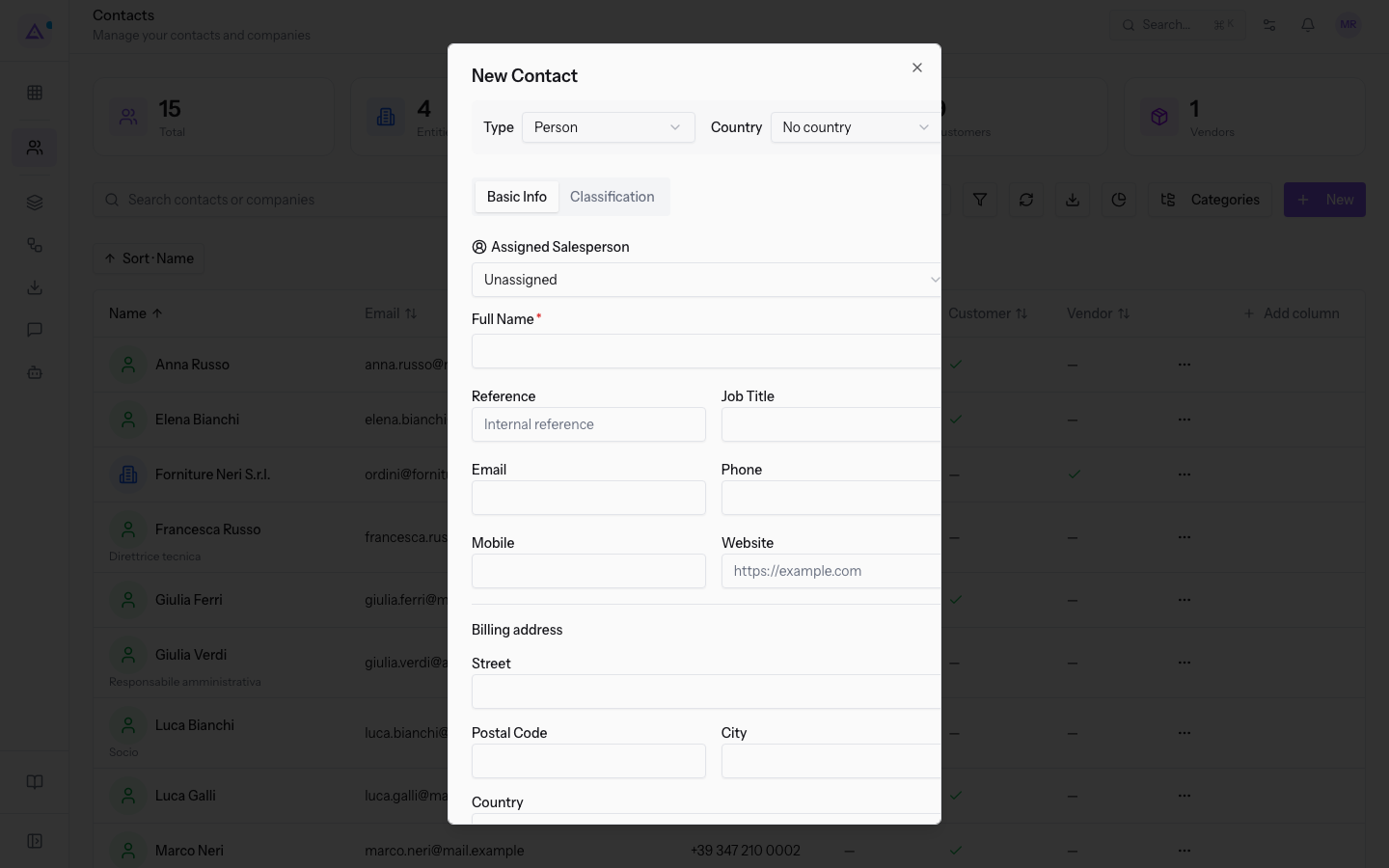
The details of search, views and counters are described in Browsing the Contacts list.
Filtering the address book
The Filters button opens the Advanced Filters panel, which narrows down the list you are working on and that the export and the report act upon.
- In the Contacts list, click Filters.
- Set the criteria you need, then read the filtered list.
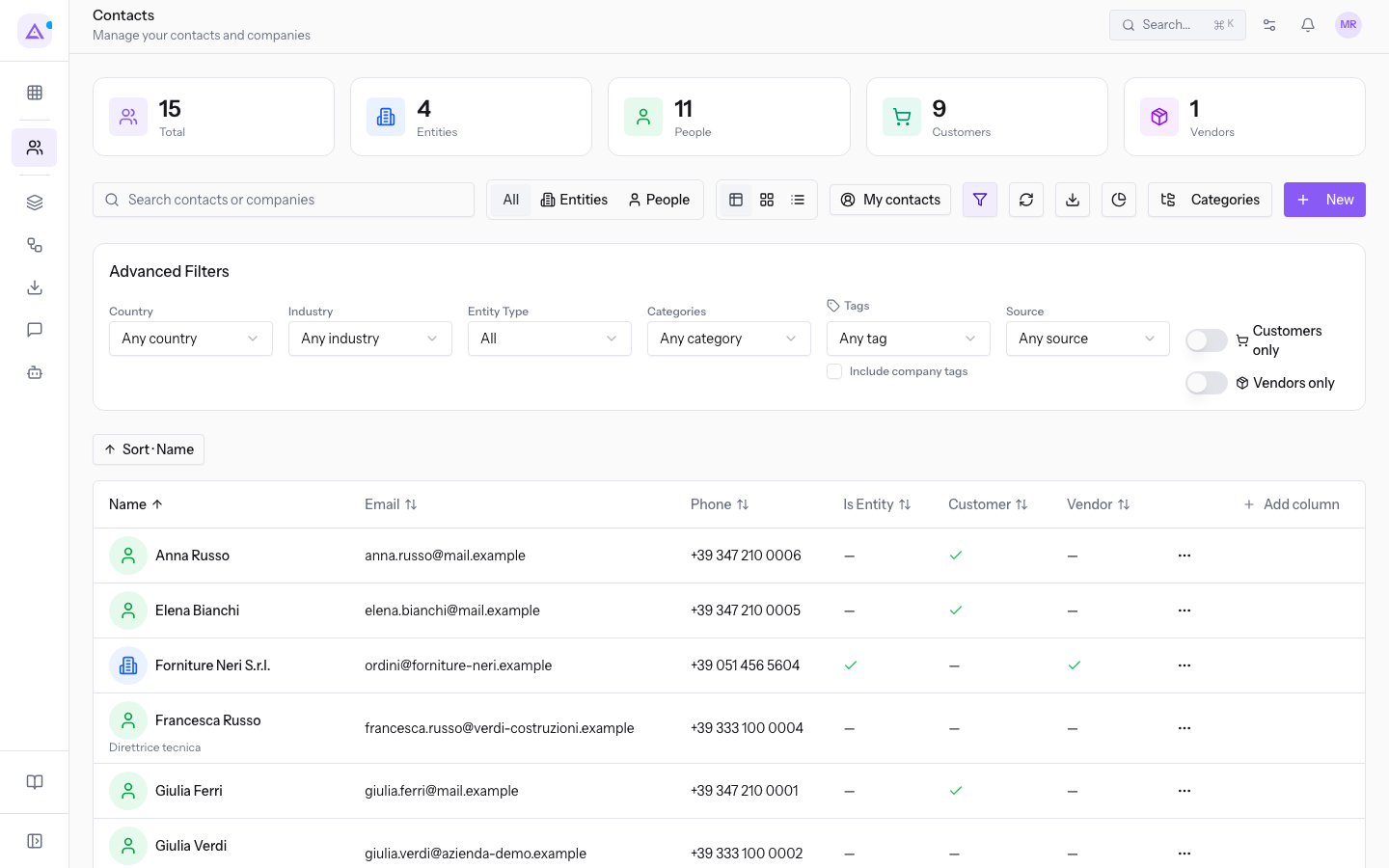
- Any country: the contact's country.
- Any industry: the sector of activity.
- Any category: the category assigned to the contact.
- Any tag: the tag assigned to the contact.
- Include company tags: extends the tag filter to the tags of the contact's company.
- Source: the acquisition channel through which the contact was created.
- Customers only: limits the list to contacts classified as customers.
- Vendors only: limits the list to contacts classified as vendors.
Note: the source is set at creation time by the path that created the contact and does not change afterwards.
The use of filters and the meaning of each source are in Filtering contacts with Advanced Filters and Source.
A contact's page
The contact page gathers everything about a contact: the data, the open documents and the detail tabs.
- In the Contacts list, click the contact's name, for example
Anna Russo. - Read the panels of the Overview tab: Contact Information, Classification, Marketing, Customer pricing and Record Information.
- Go back to the list with Back to Contacts.
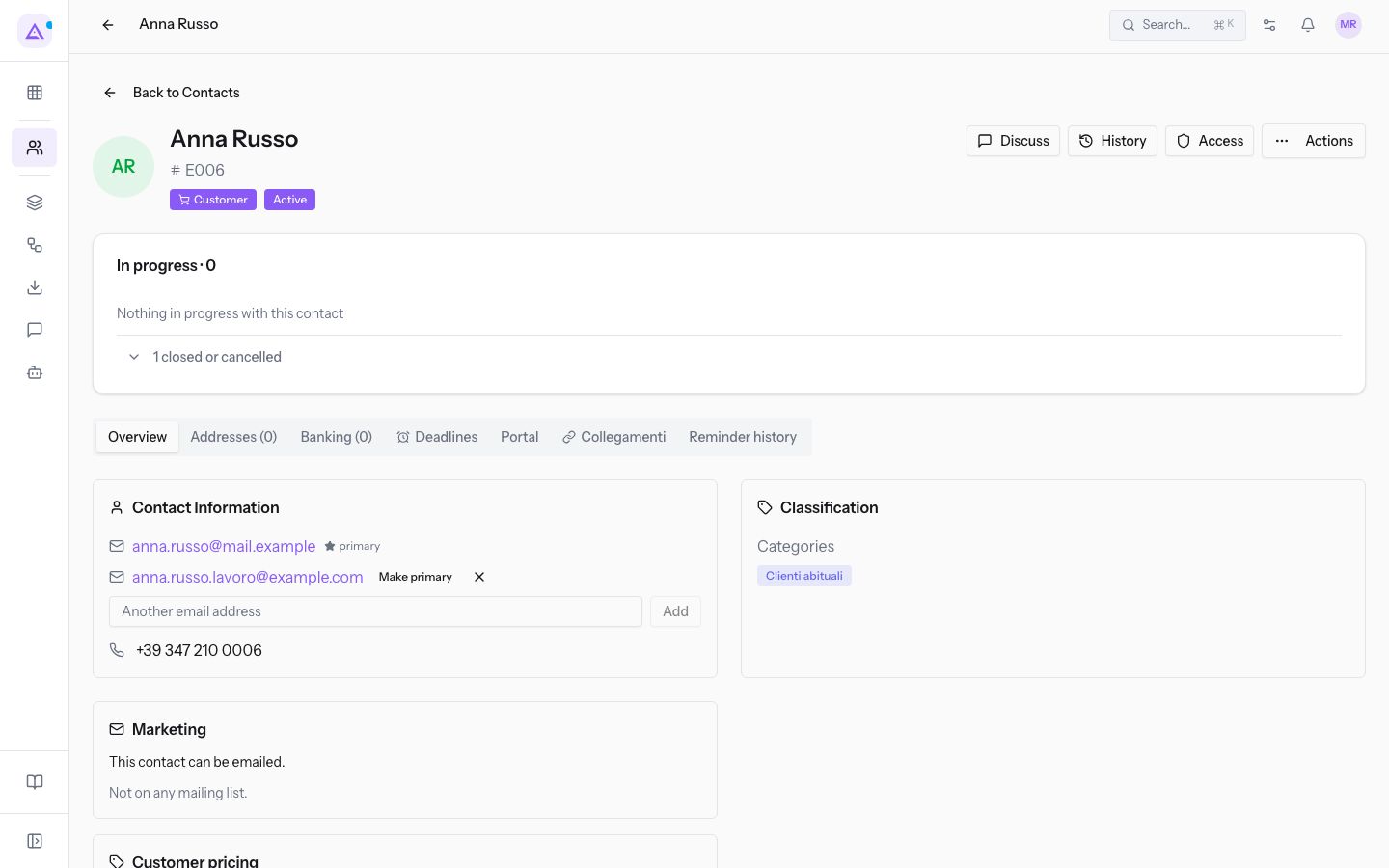
At the top, the Running block lists the contact's open documents; 1 chiuso o annullato shows the closed ones. On Rossi Arredamenti S.r.l., for example, the events Pranzo di lavoro Rossi Arredamenti and Festa della vendemmia and the invoice FV/2026/0002 appear.
The tabs of the contact page are Overview, Addresses, Banking, Deadlines, Portal, Links and Reminder history; on an entity the Members tab also appears, with the number of linked members.
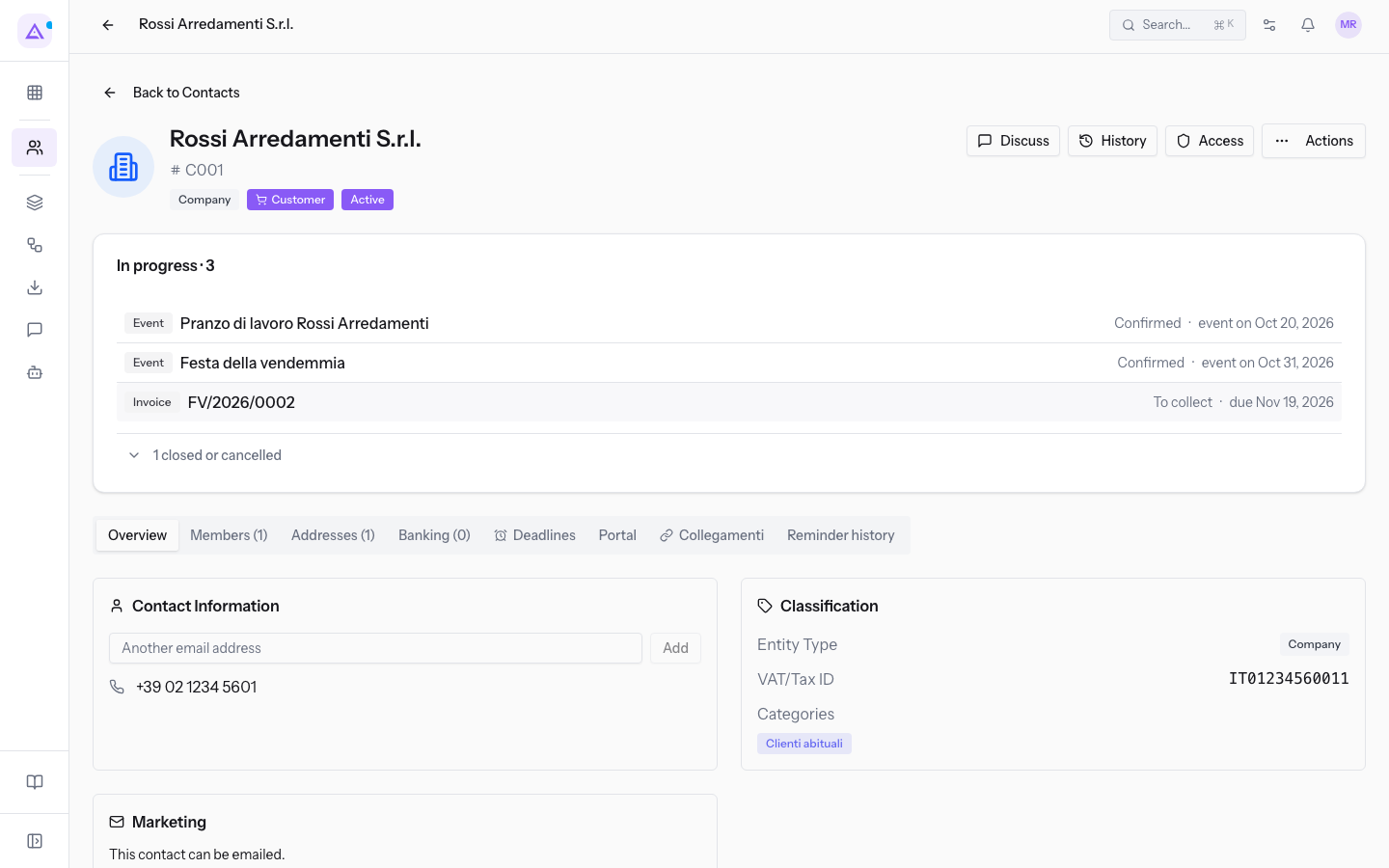
The buttons at the top of the page are Discussion, History, Sign-in and Actions.
Note: changes to name, email, phone, entity type, customer or vendor classification, industry and country are automatically recorded in the contact's discussion.
For reading the contact page see Reading a contact's page; for the Addresses and Banking tabs see Adding Addresses and Bank Accounts to a contact; for the Portal tab see Giving a contact Portal access; for consents see Viewing and revoking a contact's Consents.
Categories
Categories classify contacts in a way that cuts across the distinction between people and entities, for example by commercial segment. You create and edit them from the list.
- In the Contacts list, click Categories: the Manage Categories window opens.
- Click New Category.
- Fill in the fields, then click Save Category; with Cancel you exit without creating anything.
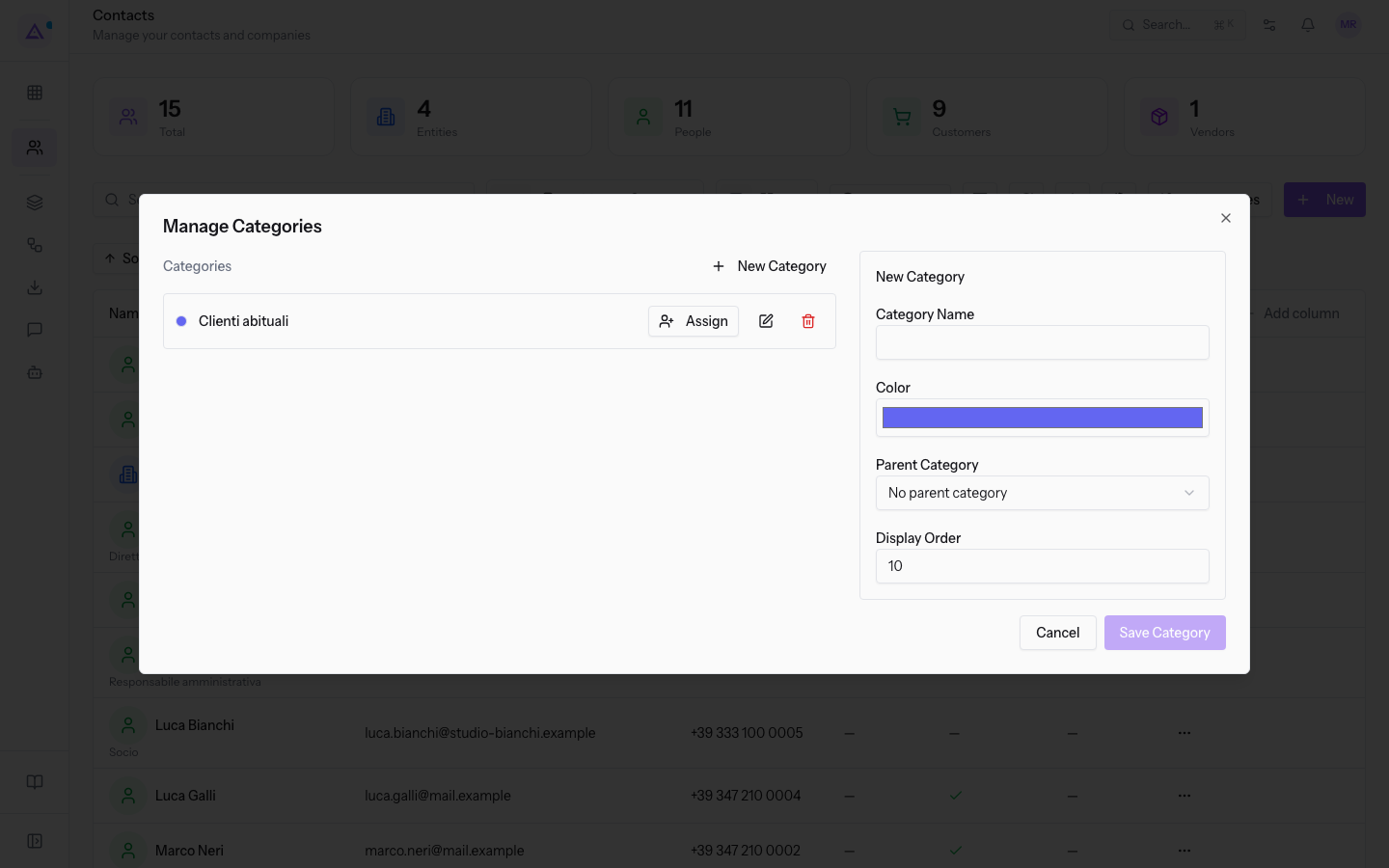
- Category Name: the category's name. The field is required.
- Color: the color the category is shown with; the initial value is
#6366f1. - Parent Category: the higher-level category, for building a hierarchy. The initial value is No parent category.
- Display Order: the position in the category list; the initial value is
10.
Note: creating, editing and deleting categories is reserved for the module manager.
Assigning categories to contacts is described in Managing categories and assigning them to contacts.
Export and report by source
From the list you export the contacts shown and measure which channels they come from.
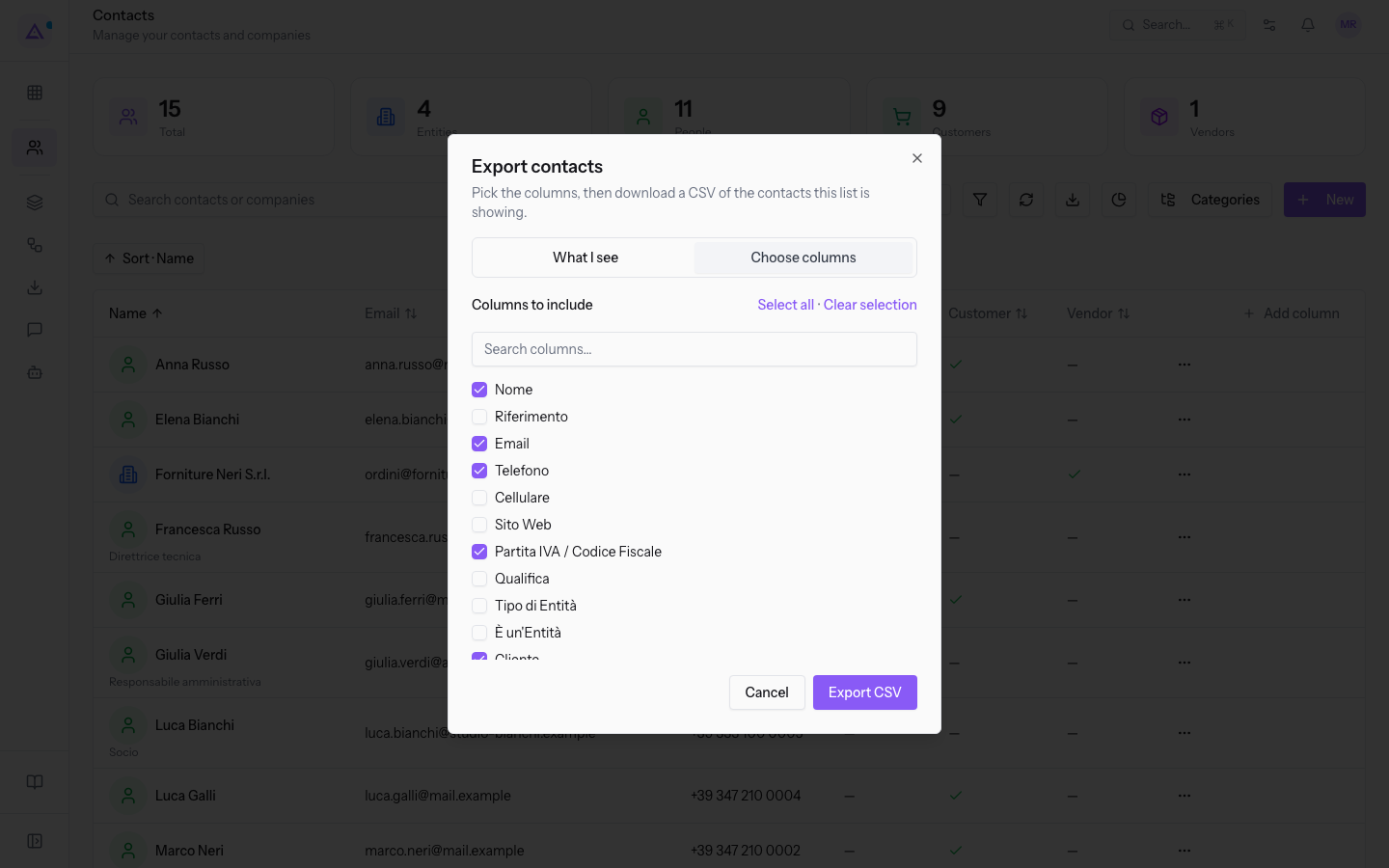
- In the Contacts list, click Export: the Export contacts window opens, with the text "Choose the columns, then download a CSV of the contacts shown by this list".
- Choose the set of columns with What I see or Choose columns.
- Tick the columns under Columns to include; use Select all, Clear selection or the Search columns… field to move through the entries. Name, Email, Phone, VAT/Tax ID, Customer and Vendor are already ticked.
Important: exports of more than 1,000 contacts are run in the background; export files are kept for a configured number of days after they are ready, then removed automatically.
The complete procedure is in Exporting contacts.
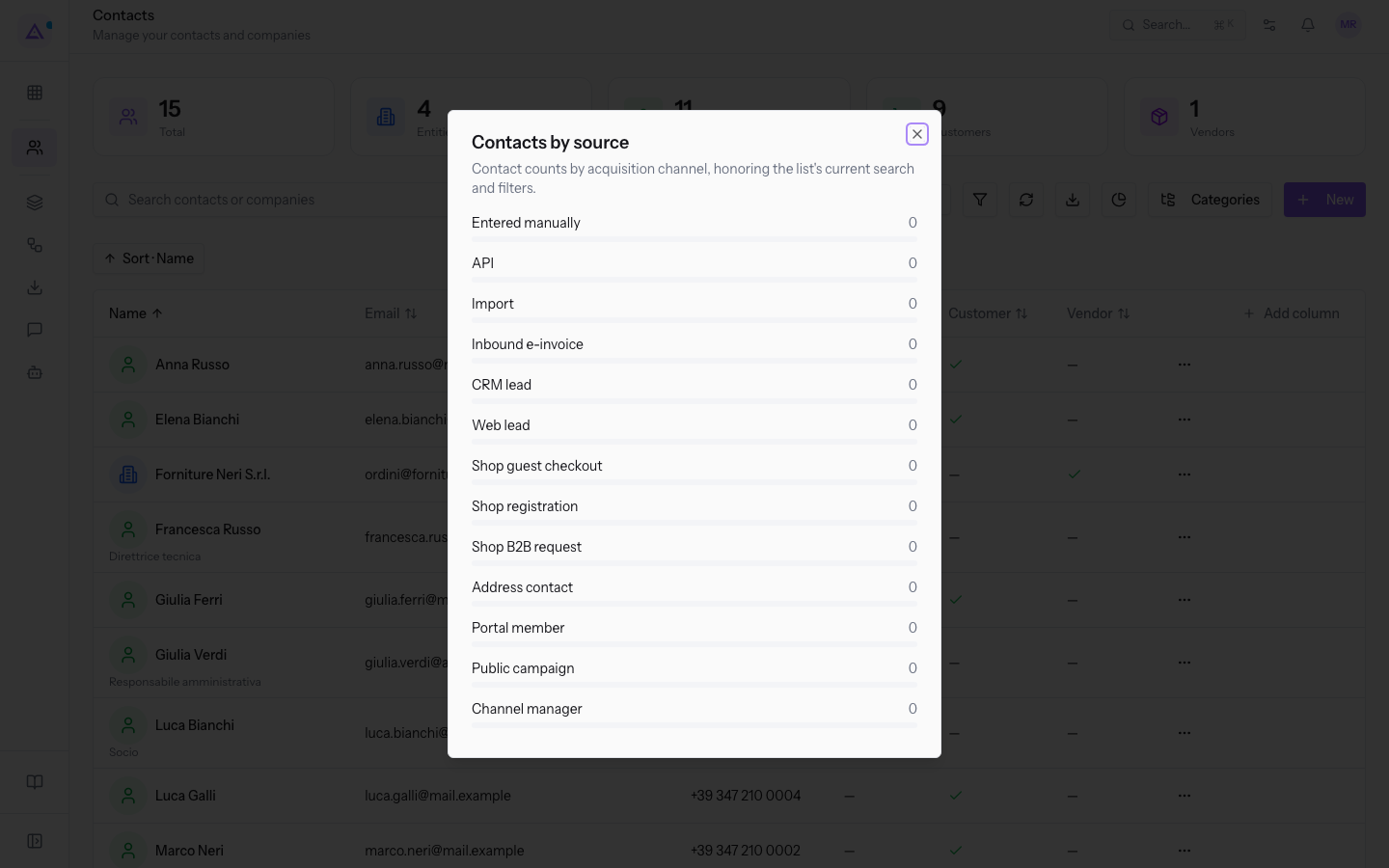
The Contacts by source button opens the window of the same name, which counts contacts by acquisition channel based on the list's current search and filters; the channels listed start with Entered manually, API, Import and Inbound e-invoice.
Keeping the address book clean
Two dedicated screens are there to fix data-quality problems: duplicates and contacts imported without a classification.
- Duplicates: merge the contacts that represent the same person or the same entity, choosing the main contact to keep. The procedure is in Finding and Merging Duplicate Contacts.
- Missing classification: review the contacts imported without a defined type and assign them the correct classification. The procedure is in Classifying Contacts Under Review.
Note: deleting a contact is a logical deletion: the record stays in the system so that the documents referencing it remain consistent.
Connections with the other modules
The Contacts module is installed with the product and feeds the other modules with their counterparties.
- Invoicing: invoices reference the contact as the customer, and the contact page shows the documents in progress with their status, for example
Da incassare. - Events: the contact's events appear among its documents in progress, with status and date.
- Portal: the Portal tab manages individual portal access for the organization's people.
- Consents and privacy: the consents recorded on the contact keep the version of the privacy notice that was in force when they were collected.
Important: for invoicing, the contact's country is what counts, not the billing address's country; the interface flags it when the two do not match.
See it on your company, not on a slide deck.
In 30 minutes we map the software you use today.We show you how much work and how much margin Archimedes gives back.
Show me on my business →What industry are you in?
One tap — it lets us prepare the demo around your world.
What tools do you use today?
Pick the ones you recognise — or just type them. It helps us show you how they migrate.
Last step: your details.
We reply within one working day — and right after, if you like, you pick the demo slot yourself.
We couldn't send your request. Try again, or write to us at [email protected].
By sending, you agree to your data being processed so we can get back to you about the demo. Privacy notice.
Preview form — nothing is sent from this page.
Want to schedule the demo now?
Your call: book the slot you prefer yourself, or we'll call you to arrange it.
Live availability, 30 minutes, instant confirmation. The calendar opens in a new tab.
Lock in your slot ↗We'll get back to you within one working day — and we'll join the call already knowing your world.
The calendar is open in another tab: pick a slot and the demo is booked. Can't see it? Reopen it ↗
Preview page: nothing was sent.
Our calendar is live: take the slot that suits you and the demo is booked. 30 minutes, instant confirmation, no waiting.
Lock in your slot ↗