Construction - Qualification and Tenders
All modules
Construction - Qualification and Tenders
Construction - Qualification and Tenders · 1 of 13 · 6 min read
The Construction — Qualification and Tenders module serves Italian construction companies that take part in public tenders (D.Lgs. 36/2023). It lets you keep a company's qualification file and generate tender documents from that file.
This page presents the module's concepts, its pages, and its links with other modules.
Note: the module does not manage tenders or bids. There is no tender with its statuses, no external portal, and no link to ANAC or PEC.
How it works
The module's work rests on three elements.
- Economic operator: a contact activated for the module. It is not a separate register: the module adds fields and tabs to the contact. In the demo organization it is
Verdi Construction S.p.A.. - File: the qualification data of the economic operator, collected in the SOA, Certifications, Equipment, Works, Personnel and Requirements tabs of the contact.
- Tender document: an administrative document generated from an economic operator's file.
The work follows this order: you activate the economic operator, complete the file and the addresses, generate the documents and download them.
Before you start: the module must be active for the organization. Access depends on two groups.
Tender Usercan read, create and edit the file data, but cannot delete it.Tender Managerhas full access, including deletion.
The module's pages
The module has only one page of its own, Tender documents, which opens from Construction Tenders. The file has no page of its own: you manage it from the contact page, in Contacts. The module has no settings page.
Activating an economic operator
Activate the economic operator only for the contacts whose file you need to keep. The other contacts stay without tender data. On the contact page of Rossi Furnishings S.r.l., which is not activated, the file tabs do not appear.
- Open the contact from Contacts.
- Press Actions and choose Edit Contact.
- In Basic Info, turn on the Economic operator (Construction) switch. The panel appears when the Type field is Company, Non-Profit, Government, Association or Foundation. When you turn it on, the qualification data appears.
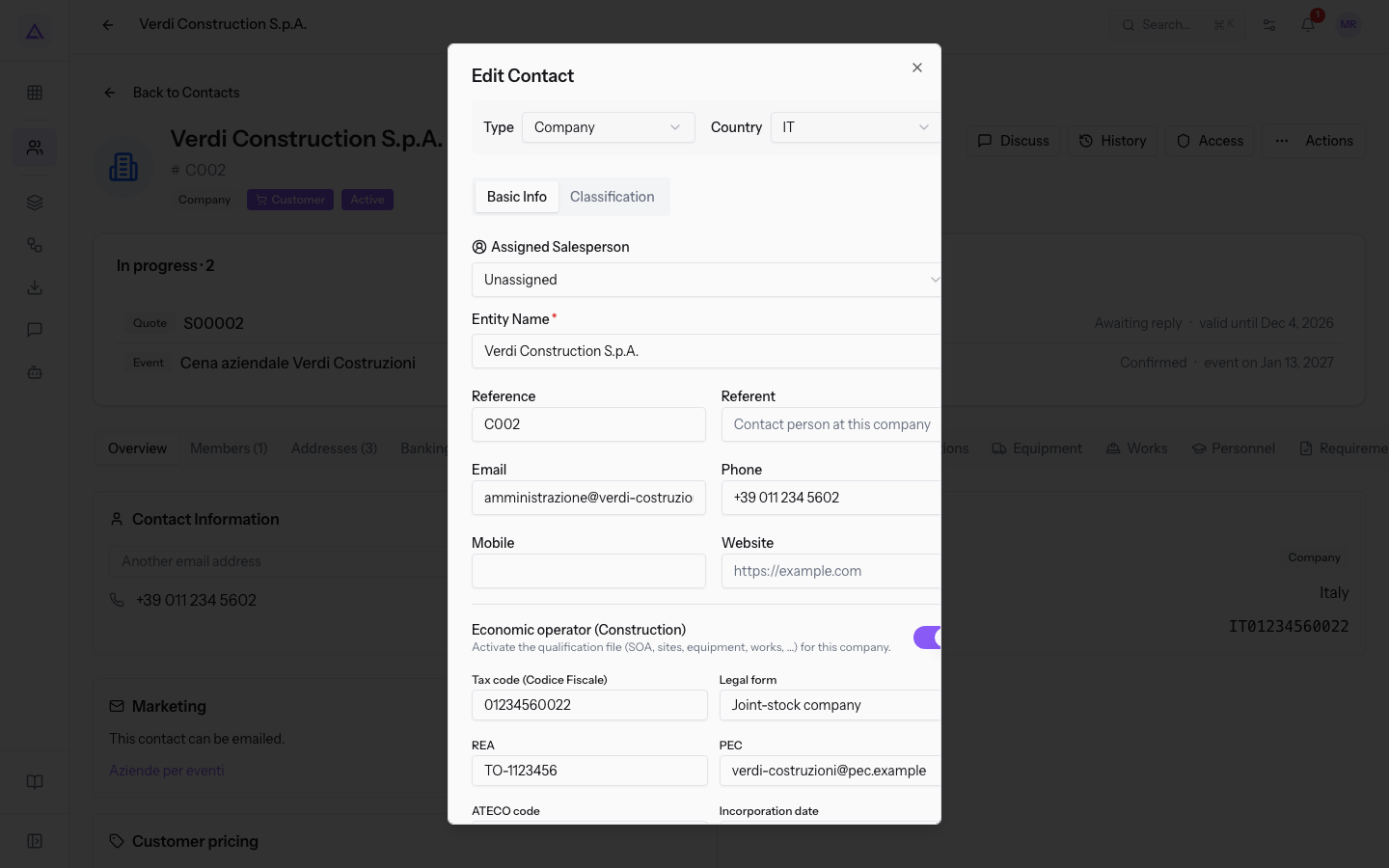
After saving, the file tabs appear on the contact.
The qualification data are tax code, legal form, REA, PEC, ATECO code, incorporation date, share capital, company size, Cassa Edile code, applied CCNL, legality rating and registration on the prefectural white list. The company size has the options Micro company, Small company, Medium company and Large company.
The file
Each tab of the file shows the list of the economic operator's entries. From here you add an entry with the tab's button. Press an entry's card to open its details, with Edit and Delete.
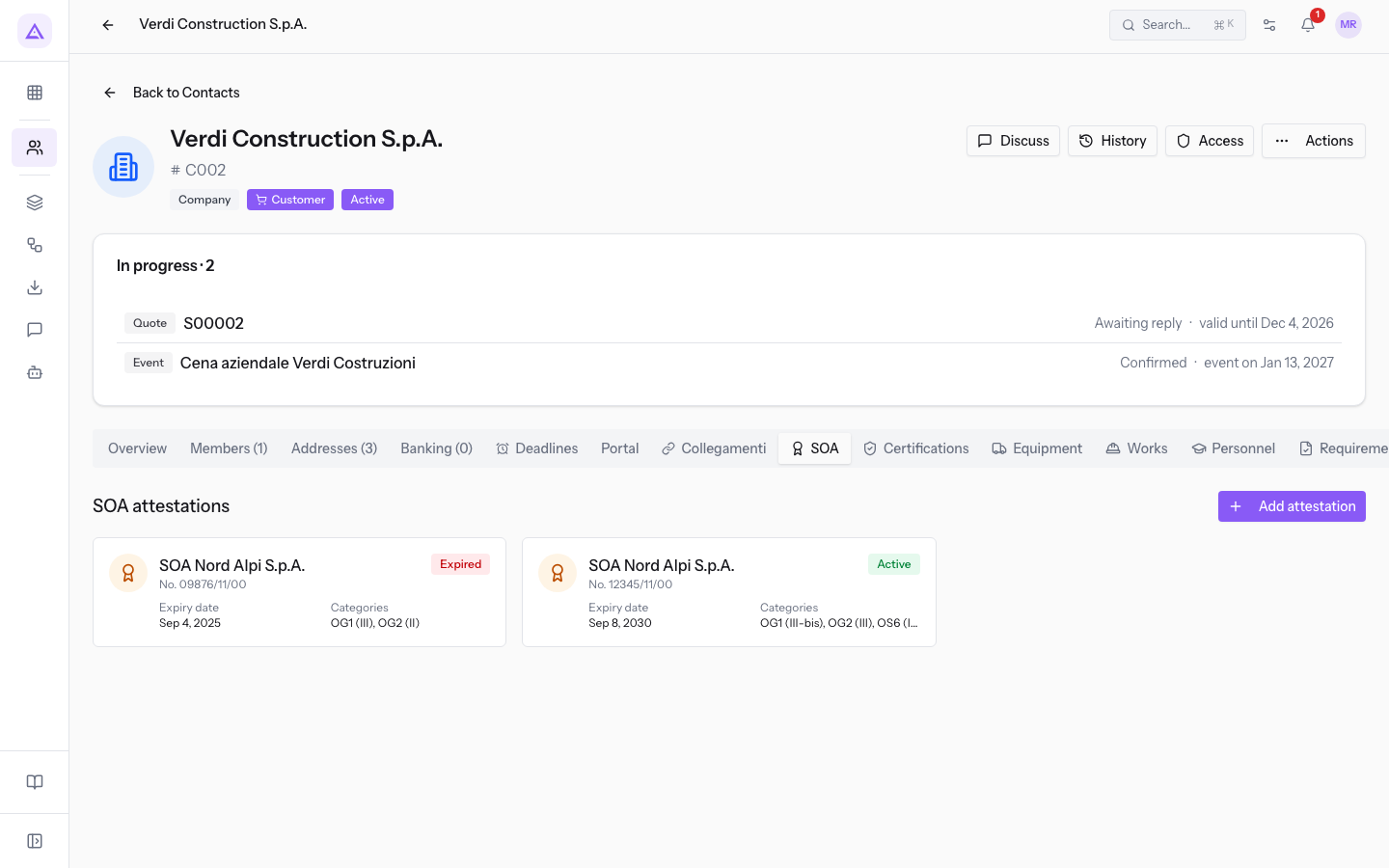
- SOA: the SOA attestations, with body, number, status, expiry and categories. Add an entry with Add attestation. The SOA body field is required. Status has the options Active, Expired and Suspended.
- Certifications: the company's certifications, with body, number, status and expiry. Add an entry with Add certification. The Type field is required and offers, among others, ISO 9001 (Quality), ISO 45001 (Safety), Legality rating and MOG 231/2001. Status has the options Active, Expired and Suspended.
- Equipment: the company's Equipment fleet. Add an entry with Add equipment. The Category field is required. Ownership title has the options Owned, Leased and Rented. Status has the options Operational, Under maintenance and Retired.
- Works: the Works executed, with amount and end date. Add an entry with Add work. The Subject of the work field is required. Role has the options Sole contractor, Lead company / group leader and Group member. Status has the options In progress, Completed and Tested.
- Personnel: the Personnel qualifications. Add an entry with Add qualification. The Qualification type field is required and offers, among others, Crane licence, PLE qualification, Scaffolding (assembly) and RSPP.
- Requirements: the General requirements / compliance. Add an entry with Add compliance item. The Type field is required and offers DURC (contribution regularity), Anti-mafia, Tax regularity, No insolvency proceedings, Criminal record and Other. Outcome has the options Regular, Irregular and Under review.
Completing the addresses
The contact's addresses have the Site / warehouse (Tenders) section, which records the company's sites, warehouses and construction sites. The section also appears on the addresses of Rossi Furnishings S.r.l., which is not an economic operator.
- On the contact page, open the Addresses (3) tab.
- Press Edit Address and fill in the Site / warehouse (Tenders) section.
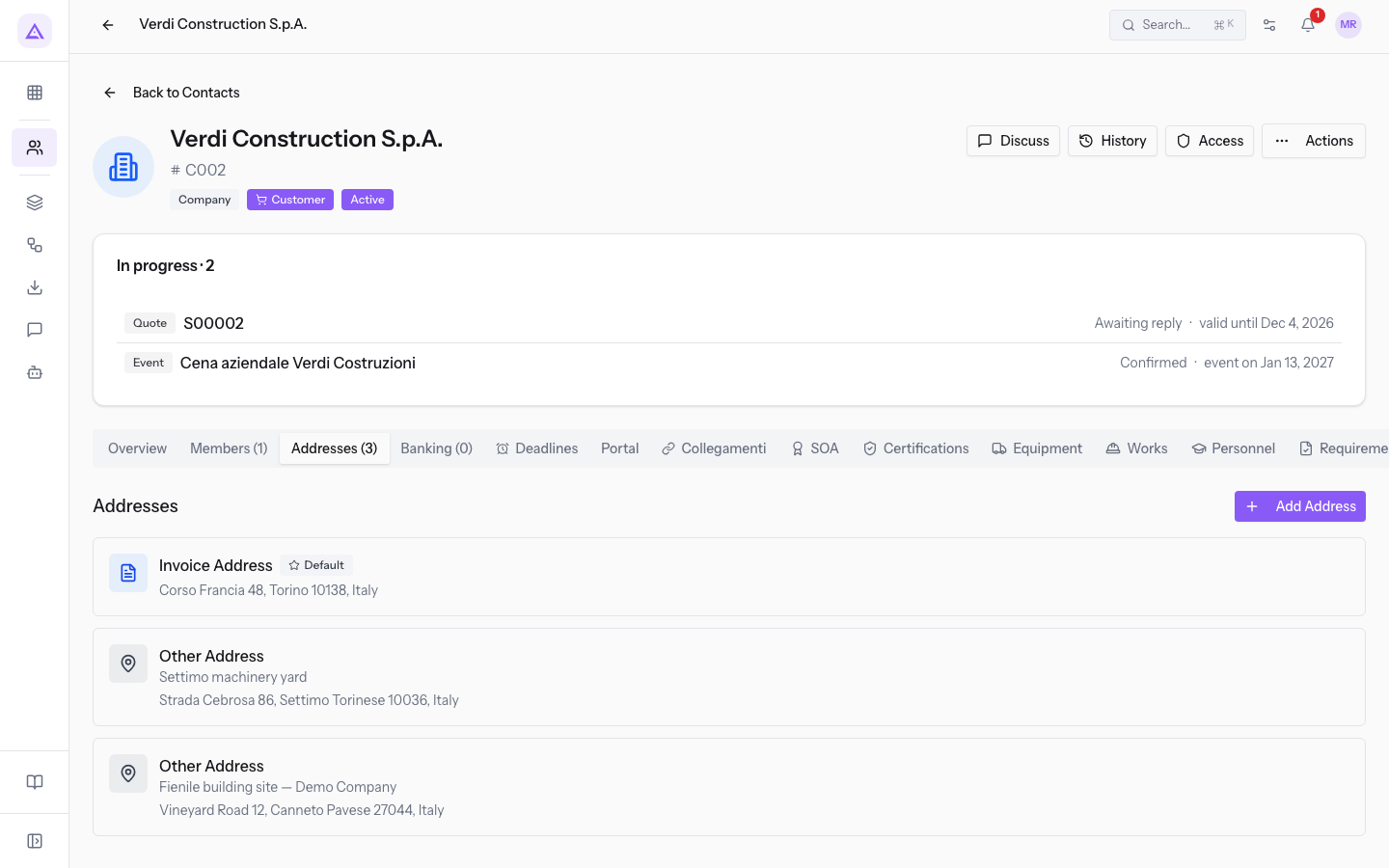
The fields of the section:
- Site type: the function of the address.
- Registered office
- Operational site
- Warehouse
- Depot
- Construction site / base site
- Office
- Size (sqm): the surface area of the site.
- Ownership title: Owned, Rented, Leased or Free loan (comodato).
- Cadastral reference: the cadastral data, such as
Foglio 12, mappale 345, sub. 7.
Generating a tender document
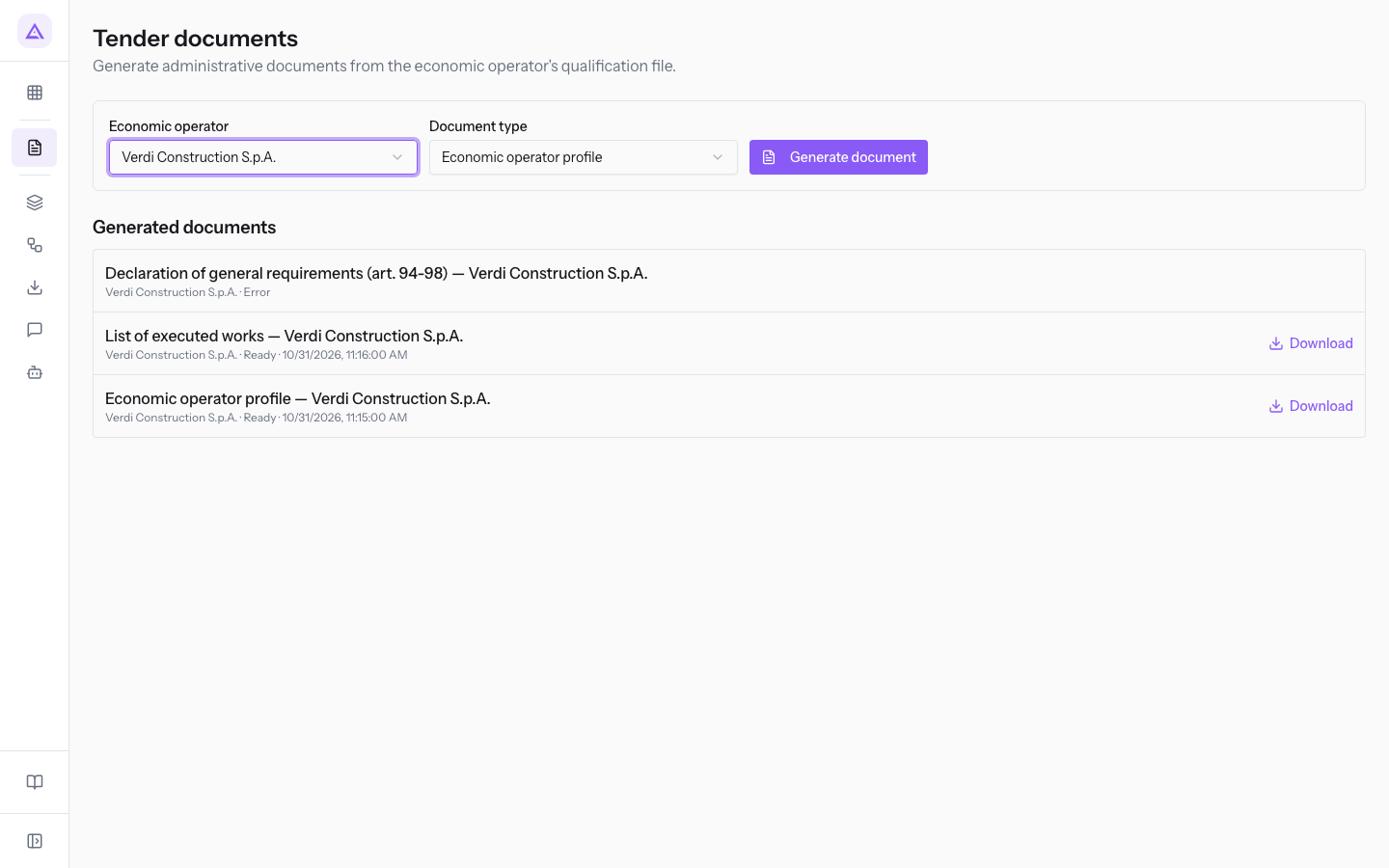
The Tender documents page generates the administrative documents from the economic operator's file and collects in Generated documents the ones already created. Economic operator lists the contacts activated as economic operator: in the demo organization there is only Verdi Construction S.p.A..
- Choose the company in Economic operator. Without a company you cannot generate the document.
- Choose the document in Document type. The starting value is Economic operator profile.
- Press Generate document. The document appears in Generated documents, and the list updates by itself while it is being processed.
The document types are:
- Economic operator profile
- Declaration of general requirements (art. 94-98)
- Declaration of technical and economic capacity requirements
- List of executed works
Each row of Generated documents shows the title, the company, the status and the generation date. The statuses are Processing, Ready and Error. Download appears only on documents in the Ready status.
Important: generated documents cannot be edited from the application. The page only lets you generate and download them. The PDFs are Italian legal texts, so they stay in Italian even when the app is in English.
Links with other modules
- Contacts: the module depends on Contacts, which provides the economic operator's register, the contact page and the addresses. The Contracting authority fields in Add work and Person (contact) in Add qualification list the contacts.
- Contact export: the economic operator's fields are exported with the contact. The site data of the addresses is not exported.
See it on your company, not on a slide deck.
In 30 minutes we map the software you use today.We show you how much work and how much margin Archimedes gives back.
Show me on my business →What industry are you in?
One tap — it lets us prepare the demo around your world.
What tools do you use today?
Pick the ones you recognise — or just type them. It helps us show you how they migrate.
Last step: your details.
We reply within one working day — and right after, if you like, you pick the demo slot yourself.
We couldn't send your request. Try again, or write to us at [email protected].
By sending, you agree to your data being processed so we can get back to you about the demo. Privacy notice.
Preview form — nothing is sent from this page.
Want to schedule the demo now?
Your call: book the slot you prefer yourself, or we'll call you to arrange it.
Live availability, 30 minutes, instant confirmation. The calendar opens in a new tab.
Lock in your slot ↗We'll get back to you within one working day — and we'll join the call already knowing your world.
The calendar is open in another tab: pick a slot and the demo is booked. Can't see it? Reopen it ↗
Preview page: nothing was sent.
Our calendar is live: take the slot that suits you and the demo is booked. 30 minutes, instant confirmation, no waiting.
Lock in your slot ↗