Inventory
All modules
Inventory
Inventory · 1 of 14 · 6 min read
The Inventory module manages the organisation's physical goods: warehouses and locations, receipts, deliveries and internal transfers, stock by product, location and lot, scraps, inventory counts and warehouse value. For example, you can receive goods from a purchase order, prepare the delivery of a sale order, or count the items on a shelf.
What it's for
The module keeps track of where each product is and how it moves. Every movement goes through a transfer, which brings the goods from a source location to a destination location.
- If goods arrive from a supplier, you use a receipt, for example
WH/IN/00002fromPO/2026/00003. - If goods leave to a customer, you use a delivery, for example
WH/OUT/00002fromS00004. - If you move goods within the warehouse, you use an internal transfer, for example
WH/INT/00002. - If goods are broken or lost, you record a scrap with the reason, for example
SP/00001, a broken LED desk lamp. - If you want to verify the actual stock, you do an inventory count of a location, for example «Shelf B count»: see Conducting a physical inventory with counts.
Stock changes when you validate a transfer, a scrap or a count, or when a manager uses Adjust in the On-Hand list. It cannot go below zero, unless the warehouse has the Allow negative stock option enabled.
Overview
The Inventory › Overview menu item is the module's first screen. It shows a card for each operation type, with the number of ready transfers, for example WH: Receipts and WH: Delivery Orders.
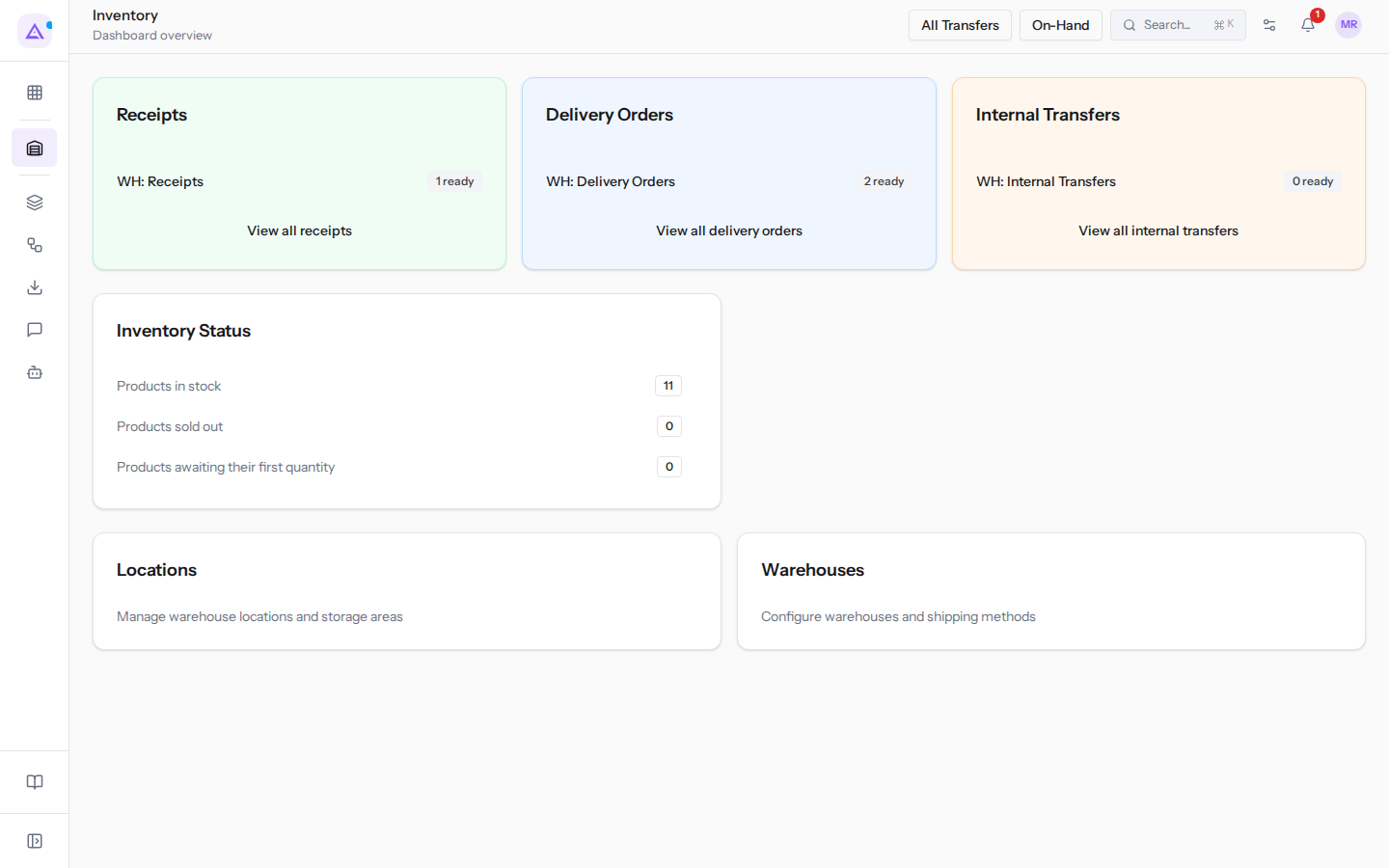
- View all receipts, View all delivery orders, View all internal transfers: open the list of transfers of that type.
- Products in stock, Products sold out, Products awaiting their first quantity: count the products with tracked stock based on the warehouse quantity.
- All Transfers and On-Hand: open the transfers list and the stock list.
To use the overview cards, see Track receipts, deliveries and transfers from the overview.
Transfers
The Inventory › Transfers menu item lists all warehouse transfers. From here you create a manual transfer with New Transfer.
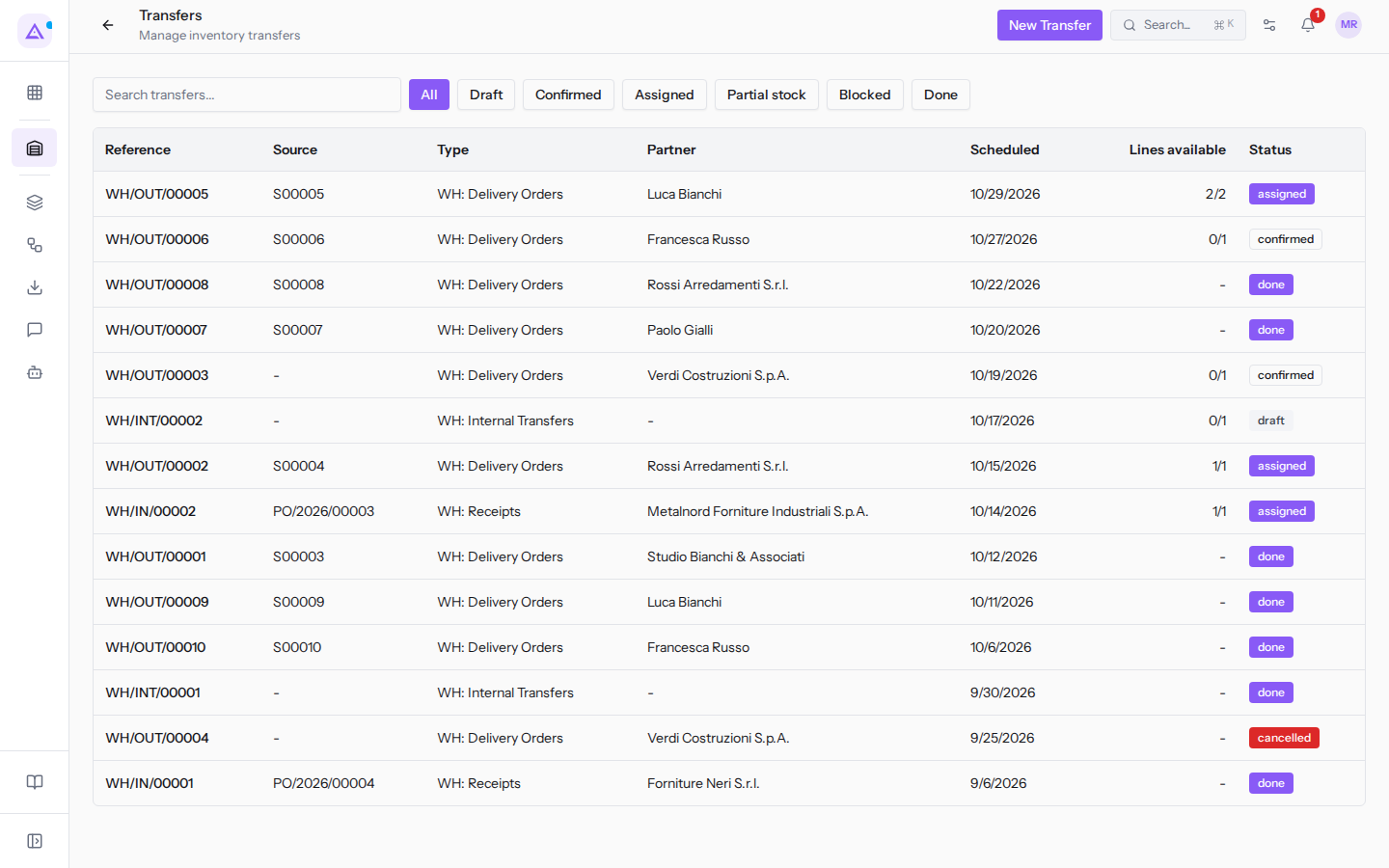
- Search transfers...: searches for a transfer.
- Status filters: All, Draft, Confirmed, Assigned, Partial stock, Blocked, Done.
- Columns: Reference, Source, Type, Partner, Scheduled.
The Confirmed and Assigned filters correspond to the states that the transfer record calls Waiting and Ready. The status column instead shows the internal English code, for example assigned or done.
A transfer can only be confirmed from the Draft state and only with at least one line. After confirmation, if the operation type reserves at confirmation (the default), the state depends on the reserved goods: Ready if all goods are reserved, Partial stock if some are reserved, Waiting if nothing is reserved. With manual reservation or reservation at validation the transfer stays Waiting.
Important: a completed transfer cannot be cancelled.
If you validate only part of the quantities, the Create a backorder? dialog appears: with Create backorder the missing quantity moves to a new transfer, with No backorder (close) the remainder is abandoned and the reservations are released.
Stock
The Inventory › On-Hand menu item opens the On-Hand Inventory screen, with the quantity of each product by location and lot.
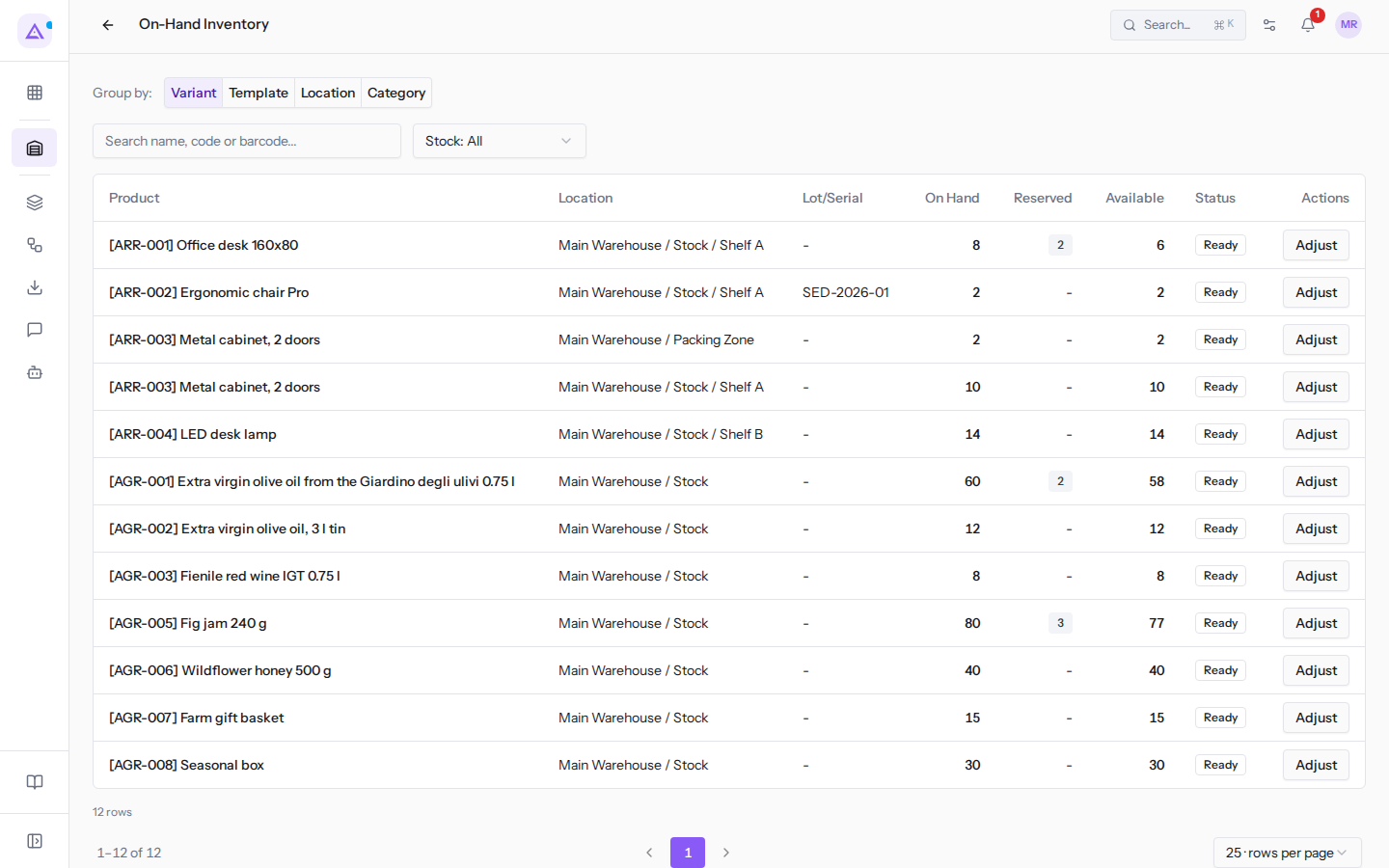
- Grouping: groups the rows by Variant, Template, Location or Category.
- Stock: filters the rows based on stock.
- Columns: Product, Location, Lot/Serial, On Hand, Reserved, Available, Status, Actions.
- The number in the Reserved column: clicking it shows the reservations, that is the quantities reserved for open transfers.
- Adjust: corrects the quantity of a row.
For example, the Office desk 160x80 has 8 units on Shelf A, of which 2 are reserved for delivery WH/OUT/00002.
Menu items
The module's menu items are under Inventory.
- Inventory › Overview: the cards for receipts, deliveries and internal transfers.
- Inventory › Transfers: all transfers.
- Inventory › On-Hand: stock by product, location and lot.
- Inventory › Reservations: quantities reserved for open transfers.
- Inventory › Stock Moves: movement history, read-only.
- Inventory › Lots / Serial Numbers: lots and serials of tracked products, with stock and movement history.
- Inventory › Packages: physical containers and their contents, for example
PACK/00001. - Inventory › Scrap: goods removed from stock with a reason.
- Inventory › Inventory Counts: physical counts of a location.
- Inventory › Landed Costs: duties, transport and insurance added to the value of received goods.
- Inventory › Valuation: the warehouse value at a date.
- Inventory › Reconciliation: the comparison between stock and its value.
- Inventory › Reports and Inventory › Sales by Channel: stock and sales analyses.
- Inventory › Shortages: what POS and hotel sales did not find in stock.
- Inventory › Open Bottles: bottles opened for by-the-glass sales.
Note: the Shortages and Open Bottles items only appear if the related feature is enabled.
The configuration items are Warehouses, Locations, Routes, Operation Types, Putaway Rules, Reorder Rules, Package Types and Alerts.
In the examples there is a single warehouse, «Main Warehouse» with code WH, and its operations are numbered WH/IN/, WH/OUT/ and WH/INT/. To configure warehouses, locations and operation types, see Configuring warehouses, locations and operation types.
Who uses the module
The module has two access levels.
- Warehouse staff: can see warehouses, locations, transfers and stock. Creates and edits transfers, lots, scraps, packages, counts, putaway and reorder rules. Cannot delete or configure warehouses, locations, routes and operation types.
- Warehouse manager: has full access, including warehouse configuration and inventory adjustments. Only the manager sees Reports and Alerts.
Note: only a warehouse manager can apply a scrap, because it removes goods from stock.
Connections with other modules
The module uses the organisation's products and contacts and exchanges documents with other modules.
- Purchases: a confirmed purchase order creates a receipt. On validation the order is updated with the received quantities. Without Purchases, reorder rules do not create orders and reconciliation has nothing to compare the value against.
- Sales: a confirmed sale order creates a delivery. On validation the order is updated. Customer returns arrive as receipts.
- Delivery: if the module is active, the transfer shows the carrier and the tracking reference.
- POS, Hotel and Online store: POS and hotel sales remove goods from stock. If goods are insufficient, the shortage appears in Shortages. Online store carts reserve goods.
- Accounting: if active, validating a landed cost also records the accounting entry. If not active, validation only updates the warehouse valuation.
- Agents: the Restock assistant shares the minimum stock alert settings with Alerts.
Reordering and alerts
Reorder rules set the minimum and maximum of a product at a location. From Inventory › Settings › Reorder Rules you start replenishment with Run Replenishment: draft purchase orders are created for products below the minimum, counting goods already on the way.
For example, the LED desk lamp has a rule with a minimum of 15 and a maximum of 40 and a stock of 14 on Shelf B.
Note: Low-stock alerts are off until a manager enables them from Inventory › Settings › Alerts.
See it on your company, not on a slide deck.
In 30 minutes we map the software you use today.We show you how much work and how much margin Archimedes gives back.
Show me on my business →What industry are you in?
One tap — it lets us prepare the demo around your world.
What tools do you use today?
Pick the ones you recognise — or just type them. It helps us show you how they migrate.
Last step: your details.
We reply within one working day — and right after, if you like, you pick the demo slot yourself.
We couldn't send your request. Try again, or write to us at [email protected].
By sending, you agree to your data being processed so we can get back to you about the demo. Privacy notice.
Preview form — nothing is sent from this page.
Want to schedule the demo now?
Your call: book the slot you prefer yourself, or we'll call you to arrange it.
Live availability, 30 minutes, instant confirmation. The calendar opens in a new tab.
Lock in your slot ↗We'll get back to you within one working day — and we'll join the call already knowing your world.
The calendar is open in another tab: pick a slot and the demo is booked. Can't see it? Reopen it ↗
Preview page: nothing was sent.
Our calendar is live: take the slot that suits you and the demo is booked. 30 minutes, instant confirmation, no waiting.
Lock in your slot ↗