Contracts
All modules
Contracts
Contracts · 1 of 15 · 9 min read
The Contracts module manages all the organization's contracts, from supplying goods to renting a venue. Here you prepare the text from a template, send it for electronic signature, track clauses and obligations, and decide on renewal, notice, and expiry.
This page presents the module's elements, its screens, and its links with the other modules.
How it works
The module works with these elements.
- Contract: the document that binds you to a counterparty, that is, a contact. It has a title, a type, a template, the dates, the renewal rule, and the amounts.
- Type: the nature of the contract. It carries the duration, the notice period, the renewal, and the template proposed for new contracts. In the demo, a type is
Event venue rental. - Template: the text with placeholders, which are filled with the contract's data. In the demo, a template is
Supply agreement. - Reference: the contract number in the format CTR/year/number, for example
CTR/2026/0007. It is assigned on sending. A draft has no reference. - Clauses: the parts of the contract to follow on their own, such as a penalty, exclusivity, or a service level.
- Obligations: the activities with a date that fall on one of the parties.
- Cost items: the lines with quantity, unit price, and recurrence.
- Amendment: the record of a change to a contract that is no longer in draft. It keeps the previous terms and the new ones. Tacit renewal and notice are also recorded as amendments.
Some rules act automatically.
- On sending, the text is frozen and its fingerprint is recorded: the signature applies to that exact text.
- From that moment, the terms are changed with an amendment.
- Changing a template does not touch contracts already sent. The changed template applies to contracts created after the change and to drafts regenerated after the change.
Who can do what
The module distinguishes two access levels and the counterparty.
- Those who prepare and send contracts: they read contracts, create drafts, send them, and manage clauses, obligations, and cost items.
- Those responsible for contracts: in addition, they sign for the organization, record the counterparty's signature, record amendments, renew, give notice, delete contracts, and manage types and templates.
- The counterparty: signs from the link received by email, without an account, or from the client portal, where they see their company's contracts.
The menu items
Open the module from Contracts. The menu has these items:
- Contracts › All contracts: the list of all contracts.
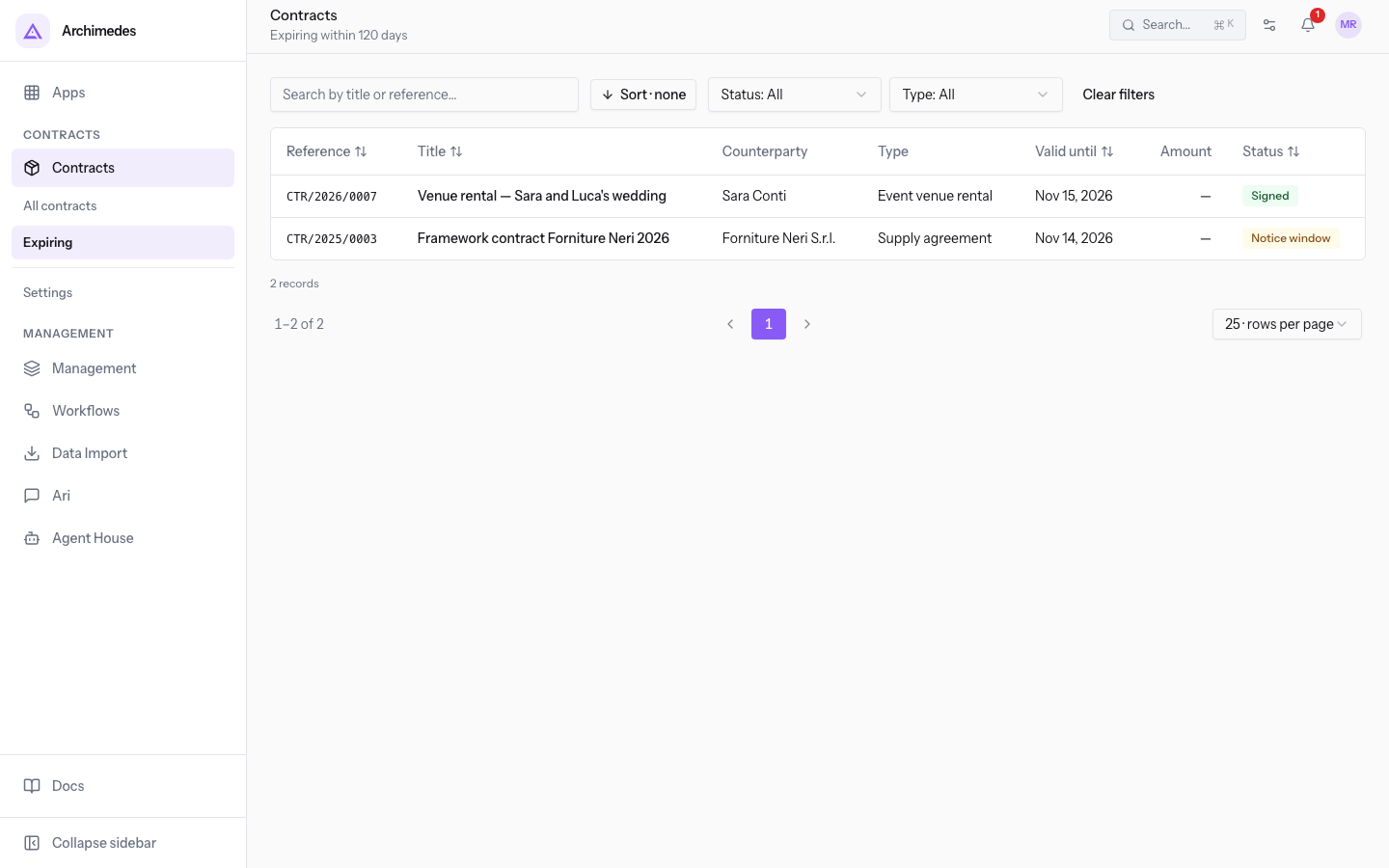
- Contracts › Expiring: the contracts that expire within 120 days.
- Contracts › Settings: the contract types and templates. The item appears only to those responsible for contracts.
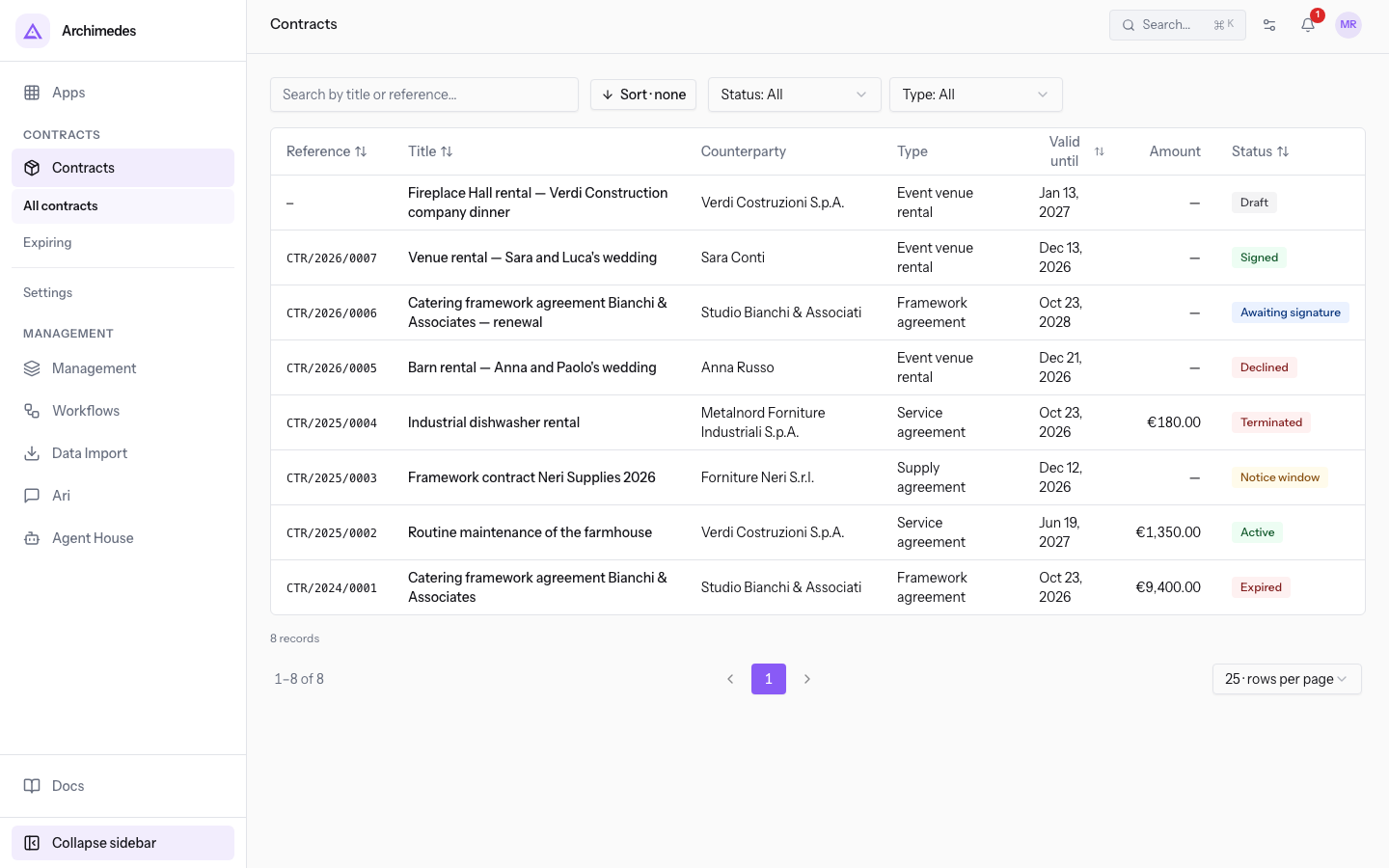
The contract list
Contracts › All contracts shows each contract on one row. Press a row to open the contract page.
The columns are Reference, Title, Counterparty, Type, Valid until, Amount, and Status.
Above the list you find these tools:
- Search by title or reference…: finds a contract by its title or reference.
- Status: shows only the contracts in one status.
- Type: shows only the contracts of one type.
- Sort · none: sorts the list by Reference, Title, Valid until, or Status.
Contracts › Expiring opens the same list, limited to signed or active contracts that expire within 120 days. Use it to see which contracts need a decision. In the demo it shows CTR/2026/0007 and CTR/2025/0003.
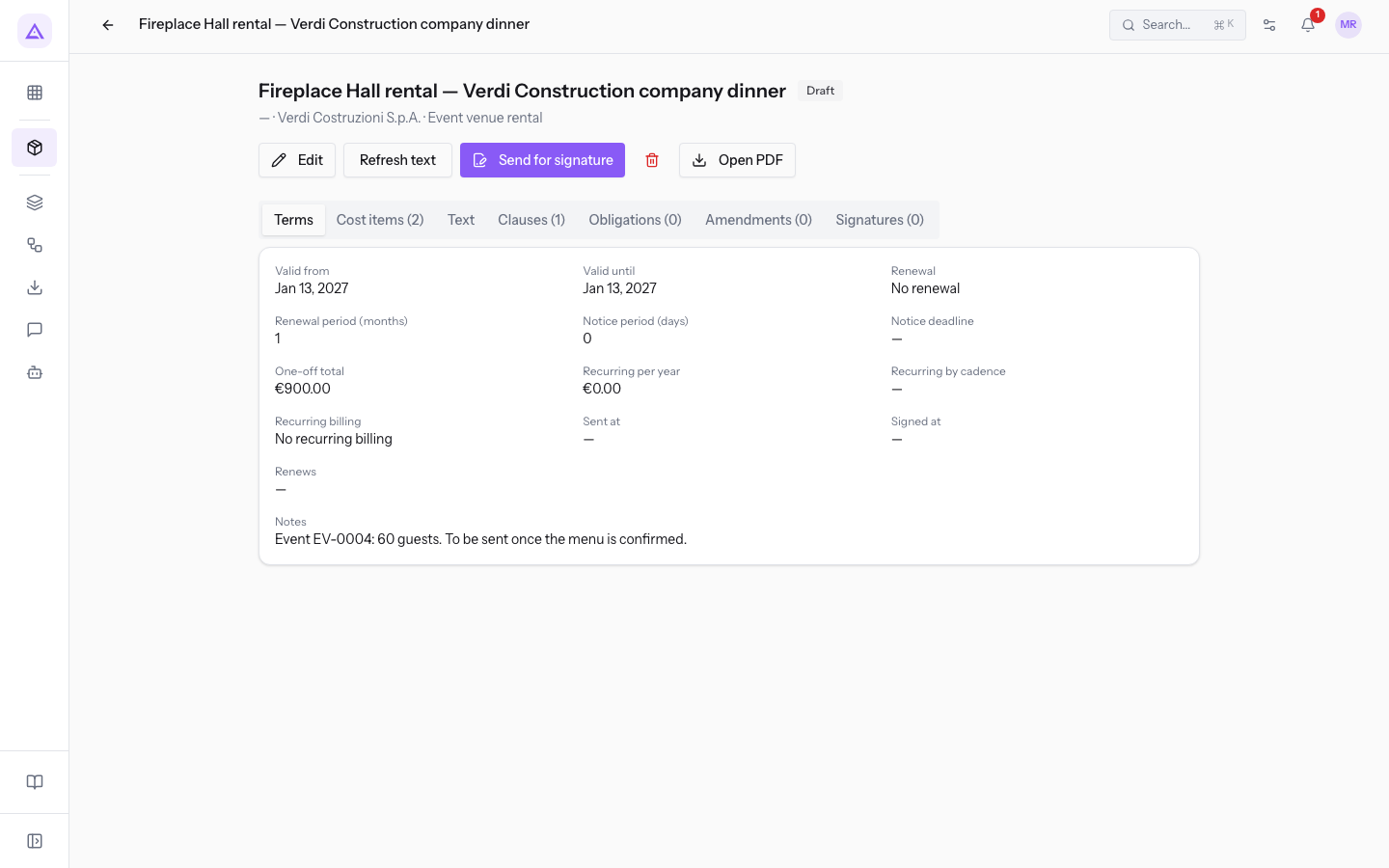
The contract page
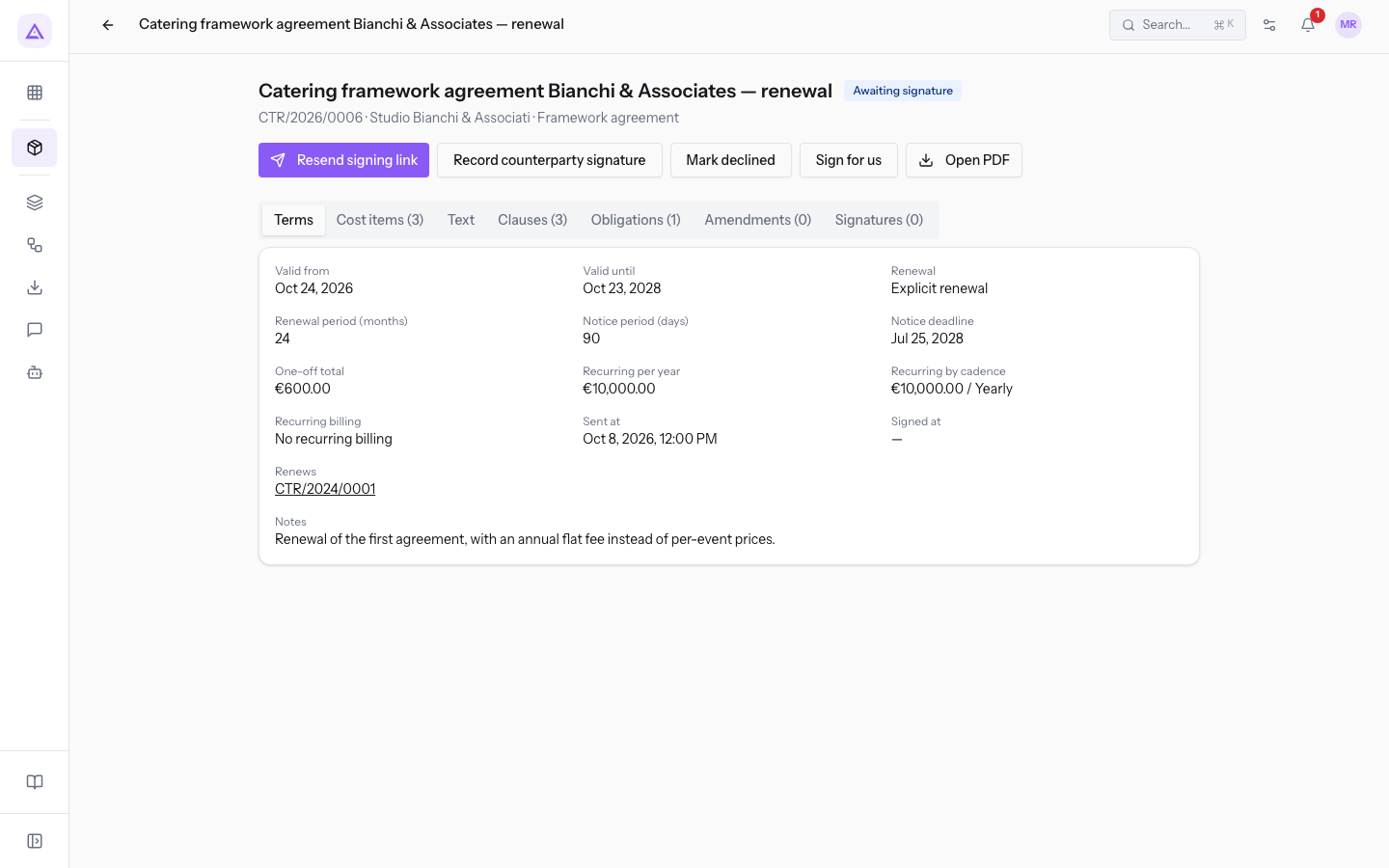
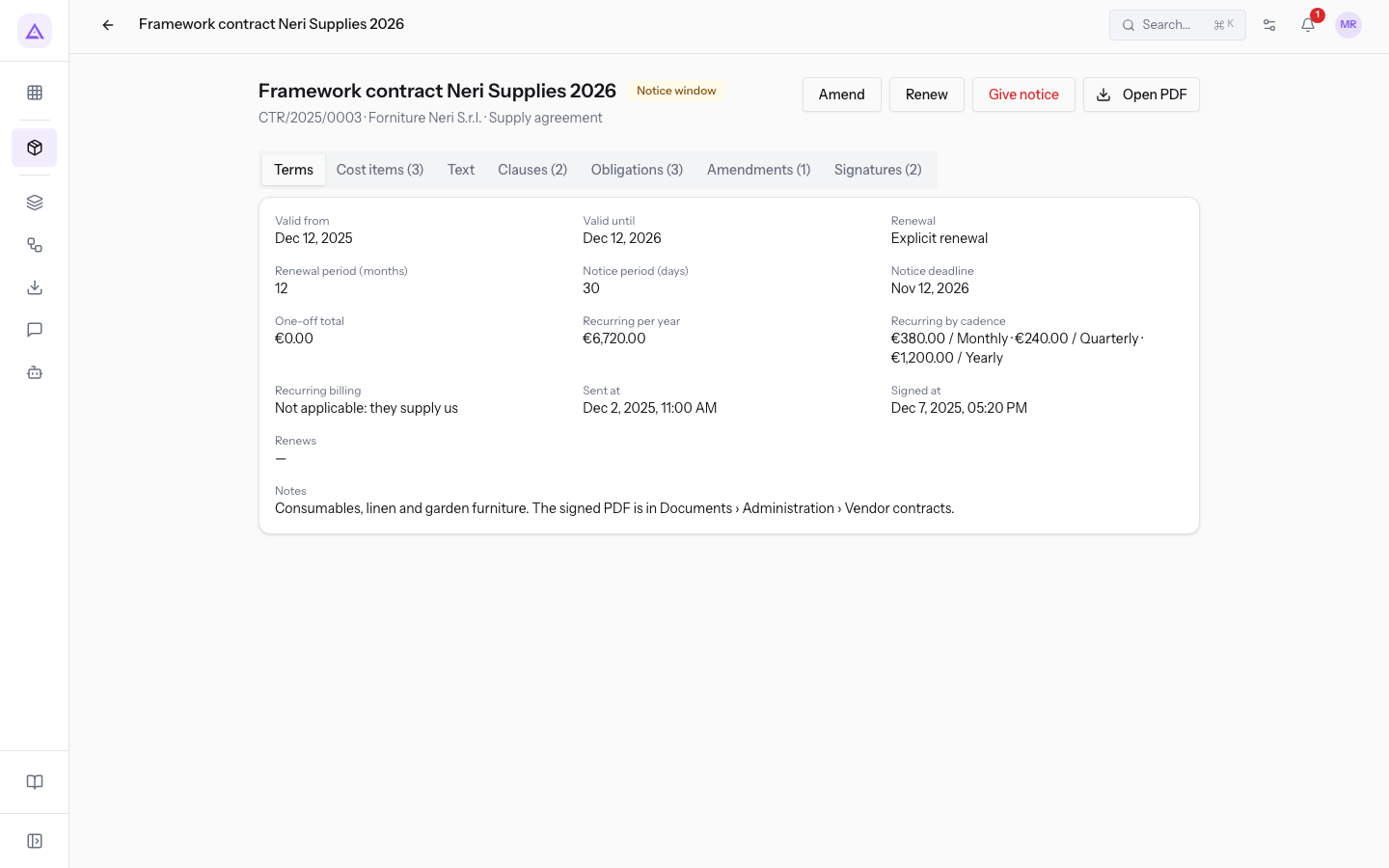
The page brings together the contract's data. At the top it shows the title, status, reference, counterparty, and type. The available buttons depend on the status.
The tabs are these:
- Terms: the contract's data.
- Cost items: the cost items. Without items, the header amount applies.
- Text: the contract text.
- Clauses: the clauses. A clause with Needs specific approval is an onerous clause (arts. 1341-1342 of the Italian Civil Code). The signer must approve it with a separate tick.
- Obligations: the obligations with a date. Open ones appear in the deadlines calendar and are closed with Mark done.
- Amendments: the contract's amendments.
- Signatures: the signatures collected.
With Open PDF you open the contract as a PDF, in any status.
In draft, everything can be changed. The buttons are Edit for the data, Refresh text to recreate the text from the template, Send for signature, and Delete.
While awaiting signature you find Resend signing link, Record counterparty signature, Mark declined, and Sign for us.
On a signed or active contract you find Amend, Renew, and Give notice. A Signed contract also has Activate.
Contract statuses
The status says where the contract stands and decides which actions are available.
- Draft: the contract can be changed freely and has no reference.
- Awaiting signature: the contract has been sent and the text is frozen.
- Signed: the signature has been collected, but the start date has not yet arrived. If it has already arrived, the contract becomes Active right away.
- Active: the contract is in force.
- Notice window: the deadline for notice falls within 30 days. It is time to decide whether to let it renew, renew it manually, or give notice.
- Expired: the contract reached its end date without renewing.
- Terminated: the contract ended after a notice.
- Declined: the counterparty declined the contract, or you marked it with Mark declined. Only a contract awaiting signature can be declined.
A nightly check moves the statuses along. It activates signed contracts whose start date has arrived and moves active contracts whose deadline falls within 30 days into Notice window. On the end date it renews the contracts with tacit renewal, moves those with notice to Terminated, and the others to Expired.
Note: signed does not mean active.
Venue rental — Sara and Luca's weddingstays Signed until the wedding day.
Signing
Choose the method based on how the counterparty signs the contract.
- If the counterparty has no access, use the link by email. The signer receives a personal link and confirms with a verification code sent to the same email.
- If the counterparty has access to the client portal, they can sign from the portal.
- If the contract was signed outside the system, on paper or by email, use Record counterparty signature. For a paper signature, the approval of the clauses is on the paper document.
The signer using the link or the portal must approve the clauses with specific approval one by one. From the link they can also decline the contract, giving a reason.
The signing link has these limits:
- The link is valid for 30 days.
- The verification code is valid for 10 minutes, with 5 attempts per code. The signer can request a new code at most once a minute.
- A new link makes the previous one unusable.
- When the counterparty signs or declines, the other links still open become unusable.
Important: the signature is a simple electronic signature, with recorded proof (name, date and time, IP address, device, verified code, text fingerprint). It is not an advanced or qualified signature.
Renewal and termination
The renewal rule decides what happens at expiry. Choose the option based on who must decide whether the contract continues.
- Tacit renewal: if no one gives notice, the contract renews by itself for the Renewal period (months). The text stays the same, the new expiry is recorded as an amendment, and the status goes back to Active.
- Explicit renewal: at expiry the contract becomes Expired. To continue, use Renew.
- No renewal: at expiry the contract becomes Expired and there is no notice deadline. To continue, use Renew.
Renew creates a new draft with the same terms and with effect after the current expiry. The draft must be sent and signed again.
The Notice deadline is the expiry date minus the Notice period (days). After the deadline, a notice of termination does not bring the end forward before the current expiry.
Give notice removes the renewal and sets the end after the notice days. The contract keeps its status and becomes Terminated once that date has passed. Only Terminate immediately (no notice) moves it straight to Terminated.
Settings
Before you start: Contracts › Settings is reserved for those responsible for contracts.
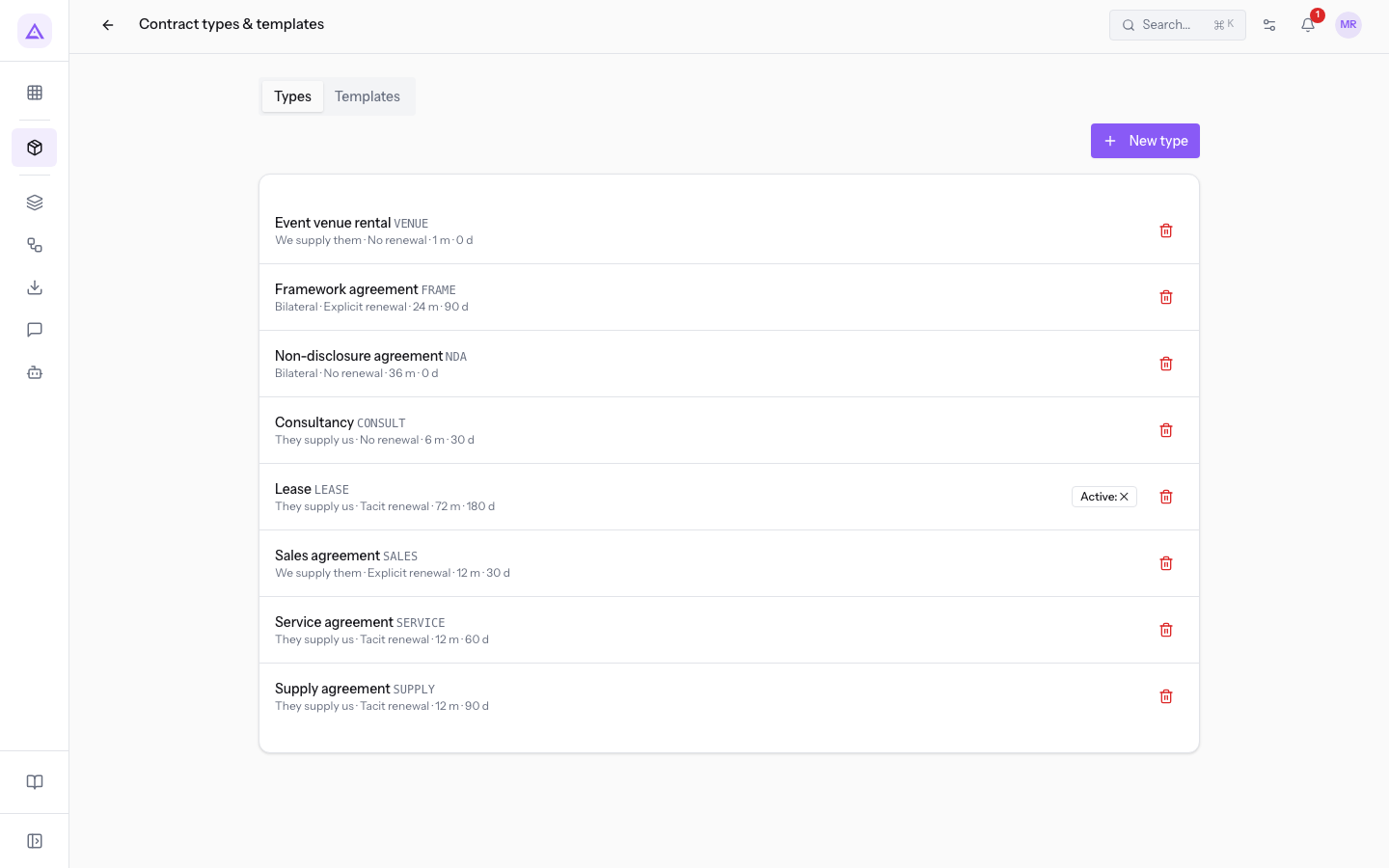
The Contract types & templates screen contains the values proposed for new contracts. It has two tabs.
The Types tab lists the contract types. New type opens a form with these fields:
- Name: the name of the type. The field is required.
- Code: the code of the type. The field is required.
- Direction: who supplies whom. The options are They supply us, We supply them and Bilateral.
- Default renewal: the proposed renewal rule.
- Default duration (months): the proposed duration. The expiry is calculated from start date and duration.
- Default notice (days): the proposed notice period.
- Template: the proposed template.
- Requires signature: the toggle is on by default.
- Active: the toggle is on by default.
If a contract has no type, tacit renewal, 12 months of duration and 90 days of notice apply.
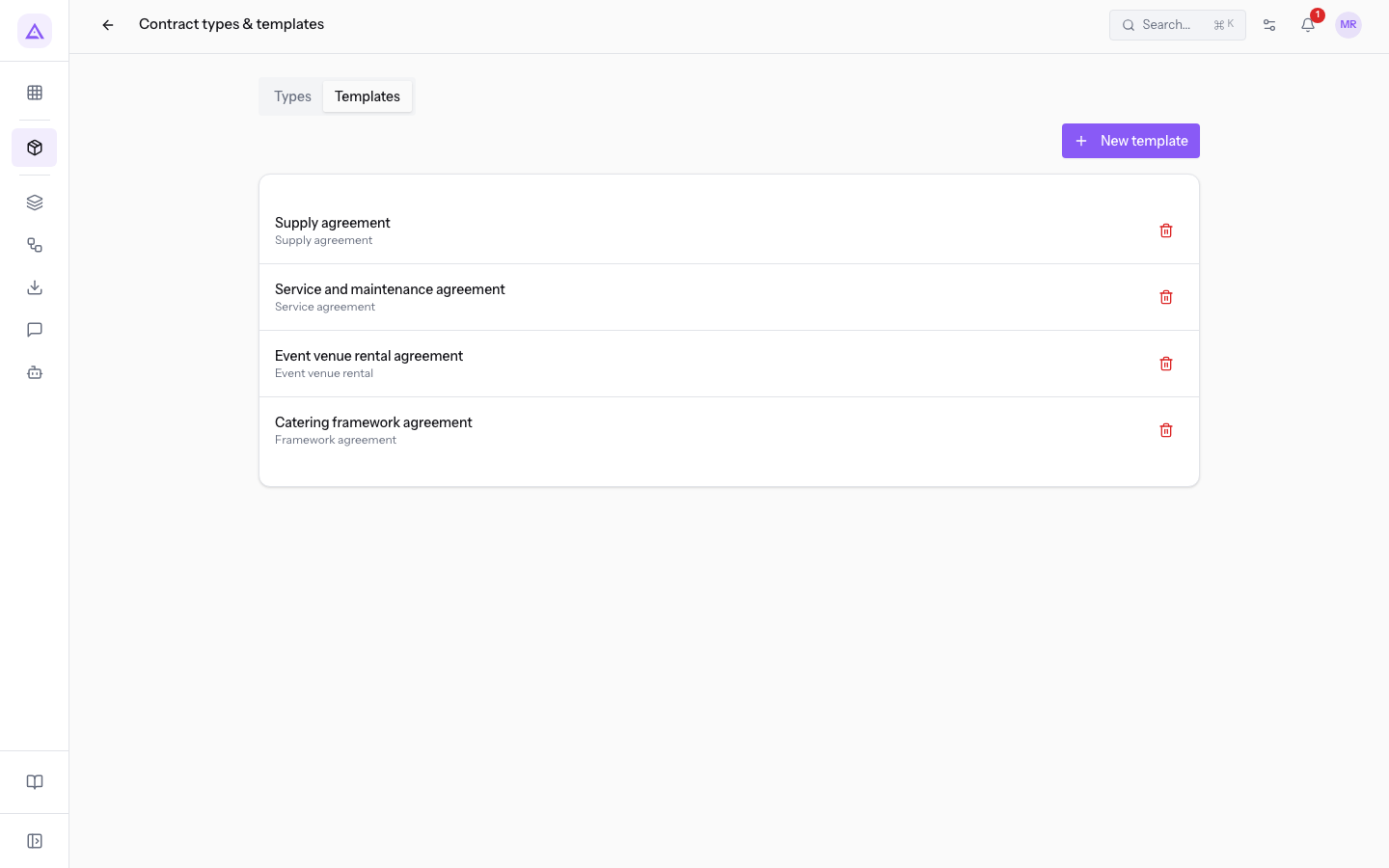
The Templates tab lists the templates. New template opens a form with these fields:
- Name: the name of the template. The field is required.
- Type: the contract type the template belongs to.
- Text: the template text, with the available placeholders. With Preview you can check the result.
- Active: the toggle is on by default.
Links with other modules
The Contracts module works with these modules:
- Contacts: required module. The counterparty and its signer are contacts. The contact page has a button to its contracts.
- Deadlines: required module. The notice deadline, the contract expiry and the open obligations appear in the deadlines calendar.
- Email: optional module. Sends the signing link, the verification code, the signing confirmation and, if enabled, the notice to the counterparty for a contract that ends without renewal. The sender is checked in the templates of the Email module.
- Invoicing: optional module. A contract with Amount and Billing cadence, or with recurring cost items, has a linked recurring billing. It is created on activation, updated by amendments and closed at expiry or termination.
- Documents: optional module. Keeps the contract versions and PDFs, with the signing certificate for link-based signatures.
- Client portal: the counterparty with an account sees and signs the contracts of its company.
- Proxima: issues its own contracts here. Under the title, the contract page shows their origin, hosting agreement or campaign.
See it on your company, not on a slide deck.
In 30 minutes we map the software you use today.We show you how much work and how much margin Archimedes gives back.
Show me on my business →What industry are you in?
One tap — it lets us prepare the demo around your world.
What tools do you use today?
Pick the ones you recognise — or just type them. It helps us show you how they migrate.
Last step: your details.
We reply within one working day — and right after, if you like, you pick the demo slot yourself.
We couldn't send your request. Try again, or write to us at [email protected].
By sending, you agree to your data being processed so we can get back to you about the demo. Privacy notice.
Preview form — nothing is sent from this page.
Want to schedule the demo now?
Your call: book the slot you prefer yourself, or we'll call you to arrange it.
Live availability, 30 minutes, instant confirmation. The calendar opens in a new tab.
Lock in your slot ↗We'll get back to you within one working day — and we'll join the call already knowing your world.
The calendar is open in another tab: pick a slot and the demo is booked. Can't see it? Reopen it ↗
Preview page: nothing was sent.
Our calendar is live: take the slot that suits you and the demo is booked. 30 minutes, instant confirmation, no waiting.
Lock in your slot ↗