All modules
Mail · 1 of 18 · 8 min read
The Mail module is the organization's email channel. From here you receive and process emails from customers and suppliers, choose which addresses the organization writes from, and monitor every email the platform sends on its behalf, from invoices to newsletters. For example, you can reply to the request June wedding in the Fienile, send a campaign to the list Companies for events, or find out why quote S00001 was not sent.
What it's for
- Sending from verified addresses. The organization writes from its own addresses, for example
[email protected]. A sending address can only be used after the DNS records for its domain have been published and verified. As long as an email template does not have a verified sender, that email is not sent: it remains held in the log and can be resent after verification. See Configuring the addresses you send from. - Receiving and handling conversations. Mail arriving at the organization's addresses and connected mailboxes is grouped into conversations. Each conversation has a status, an assignee, and the records it relates to, so the team knows what is waiting for a reply and who is handling it. See Handling conversations with customers, Reading and managing a conversation, and Writing a new message or a reply. To search for a single message, use the Messages page: see Viewing all received and sent messages.
- Automated emails. Other modules declare the emails they send automatically, such as the customer invoice or the order confirmation. In a single list you decide which are active, which address they come from, and what text they use, and you can add new ones tied to an event. See Choosing which emails go out on their own, Creating or editing an email automation, and Changing the text of an automated email.
- Campaigns to lists. A campaign is a mass send to a mailing list, such as a newsletter. Only subscribers who have given their consent receive it, and every message contains the unsubscribe link. See Managing mailing lists and their subscribers, Preparing a campaign, Testing, scheduling and sending a campaign, and Reading the results of a campaign.
- Unsubscribed. When a recipient unsubscribes, marks an email as spam, or their mailbox rejects mail, their address is added to the unsubscribed list and subsequent emails of that type are no longer sent to them. See Managing unsubscribed and suppressed addresses.
- Send log. Every send attempt is recorded with its outcome — sent, held, skipped, or failed — and the reason. It is the first place to look when a customer says they have not received an email. See Checking the sending log.
- Email design. Logo, brand color, footer, and signatures are set once and apply to the organization's emails. See Giving emails the company's look.
The overall status of the channel, with emails that were not sent and what to fix, is on the Email page: see Understanding at a glance how email is performing.
Platform emails, such as password reset, do not go through this module and do not appear in the log.
Who uses the module
The module's items depend on the user's permission group.
- Email User: handles conversations and can see Unsubscribed, Logs, campaigns, and mailing lists, without editing them.
- Email Manager: additionally manages addresses in Mail › Settings, Email automations, Email design, mailing lists, and campaign content.
- Email Campaign Sender: can send or schedule a campaign. This is a separate permission from the one for writing it, because preparing a newsletter and sending it to all customers are two different responsibilities.
A conversation is visible to anyone who can read the mailbox it arrived on, or to anyone who can see a record it is linked to: for example, someone who can see an opportunity can also read the conversations linked to that opportunity.
Menu items
The Mail menu item opens directly to Conversations. The items are as follows.
- Mail › Conversations: incoming mail, grouped into conversations to be handled.
- Mail › Communications › Email automations: emails that are sent automatically.
- Mail › Communications › Campaigns: mass sends to lists.
- Mail › Communications › Mailing lists: lists and their subscribers.
- Mail › Communications › Unsubscribed: addresses to which the organization no longer sends certain emails, with the reason.
- Mail › Communications › Logs: the history of every send attempt.
- Mail › Communications › Email design: logo, color, footer, and signatures.
- Mail › Settings: sending and receiving addresses, who reads each mailbox, and how long conversations are retained.
The Email and Messages pages do not have a menu item. The Email page opens by typing the platform address in the browser followed by /email; from there the Messages tab opens the Messages page.
Conversations
A conversation collects the messages from a single exchange with a contact. Its status indicates who needs to make the next move: To handle (the organization needs to reply), Waiting for customer (you have replied, waiting for the contact), and Done. The status also updates automatically: when you reply it changes to Waiting for customer, and when the contact writes again it returns to To handle, even if the conversation was marked done.
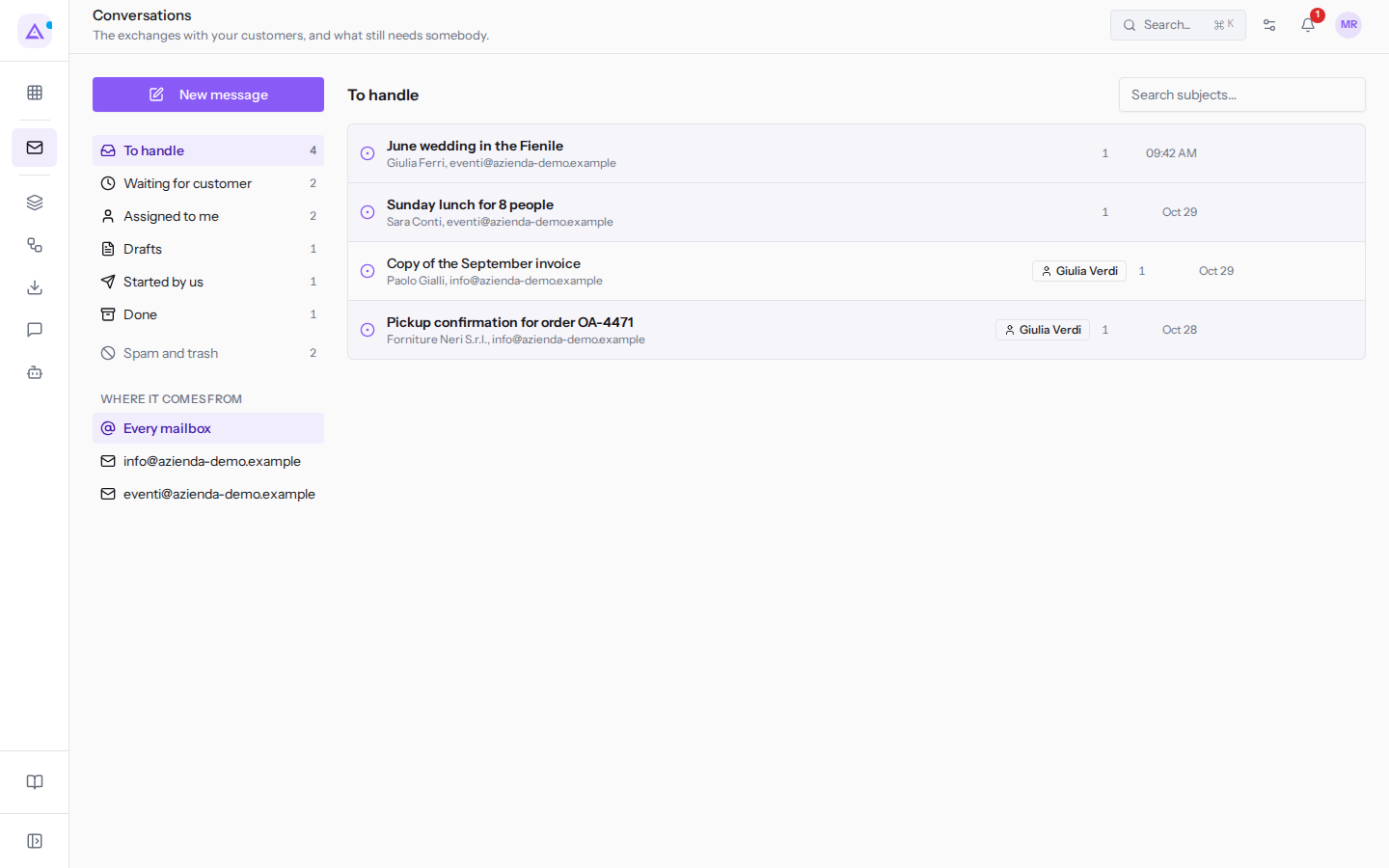
The views on the left divide the work: To handle, Waiting for customer, Assigned to me, Drafts, Started by us, Done, and Spam and trash. The Where it comes from panel limits the list to a single mailbox, for example [email protected] of the events office.
Linking a conversation to a record, for example Furniture quote for the new offices to the opportunity Arredo nuova sede Verdi Costruzioni, ties it to the life of that record: it remains as long as the record does. Conversations not linked to anything are removed after the period set in Mail › Settings, by default 24 months from the last message.
Sending and receiving addresses
In Mail › Settings you manage every address the organization sends from or receives on. With Add an address you choose what the new address should do.
- To send from your own domain, add a sender: publish the indicated DNS records with your provider and verify the address. Until verification succeeds the address remains Pending DNS and nothing is sent from it, for example
[email protected]. - To receive on a new address, create a hosted mailbox: its mail arrives in Conversations.
- If you already have a mailbox with another provider, connect it with Connect a mailbox, using the mailbox password or Microsoft or Google access. Its mail also arrives in Conversations, and replies can be sent from that mailbox.
Details are in Configuring the addresses you send from and Receiving mail on a hosted or connected mailbox.
Email automations and appearance
In Mail › Communications › Email automations you find all automated emails in one place. Some are provided by other modules, such as Documents and E-commerce; for each one you decide whether it is active and which address it comes from. With Add you add one from a ready-made template or create one manually in three steps: 1. When, 2. What to send, 3. Who to notify.
An email that announced an event, such as an order, a booking, or an assigned task, and that was held due to a missing sender, is not resent afterwards: it would arrive when the event has already passed. Only document emails, such as invoices and quotes, can be resent, once.
In Mail › Communications › Email design you set the logo, Brand colour, footer, and signatures. The default signature is added to custom emails when the sender does not have their own. Changes are applied with Save.
Campaigns and mailing lists
A campaign is a bulk send to a list, like a newsletter or an offer for business customers.
- Prepare the list in Mail › Communications › Mailing lists with New list, for example
Companies for events. - Create the campaign in Mail › Communications › Campaigns with New mailing, or with Start from… to copy a previous campaign or one of your templates into a new draft.
- Schedule it or send it, then read opens, clicks, and bounces in the campaign results.
The campaign only reaches list subscribers who have given their consent. Anyone who has unsubscribed or reported spam is skipped, and every message contains the unsubscribe link.
Unsubscribed and Logs
In Mail › Communications › Unsubscribed you can see the addresses to which the organization no longer delivers certain emails, along with the reason.
- Anyone who has unsubscribed or reported spam does not receive campaigns or marketing emails, but still receives order confirmations, invoices, and portal invitations.
- An address that has bounced receives nothing until you correct it and unblock it with Make contactable.
Re-enable an address only if the recipient has asked you to: if mail bounces again, your domain reputation suffers and your emails risk ending up in everyone's spam. The re-enablement is logged with your name.
In Mail › Communications › Logs you can find the history of every send attempt for the organization's templates and filter it by Recipient email, status, delivery, and period. The log also shows emails held back due to a missing sender: after a sender is verified, documents can be resent with Send again from the document.
Connections with other modules
- Recipients and list subscribers are contacts.
- A conversation links to a record in another module, for example
Furniture quote for the new officesto the opportunityArredo nuova sede Verdi Costruzioni. - Documents, E-commerce, Sales and Purchases declare their own automatic emails, which appear in Email automations.
- Automations with conditions, waits, or branches open in the automation editor.
- Campaign links can be tagged with UTM parameters, so revenue appears in the shop's UTM report.
See it on your company, not on a slide deck.
In 30 minutes we map the software you use today.We show you how much work and how much margin Archimedes gives back.
Show me on my business →What industry are you in?
One tap — it lets us prepare the demo around your world.
What tools do you use today?
Pick the ones you recognise — or just type them. It helps us show you how they migrate.
Last step: your details.
We reply within one working day — and right after, if you like, you pick the demo slot yourself.
We couldn't send your request. Try again, or write to us at [email protected].
By sending, you agree to your data being processed so we can get back to you about the demo. Privacy notice.
Preview form — nothing is sent from this page.
Want to schedule the demo now?
Your call: book the slot you prefer yourself, or we'll call you to arrange it.
Live availability, 30 minutes, instant confirmation. The calendar opens in a new tab.
Lock in your slot ↗We'll get back to you within one working day — and we'll join the call already knowing your world.
The calendar is open in another tab: pick a slot and the demo is booked. Can't see it? Reopen it ↗
Preview page: nothing was sent.
Our calendar is live: take the slot that suits you and the demo is booked. 30 minutes, instant confirmation, no waiting.
Lock in your slot ↗