Purchase
All modules
Purchase
Purchase · 1 of 13 · 5 min read
The Purchase module manages orders to suppliers, from the request for quotation (RFQ) to the confirmed order, through to receiving the goods and the supplier's invoice. You can use it, for example, to reorder Ergonomic chair Pro from Metalnord Forniture Industriali S.p.A..
The module also tracks purchase prices, with history and alerts, and collects supplier ratings. Every order receives an automatic number in the format PO/2026/00001.
What the module is for
An order starts as a request for quotation. You send it to the supplier, then you confirm it: from confirmation onwards it becomes a purchase order. The record is the same, only the status changes.
- If the supplier still has to give you a price and availability, save the order as a draft and send the RFQ.
- If you sent the request by phone, on paper or from another mailbox, use Mark as sent: the application does not send any email.
- If the supplier has accepted, use Confirm Order. From that moment the order counts towards spend and in the reports.
Some actions happen automatically:
- When you confirm the order, the warehouse creates the receipt, for example
WH/IN/00002fromPO/2026/00003. - When the warehouse validates the receipt, the received quantity and the order's receipt status are updated.
- When the last quantity arrives, the supplier receives a delivery rating: on time or late compared with the Expected Arrival.
Important: for stocked products the received quantity is recorded only when the receipt is validated in the Warehouse module, never by hand.
The menu entries
The Purchase menu has these entries:
- Purchase › Dashboard: the order counters and the New Purchase Order button.
- Purchase › Orders: the list of purchase orders.
- Purchase › Quick order: a guided order starting from the supplier.
- Purchase › Reports: the analysis of spend and supplier performance.
- Purchase › Alerts: the alerts from the price check.
- Purchase › Vendor ratings: the supplier scores by criterion.
The dashboard
The dashboard counts orders by status and shows the value of confirmed orders.
- Open Purchase › Dashboard.
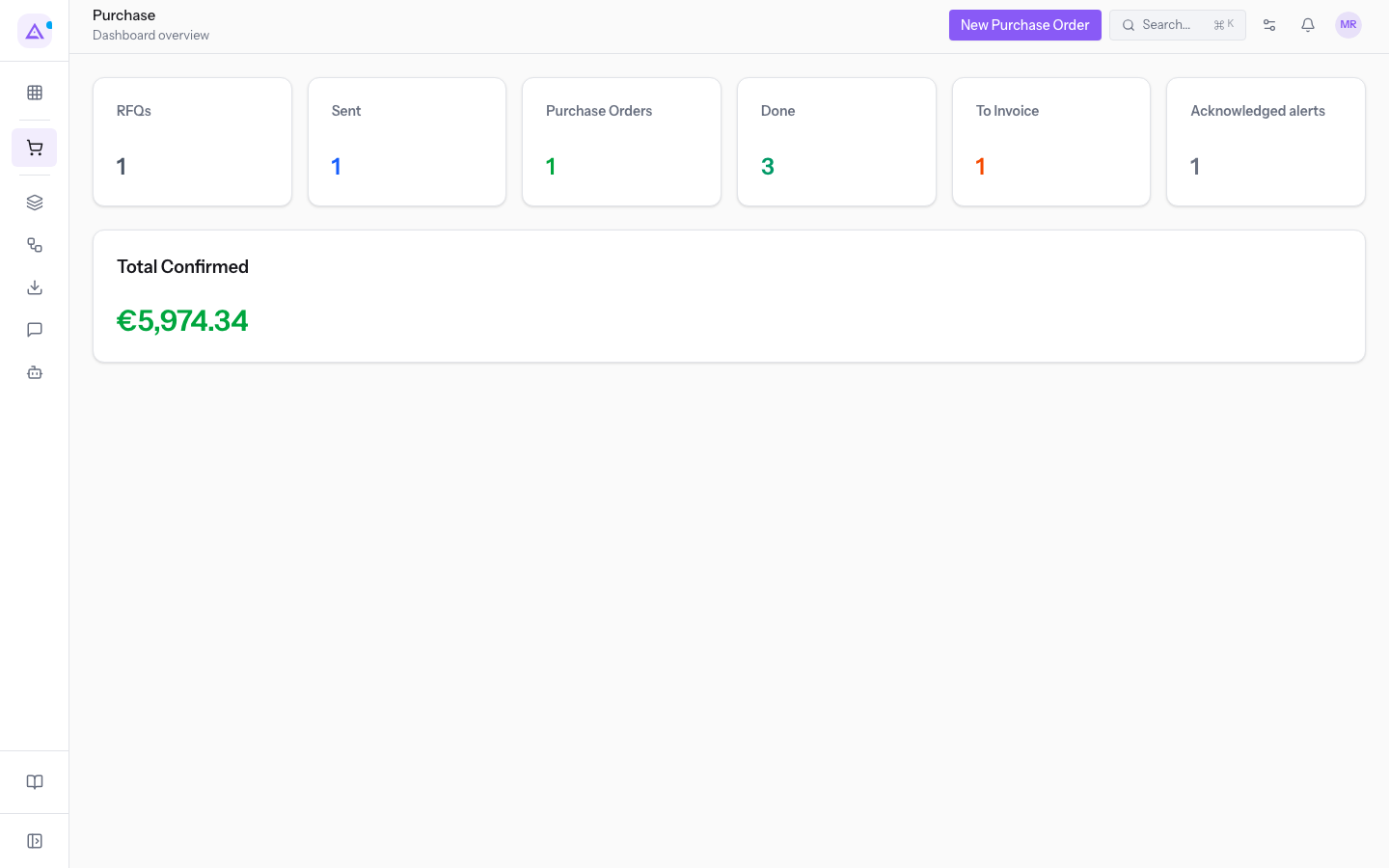
The counters are RFQs, Sent, Purchase Orders, Done, To Invoice and Acknowledged alerts. Total Confirmed adds up the confirmed orders. For the details read Purchase overview: the dashboard.
Purchase orders
The list gathers all the organisation's orders. All users in the organisation see all orders.
- Open Purchase › Orders.
- Filter by status with All, RFQs, RFQ Sent, Purchase Order, Locked or Cancelled.
- Search for an order in the Search orders... field.
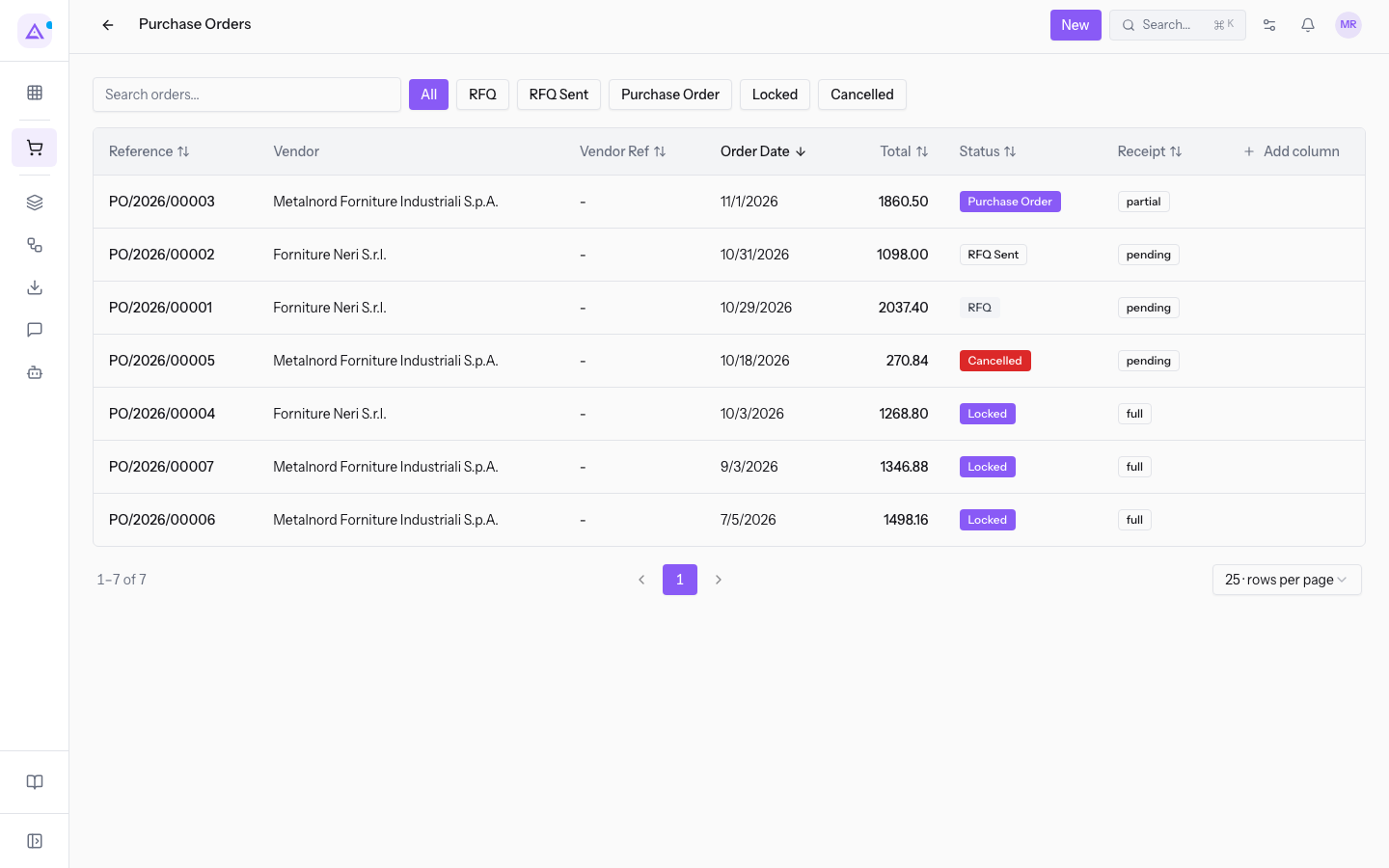
The columns are Reference, Vendor, Vendor Ref, Order Date, Total, Status and Receipt. With Add column you can show more. To create an order press New.
The order record shows three statuses: the order status, the receipt status and the billing status. For example PO/2026/00003 is Confirmed, Partially Received and To Invoice. From the record you send the order with Send order. The other operations are under More actions.
- Receipt status: To Receive, Partially Received, Received.
- Billing status: To bill, Billed, Nothing to bill. A confirmed order that has not yet been received has nothing to bill.
For the details read these articles:
- Create a new purchase request (RFQ)
- Add products to the lines and read the price history
- Send the purchase request to the supplier
- Link a supplier invoice to the order
Quick order
The quick order is for a fast reorder: you choose the supplier, write what you need and confirm.
- Open Purchase › Quick order.
- Choose the supplier from the list or search for it in Search vendor…. Each supplier shows the date of the last order and how many orders it has.
- Write or dictate the list. You can also read it from Photo of the list or From a spreadsheet.
The module suggests the Usual products and those From the vendor's catalog. A line without an item leaves the order in draft until the office assigns one.
Alerts
The price check records an alert when it finds a price increase, an unusual price, a possible saving, an expiring contract or a supplier at risk.
- Open Purchase › Alerts.
- Filter with Status, Severity and Type, or search in Search alerts….
The severity is Info, Warning or Critical. Close an alert with Acknowledge or Mark as acted on.
Vendor ratings
The ratings compare suppliers on delivery, quality, price and service, with a score from 1 (poor) to 5 (excellent).
- Open Purchase › Vendor ratings.
- Read the Delivery, Quality, Price, Service and Overall columns for each supplier.
- To add a rating by hand press Add rating.
Note: the delivery rating is added automatically when the goods arrive, on time or late.
Reports
The reports analyse spend and supplier performance over a period.
- Open Purchase › Reports.
- Set the period in the From and To fields.
- Choose a tab: Spend, Vendors, Products or Cycle time.
For the details read Analyse purchases and configure the Settings.
Links with the other modules
The module uses data from other modules:
- Contacts: the supplier is a contact. If the supplier has no email address, the order cannot be sent by email.
- Products: the price of a line comes from the supplier's price list for that quantity. If the price list is missing, it comes from the product's cost. The tax is the product's purchase tax.
- Warehouse: sets the destination warehouse, in the demo
Magazzino principale(WH). Receipts and returns go through the warehouse; returns start from Return to supplier. - Invoicing: the payment terms, in the demo
30 gg netti. From the order you create the invoice with Create Vendor Bill or link the one you received with Link the received invoice.
Tip: if an order that is neither done nor cancelled has an Expected Arrival, the module creates a goods-arrival deadline with a reminder 2 days before.
See it on your company, not on a slide deck.
In 30 minutes we map the software you use today.We show you how much work and how much margin Archimedes gives back.
Show me on my business →What industry are you in?
One tap — it lets us prepare the demo around your world.
What tools do you use today?
Pick the ones you recognise — or just type them. It helps us show you how they migrate.
Last step: your details.
We reply within one working day — and right after, if you like, you pick the demo slot yourself.
We couldn't send your request. Try again, or write to us at [email protected].
By sending, you agree to your data being processed so we can get back to you about the demo. Privacy notice.
Preview form — nothing is sent from this page.
Want to schedule the demo now?
Your call: book the slot you prefer yourself, or we'll call you to arrange it.
Live availability, 30 minutes, instant confirmation. The calendar opens in a new tab.
Lock in your slot ↗We'll get back to you within one working day — and we'll join the call already knowing your world.
The calendar is open in another tab: pick a slot and the demo is booked. Can't see it? Reopen it ↗
Preview page: nothing was sent.
Our calendar is live: take the slot that suits you and the demo is booked. 30 minutes, instant confirmation, no waiting.
Lock in your slot ↗