Open Banking
All modules
Open Banking
Open Banking · 1 of 15 · 4 min read
The Open Banking module connects the organization's bank accounts to the bank and downloads their transactions into Archimedes. The downloaded transactions go into the accounting bank reconciliation, where you match them to invoices and payments: for example, the transfer from Rossi Arredamenti S.r.l. for invoice FV/2026/0002.
This page presents the module's screens and its links to other modules, and points to the articles that describe each activity.
How it works
The bank connection is based on a consent that the account holder gives to their bank. The connection provider is finAPI.
- The consent gives read-only access: Archimedes reads the transactions but cannot make payments.
- The consent lasts 90 days. When it expires, renew it by reconnecting the same account, not by creating a new connection.
- One consent can cover several accounts at the same bank. Each account you choose gets its own separate connection.
- The bank credentials are entered in a finAPI window and do not pass through Archimedes.
- Transactions arrive with the scheduled sync or with one you start by hand, not in real time. A transaction just made at the bank appears at the next sync.
Choose how to handle each account:
- If the account's bank can be reached through the connection, connect the account: transactions arrive automatically. Read Connect a bank account.
- If the account is not connected, import the bank statements from a file, as for the
Bankaccount in Manual only status. Read Import a bank statement from a CSV or CAMT.053 file.
Important: disconnecting an account deletes the connection in Archimedes. The consent at the bank is revoked only when you disconnect the last account covered by that consent.
The bank accounts list
The Banking screen lists the organization's bank accounts, each with its code, IBAN, bank, date of the last sync, number of transactions, and current balance.
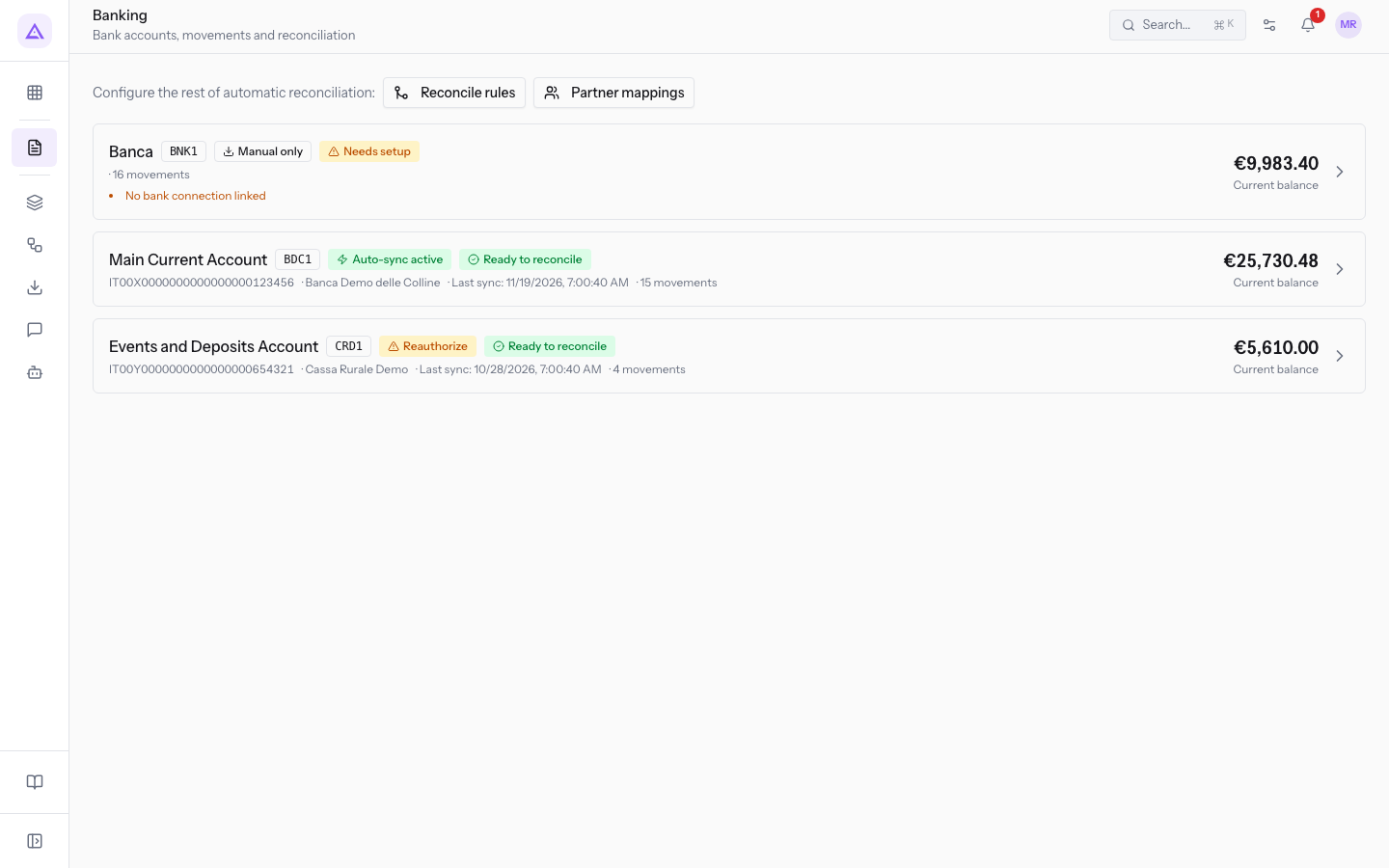
Each account shows its connection type and its status. In the demo organization:
Main Current Account(BDC1): Auto-sync active, Ready to reconcile.Events and Deposits Account(CRD1): Reauthorize, meaning the consent must be renewed. Read Reconnect a bank account when the bank consent expires.Bank(BNK1): Manual only, Needs setup, with no bank connection.
At the top, the screen links to Reconcile rules and Partner mappings, which complete the automatic reconciliation. To read the list in detail, see Keep an eye on bank accounts.
The account page
Press an account in the list to open its page. The page shows the account balance, the transactions with their search box and their date and reconciliation filters, and the transactions held pending your decision.
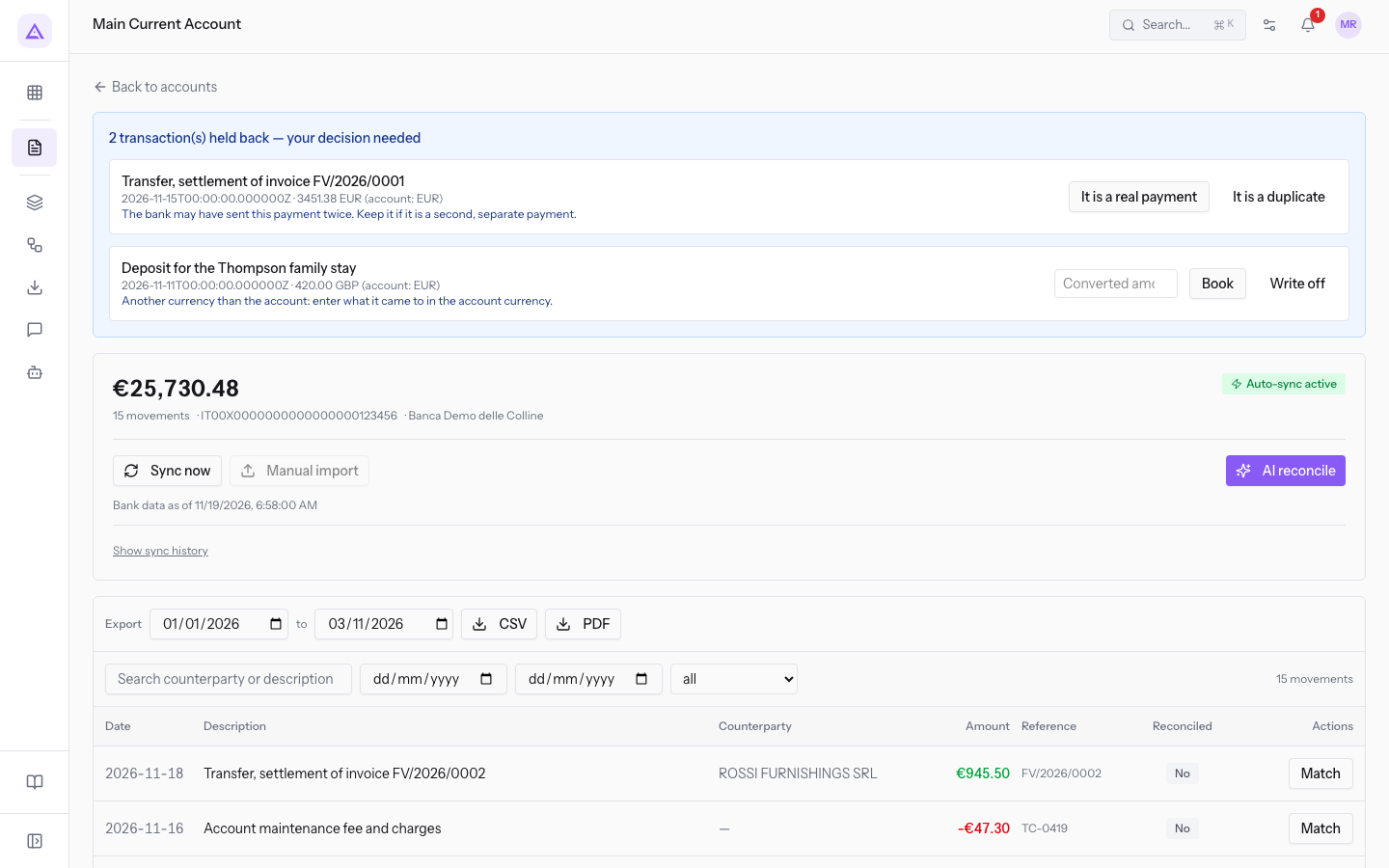
From the page you can:
- Sync now: download the transactions from the bank right away. Read Sync an account with the bank and read the history.
- Manual import: upload a bank statement from a file.
- AI reconcile: suggests matches between transactions and documents.
- Match and Undo: match a transaction to an invoice by hand, or undo a reconciliation. Read Manually matching a transaction to an invoice and undoing a reconciliation.
- CSV and PDF: export the account's transactions. Read Export transactions for the accountant.
- Back to accounts: return to the list.
For each part of the page, see Read a bank account page. For held transactions, for example a payment that arrived twice, see Decide on transactions held by the bank. If the bank balance does not match the transactions, see Understand why the bank balance doesn't match the transactions.
Reconciliation rules and partner mappings
Two screens decide how transactions are matched automatically.
- Reconciliation Rules: rules to match statement lines to invoices automatically or by hand. The list has the columns Name, Rule Type, AI reconcile, Status, and Actions. Create a rule with New Rule.
- Partner Mappings: rules that assign a contact to a bank statement line based on the transaction text. Create a mapping with New mapping. Read Recognize customers and suppliers from the bank text.
Bank reconciliation
The Bank Reconciliation screen in accounting lists the bank statements of each bank journal, both those downloaded from the bank and those imported from files.
- Pick a bank journal...: the journal you work on, for example
BDC1 — Main Current Account. - Import: upload a bank statement from a file in CSV or CAMT.053 format.
- New statement: create a bank statement.
- Search by reference: search for a statement by reference.
For the full procedure, read Reconcile the bank statement.
Links with other modules
- Accounting: transactions become bank statement lines of the account's bank journal and are reconciled in accounting. Read Accounting overview: the dashboard.
- Invoicing: reconciliation matches transactions to customer and supplier invoices, for example
FV/2026/0002orBILL/2026/00001. - Contacts: when you connect a third party's account, such as for factoring, you choose the holder from the contacts of type company.
Note: the module has no settings page for the user.
See it on your company, not on a slide deck.
In 30 minutes we map the software you use today.We show you how much work and how much margin Archimedes gives back.
Show me on my business →What industry are you in?
One tap — it lets us prepare the demo around your world.
What tools do you use today?
Pick the ones you recognise — or just type them. It helps us show you how they migrate.
Last step: your details.
We reply within one working day — and right after, if you like, you pick the demo slot yourself.
We couldn't send your request. Try again, or write to us at [email protected].
By sending, you agree to your data being processed so we can get back to you about the demo. Privacy notice.
Preview form — nothing is sent from this page.
Want to schedule the demo now?
Your call: book the slot you prefer yourself, or we'll call you to arrange it.
Live availability, 30 minutes, instant confirmation. The calendar opens in a new tab.
Lock in your slot ↗We'll get back to you within one working day — and we'll join the call already knowing your world.
The calendar is open in another tab: pick a slot and the demo is booked. Can't see it? Reopen it ↗
Preview page: nothing was sent.
Our calendar is live: take the slot that suits you and the demo is booked. 30 minutes, instant confirmation, no waiting.
Lock in your slot ↗