Property management
All modules
Property management
Property management · 1 of 18 · 6 min read
The PMS module runs a lodging business: rooms, rates, reservations and guests. Use it to record a reservation at the front desk, check a guest in and out, and answer a booking request that came in from the website.
This article covers the menu items, the main screens and the links to other modules.
How it works
The module's work is built on these elements:
- Property: the lodging business, with check-in and check-out times, the deposit, the cancellation policy and the tourist tax. In the demo organization it is
Farm stay Azienda Demo. - Room type: the category you sell, with maximum occupancy, base price, features, bed types and extras. In the demo one room type is
Barn Suite. - Room: the physical room, with a number and a status. You can close it for some nights and put it back on sale from a given date.
- Rate plan: a sellable offer for a room type (
Flexible rate) or a price adjustment for a period (Weekend). - Reservation: the stay, with an 8-character confirmation code, one line per night with its price, the extras, the payments, the deposit, the guests and the documents.
A reservation goes through these statuses:
- Request: the request that came in from the website, to accept or decline.
- Reserved: the confirmed stay.
- Checked In: the guest has arrived.
- Checked Out: the guest has left. At check-out the stay's sale order is created.
- Cancelled: the reservation was cancelled. The refund is calculated according to the cancellation policy.
- No-show: the guest did not turn up.
You can no longer change the dates, the room or the extras of a reservation in Checked Out, Cancelled or No-show.
Before you start: using the module requires one of the module's three permission groups, and each group includes the one before it. PMS User can see properties, rooms and reservations but cannot change them. Receptionist creates and edits reservations, checks guests in and out, and manages rooms. PMS Manager has full access, configuration included.
The menu items
Open the module from PMS and press Expand sidebar to see the module menu.
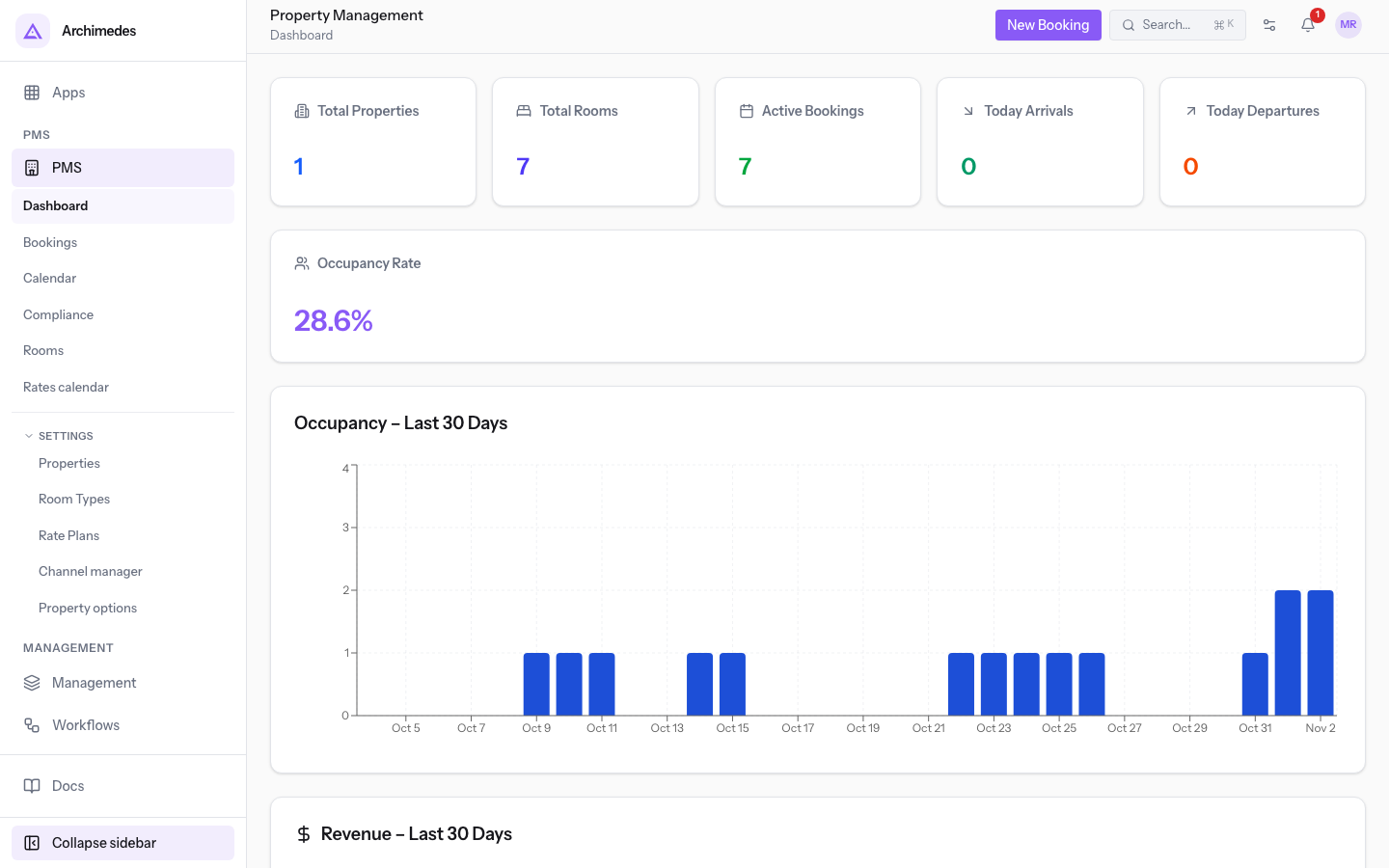
The menu has these items:
- PMS › Dashboard: the day's numbers and the New Booking button.
- PMS › Bookings: the list of reservations.
- PMS › Calendar: the reservation calendar.
- PMS › Compliance: the obligations still open, with their deadline.
- PMS › Rooms: the physical rooms and their status. It only appears from the Receptionist group upward.
- PMS › Rates calendar: the price, the stay rules and the rooms on sale for each night.
The items under SETTINGS are used to configure the module:
- PMS › Properties: the property details, times, deposit, cancellation policy, tourist tax and online booking.
- PMS › Room Types: occupancy, base price, features, bed types and extras.
- PMS › Rate Plans: the offers and adjustments for each room type.
- PMS › Channel manager: the guided setup of the connection to sales channels (OTAs).
- PMS › Property options: the module's general options.
Note: only the PMS Manager group sees Rates calendar, Properties, Room Types, Rate Plans, Channel manager and Property options.
The dashboard
The dashboard shows the situation for the day: the properties and rooms, the active reservations, today's arrivals and departures, and the occupancy rate. In the demo, today's arrivals are 3 and departures are 1.
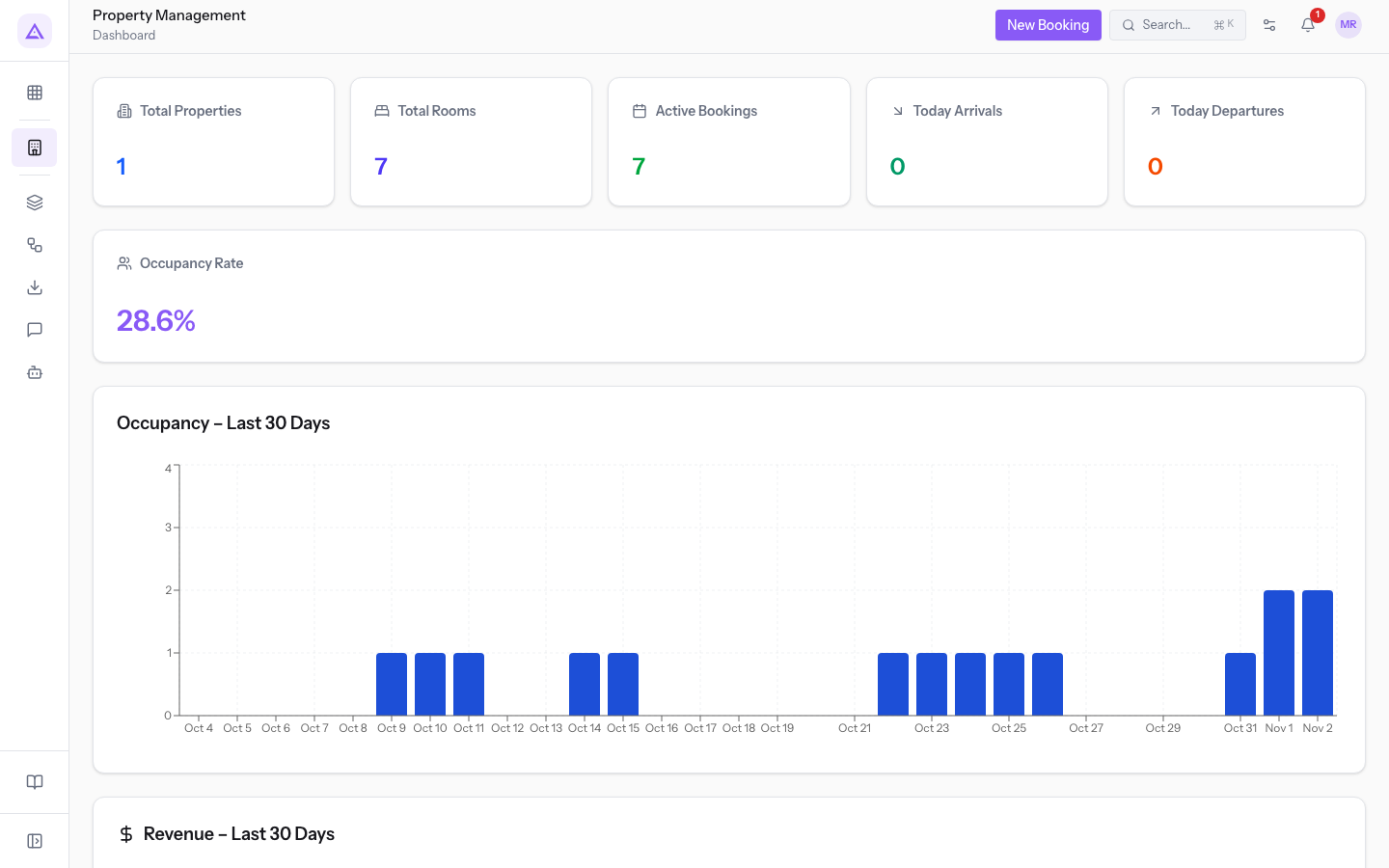
From here press New Booking to record a reservation at the front desk. If you do not choose the room, the reservation takes the first free room of the room type and starts in the Reserved status.
Reservations
The PMS › Bookings list shows all reservations. Narrow the list with these controls:
- Search bookings...: free-text search.
- All Properties: the property.
- The two date fields: the period.
- Channel: where the reservation came from. The starting value is All channels.
- All, Reserved, Checked In, Checked Out, Cancelled, No-show: the filters by status.
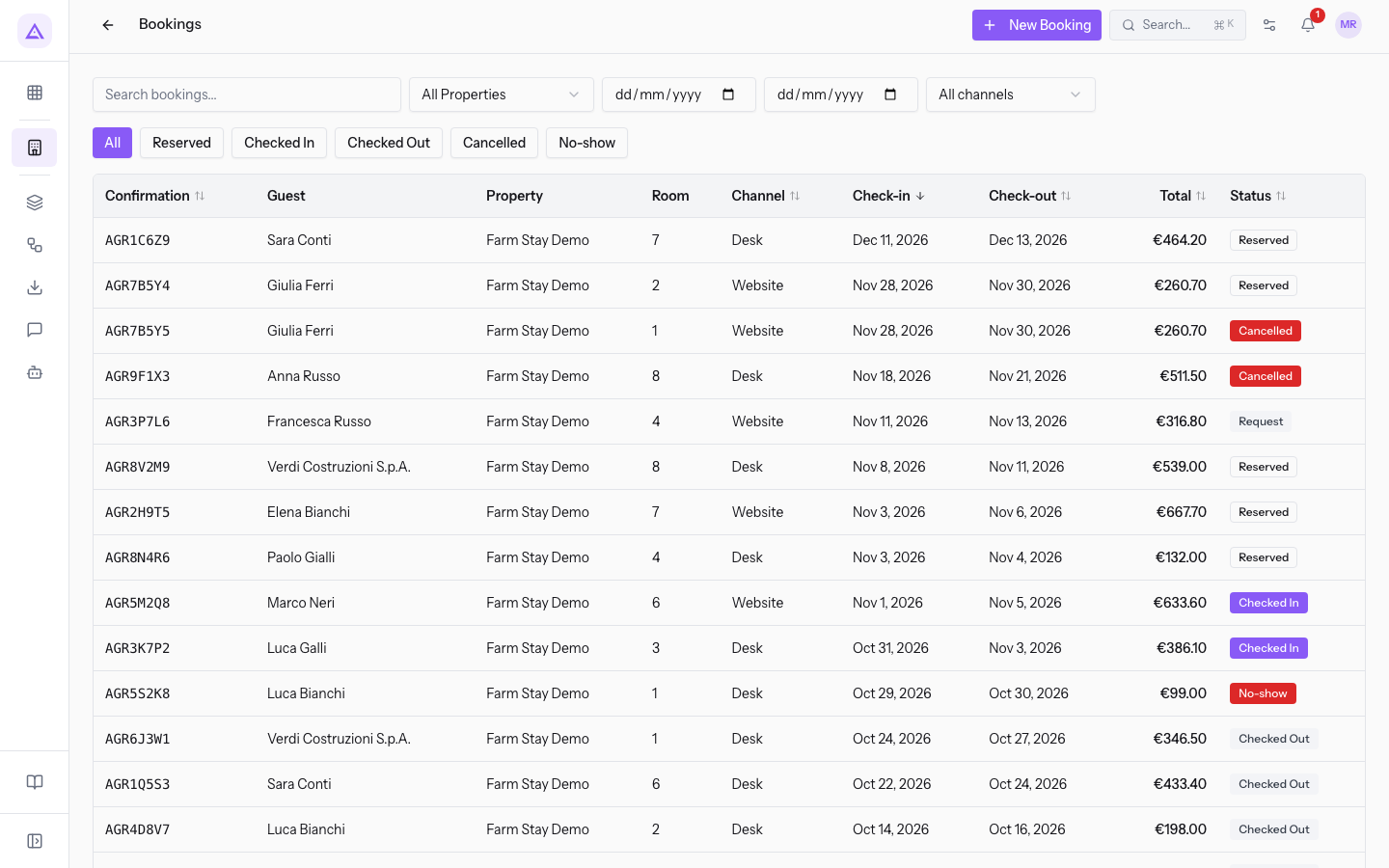
Press a row to open the reservation, for example AGR1C6Z9 for Sarah Conway, Barn Suite, in the Reserved status. The page shows the Details, the Pricing Summary and the Payments, along with the balance due. At the top you find the buttons Record Payment, Check-in and More actions.
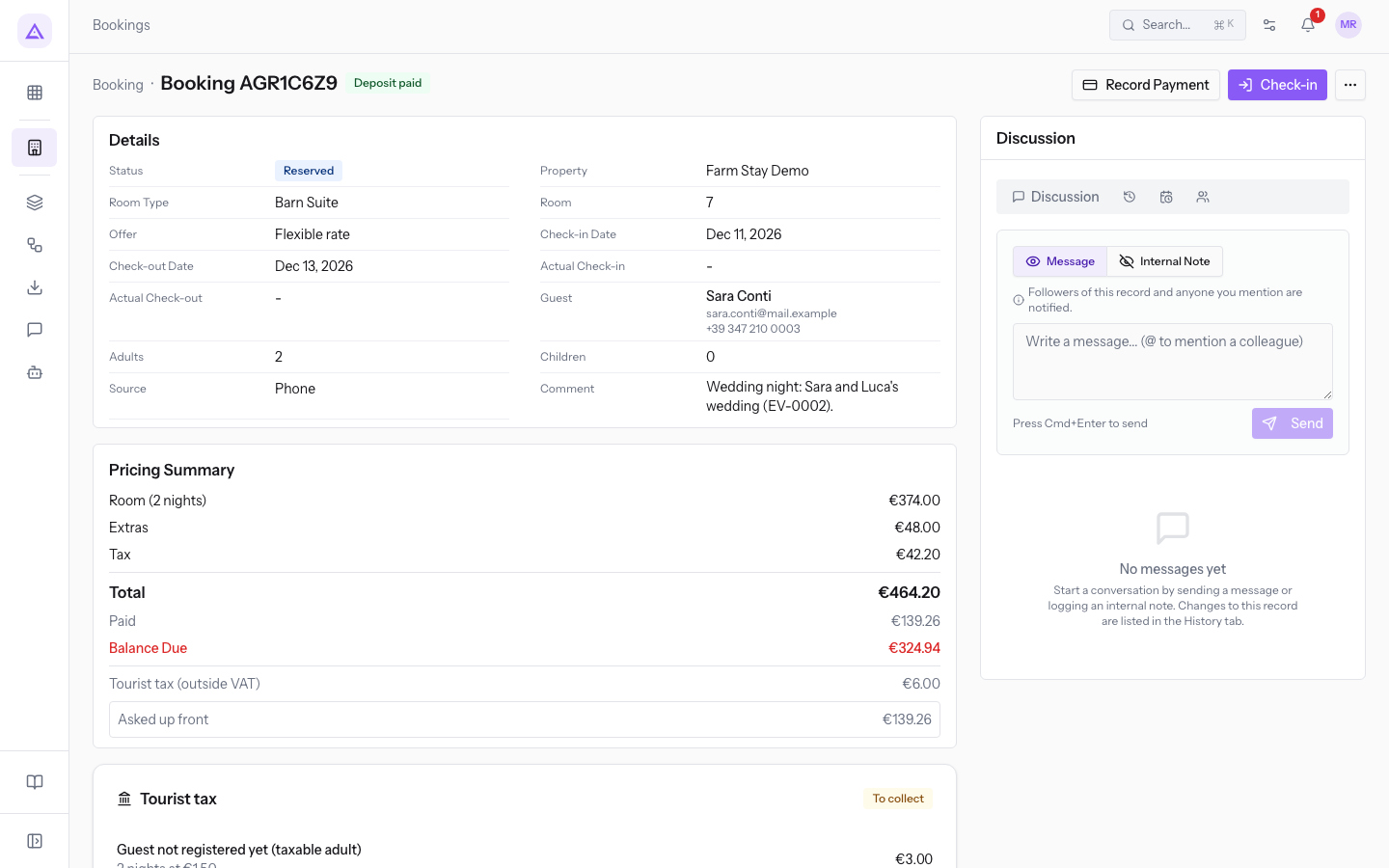
The reservation's tabs are:
- Night Breakdown: one line per night with its price.
- Extras: the reservation's extras.
- Guests: the registered guests.
- Documents: the guests' identity documents.
On the right, the Discussion panel collects the messages, internal notes, changes, activities and followers of the reservation.
Important: check-in is only possible from Reserved and check-out only from Checked In. A guest who is staying cannot be cancelled at the front desk: close the stay with check-out.
Compliance
PMS › Compliance opens the Compliance due screen. The list shows all reservations with an obligation still open, such as the guest register for Alloggiati Web or the tourist tax, with the deadline for each one. Filter the list by Property.
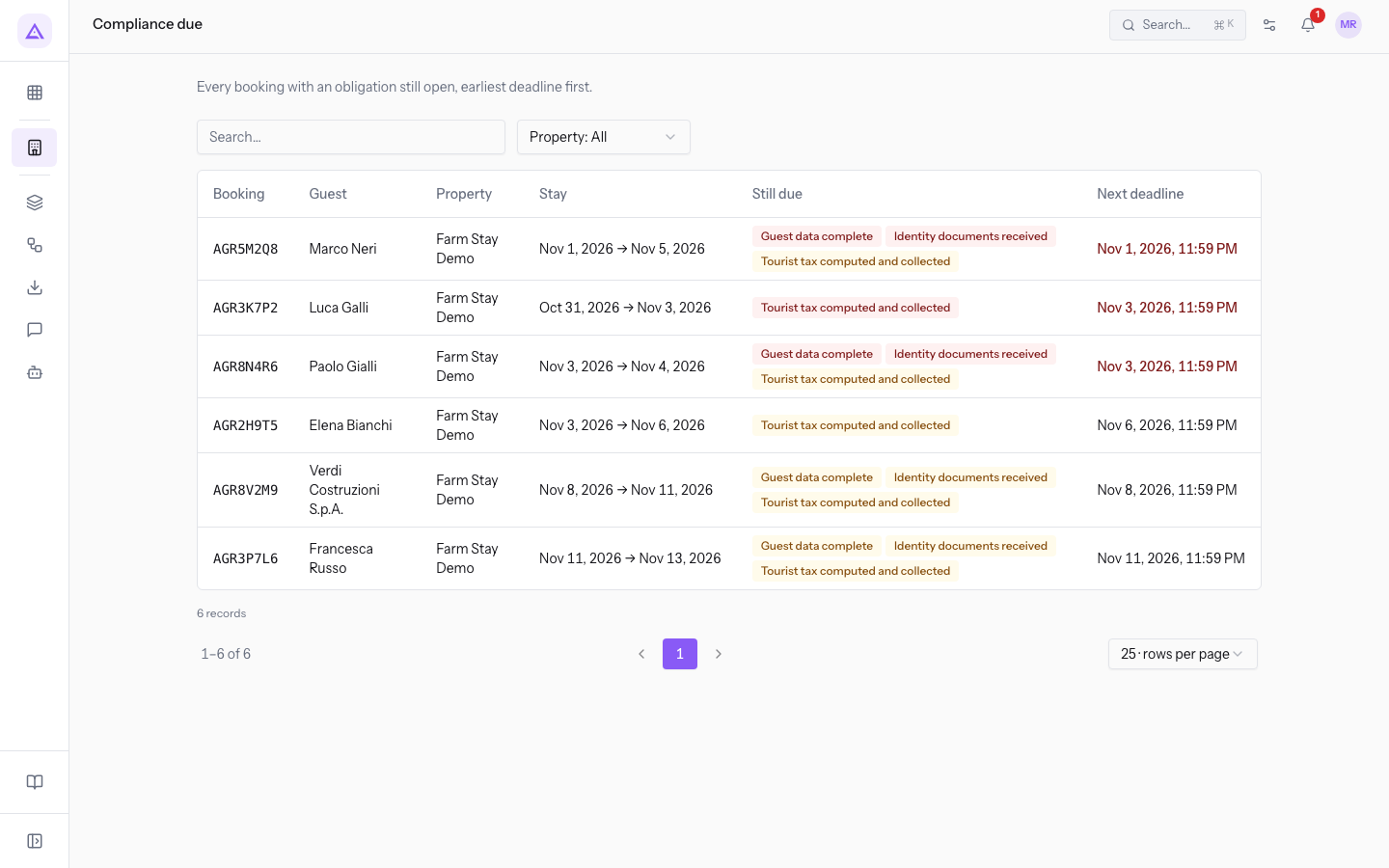
Note: Alloggiati Web only accepts arrivals from today or yesterday. Copies of guests' identity documents are kept for 30 days and then deleted.
The property
In PMS › Properties press the property to open it. In the demo it is Farm stay Azienda Demo, Kind of property Farm stay / farm stay, check-in 15:00, check-out 10:30.
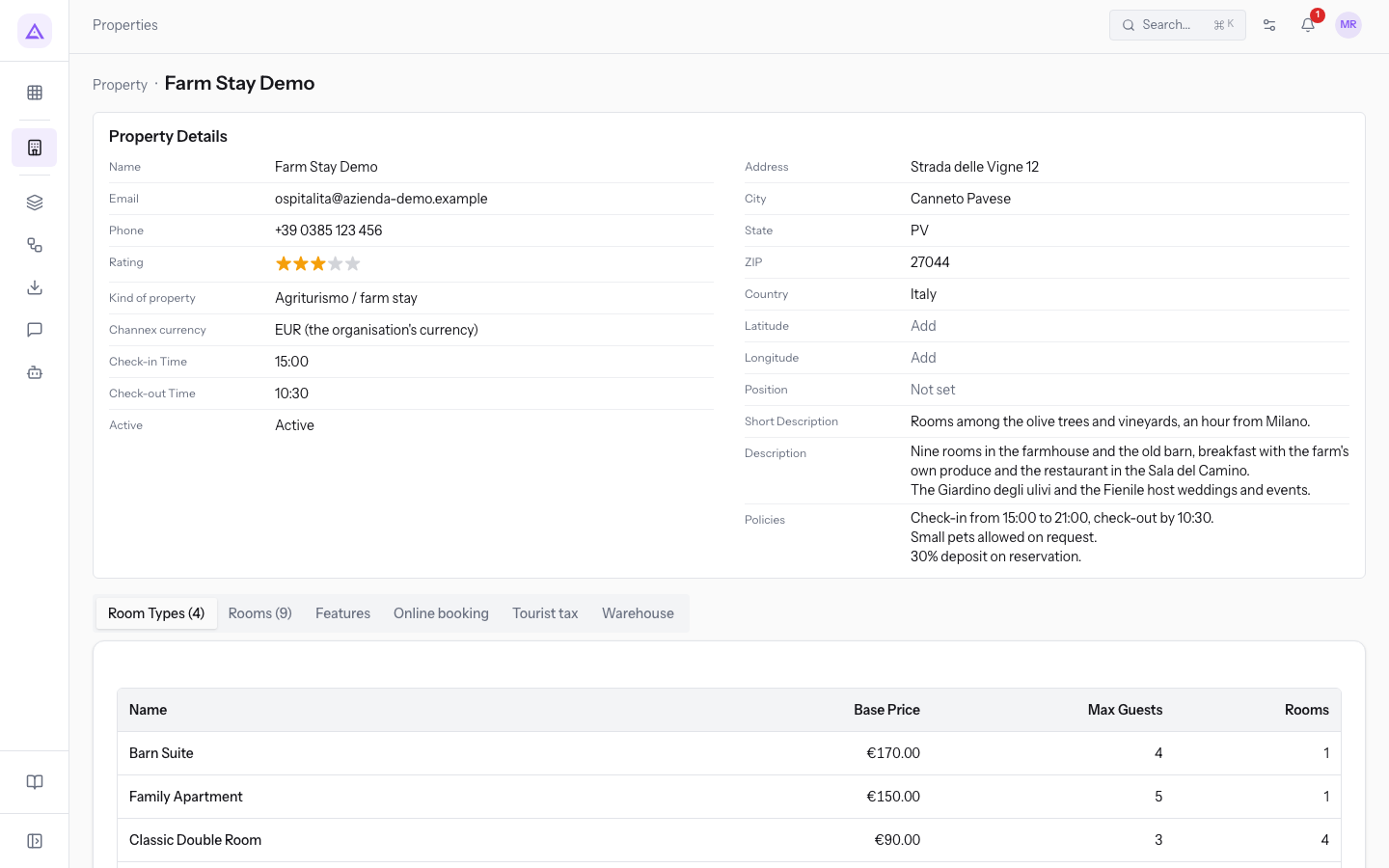
The property has these tabs:
- Room Types: the property's room types. In the demo there are 4.
- Rooms: the property's rooms. In the demo there are 9.
- Features: the property's features.
- Online booking: the public booking page and how reservations are confirmed, that is immediately or on request, with the response time.
- Tourist tax: the tourist tax rules.
- Warehouse: the link to the warehouse.
If confirmation is on request, the room stays reserved until the property accepts or declines the request. If there is no answer within the time limit, the request expires and the guest is notified.
Links with other modules
- Contacts: the reservation's guest is a contact, and is the customer of the order and the invoice.
- Sales and Invoicing: at check-out the stay's sale order is created, and from there the invoice. If creating the order fails, the check-out remains valid and the reservation is flagged: create the order with Create Sale Order.
- Email: the guest receives by email the confirmation, the changes, the cancellation and the pre-arrival link.
- Compliance, Products and Inventory: the stay's obligations and the extras linked to a product.
- Channex: the channel manager exchanges availability, rates and reservations with OTAs such as Booking.com and Airbnb. Channel reservations are always recorded. Overbookings and broken rules are flagged.
- Stripe: online collection of deposits and payments.
See it on your company, not on a slide deck.
In 30 minutes we map the software you use today.We show you how much work and how much margin Archimedes gives back.
Show me on my business →What industry are you in?
One tap — it lets us prepare the demo around your world.
What tools do you use today?
Pick the ones you recognise — or just type them. It helps us show you how they migrate.
Last step: your details.
We reply within one working day — and right after, if you like, you pick the demo slot yourself.
We couldn't send your request. Try again, or write to us at [email protected].
By sending, you agree to your data being processed so we can get back to you about the demo. Privacy notice.
Preview form — nothing is sent from this page.
Want to schedule the demo now?
Your call: book the slot you prefer yourself, or we'll call you to arrange it.
Live availability, 30 minutes, instant confirmation. The calendar opens in a new tab.
Lock in your slot ↗We'll get back to you within one working day — and we'll join the call already knowing your world.
The calendar is open in another tab: pick a slot and the demo is booked. Can't see it? Reopen it ↗
Preview page: nothing was sent.
Our calendar is live: take the slot that suits you and the demo is booked. 30 minutes, instant confirmation, no waiting.
Lock in your slot ↗