Availability
All modules
Availability
Availability · 1 of 10 · 2 min read
The Availability module knows when the organization works and when people are free. Other modules query it: deadlines use it to avoid falling on a closure day, the Calendar to shade non-working days, appointment booking pages to offer only genuinely free slots.
Where to find it
The module has no menu of its own: it activates automatically and its settings live in the pages that use them.
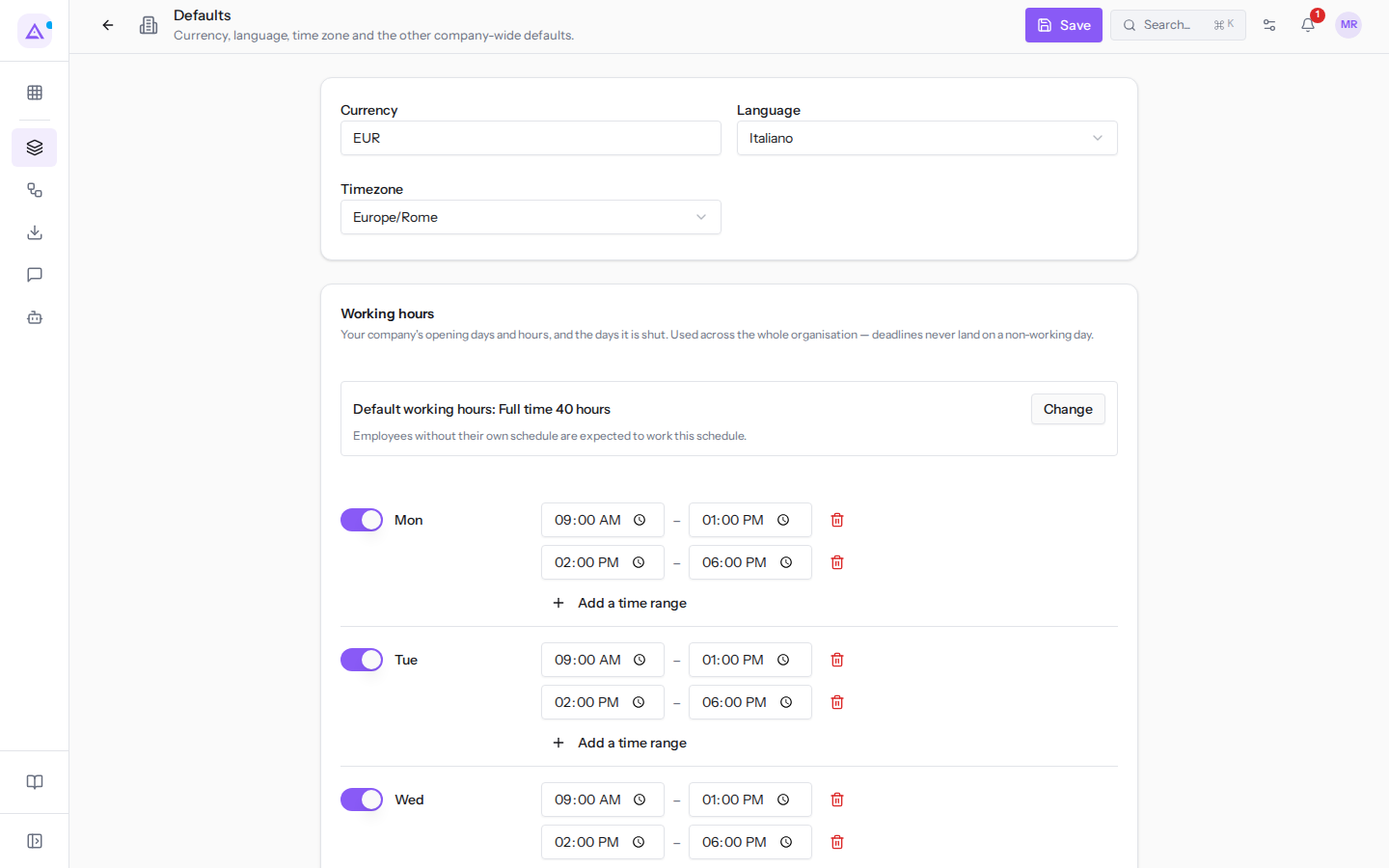
- In Management › Organization › Defaults, the Working hours panel: the organization's week, the default working schedule, and closures.
- In Appointments › Settings › Booking setup, tab Availability, the External calendars section: the Google, Apple or Outlook calendars of hosts.
- The public pages seen by anyone booking an appointment from the website, and the page from which they can reschedule or cancel the booking.
What makes a day a working day
A day is not a working day for one of three reasons, in this order: an organization closure (for example Summer closure), a national holiday, or a closed day in the working-hours week (in the example, Saturday and Sunday). National holidays are already included and do not need to be entered.
The working-hours week is that of the default working schedule, Full time 40 hours in the example. It is also the schedule that employees without their own must follow.
What makes a slot bookable
The slots a booking page offers start from the availability schedule of the appointment type, which is set in the Appointments module. From those slots, organization closures, appointments already taken by the host, and commitments from their external calendars are removed. National holidays, however, are not removed.
Articles
- Setting the organization's working hours
- Choosing which schedule applies to the whole organization
- Recording organization closures
- Understanding where non-working days count
- Connecting a host's Google, Apple or Outlook calendar
- Checking that an external calendar is blocking time slots
- Understanding which time slots are offered to people booking
- What people booking from the website see
- How people who booked move or cancel their booking
The availability schedules of appointment types, booking questions, and the public link are explained in the Appointments manual: Setting the hours when bookings are possible and Publishing the booking link and questions for bookers.
See it on your company, not on a slide deck.
In 30 minutes we map the software you use today.We show you how much work and how much margin Archimedes gives back.
Show me on my business →What industry are you in?
One tap — it lets us prepare the demo around your world.
What tools do you use today?
Pick the ones you recognise — or just type them. It helps us show you how they migrate.
Last step: your details.
We reply within one working day — and right after, if you like, you pick the demo slot yourself.
We couldn't send your request. Try again, or write to us at [email protected].
By sending, you agree to your data being processed so we can get back to you about the demo. Privacy notice.
Preview form — nothing is sent from this page.
Want to schedule the demo now?
Your call: book the slot you prefer yourself, or we'll call you to arrange it.
Live availability, 30 minutes, instant confirmation. The calendar opens in a new tab.
Lock in your slot ↗We'll get back to you within one working day — and we'll join the call already knowing your world.
The calendar is open in another tab: pick a slot and the demo is booked. Can't see it? Reopen it ↗
Preview page: nothing was sent.
Our calendar is live: take the slot that suits you and the demo is booked. 30 minutes, instant confirmation, no waiting.
Lock in your slot ↗