Employees
All modules
Employees
Employees · 1 of 20 · 6 min read
The Employees module manages the organization's staff: employee records, departments, positions and contracts, as well as working time, expense reports, recruitment, appraisals and payroll preparation. For example, you can register a new hire, approve a leave request, check a month's timesheet, or publish payslips received from the payroll consultant.
What it's for
The module collects everything related to the employment relationship in one place.
- Records: each employee's record, with work, personal and contact details, linked to the person's account if they have one. For example
Andrea Neri, Warehouse worker, Warehouse department, manager Mario Rossi. - Structure: tree-structured departments with a manager, positions and work locations.
- Contracts: dates, pay, collective agreement and level, benefits, renewal and closure.
- Time: attendance, monthly timesheet, holidays and leave, hours and contractor invoices.
- Expense reports, recruitment, appraisals and payroll.
- Personnel documents, with their retention period.
Use this module for staff. Hours are recorded in the Attendance module: the time screens in the Employees module only read them.
Who uses the module
The module has two permission groups and some areas that do not depend on a permission.
- HR Officer: views and manages employees, departments, positions, leave, expense reports, contractor invoices and documents.
- HR Manager: additionally has Contracts, Recruitment, Appraisals, Payroll Engine, Payroll Handoff, Payslip Batches, HR options and Document Intake.
- Managers: see requests from people who report to them, even indirectly, in their team area. Access to this area follows the manager indicated on the record, not a permission.
- Every employee with an account: uses their own personal areas for profile, documents, leave, time and expense reports.
- Contractors with a contractor contract: submit their own invoices and track their status.
Important: items reserved for HR Manager do not appear in the menu for those who are only HR Officer.
The home page
The module's home page shows what's waiting for you to do.
- Open Employees from the app menu.
- Read the Waiting for your approval section: each row shows the employee, absence type and dates. The status indicates who needs to make the decision, for example Waiting on you or Waiting on HR.
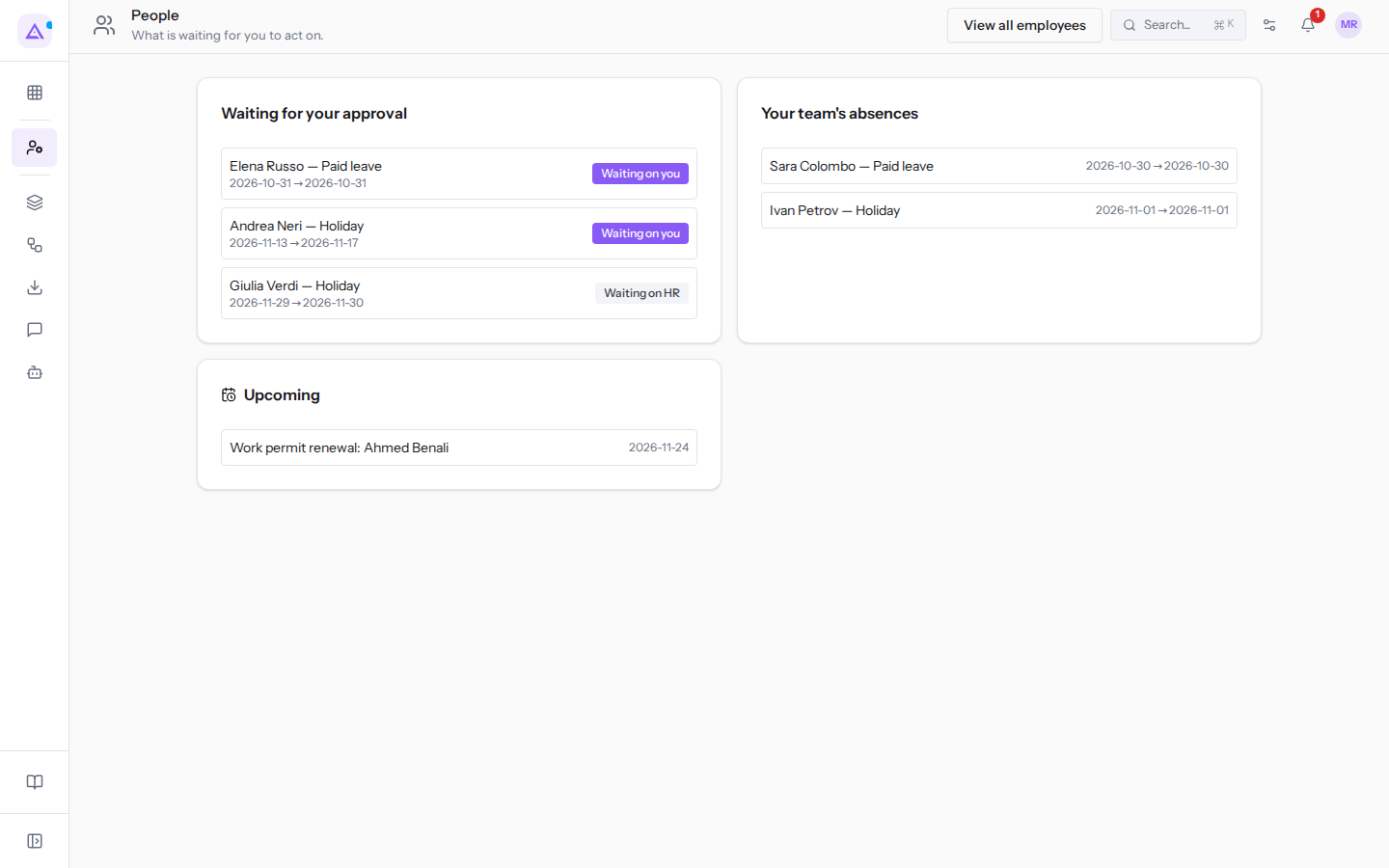
- Click View all employees to open the staff list.
The employee list
The list shows a card for each employee, with position and department, email, phone, location and tags.
- Go to Employees › Employees.
- Search by name or email in the Search employees... field, or filter with Department and Type.
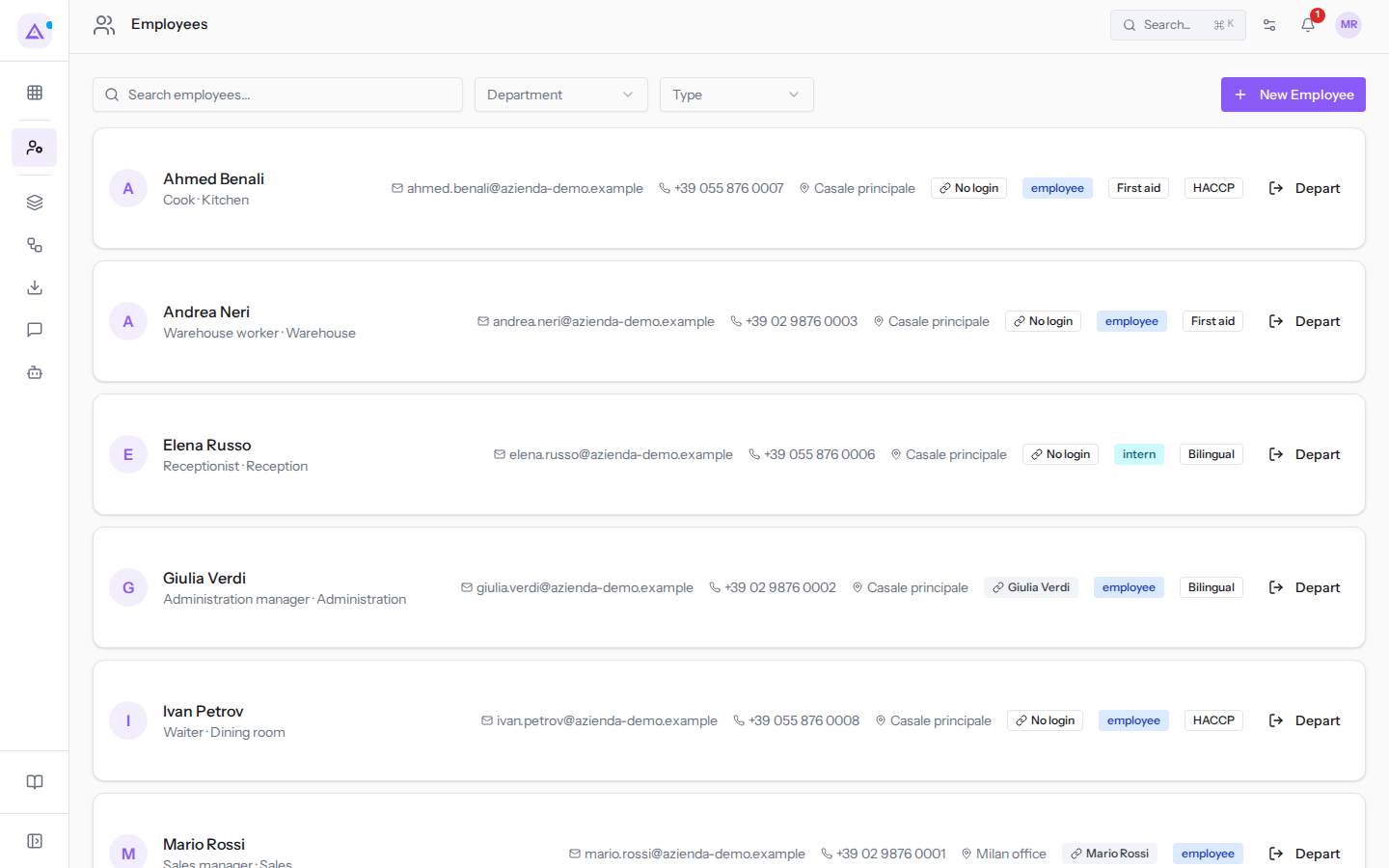
- Click New Employee to create a record. For the record fields, see Adding an employee and filling in their record.
A departed employee's record is archived, not deleted. For example, Chiara Galli's record is archived after they leave. For the procedure, see Recording an employee's departure.
Menu items
The module menu is divided into groups.
People
- Employees: the list and records of staff.
- Contracts: employee contracts, from draft to activation, renewal and closure. Reserved for HR Manager.
- Onboarding: what is still missing for each new hire and what you have already asked them.
- Personnel Documents: the document archive for all employees.
- HR Checks: the reconciliation between accounts and records and the review of document retention. See Check identities, document retention, and residence permits.
- Permit & Visa Alerts: work permits and visas expiring or already expired.
Time
- Team Attendance Roster: who was at work, and for how long.
- Leaves: absence requests, day allocations and mandatory days.
- Employee Monthly Sheet: hours worked, absences and leave for an employee in a single document.
- Freelancer Worked Time: days and hours worked by each contractor in the chosen period.
- Collaborator Invoices: invoices submitted by contractors, each with the approved time for the same period alongside it.
Expenses
- Expenses: employee expenses, through to approval and reimbursement. This is a standalone menu item, outside the groups.
Development
- Recruitment: candidates. Reserved for HR Manager.
- Appraisals: create an appraisal or generate a review cycle. Reserved for HR Manager.
Payroll
- Payroll Engine: calculated payslips. Reserved for HR Manager.
- Payroll Handoff: the month's variables for each employee, in a single file for the payroll consultant. Reserved for HR Manager.
- Payslip Batches: upload the month's payslips received from the payroll consultant, check the matches and publish them to employees. See Publishing payroll consultant payslips to employees. Reserved for HR Manager.
Settings
- Departments and Job Positions: the organizational structure.
- HR options: module options. Reserved for HR Manager.
- Document Intake: brings existing employee documents into the archive. Nothing is archived until you confirm the batch. Reserved for HR Manager.
Attendance and timesheet
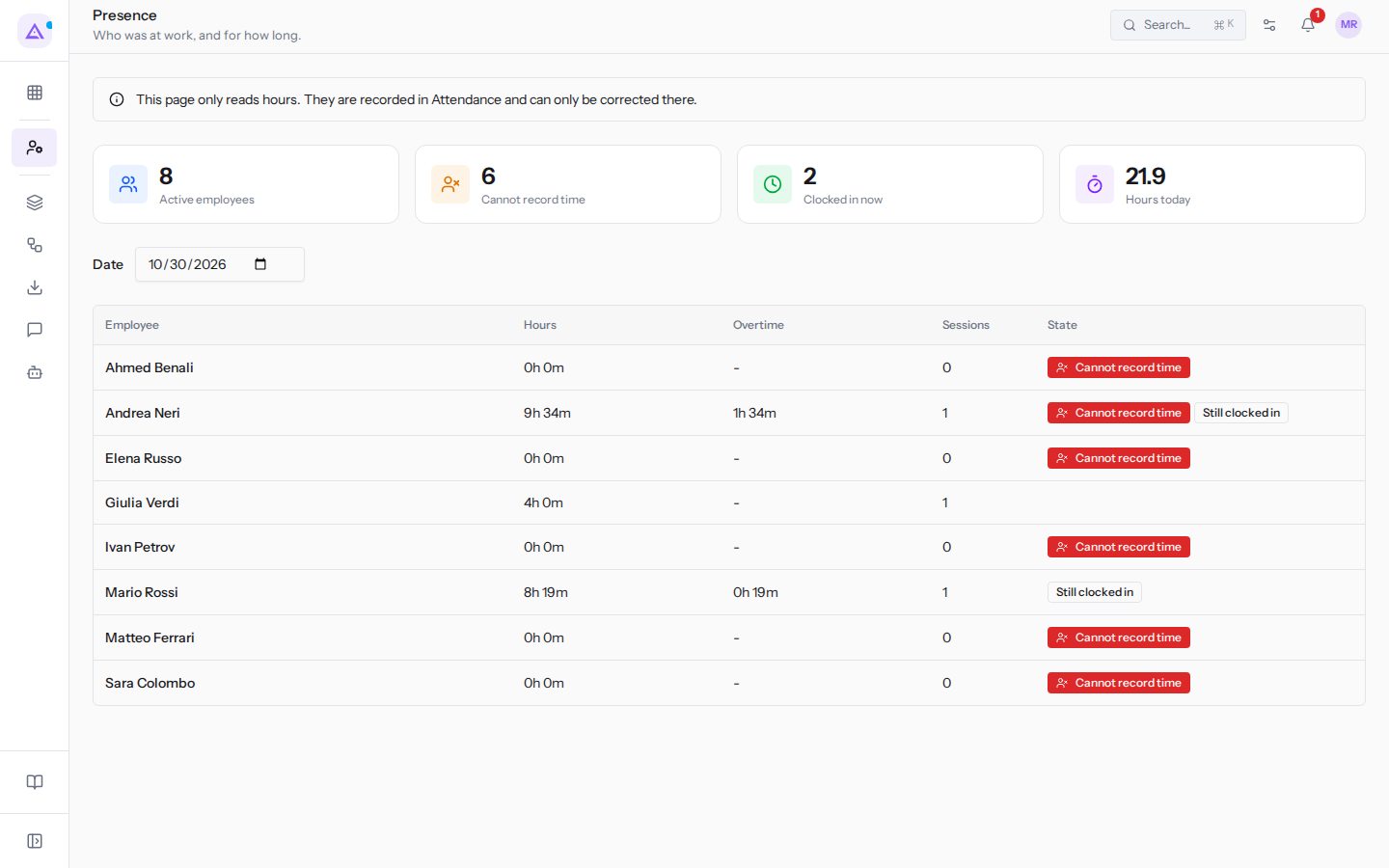
The time screens show hours recorded in the Attendance module. Hours can only be corrected there.
- Go to Employees › Team Attendance Roster to see who was at work. At the top you will find the counters, for example Active employees.
- Go to Employees › Employee Monthly Sheet and select Employee, Month and Year to see a person's month.
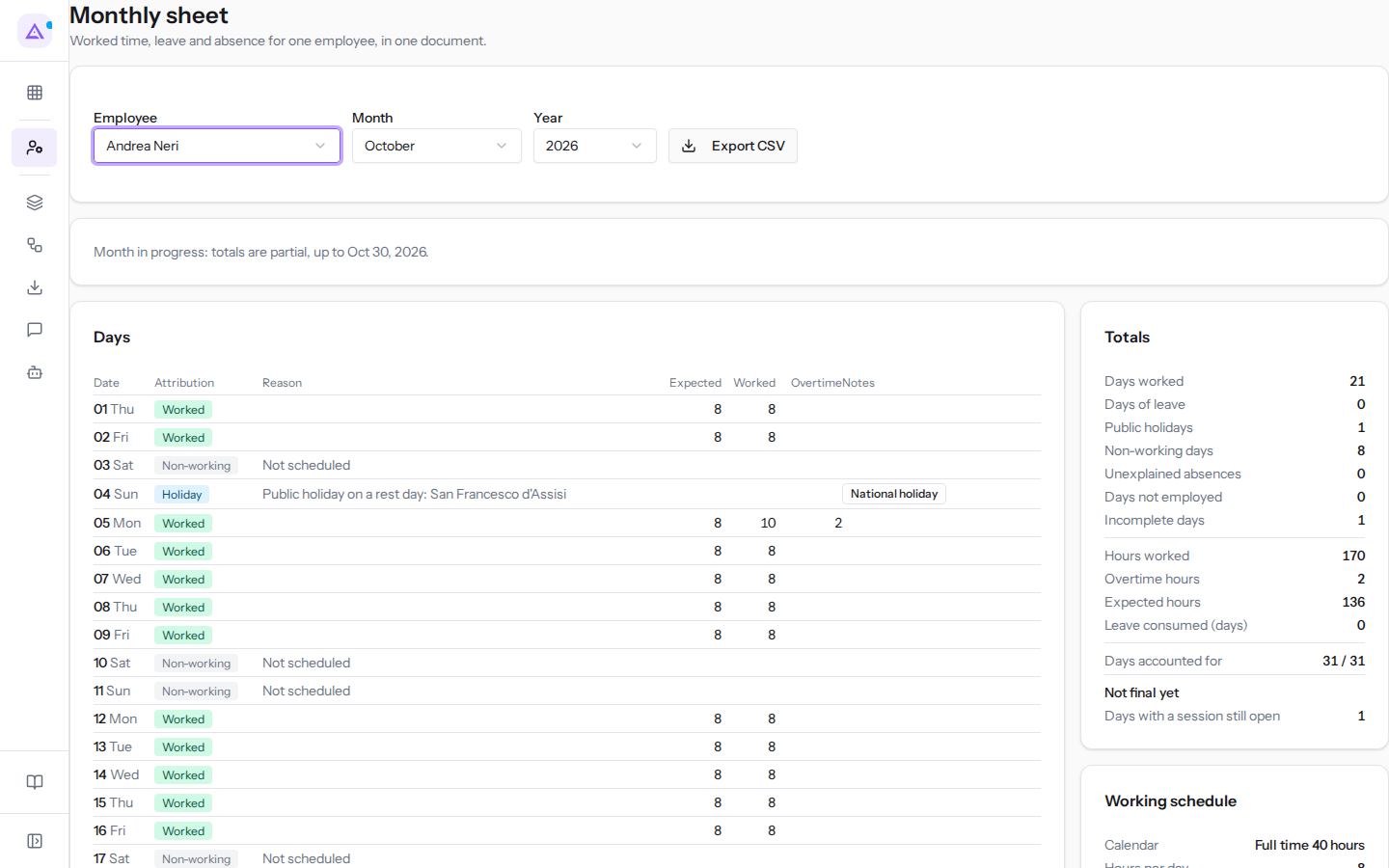
The month is closed from Employees › Payroll Handoff with Close month. After closing, clock-ins, corrections, absences and contract changes for that month are rejected until the month is reopened with Reopen. The Payroll Handoff file remains the one frozen at closing. For details, see Check team attendance and the monthly timesheet.
Note: an account without a linked active employee record cannot clock in. Link each record to the person's account before they start clocking in.
Personal areas
Every employee with an account has their own areas, which do not depend on a permission group.
- Employee area: the record that HR keeps on the person. Only HR can edit it; the employee can flag what doesn't look right.
- Time: the month, declared hours and assigned shifts, all in one place.
- Expense reports: their own expenses, through to approval and reimbursement. The receipt is a photo or PDF up to 10 MB. If the organization has enabled receipt reading, the expense is filled in from the receipt and the employee checks it.
- Team: for managers, what the people who report to them are waiting for and who is absent.
- Invoices: for contractors, submitting the invoice for a period and its status.
If the account is not linked to an employee record, the area remains empty until HR links it.
Connections with other modules
- The module uses contacts and the calendar.
- Worked hours come from the Attendance module. If the organization has not activated it, the timesheet, contractor hours and contractor invoices have no hours to show.
- The shifts section in the personal time area comes from the shifts module.
- Employee tags come from the workspace's shared catalogue: the same tag can be applied to contacts, opportunities and projects.
See it on your company, not on a slide deck.
In 30 minutes we map the software you use today.We show you how much work and how much margin Archimedes gives back.
Show me on my business →What industry are you in?
One tap — it lets us prepare the demo around your world.
What tools do you use today?
Pick the ones you recognise — or just type them. It helps us show you how they migrate.
Last step: your details.
We reply within one working day — and right after, if you like, you pick the demo slot yourself.
We couldn't send your request. Try again, or write to us at [email protected].
By sending, you agree to your data being processed so we can get back to you about the demo. Privacy notice.
Preview form — nothing is sent from this page.
Want to schedule the demo now?
Your call: book the slot you prefer yourself, or we'll call you to arrange it.
Live availability, 30 minutes, instant confirmation. The calendar opens in a new tab.
Lock in your slot ↗We'll get back to you within one working day — and we'll join the call already knowing your world.
The calendar is open in another tab: pick a slot and the demo is booked. Can't see it? Reopen it ↗
Preview page: nothing was sent.
Our calendar is live: take the slot that suits you and the demo is booked. 30 minutes, instant confirmation, no waiting.
Lock in your slot ↗