Purchase DDT
All modules
Purchase DDT
Purchase DDT · 1 of 12 · 2 min read
Purchase DDT reads supplier delivery notes, extracts their headers and lines, and links goods to open orders in an external ERP such as Business Central. Upload a PDF containing several documents, or use an upload session for a delivery round.
Note: these screens currently use Italian interface labels. The instructions preserve the control names shown on screen; the screenshots also show those labels. DDT means delivery note.
Viewing documents
Open DDT di acquisto to search documents, filter by site and status, and check items needing attention.
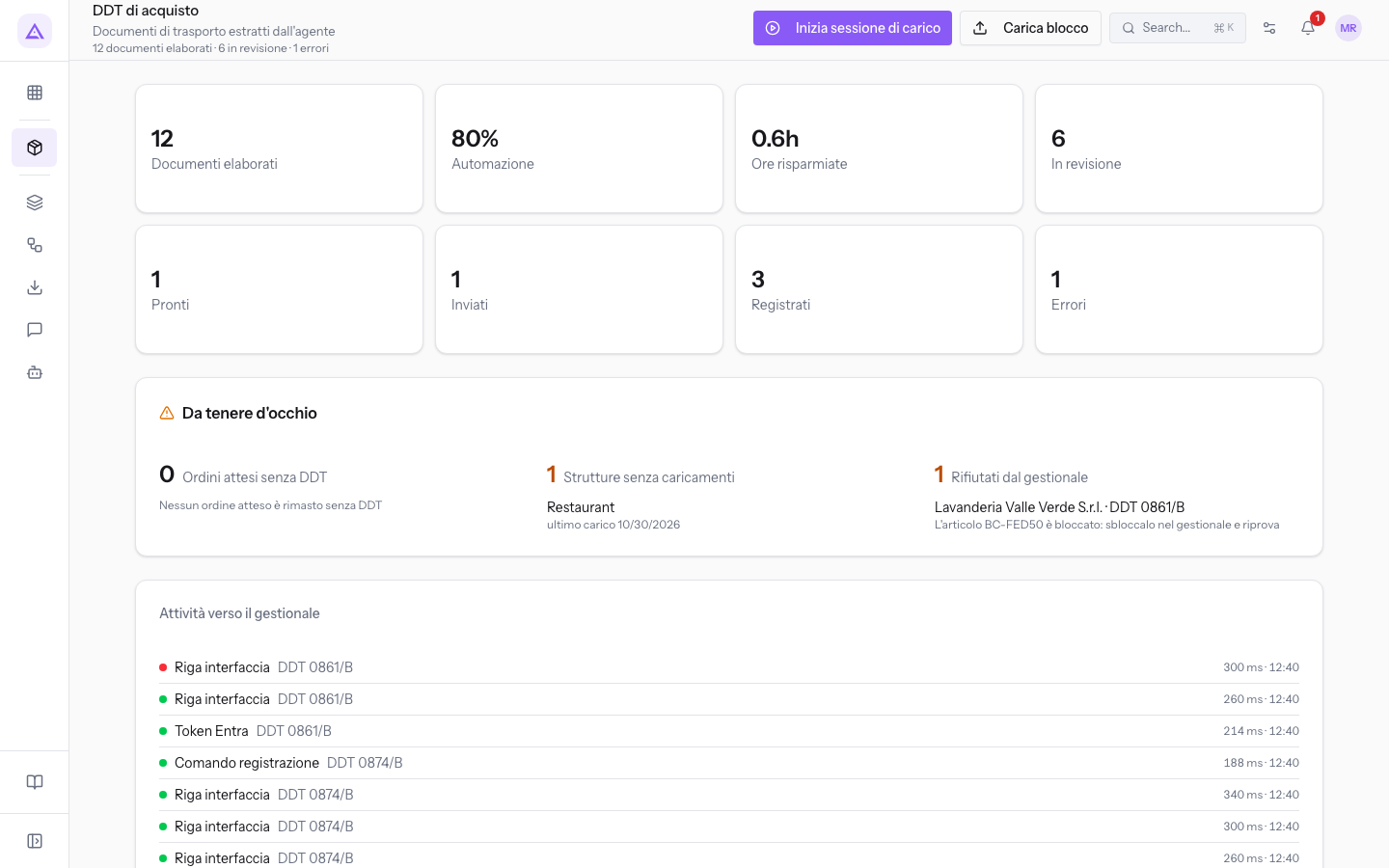
See Viewing purchase delivery notes for columns, filters and statuses, and Monitoring DDT intake for the monitoring panels.
Uploading and reviewing
A batch is a PDF file; a session collects batches for one site. The agent splits pages into documents and extracts quantities, units, lots, expiry dates and prices. Uncertain documents or lines remain for review.
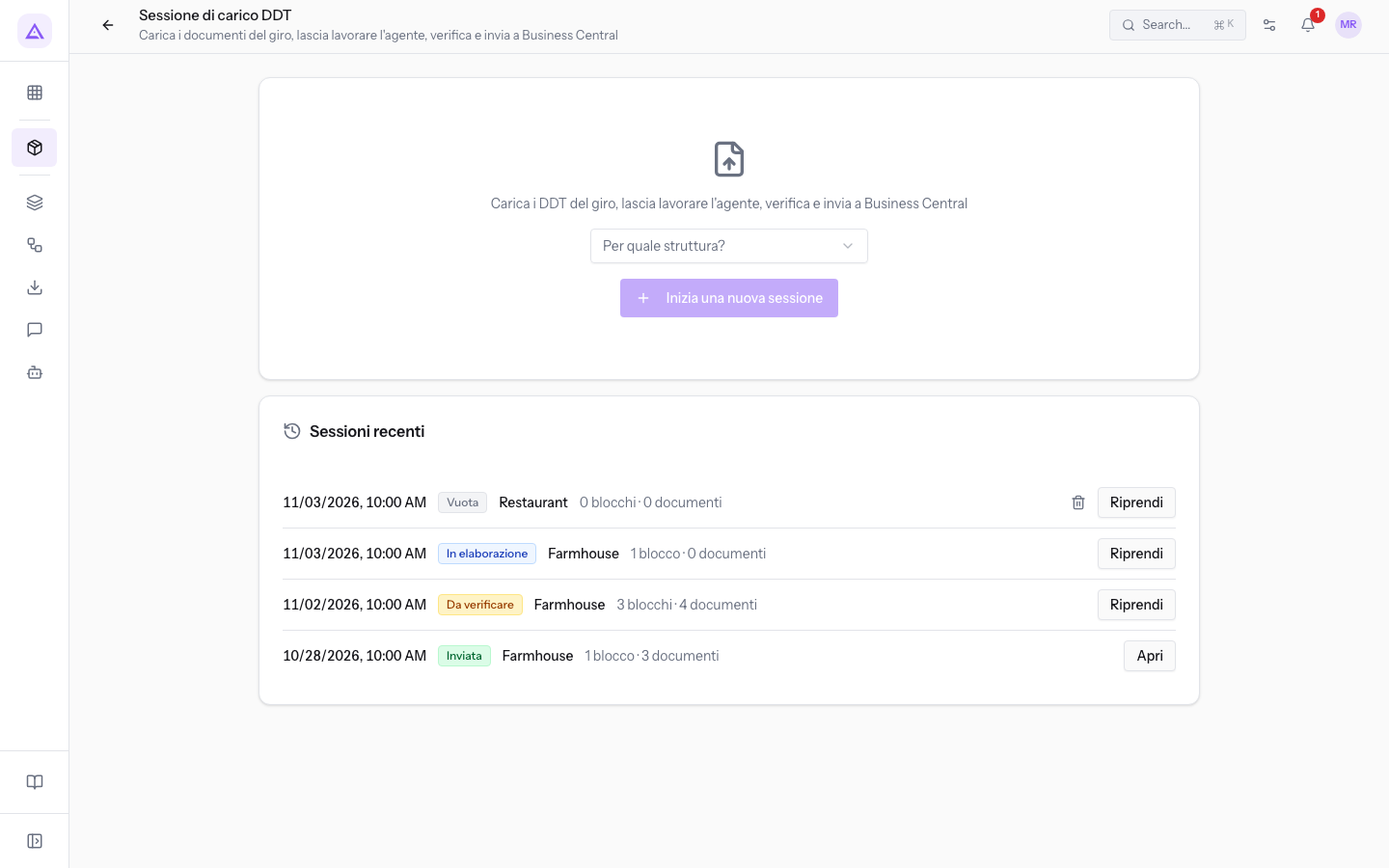
For one file, see Uploading a DDT batch. For the guided workflow, start a session, follow processing, then review the lines.
When documents are sent
A document can become eligible for sending after automatic checks or supervisor review. Pronto does not prove a person confirmed it. With an ERP connected, confirming a document or settling its last flagged line can send it immediately, before the final session step.
Important: check the supplier identity, quantities and order links before completing review. Quantities and order links are locked after sending.
The final Send to Business Central step handles documents still to be sent. The session’s Pronto outcome does not replace the review-panel checks; summary invoices are excluded from sending.
For an individual document, see Reviewing and confirming a DDT and Matching lines to purchase orders. For conflicts, handwritten corrections or unreadable scans, see Handling special cases. For a failed send, resolve the problem and retry.
Who uses the module
- Operator: uploads batches and sessions and views results for their sites and records without a site. Cannot edit documents.
- Supervisor: sees all sites, corrects extractions and confirms documents.
Sites are organisational units. The order picker uses the supplier’s orders in the external ERP, rather than orders in the Purchases module. There is no module settings page: the available upload channels depend on the company configuration.
See it on your company, not on a slide deck.
In 30 minutes we map the software you use today.We show you how much work and how much margin Archimedes gives back.
Show me on my business →What industry are you in?
One tap — it lets us prepare the demo around your world.
What tools do you use today?
Pick the ones you recognise — or just type them. It helps us show you how they migrate.
Last step: your details.
We reply within one working day — and right after, if you like, you pick the demo slot yourself.
We couldn't send your request. Try again, or write to us at [email protected].
By sending, you agree to your data being processed so we can get back to you about the demo. Privacy notice.
Preview form — nothing is sent from this page.
Want to schedule the demo now?
Your call: book the slot you prefer yourself, or we'll call you to arrange it.
Live availability, 30 minutes, instant confirmation. The calendar opens in a new tab.
Lock in your slot ↗We'll get back to you within one working day — and we'll join the call already knowing your world.
The calendar is open in another tab: pick a slot and the demo is booked. Can't see it? Reopen it ↗
Preview page: nothing was sent.
Our calendar is live: take the slot that suits you and the demo is booked. 30 minutes, instant confirmation, no waiting.
Lock in your slot ↗