eCommerce
All modules
eCommerce
eCommerce · 1 of 13 · 7 min read
The eCommerce module manages the organisation's online shop: public catalogue, cart, checkout and online payment, order fulfilment, returns, promotional codes, gift cards and subscriptions. For example, you can sell pantry and cellar products online to private customers and businesses.
What it is for
The module has two sides.
- The staff side, in the eCommerce menu: you publish products, arrange them in shop categories, configure access and checkout, and prepare and ship orders.
- The customer side, on the Shop page: visitors browse the catalogue, add products to the Cart and purchase, either as guests or with an account. From their Account they manage addresses, orders, favourites, saved payment methods, returns and subscriptions.
Some choices apply to the entire shop.
- If you sell to anyone, including without registration, leave Shop access set to Open to everyone.
- If you sell only to known customers, choose Account required, admitted after approval or Invitation only: in these modes the catalogue and cart only respond to customers who have logged in.
- A product appears in the shop only if it is published. Products are created in the Products module, not in the shop.
Who uses it
The module permissions have two groups.
- eCommerce User: can see Shop, Dashboard, Products, Fulfillment and Subscriptions.
- eCommerce Manager: additionally has Promo Codes, Returns, Gift Cards, Access requests and Settings, and can create and edit categories and settings.
The menu items
The eCommerce menu contains the following items.
- eCommerce › Dashboard: the shop performance summary.
- eCommerce › Shop: the shop as customers see it.
- eCommerce › Products: product publishing and featured products.
- eCommerce › Promo Codes: the shop's discount codes.
- eCommerce › Returns: customer return requests.
- eCommerce › Fulfillment: picking, packing and shipping of orders.
- eCommerce › Gift Cards: issued gift cards and their balance.
- eCommerce › Access requests: applications for shop access or a business account.
- eCommerce › Subscriptions: customer subscriptions.
- eCommerce › Settings: shop configuration.
The Product Categories screen has no dedicated menu item: it opens from Dashboard via Manage Categories, or from Publish Products via Open shop categories.
The dashboard
The Dashboard summarises shop activity.
- Open eCommerce › Dashboard.
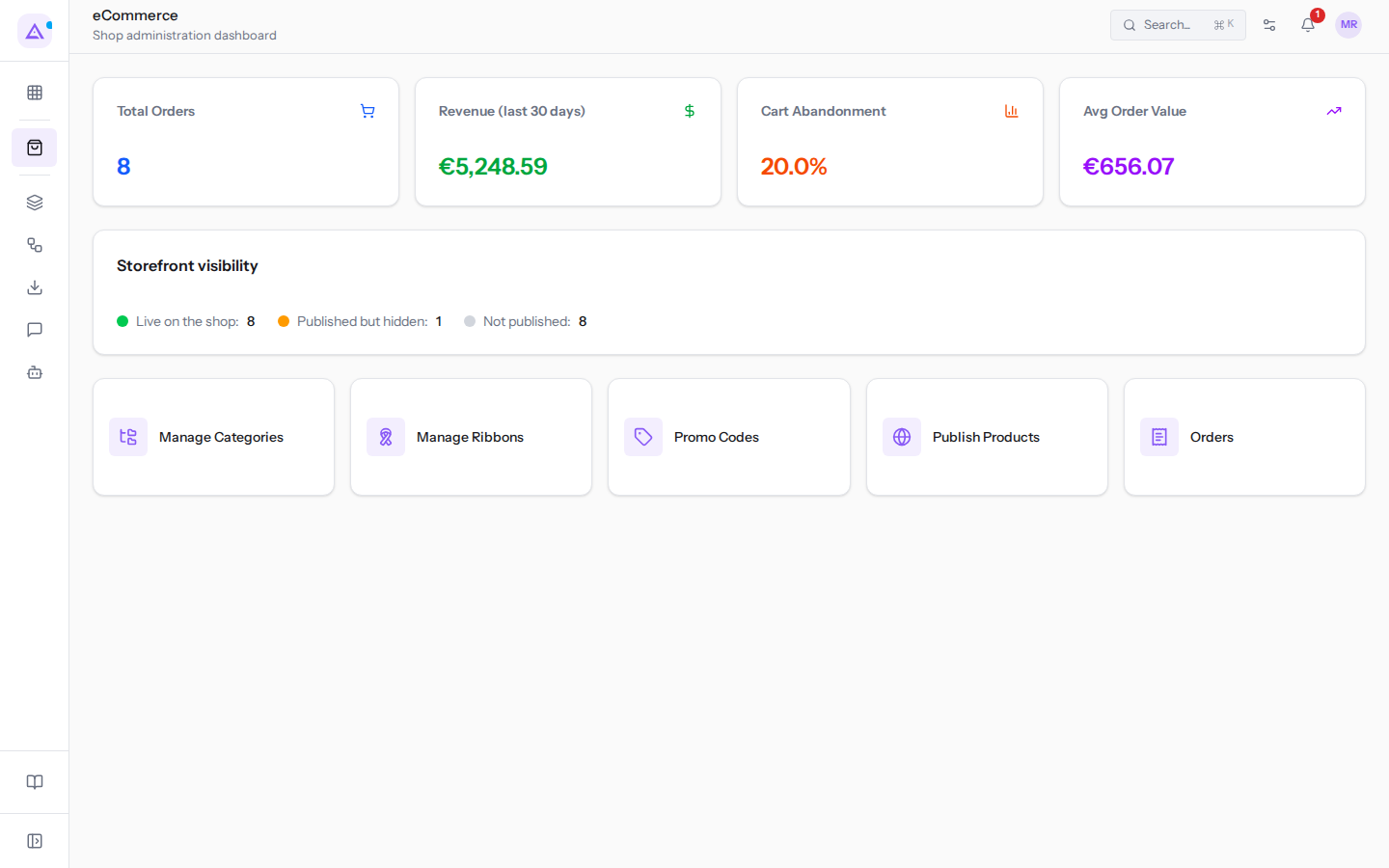
The screen shows the following indicators:
- Total Orders: the number of confirmed sales orders in the last 30 days, including those not placed through the shop.
- Revenue (last 30 days): the revenue for the last month.
- Cart Abandonment: the proportion of carts not completed.
- Avg Order Value: the average amount of an order.
- Storefront visibility: how many products are live in the shop, how many are published but hidden, and how many are unpublished.
For details see Monitoring the online shop.
Products and categories
The Publish Products screen decides which products are visible in the shop and what happens when they run out.
- Open eCommerce › Products.
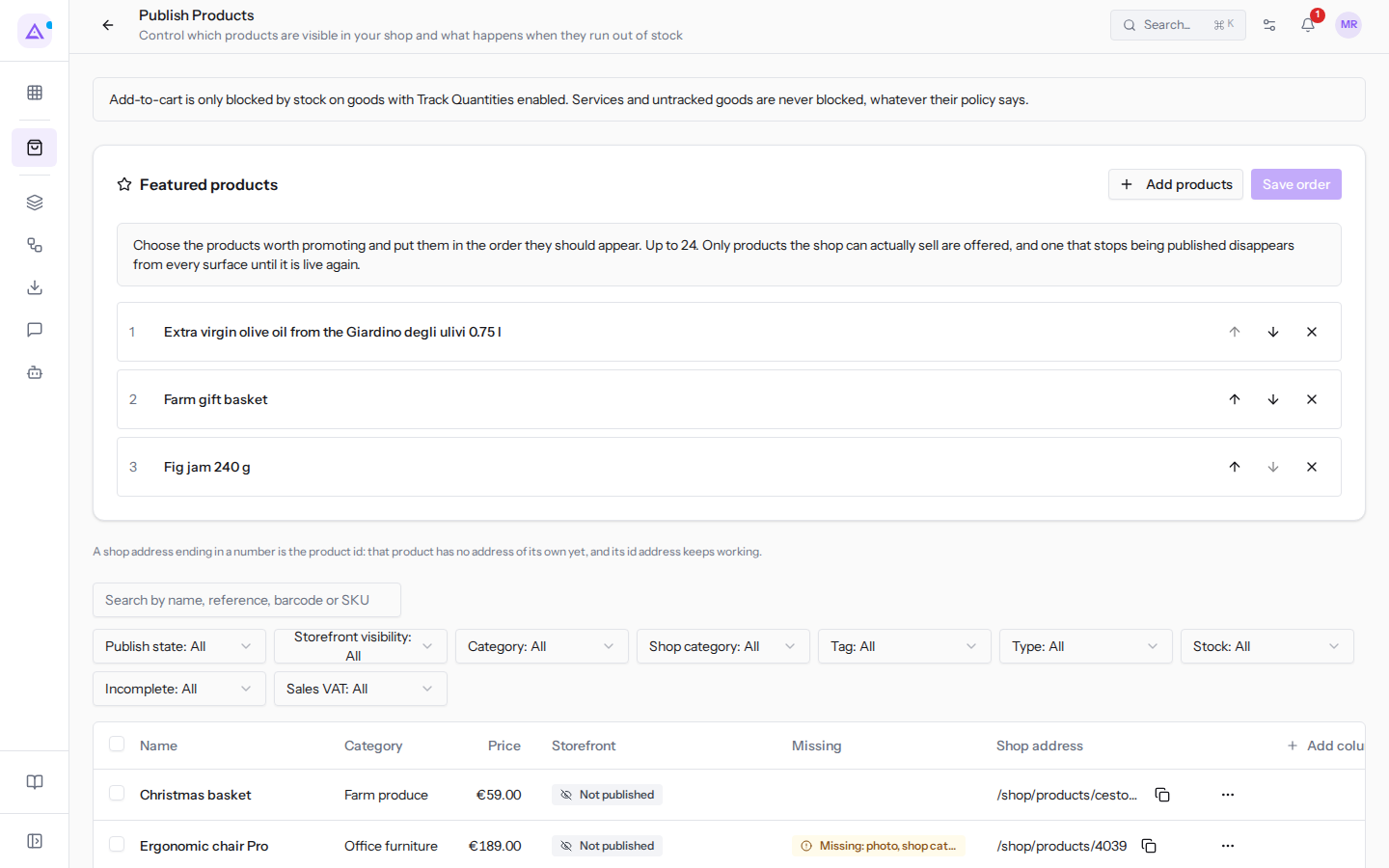
At the top you choose featured products with Add Products, reorder them with Move up and Move down, and confirm with Save order. Only products the shop can actually sell are shown, up to 24.
The list can be filtered by Publish state, Storefront visibility, Category, Shop category, Tag, Type, Stock, Incomplete and Sales VAT.
A combo product cannot be sold in the shop, even if it is published: it appears as Combo (cannot be sold on the shop).
Shop categories are the tree that visitors browse, for example Pantry, Wine cellar and Gifts and boxes. They are separate from internal product categories, but you can start from those with Import from internal; to create a new one use New category. If you delete a category, its products remain in the shop and are simply removed from that category only.
For what happens when a product sells out, see Deciding what happens when a product runs out.
The shop as the customer sees it
The Shop item opens the public catalogue, with the shop name set in the settings, for example La Bottega dell'agriturismo.
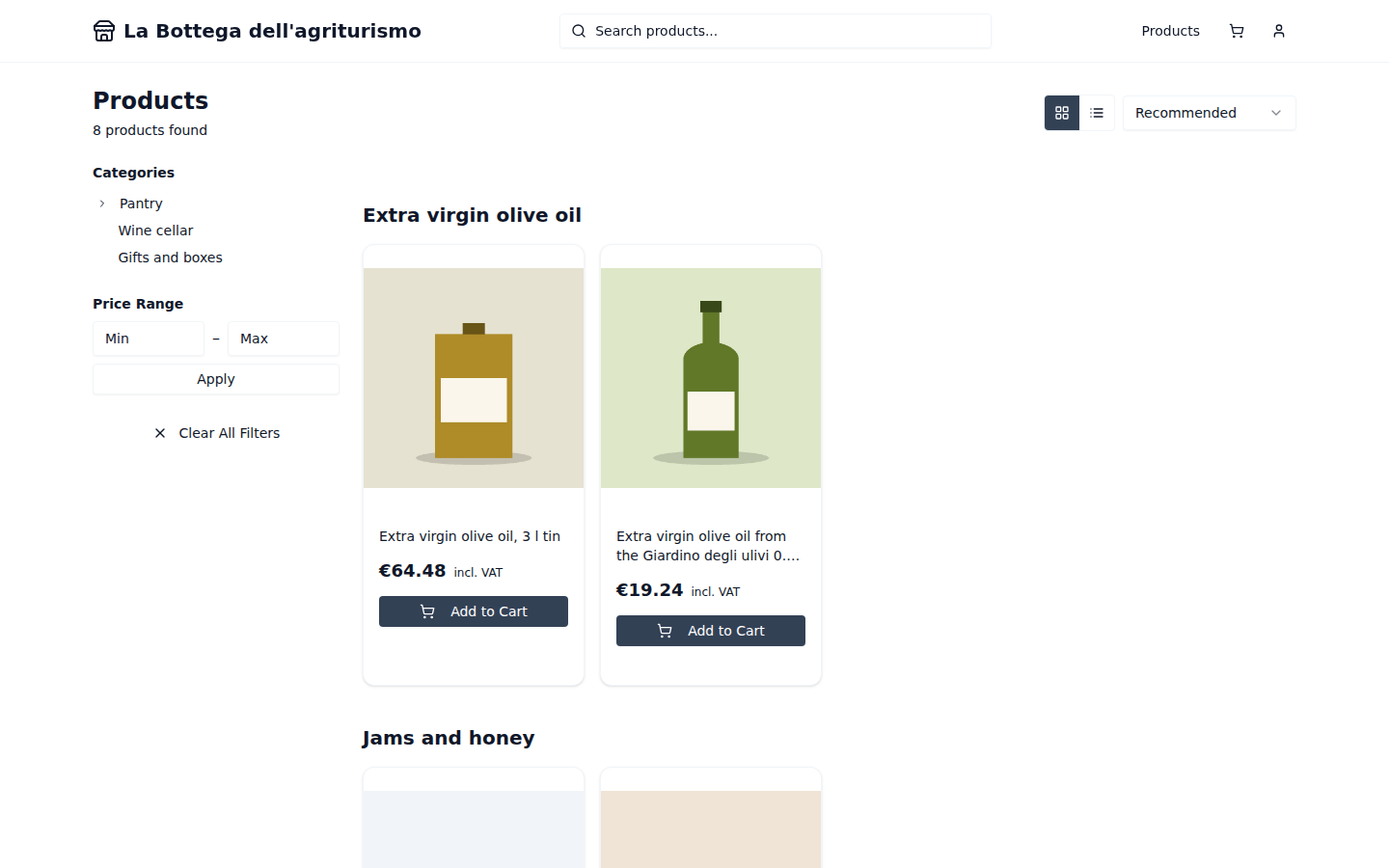
The customer searches with Search products..., filters by Categories and Price Range, switches between Grid view and List view, and sorts results, for example by Recommended.
The purchase follows these steps: cart, checkout with addresses, choice of Delivery Method and payment method, order confirmation. The customer receives a confirmation page with the order reference and an email. A guest can find their order using the reference and email via Track Order.
Orders, returns and access requests
After a purchase, staff process the order from three screens.
- eCommerce › Fulfillment: pick and ship the order's deliveries, enter or correct tracking. See Preparing and shipping a shop order.
- eCommerce › Returns: return requests that customers open from their account.
- eCommerce › Access requests: the list of those who have applied for shop access or a business account, filterable by Status. For each request choose Approve or Refuse. For example the request from
Studio Bianchi & Associati.
If you correct the tracking of an already-notified shipment, the shipping notification is sent again to the customer.
Discounts, gift cards and subscriptions
Each additional sales tool has its own menu item.
- eCommerce › Promo Codes: the list of discount codes with Name, Code, Type, Value, Usage, Valid Period and Active. To create one use New Promo Code. For example
BENVENUTO10. - eCommerce › Gift Cards: issued gift cards, with the initial amount and remaining balance.
- eCommerce › Subscriptions: customer subscriptions.
The settings
The Shop settings screen configures the storefront, checkout and sales routing. It can be edited by anyone in the eCommerce Manager group.
- Open eCommerce › Settings.
- Choose one of the tabs General, Categories, Ribbons, Catalog, Product page.
- Edit the fields and press Save settings.
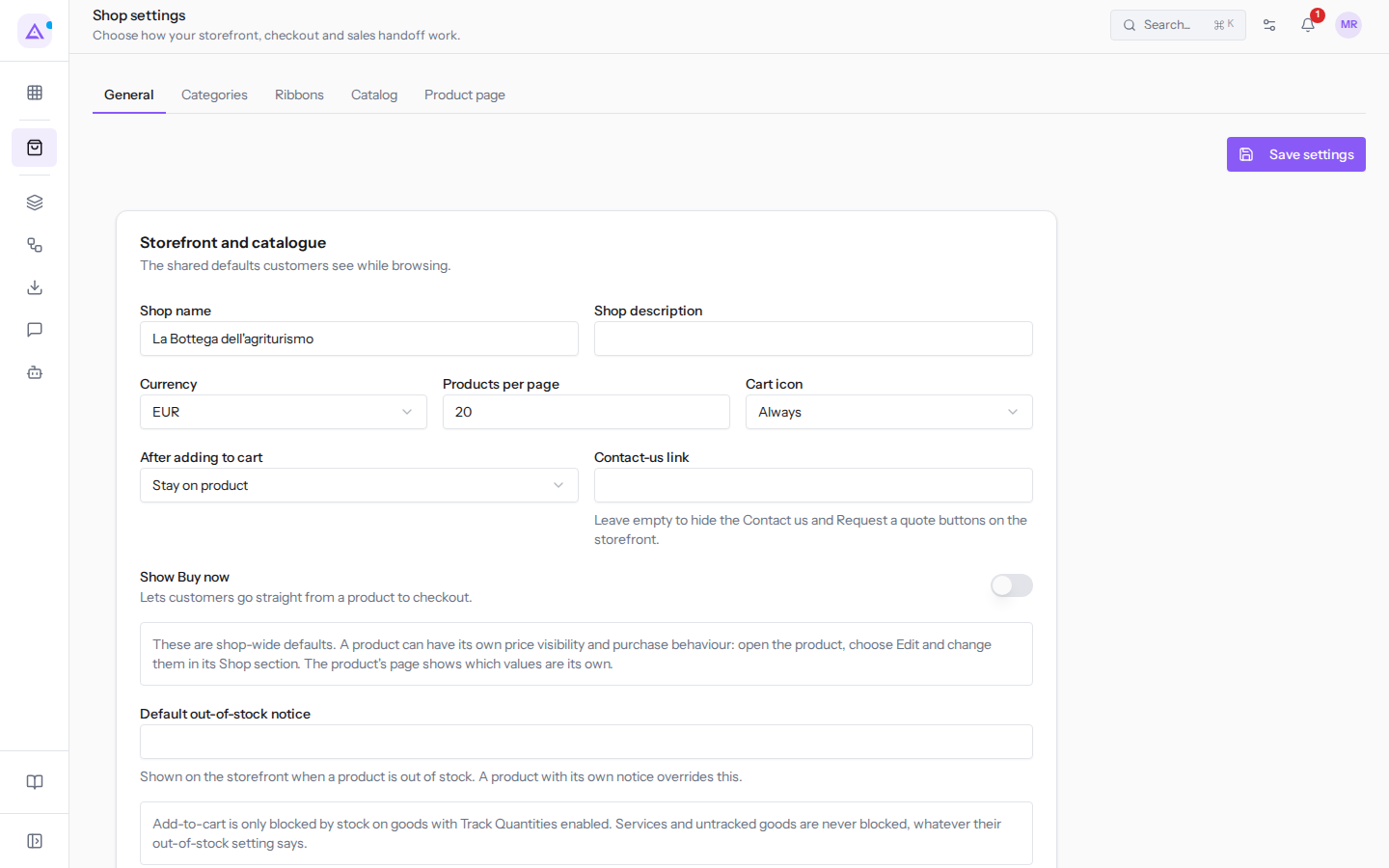
The General tab includes among other things:
- Store mode: who the shop sells to, for example Mixed B2B and B2C. Settings reserved for businesses appear when the mode is B2B or Mixed.
- Shop access: who can browse and purchase. The options are Open to everyone, Account required, admitted automatically, Account required, admitted after approval and Invitation only.
- Checkout access: whether guests can purchase, for example Guests allowed.
- Fallback sales tax: the tax for products without their own sales tax. With None — sell untaxed those products are sold without tax.
- Invoice orders on payment terms: when to invoice orders not paid at checkout, for example When the order is confirmed. Orders paid at checkout are always invoiced at payment.
- Default out-of-stock notice: the text shown in the shop when a product is out of stock.
With Invitation only no one can create an account from the shop: only invited customers can enter.
For the storefront, catalogue and product page, see Setting up the catalogue and product page.
Connections with other modules
The module requires Contacts, Products, Sales, Payments, Deliveries, Invoicing, Inventory and Email.
- Products: the shop's products are those from the Products module.
- Sales: a purchase creates a sale order and prices follow price lists.
- Payments: active payment providers appear at checkout.
- Deliveries: the shipping methods and pickup points at checkout come from this module. If there are none, the shop shows This store hasn't set up shipping yet.
- Inventory: stock levels determine availability in the shop; fulfilment works on delivery transfers. The zero-stock block applies only to goods with tracked quantities; services and untracked goods are never blocked.
- Invoicing and Accounting: the order invoice can be issued automatically and the shop's daily takings are recorded in accounting.
- Contacts: the shop's customers are contacts, and the contact record shows their shop access tags.
See it on your company, not on a slide deck.
In 30 minutes we map the software you use today.We show you how much work and how much margin Archimedes gives back.
Show me on my business →What industry are you in?
One tap — it lets us prepare the demo around your world.
What tools do you use today?
Pick the ones you recognise — or just type them. It helps us show you how they migrate.
Last step: your details.
We reply within one working day — and right after, if you like, you pick the demo slot yourself.
We couldn't send your request. Try again, or write to us at [email protected].
By sending, you agree to your data being processed so we can get back to you about the demo. Privacy notice.
Preview form — nothing is sent from this page.
Want to schedule the demo now?
Your call: book the slot you prefer yourself, or we'll call you to arrange it.
Live availability, 30 minutes, instant confirmation. The calendar opens in a new tab.
Lock in your slot ↗We'll get back to you within one working day — and we'll join the call already knowing your world.
The calendar is open in another tab: pick a slot and the demo is booked. Can't see it? Reopen it ↗
Preview page: nothing was sent.
Our calendar is live: take the slot that suits you and the demo is booked. 30 minutes, instant confirmation, no waiting.
Lock in your slot ↗