Appointments
All modules
Appointments
Appointments · 1 of 16 · 6 min read
The Appointments module manages the organization's meetings with contacts. You can record them manually or have contacts book them online via a public link. For example, a site visit for a wedding, a menu tasting, or an informational video call.
What it is for
Each appointment has a title, a date and time, a duration, a type, a status, one or more assigned people, up to two contacts, a venue or meeting link, notes, and, if needed, a linked event. For example Wedding site visit - Chiara Fontana, confirmed, with Mario Rossi.
The module covers these tasks:
- scheduling appointments and following them through to completion;
- viewing them in the calendar or list view, by person, type, or status;
- inviting other people and scheduling reminders;
- offering online booking for appointment types, with schedules, exceptions, and booking questions;
- checking in the log who created, modified, canceled, or deleted an appointment.
Choose how to create an appointment based on who sets the time:
- If you agree on the time with the customer, create the appointment manually. It starts in the Scheduled status.
- If you want the customer to choose a free time slot on their own, publish the type's booking link. Online bookings are immediately Confirmed.
Module terms
- Appointment type: what can be booked, with name, duration, availability schedule, host, reminders, and location mode. For example
Wedding site visit, 90 minutes. - Host or assignee: the person who holds the appointment. An appointment can have multiple assignees, one of whom is the primary assignee.
- Contacts: the Contacts module records that the appointment refers to, up to two.
- Guests: colleagues or external people invited to the meeting, who can receive the invitation by email.
- Schedule: a weekly model of time slots with exception dates. For example
Tasting hours, Thursday to Sunday from 16:00 to 20:00. - Statuses: Scheduled, Confirmed, Completed, Canceled, No Show.
The Appointments screen
The Appointments screen shows all the appointments you can see. It opens in the calendar view, on the period chosen in Opening view in the settings, for example the current week.
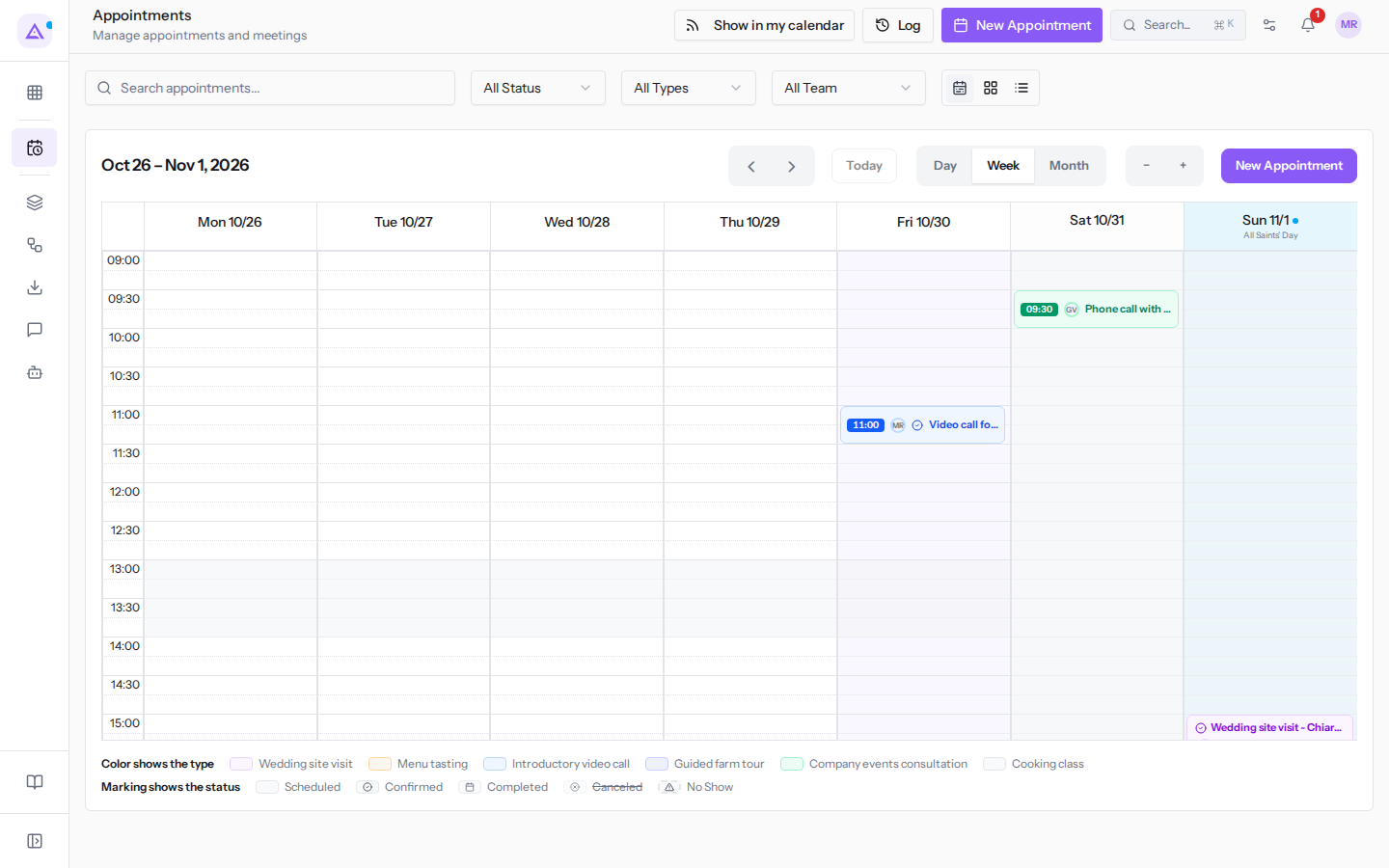
At the top you find the screen's controls:
- Show in my calendar: the link to view your appointments in Google, Apple or Outlook. See Viewing appointments in Google, Apple or Outlook.
- Log: opens the appointments log. It appears only for organization owners and administrators.
- New Appointment: opens the window to create an appointment.
- Search appointments...: searches by title, contact, or assigned person.
- All Status, All Types, All Team: filter by status, by appointment type, and by assigned person. All Team appears only for those who can see colleagues' appointments.
- The three icons Calendar view, Grid view and List view: change how appointments are displayed.
In the calendar view use the ‹ and › arrows and the Today button to move through time, and Day, Week or Month to choose the displayed period. For full details see Viewing the appointment calendar.
Note: if an appointment falls outside the hours or days shown by the grid, the screen flags it with a message.
The list view shows appointments one below the other, for example from Site visit for Elena's 50th birthday lunch to Video call with Marco Neri.
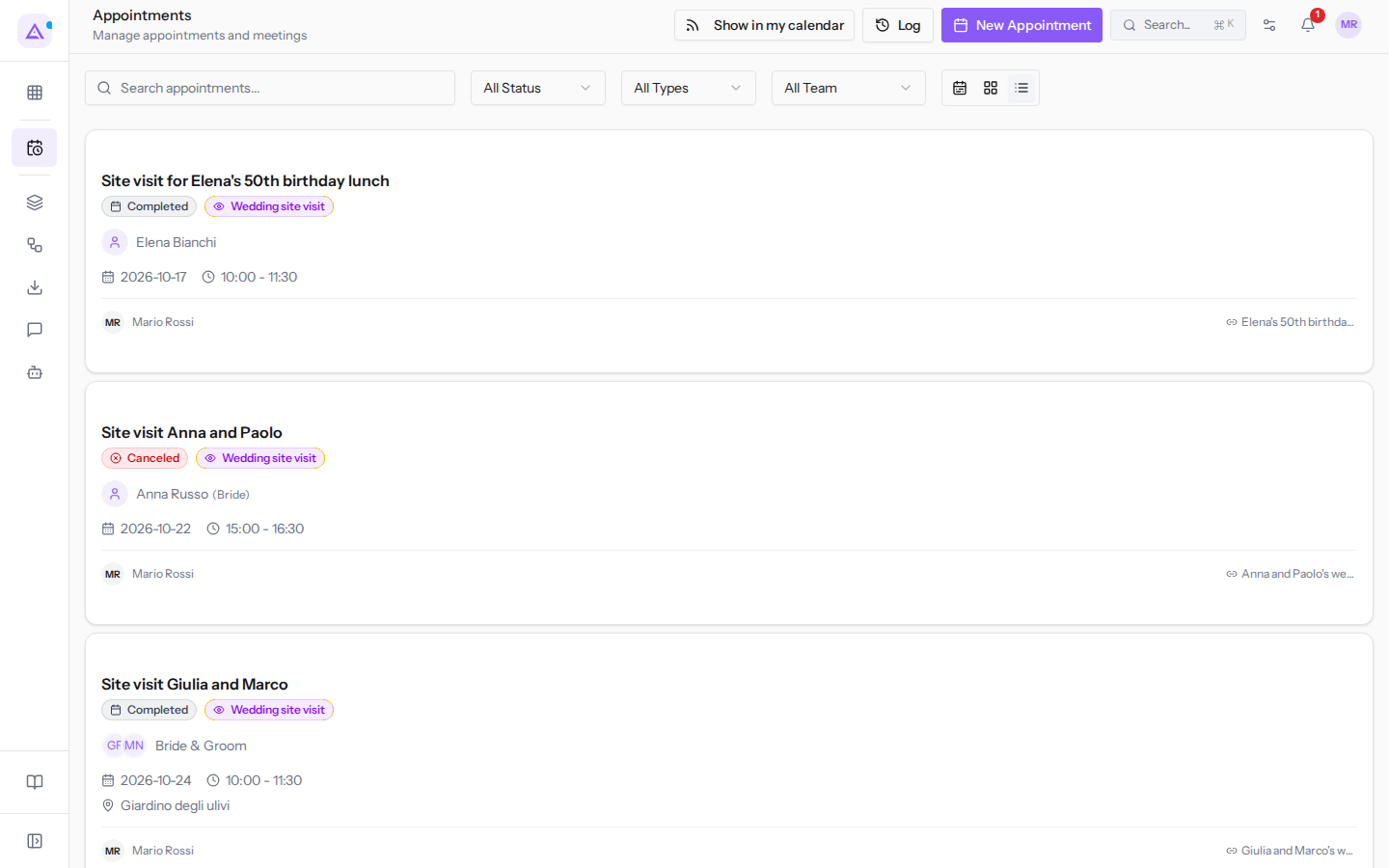
Note: if you do not have permission to see other people's appointments, the screen shows only your own calendar.
Creating an appointment
Create an appointment manually when the time has already been agreed.
- Open Appointments.
- Click New Appointment. The Schedule Appointment window opens.
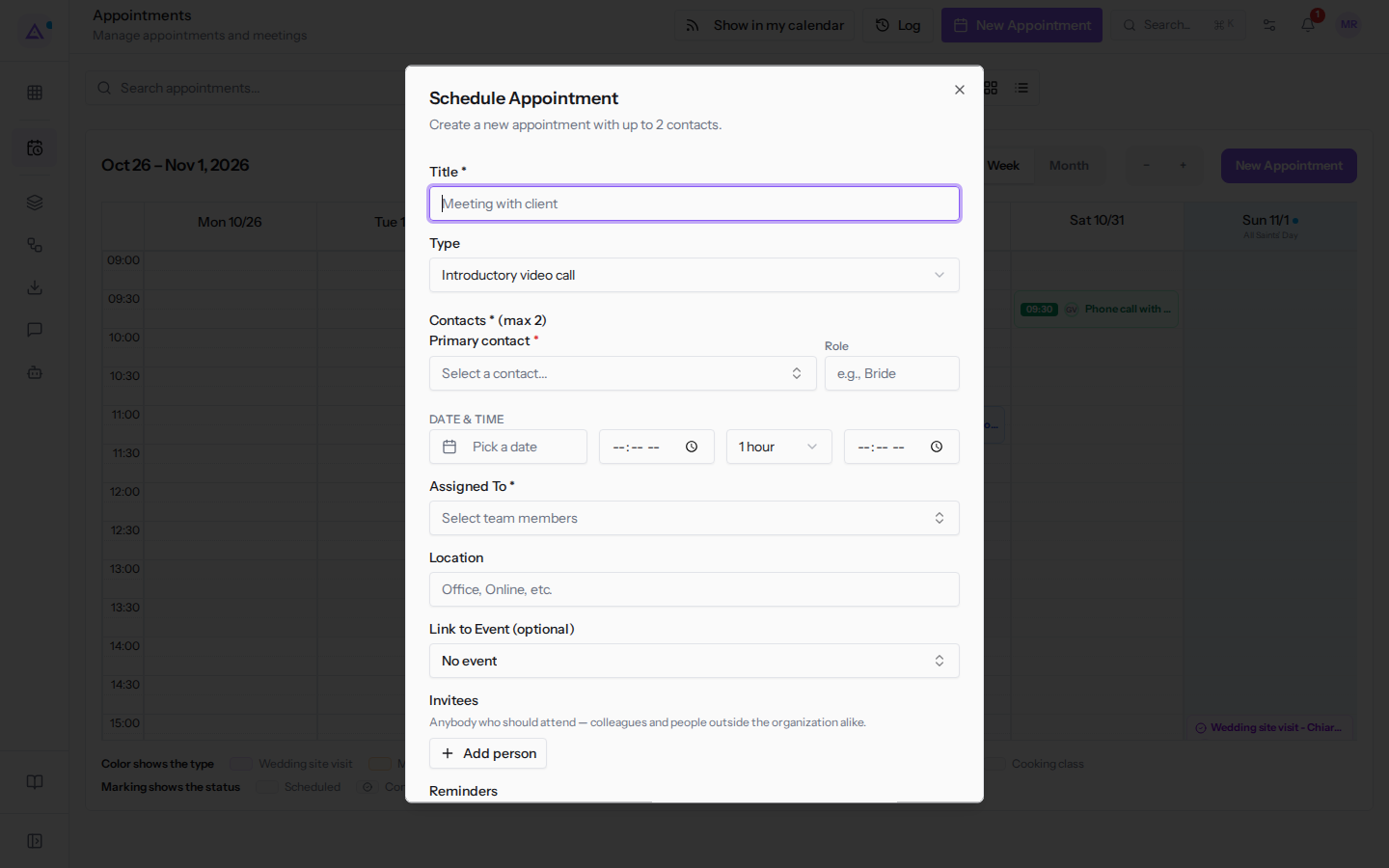
- Fill in at least the title, the primary contact, the date, the start time, and the people in Assigned to, then click Create Appointment.
An appointment can have up to 2 contacts. All the window's fields are described in Scheduling a new appointment.
Important: an appointment occupies the time of its primary assigned person. If the time overlaps with another commitment of that person, the creation or reschedule is refused.
To advance the appointment through statuses see Opening an appointment and changing its status. For guests and reminders see Inviting other people and scheduling reminders.
Menu items
In the module menu you find the Appointments entry and, under Settings, two more entries.
- Appointments: the calendar and list described above.
- Appointments › Settings › Appointment settings: your personal calendar settings, for example slot granularity, days to hide, and default duration. For each setting the organization's value applies until you choose your own. See Customizing the appointment calendar.
- Appointments › Settings › Booking setup: appointment types and their hosts, schedules and exceptions, meeting rooms, booking questions, external calendars, calendar links, embed codes, and the organization's default settings.
Note: the Booking setup entry appears only for administrators and Appointments module managers. Other users can create and edit appointments, but cannot delete them or modify appointment types.
Online booking
An appointment type can be booked online only if it has at least one host. The visitor opens the type's public link, chooses a free slot, answers the booking questions, and confirms. They receive a confirmation by email and from the received link they can reschedule or cancel the booking.
- If a type has no schedule, or has a schedule with no time slots, it offers no slots. See Understanding why a type cannot be booked.
- Public holidays and business closures are not entered in the schedule: they come from the organization's working hours and are automatically removed from slots.
- A scheduled schedule change takes effect automatically on the indicated date.
- Archiving a type removes it from booking but preserves bookings already made, for example
Wine cellar tour (summer 2025).
The appointments log
The log records the creation, modification, cancellation, deletion, and restoration of appointments, along with who did them and when. You open it with Log from the Appointments screen. For example you can find there a duplicate appointment deleted by mistake. See Checking who modified appointments.
Note: the log is reserved for organization owners and administrators.
Connections with other modules
- Contacts: appointments are linked to contact records. A contact can be created for every person who books online.
- Events: an appointment can be linked to an event, for example
Menu tasting Sara and LucawithSara and Luca's wedding. To find them see Finding appointments for a contact or event. - Calendar: provides availability schedules, public holidays, closures, external calendars, and booking questions, and calculates slots.
- CRM: a type can open a lead for each booking, for example the lead
Chiara Fontana wedding. - Email: confirmations, invitations, meeting links, and reminders are sent by email.
- Deadlines: provides read-only calendar links for Google Calendar, Apple Calendar or Outlook and the Calendar page, where you can move an appointment to another day by dragging it.
See it on your company, not on a slide deck.
In 30 minutes we map the software you use today.We show you how much work and how much margin Archimedes gives back.
Show me on my business →What industry are you in?
One tap — it lets us prepare the demo around your world.
What tools do you use today?
Pick the ones you recognise — or just type them. It helps us show you how they migrate.
Last step: your details.
We reply within one working day — and right after, if you like, you pick the demo slot yourself.
We couldn't send your request. Try again, or write to us at [email protected].
By sending, you agree to your data being processed so we can get back to you about the demo. Privacy notice.
Preview form — nothing is sent from this page.
Want to schedule the demo now?
Your call: book the slot you prefer yourself, or we'll call you to arrange it.
Live availability, 30 minutes, instant confirmation. The calendar opens in a new tab.
Lock in your slot ↗We'll get back to you within one working day — and we'll join the call already knowing your world.
The calendar is open in another tab: pick a slot and the demo is booked. Can't see it? Reopen it ↗
Preview page: nothing was sent.
Our calendar is live: take the slot that suits you and the demo is booked. 30 minutes, instant confirmation, no waiting.
Lock in your slot ↗