Data Import
All modules
Data Import
Data Import · 1 of 11 · 9 min read
The Data Import module brings into Archimedes the data currently stored in another system: contacts, products, invoices, and, from a file, initial stock levels. You use it at two points: when switching from another management system and needing to bring over your address book, price list, and invoices, and when you continue invoicing with Fatture in Cloud and want to find new documents in Archimedes without re-entering them.
What it is for
The module has four tasks.
- Import from a spreadsheet file (CSV, XLSX, ODS) using the source Spreadsheet file. Each column in the file is matched to a field in Archimedes.
- Connect to Fatture in Cloud using the source FattureInCloud and import its data.
- Keep the source aligned with a recurring synchronization.
- Store the import history with the log of each run, and compare imported receivables and payables with those from the source.
Choose the source based on where your data is:
- If your data is in a spreadsheet or an export from your previous system, use Spreadsheet file.
- If you continue invoicing with Fatture in Cloud, use FattureInCloud and enable recurring synchronization.
- If you need to load initial warehouse stock levels, use a file: products and locations must already exist in Archimedes, and for a product managed by lots each row must specify the lot. See Loading initial warehouse stock from a file.
The module is reserved for organization administrators: only they configure the connection, start and cancel imports, enable synchronization, and run the comparison with the source.
Where to find it
Open Data Import in the sidebar. The main page opens, from which you can access the other two screens.
- Data Import: sources, the Fatture in Cloud connection, recurring synchronization, and the import history.
- Import # followed by the import number: the detail of a single run, with the status, counts, and log. It opens from the eye icon on a row in the history.
- Receivables vs. source: the comparison between imported documents and those in the source.
At the top of the main page you will find two buttons.
- Compare with the source: opens the Receivables vs. source screen.
- Refresh: reloads the page with the updated status of imports.
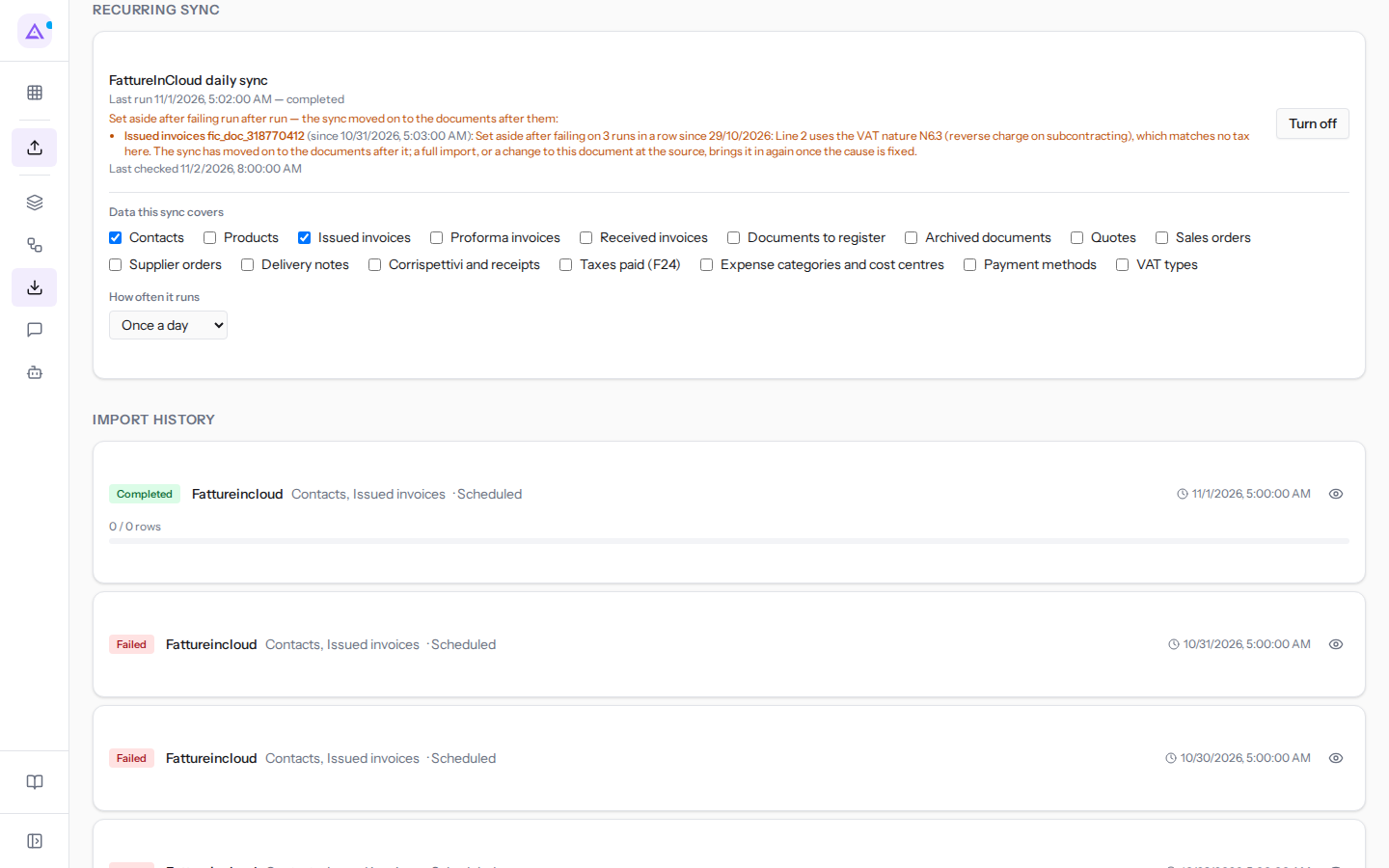
The Data Import page
The main page has four panels, from top to bottom.
- Available Sources: a tab for each source, Spreadsheet file and FattureInCloud, with labels for the data each one brings. Click a tab to open its wizard. The FattureInCloud tab is only present if the Fatture in Cloud plugin is active.
- FattureInCloud Connection: the credentials Archimedes uses to read your data in Fatture in Cloud. You enter them once in API Token and Company ID and press Save: from that point on, all Fatture in Cloud imports and the recurring synchronization use them. The token is no longer shown; the saved company ID appears in parentheses in the description, for example "(company ID 1184520)". The Connected badge indicates that the credentials are saved, not that they have been tested. See Connecting Fatture in Cloud.
- Recurring Sync: which data the synchronization keeps aligned and how often it runs.
- Import History: one run per row, the most recent at the top. This is where you check how an import went.
Importing from a file
Importing from a file is a six-step wizard: Configure, Select Data, Import Type, Options, Check, Import. You move from one step to the next with Next.
- On the Data Import page, click the Spreadsheet file tab. The Import from Spreadsheet file wizard opens.
- Upload the file and proceed with Next.
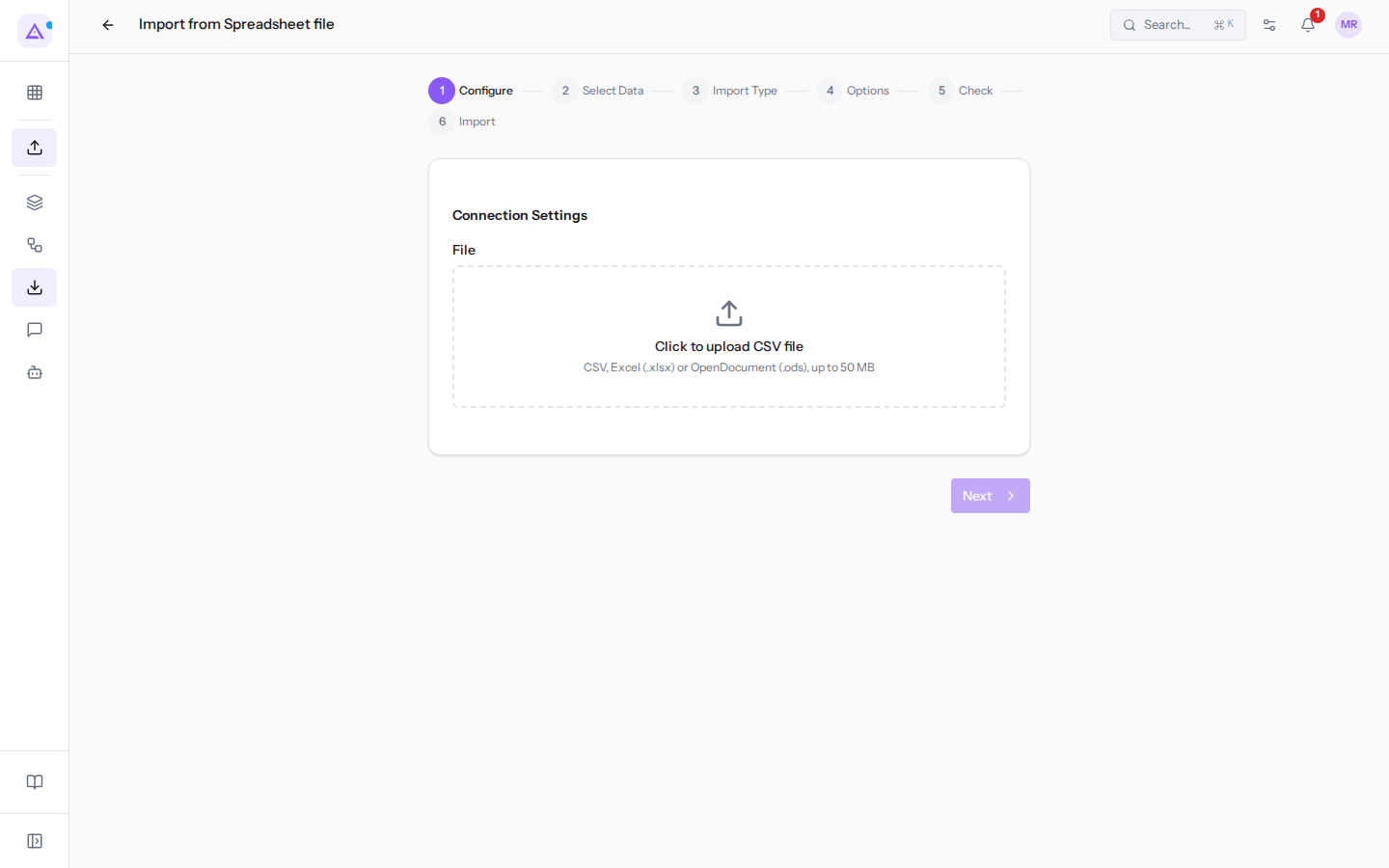
During the wizard you specify how to read the file (Sheet for an Excel workbook with multiple sheets, Delimiter for a CSV, First row is the header) and match columns to fields. Columns left on — ignore — are not imported, such as the Interest column in contatti-fiera.csv, which does not match any field. See Importing contacts and products from a spreadsheet.
A row is identified only by the record's keys, never by its position:
- a contact by VAT number, tax code, or email;
- a product by internal reference or barcode;
- a document by number and counterpart.
This is why a row for Studio Bianchi & Associati with the same VAT number updates the existing record and does not create a duplicate.
Before starting, in the Check step press Run the check: you see how many rows match existing records, how many would create new ones, and how many would be discarded, without anything being written.
Important: by default, imported rows do not trigger rules or workflows, so no emails, notifications, or webhooks are sent. You enable them only by checking Let this import trigger my automations in the Options step.
Connecting Fatture in Cloud and recurring synchronization
With the connector you import data directly from the source. The first import is complete; subsequent ones can be incremental and re-read only the records that have changed at the source since last time. An incremental import with zero records is correct if nothing has changed at the source.
- In the FattureInCloud Connection panel, fill in API Token and Company ID and press Save.
- Click the FattureInCloud tab. In the Configure step of the wizard, press Test Connection: you can only proceed if the test succeeds.
- Choose the data, keep the complete import, and start the first import. See Importing data from Fatture in Cloud.
Recurring synchronization reads Fatture in Cloud on its own and brings into Archimedes what is new or changed, so you do not have to import manually. It is enabled with Turn on only after saving the connection. In Data this sync covers use the checkboxes to choose what to keep aligned:
-
Contacts, Products;
-
Issued invoices, Proforma invoices, Received invoices, Documents to register, Archived documents;
-
Quotes, Sales orders, Supplier orders, Delivery notes, Corrispettivi and receipts;
-
Taxes paid (F24), Expense categories and cost centres, Payment methods, VAT types.
-
How often it runs: how often synchronization runs.
- Every hour
- Every 4 hours
- Twice a day
- Once a day
In the panel, synchronization is active once a day on Contacts and Issued invoices. If you change the data or frequency, press Save changes. To turn it off, press Turn off. See Keeping Archimedes in sync with automatic synchronization.
How synchronization behaves:
- An error never turns it off. The system counts consecutive failed runs and notifies owners and administrators for every unsuccessful or incomplete outcome. The first successful outcome resets the count.
- A document that fails on every run is set aside and synchronization continues with the others. It remains listed in the panel, with the reason and the date, until you resolve the cause. This happened to invoice
3/2026from Verdi Costruzioni S.p.A.: it uses VAT type N6.3, which does not match any tax in Archimedes, and after three failed runs it was set aside. The panel lists it with the Fatture in Cloud reference (fic_doc_318770412), not the number. - When the source limits the number of requests, the import pauses and resumes on its own.
Tracking an import
Every run, manual or from a synchronization, is a row in Import History with status, counts and log. A synchronization row shows Scheduled; the others show Started by and the name of whoever launched it. To read the discarded rows and their reason, click the eye icon: the Import #… detail opens.
The status tells you what to do:
- Pending, Running: the import is working; wait and press Refresh.
- Waiting for quota: Fatture in Cloud has rate-limited requests; the import will resume on its own.
- Completed: all rows were imported.
- Incomplete: some rows were not imported. Open the detail, correct the discarded rows and import them again.
- Failed: no rows were imported, as with
giacenze-iniziali.csv, where all three rows were discarded: ARR-009 is not in the catalog, Shelf Z does not exist, Ergonomic chair Pro is lot-managed and the row has no lot. - Cancelled: the import was stopped.
While an import is running, its row shows Cancel; in the detail the same command is called Cancel Import. See Tracking imports in the history.
Comparing receivables and payables with the source
The Receivables vs. source screen compares every imported document against what the source reports today: the balance in Archimedes, the balance at the source, and the difference. It lets you know whether you can trust the receivables and payables in Archimedes after a migration or with synchronization active. Customers are matched by VAT number or tax code; below each name this key appears as it is stored, for example vat:01234560022. The main list shows only documents to verify or that could not be compared.
Open the screen with Compare with the source on the Data Import page. It shows the last check, with date and time; Compare again queries Fatture in Cloud and runs a new one.
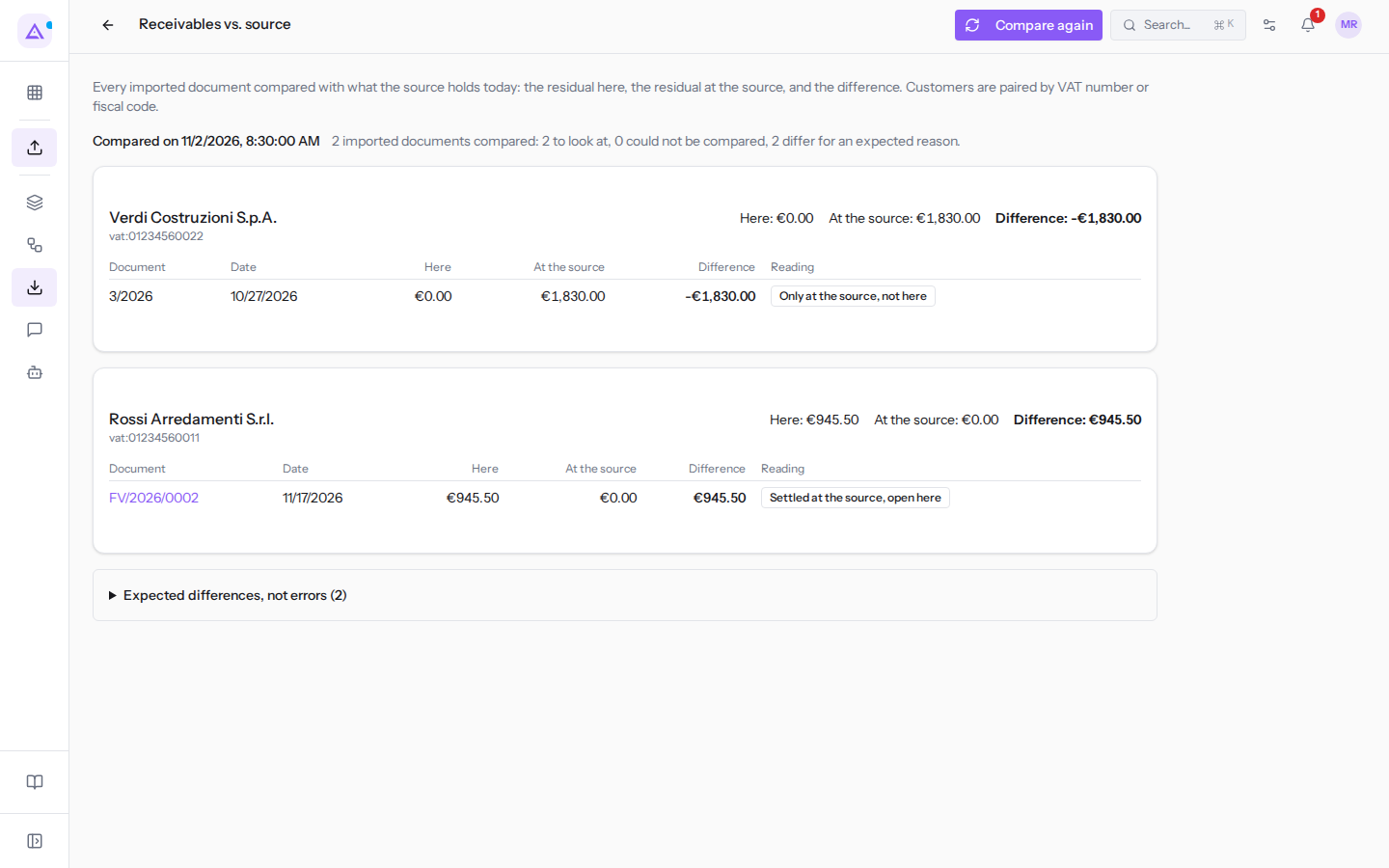
The comparison flags issues and changes nothing. The differences that are not errors are in the collapsible Expected differences, not errors section:
- a payment recorded in Archimedes, which is never reported on Fatture in Cloud, such as
FV/2026/0001; - a document issued only in Archimedes;
- a receipt or a proforma, which for Fatture in Cloud is a receivable and for Archimedes is not, such as proforma
4/2026.
The others need to be fixed. FV/2026/0002 of Rossi Arredamenti S.r.l. is Settled at the source, open here: record the payment in Archimedes. The 3/2026 of Verdi Costruzioni S.p.A. is Only at the source, not here: it is the invoice that the synchronization set aside. The module keeps the last 10 checks per connector. See Comparing receivables and payables with Fatture in Cloud.
Connections with other modules
- Contacts, Products and Invoicing receive the imported records. Imported invoices remain linked to the source.
- Inventory receives the initial stock. The connection is optional and requires that locations, products and lots already exist.
- Automation: imports do not trigger rules or workflows, unless explicitly chosen.
- Other modules use this module's file validation and column matching for their own file uploads.
The module is installed automatically and depends on Contacts, Invoicing, Products and Automation.
See it on your company, not on a slide deck.
In 30 minutes we map the software you use today.We show you how much work and how much margin Archimedes gives back.
Show me on my business →What industry are you in?
One tap — it lets us prepare the demo around your world.
What tools do you use today?
Pick the ones you recognise — or just type them. It helps us show you how they migrate.
Last step: your details.
We reply within one working day — and right after, if you like, you pick the demo slot yourself.
We couldn't send your request. Try again, or write to us at [email protected].
By sending, you agree to your data being processed so we can get back to you about the demo. Privacy notice.
Preview form — nothing is sent from this page.
Want to schedule the demo now?
Your call: book the slot you prefer yourself, or we'll call you to arrange it.
Live availability, 30 minutes, instant confirmation. The calendar opens in a new tab.
Lock in your slot ↗We'll get back to you within one working day — and we'll join the call already knowing your world.
The calendar is open in another tab: pick a slot and the demo is booked. Can't see it? Reopen it ↗
Preview page: nothing was sent.
Our calendar is live: take the slot that suits you and the demo is booked. 30 minutes, instant confirmation, no waiting.
Lock in your slot ↗