Shipping
All modules
Shipping
Shipping · 1 of 13 · 5 min read
The Delivery module manages the carriers you use to ship sales orders and calculates the shipping price. You can use it to charge a fixed price or a price based on order weight, or to offer pickup at a pickup point (Click & Collect).
This page presents the module's screens and its links to other modules. For each task it points to the article that describes it.
How it works
The carrier is the shipping method. Each carrier has a delivery type, which decides how the price is calculated:
- Fixed Price: the carrier always charges the same price.
- Based on Rules: the price comes from price bands, that is conditions on weight, volume, the order's net price, or quantity. The fixed price is not used.
Click & Collect is a separate option on the carrier: the customer picks up the order at a pickup point and does not pay for delivery.
If you always ship at the same price, choose Fixed Price. If the price changes with the weight or value of the order, choose Based on Rules. If the customer collects the goods in person, turn on Click & Collect.
The module also decides which carriers can be offered for an order. It takes into account the countries served, the zones, the weight and volume limits and, for Click & Collect, the active pickup points. A carrier that does not meet these conditions is not offered.
The rates are the same for the online shop checkout and for the quotes and sales orders created in the back office.
Before you start: to create and edit carriers, rules, zones and pickup points you need the
Delivery Managergroup. TheDelivery Usergroup can see carriers and rates, but cannot edit them.
The Delivery Settings screen
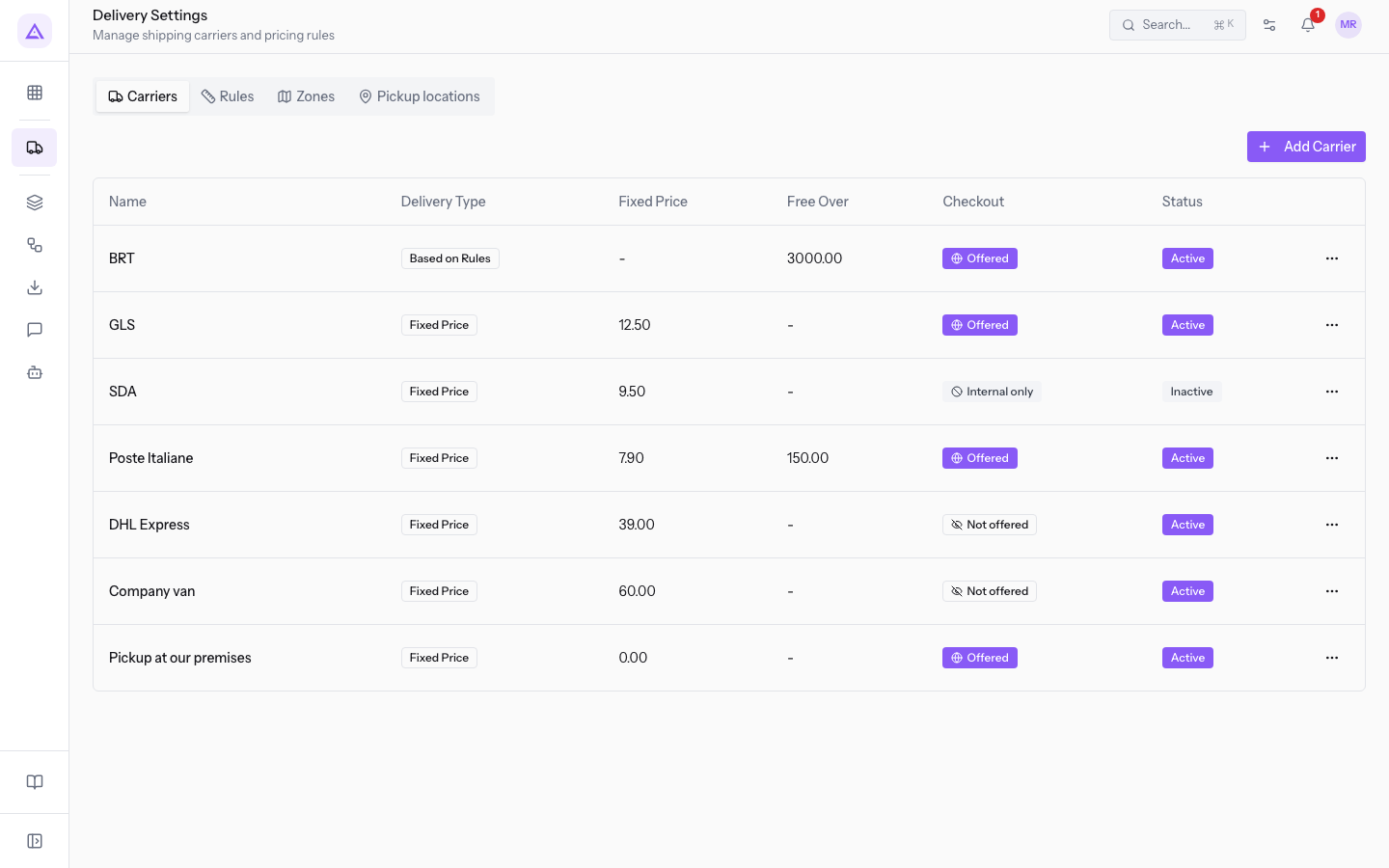
The module's configuration is in a single screen, Delivery Settings, with the subtitle "Manage shipping carriers and pricing rules". The screen has four tabs: Carriers, Rules, Zones and Pickup locations.
Carriers
The Carriers tab lists the organization's carriers. The Add Carrier button creates a new carrier. The list has these columns:
- Name: the carrier's name.
- Delivery Type: Fixed Price or Based on Rules.
- Fixed Price: the price charged by fixed-price carriers.
- Free Over: the threshold above which shipping becomes free.
- Checkout: shows whether the carrier is offered to shop customers.
- Status: shows whether the carrier is active.
An active carrier that is not offered at checkout does not appear to shop customers. However, it can still be used on quotes and orders in the back office. An inactive carrier disappears everywhere.
For carrier setup, read Overview of shipping settings and the carrier list and Set surcharges, weight limits and served countries.
Rules
The Rules tab contains the price bands for Based on Rules carriers. Choose the carrier in the Carrier field to see and manage its bands. The bands are evaluated from top to bottom and the first one that matches wins. If no band matches, the carrier is not offered for that cart. Read Calculating tiered shipping prices.
Zones
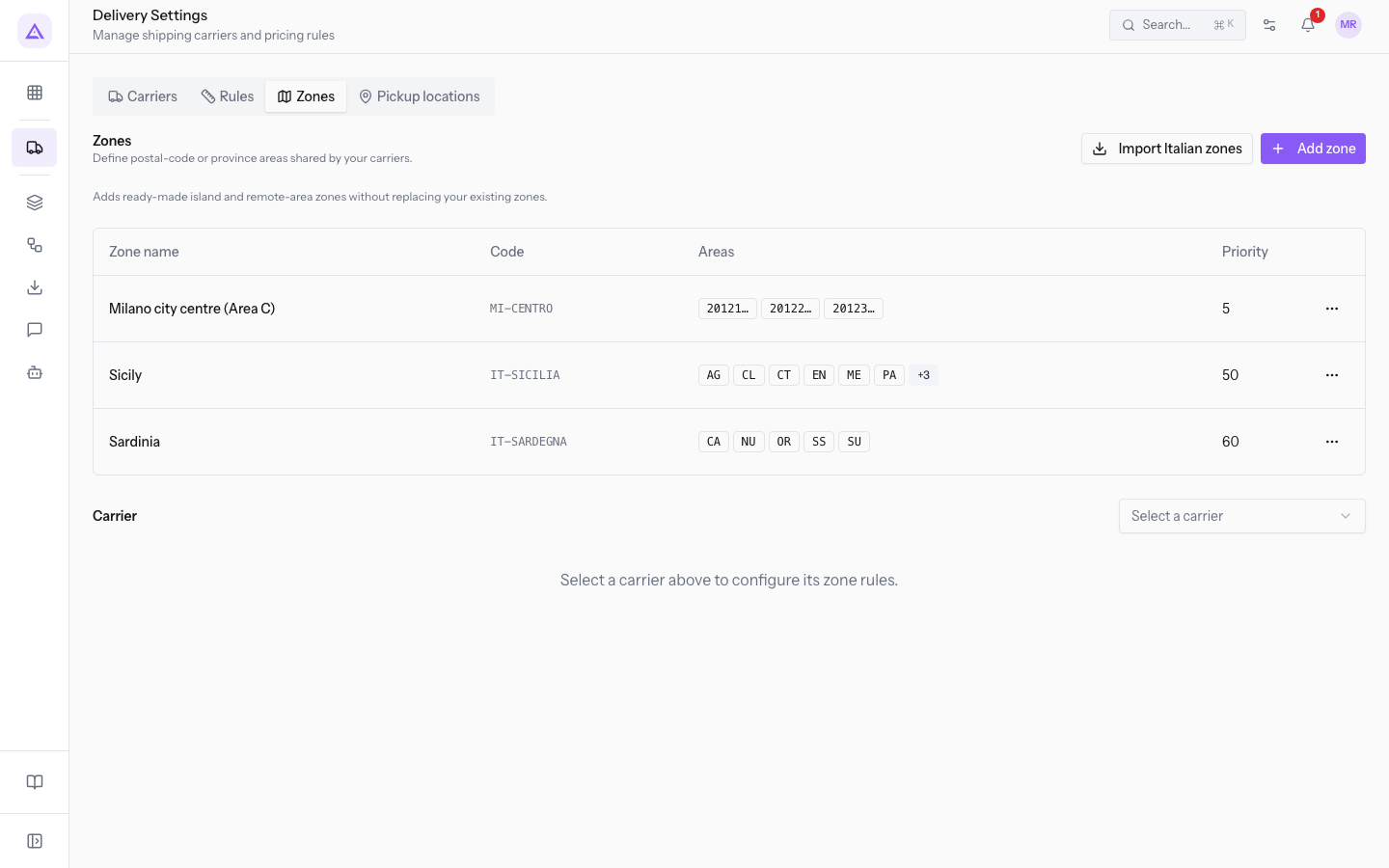
The Zones tab defines areas by postal code or province, shared by all carriers. With Add zone you create a zone. Import Italian zones adds predefined zones for islands and remote areas without replacing the existing ones. For each carrier, chosen in the Carrier field, you then set the zone rules: you can exclude it from the zone or add a fixed and percentage surcharge. Read Define shipping zones by postal code, province, or country.
Pickup locations
The Pickup locations tab lists the pickup points of Click & Collect carriers. With Add pickup location you create a new one. Click & Collect orders use the chosen pickup point and do not pay for delivery.
Note: create a Click & Collect carrier before adding pickup points. A Click & Collect carrier with no active pickup points is not offered.
Shipping on quotes and sales orders
The module adds the Shipping button to the header of the quote and the sales order, for example on order S00004 of Rossi Arredamenti S.r.l. The button opens the Add shipping window.
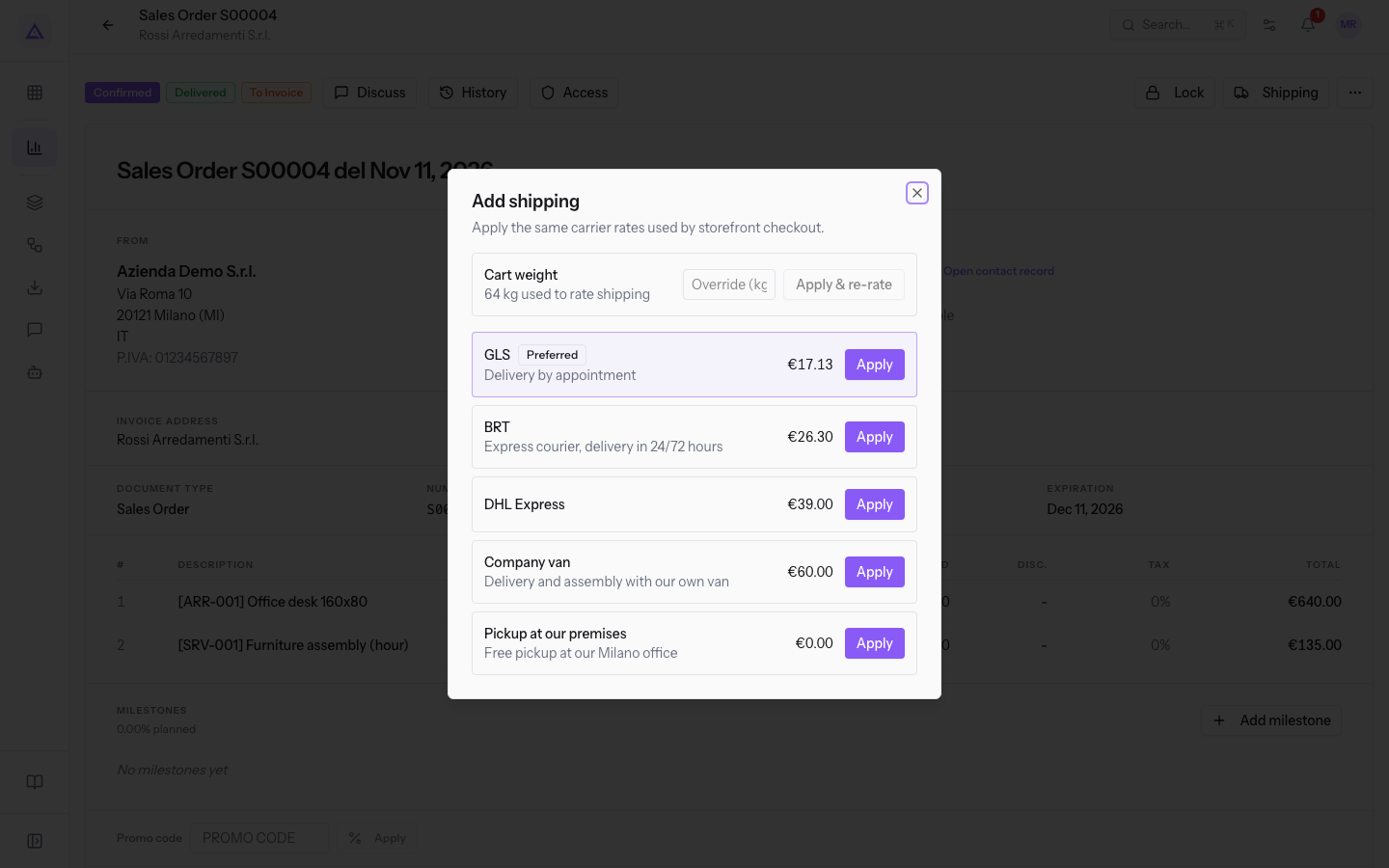
The window applies the same rates used by the shop checkout. It shows the cart weight used for the calculation and the eligible carriers with their price. The contact's preferred carrier appears first with the Preferred label, if it is eligible, but it is not applied on its own. In the Override (kg) field you can enter a weight different from the calculated one. With Apply the shipping becomes a line on the order.
The shipping cannot be changed if the order's status does not allow it, or if it has already been invoiced. In that case, credit the invoice first. For the full procedure, read Adding shipping to a quote or sales order.
Links to other modules
- Sales: the shipping is chosen from the quote or sales order and becomes a line on the order.
- Contacts: the contact's preferred carrier appears first in the Add shipping window.
- Products: the shipping product is a service product and carries the VAT rate and the revenue account. The weight of the products determines the weight of the cart.
- Inventory: the outgoing transfer carries the carrier and the tracking number, for example
WH/OUT/00005with the carrierPoste Italiane. A pickup point can be linked to a warehouse. Read Track the shipments of an order delivered in several parts. - Online shop: the checkout uses the same carriers and the same rates.
See it on your company, not on a slide deck.
In 30 minutes we map the software you use today.We show you how much work and how much margin Archimedes gives back.
Show me on my business →What industry are you in?
One tap — it lets us prepare the demo around your world.
What tools do you use today?
Pick the ones you recognise — or just type them. It helps us show you how they migrate.
Last step: your details.
We reply within one working day — and right after, if you like, you pick the demo slot yourself.
We couldn't send your request. Try again, or write to us at [email protected].
By sending, you agree to your data being processed so we can get back to you about the demo. Privacy notice.
Preview form — nothing is sent from this page.
Want to schedule the demo now?
Your call: book the slot you prefer yourself, or we'll call you to arrange it.
Live availability, 30 minutes, instant confirmation. The calendar opens in a new tab.
Lock in your slot ↗We'll get back to you within one working day — and we'll join the call already knowing your world.
The calendar is open in another tab: pick a slot and the demo is booked. Can't see it? Reopen it ↗
Preview page: nothing was sent.
Our calendar is live: take the slot that suits you and the demo is booked. 30 minutes, instant confirmation, no waiting.
Lock in your slot ↗