Transport
All modules
Transport
Transport · 1 of 18 · 8 min read
The Transport module organizes outbound deliveries: transport orders become stops on a trip, with a vehicle and a driver. For example, you can deliver furniture sold to customers in Milan using your own fleet, or entrust a load bound for Turin to an external carrier.
What it does
For each trip the module computes the load plan, the route and the cost estimate, generates the DDT and collects the proof of delivery.
- A transport order is a delivery to fulfil: it has a customer, a destination, a zone, a Promised date and lines with product and quantity. For example
ORD-2026-0148. - A trip combines a vehicle, a driver and a date, with a sequence of Stops in unloading order. Orders for the same customer at the same address share a stop.
- A vehicle is a fleet vehicle. The Ownership field distinguishes own vehicles (Owned) from those belonging to external carriers, which the interface calls Subcontractor.
The module covers the own fleet, external carriers and the mixed case. The cost of a trip is calculated differently depending on the vehicle:
- With an own vehicle the cost is an estimate that adds up fuel (the vehicle's consumption and the diesel price), driver (route duration multiplied by the hourly cost), tolls, wear and the vehicle's daily fixed charge. If a figure is missing, its line is left out. The route estimate lists only the fuel and driver figures under Missing parameters: missing tolls, wear and fixed charge are skipped without warning.
- With an external carrier's vehicle the cost is the agreed rate: the route's kilometers multiplied by the vehicle's Cost per km (€).
- If an own vehicle has no estimation data at all, neither on the vehicle nor in the settings, the cost uses the vehicle's Cost per km (€) as a conventional estimate.
Menu items
The module menu has the following items: Transport › Dashboard, Transport › Planning, Transport › Orders, Transport › Vehicles, Transport › Reports and, separately, Transport › Settings.
The dashboard
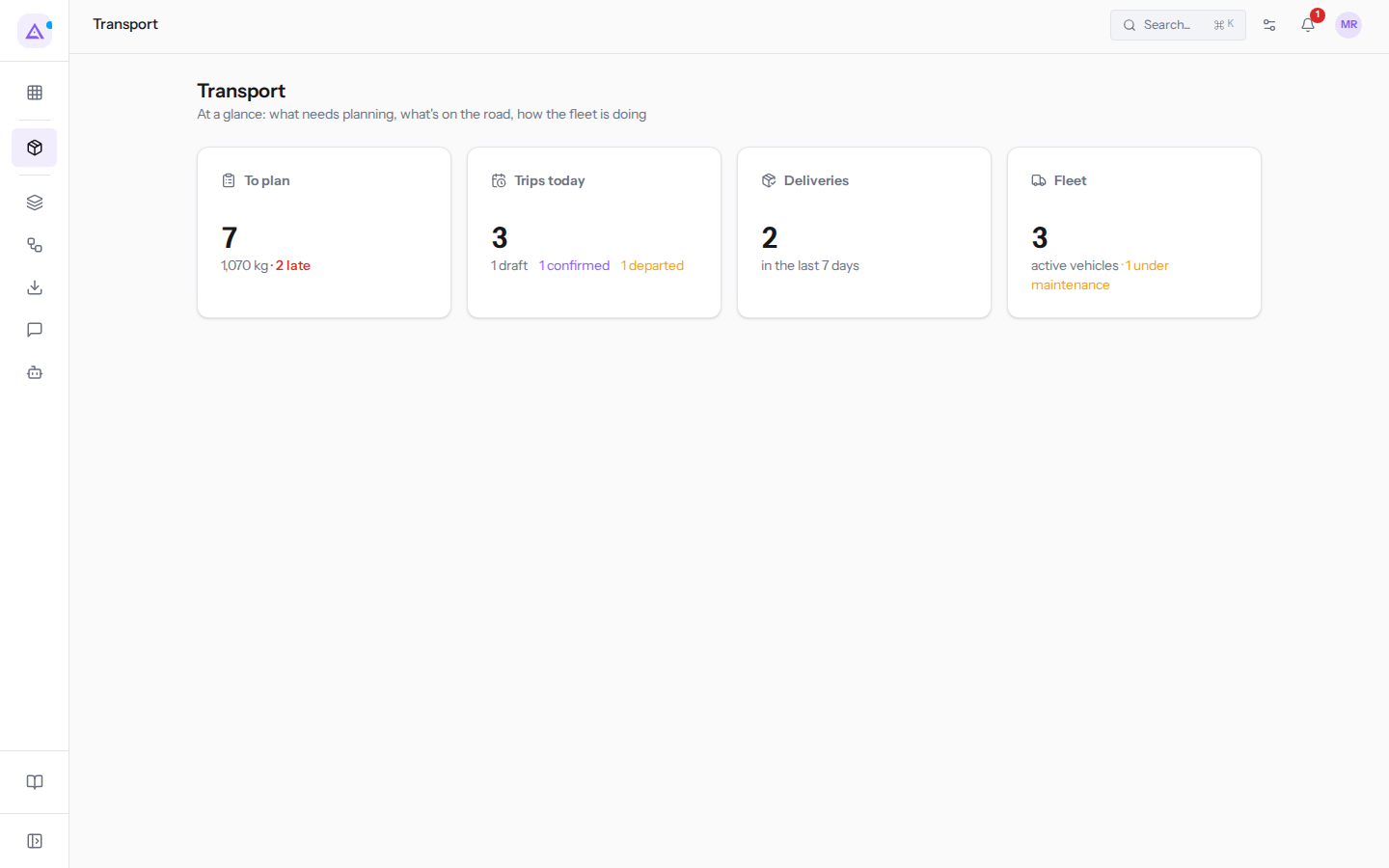
The dashboard summarizes the day's situation in four panels.
- To plan: the number of orders to plan, their weight and how many are overdue.
- Trips today: the day's trips, broken down by status.
- Deliveries: orders delivered in the last 7 days.
- Fleet: active vehicles, including those belonging to external carriers, and those under maintenance.
Check it in the morning: overdue orders should be added to a trip first, and any trip for today still in draft must be completed and confirmed before departure.
Planning
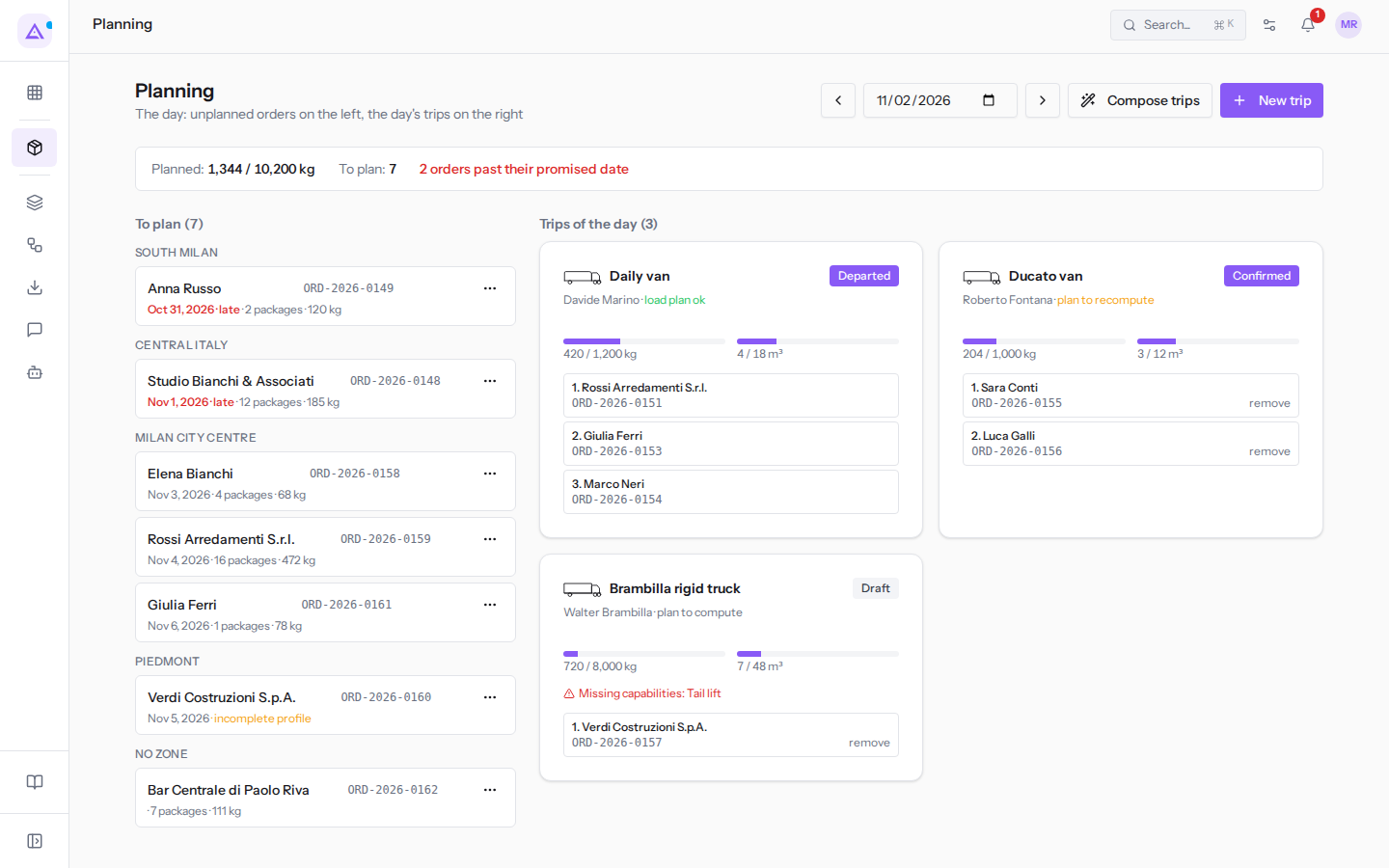
Planning is the day-to-day work screen: To plan orders on the left, Trips of the day on the right.
- Change the day using the arrows on either side of the date, or pick the date in the field.
- Create a trip with New trip, then drag orders onto the trip, or open the order's ⋯ menu and choose Assign to followed by the vehicle name. To remove an order from a trip use remove: the order goes back to those to plan.
- Alternatively use Compose trips: the wizard groups orders by zone, fills the available vehicles taking capability, payload and volume into account, and creates draft trips. It also flags orders it was unable to place.
Each trip shows the status of the load plan (plan to compute, load plan ok or plan to recompute) and any Missing capabilities, such as the Tail lift missing from the Brambilla rigid truck for Verdi Costruzioni S.p.A. Orders past the promised date are shown in red with "late": plan them first.
Note: planning flags a driver already assigned to another trip on the same day.
The trip
From the trip detail you reorder stops using the up and down arrow icons next to each stop, compute the load plan with Compute plan and view the route with Show route. If the vehicle breaks down or is unavailable, use Switch vehicle: choose the replacement and immediately see whether the load fits. For a trip, only select Active vehicles.
The load plan positions packages in the cargo bay respecting the unloading order. It has a 3D view, a Top view and a printable Loading list. It requires a vehicle with cargo bay dimensions and at least one stop. If the trip changes after the calculation, plan to recompute appears: press Recompute.
A trip goes through these statuses:
- Draft: the trip is being assembled. From here it moves to Confirmed or Cancelled.
- Confirmed: the trip has the driver link and can have the DDT. From here it returns to draft with Back to draft, or moves to Departed or Cancelled.
- Departed: the vehicle is on the road. From here it moves only to Closed.
- Closed and Cancelled: final statuses.
Important: Close trip marks all stops not yet delivered as delivered and moves their orders to Delivered. Use it only when the trip is complete. Cancelling a trip instead puts its orders back in To plan.
A stop's delivery is recorded from the office with Delivered on the stop, in the departed trip's tab, or by the driver with Confirm delivery on the page opened from the driver link. This page requires no login; the recipient's name, signature and photo are all optional. Mark delivered, in the order's tab, marks only that order as delivered.
Orders
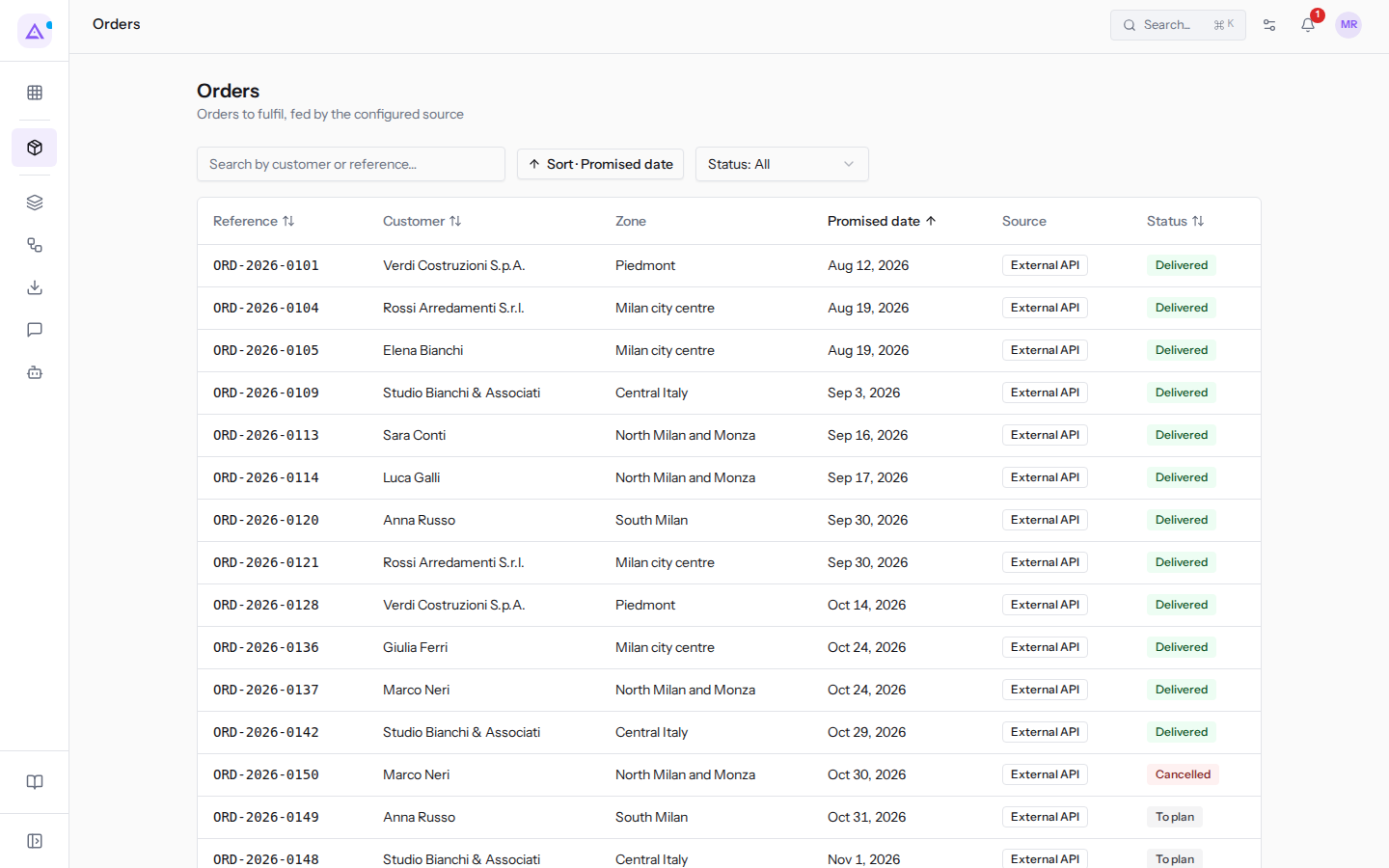
The Orders list shows the orders to fulfil, fed by the configured source, with columns Reference, Customer, Zone, Promised date, Source and Status. Search by customer or reference and filter by Status.
An order's statuses are To plan, Planned, Delivered and Cancelled. An order assigned to a trip becomes Planned; removed from the trip it returns to To plan.
Vehicles
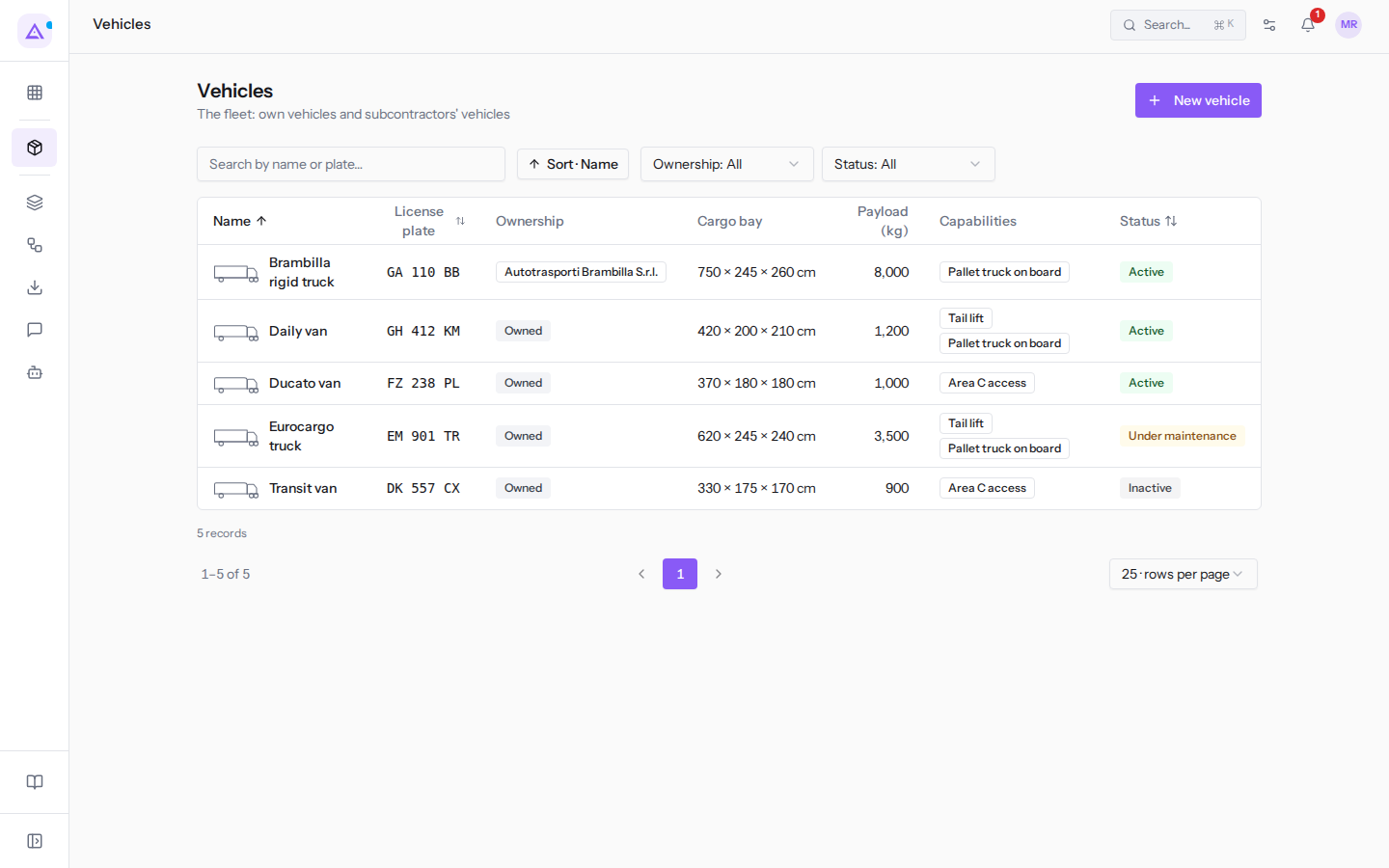
The Vehicles list gathers your own fleet and external carriers' vehicles. Filter by Ownership and Status, and add a vehicle with New vehicle.
For each vehicle you specify the body type, the cargo bay in cm, the Payload (kg), capabilities and costs. The statuses are Active, Under maintenance and Inactive.
Reports
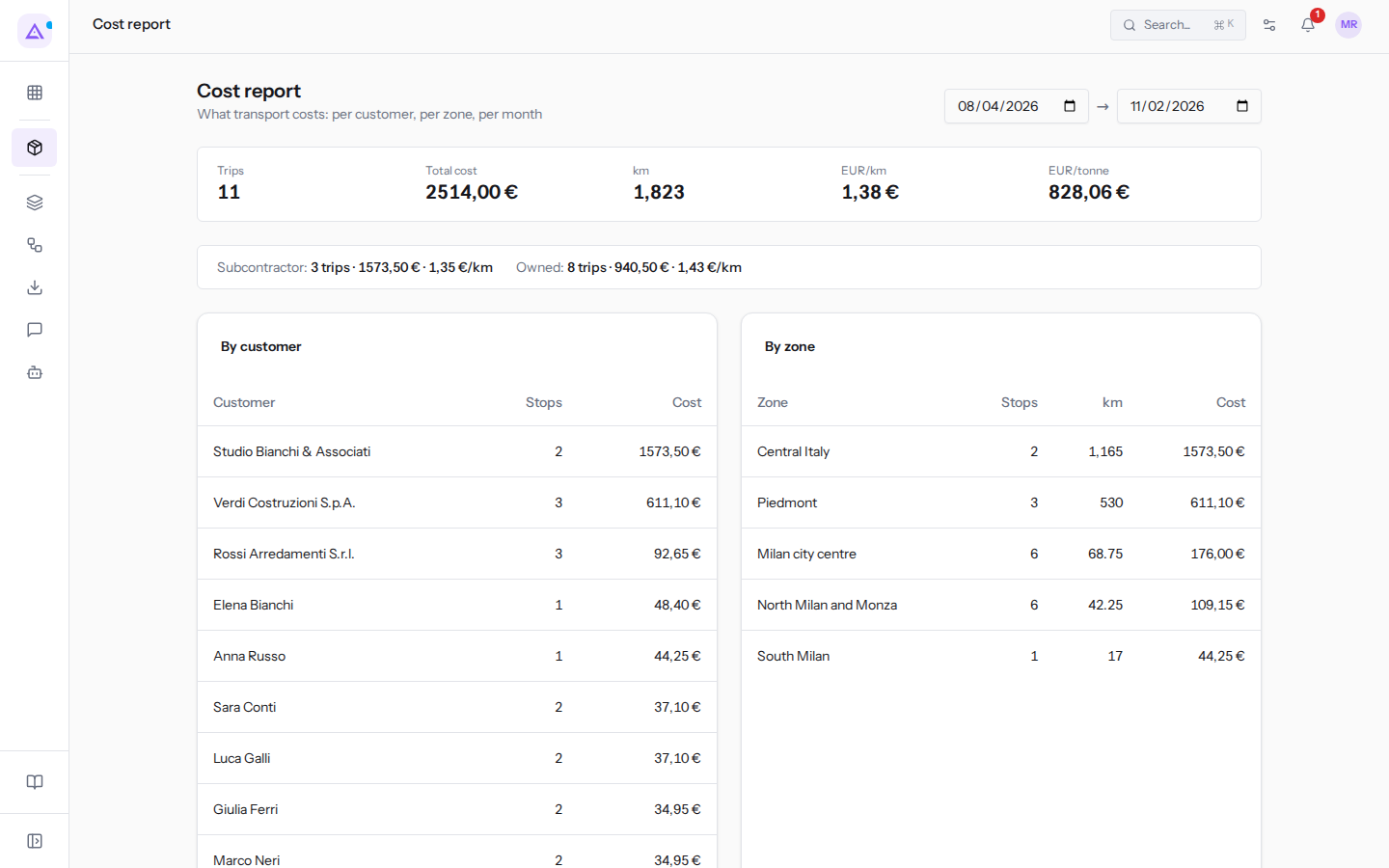
The Cost report shows how much transport costs per customer, per zone and per month, for the period chosen with the two date fields at the top right (on opening, the last 90 days). All trips in the period count except cancelled ones, so today's trips in draft, confirmed or departed are included. The cost is the one saved on the trip: a trip with no cost counts as zero. A row separates trips by Subcontractor vehicles from those by Owned vehicles.
A trip's cost and kilometers are split equally among its stops; each stop's share goes to its customer and zone. Tonnage comes from the computed load plans.
Settings
Transport › Settings opens the Transport configuration, divided into four tabs. Capabilities, zones, and logistic families can also be created and edited by the Transport User group; the Source tab and the deletion of any entry require Transport Manager.
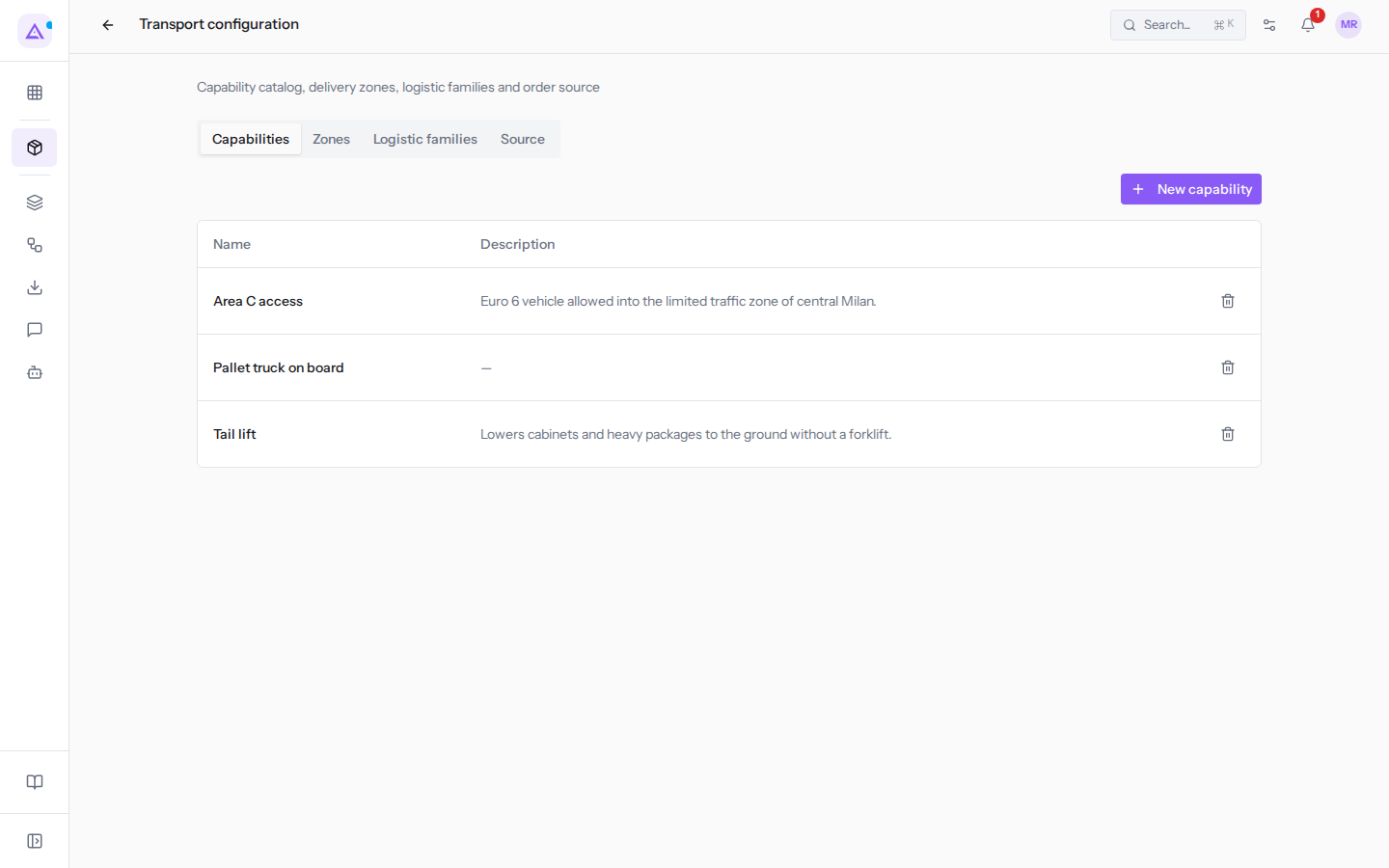
- Capabilities: the catalog of vehicle equipment, such as Tail lift or Area C access. If a product requires a capability that the vehicle does not have, the trip lists it under Missing capabilities.
- Zones: delivery catchment areas, such as Milan city centre or Piedmont. They group orders in the Planning and trip composition, and split costs in the report.
- Logistic families: the package profiles that products inherit, with dimensions, weight, units per package, stackability, orientation and required capabilities. Packages and the load plan derive from them.
- Source: where orders come from, the departure yard, the map provider, and the cost parameters.
The fields in the Source tab:
- Order source: choose External API (third-party ERP) if orders come from another management system, or Internal Sales module if you import them from sales with Sync from Sales. With the API you need a key: if you use Regenerate key, the current key stops working.
- Depot address (trips start here): the point from which each route departs and returns to, for Azienda Demo S.r.l.
Via Roma 10, 20121 Milano. Without this address the route cannot be calculated. - Provider: the service that resolves addresses and calculates routes. OpenStreetMap (free) requires no keys; Google Maps and Mapbox require your organization's key in the API key field.
- Diesel (€/l), Driver (€/h), Tolls (€/km): prices common to the entire fleet, used with the parameters of your own vehicles to estimate cost. They are not needed for external carriers' vehicles.
Connections with other modules
- Contacts: drivers are contacts with the Is a driver field enabled, without a separate registry. Only these contacts can be selected as a driver for a trip.
- Products: each product receives a logistic profile, i.e. a family or its dimensions. A line with a product without a profile cannot be included in the load plan. A line with a product that is not in the registry is flagged.
- Sales: only needed with the Internal Sales module source. If Sales is not active, synchronization is rejected.
- The module also requires Calendar.
See it on your company, not on a slide deck.
In 30 minutes we map the software you use today.We show you how much work and how much margin Archimedes gives back.
Show me on my business →What industry are you in?
One tap — it lets us prepare the demo around your world.
What tools do you use today?
Pick the ones you recognise — or just type them. It helps us show you how they migrate.
Last step: your details.
We reply within one working day — and right after, if you like, you pick the demo slot yourself.
We couldn't send your request. Try again, or write to us at [email protected].
By sending, you agree to your data being processed so we can get back to you about the demo. Privacy notice.
Preview form — nothing is sent from this page.
Want to schedule the demo now?
Your call: book the slot you prefer yourself, or we'll call you to arrange it.
Live availability, 30 minutes, instant confirmation. The calendar opens in a new tab.
Lock in your slot ↗We'll get back to you within one working day — and we'll join the call already knowing your world.
The calendar is open in another tab: pick a slot and the demo is booked. Can't see it? Reopen it ↗
Preview page: nothing was sent.
Our calendar is live: take the slot that suits you and the demo is booked. 30 minutes, instant confirmation, no waiting.
Lock in your slot ↗