CMS
All modules
CMS
CMS · 1 of 17 · 7 min read
The CMS module manages the organization's public site: pages, blog, menus, categories, media library, forms, SEO and visit statistics. You can use it to publish the page Weddings, write the articles of the blog Farm diary, or collect requests from the form Wedding quote request.
This guide presents the menu items and the main screens, then points to the guide that describes each activity.
Menu items
Open the module from CMS. The menu has these items:
- CMS › Overview: the Summary screen, with what needs attention today on the site.
- CMS › Pages: the site's page tree and shared blocks.
- CMS › Menus: the site's navigation menus,
Main menuandFooter menuin the demo. Read Manage site menus. - CMS › Categories: the content classification, with
Weddings,Corporate events,Farm lifeandRecipesin the demo. Read Create content categories. - CMS › Media: the library of images and files, organized in folders such as
Rooms and spacesandKitchen. Read Upload and organize images and files in the Media library. - CMS › Forms: the web forms and the submissions received.
- CMS › SEO: the SEO check of pages, the rules and the redirects.
- CMS › Statistics: site visits and Google search data.
- CMS › Appearance, CMS › Client area and CMS › Shop: the module settings, grouped under the Settings group of the menu, closed by default.
Before you start: the Forms, Statistics, Appearance, Client area and Shop items are visible only to the organization's administrators, including those who belong to the CMS groups. The Client area item appears only with the Contacts module active, and the Shop item only with the E-commerce module active.
Who can do what
The module distinguishes two roles.
- Website editor: creates and edits pages, articles, forms and editorial plan topics. Uploads and deletes media. Cannot delete pages, articles and forms, and has no access to the site configuration.
- Webwebsite manager: has the editor's permissions. In addition, deletes pages, articles and forms, and manages the brand, publishing, and the configuration of the site and blogs.
Only the website manager can delete content, because a deletion removes public content from the site.
Note: the initial CMS setup must be completed by an organization administrator. Until it is done, the module shows Finish setting up the CMS.
Summary
CMS › Overview opens the Summary screen, with What needs attention on the website today. Each tile reports a number and opens the related screen.
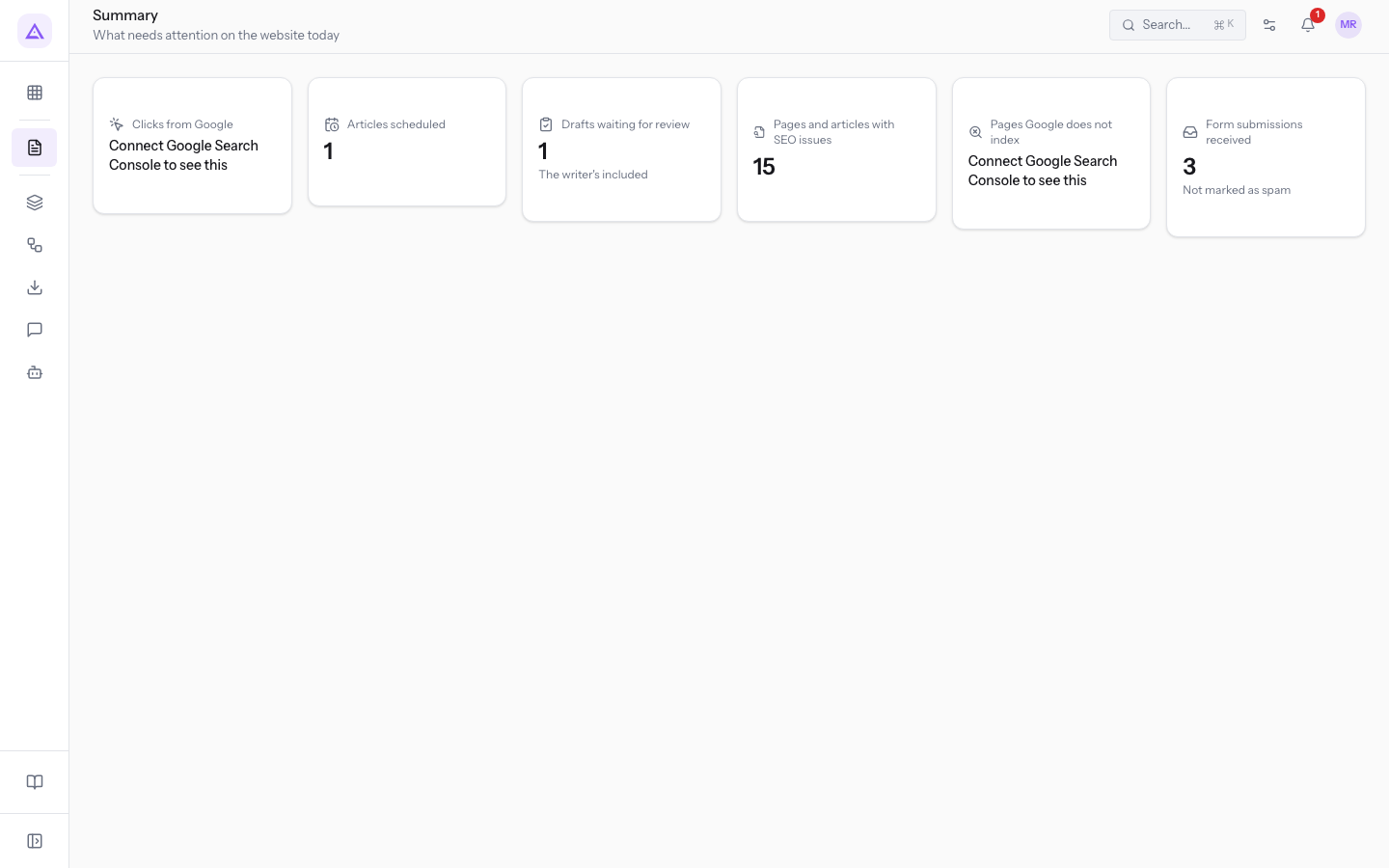
- Clicks from Google: the clicks from Google search. Without Google Search Console connected it shows Connect Google Search Console to see this.
- Articles scheduled: the blog articles with a scheduled publication. In the demo it is 1.
- Drafts waiting for review: the drafts to review, The writer's included. In the demo it is 1.
- Pages and articles with SEO issues: the content that does not follow the SEO rules.
- Pages Google does not index: requires Google Search Console connected.
- Form submissions received: the form submissions, excluding those flagged as spam. In the demo there are 3.
Pages and shared blocks
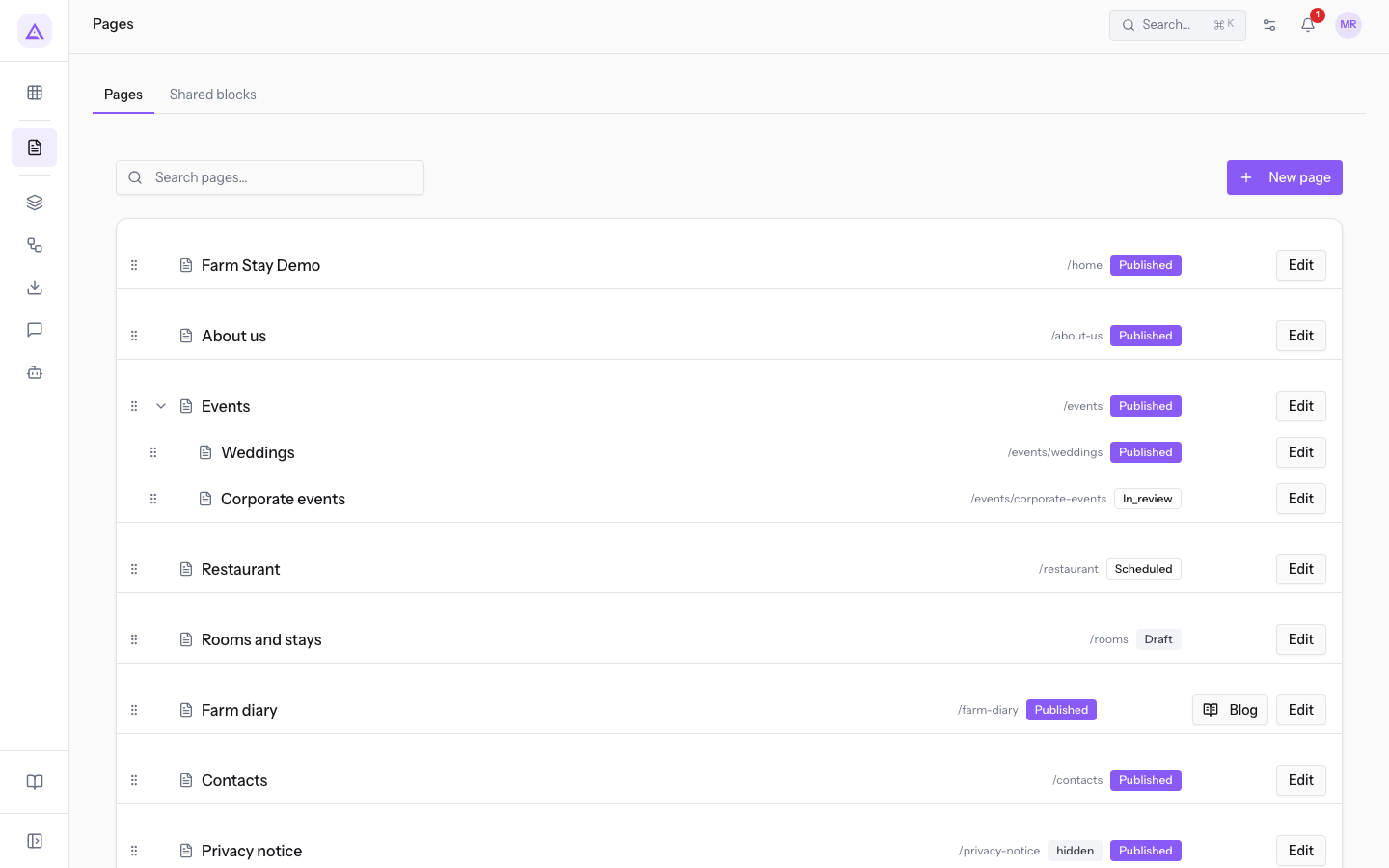
CMS › Pages has two tabs: Pages and Shared blocks.
Pages are organized as a tree: a page can have child pages, as Weddings and Corporate events under Events. Each row shows the page title, its path and its status.
- To compose a page, read Editing a page with the visual editor.
- To publish it, schedule it or send it for review, read Publish, schedule and get a page reviewed.
- Shared blocks, such as
Site header,Site footerandBook-a-visit banner, are inserted into every page. Read Using shared blocks, the header, and the footer.
Blog
A blog is a page with the Blog page switch on, for example Farm diary. In the page row, the Blog button opens the editorial plan, the articles and the writer.
- The editorial plan collects the topics to write about. Read Plan the blog with the editorial plan.
- The writer is the agent that writes the article drafts. It runs only when you ask and must be enabled for each blog. Read Managing blog articles and writer rules.
Important: the writer must be enabled before you request a draft. Without activation the product shows Enable this blog's writer before requesting a draft.
Forms
CMS › Forms has two tabs: Forms and Submissions. In the Forms tab the list shows, for each form, its name, destination, status and public path. Use New form to create a form.
A form is embedded in a page or published at its own address, for example /f/wedding-quote-request for Wedding quote request.
- To build a form, read Create a web form for the site.
- To review submissions and publish the form, read Reading form submissions and publishing them on the site.
Note: submissions are kept for two years from the submission date. If the person requests deletion, the submission is deleted together with its attached files.
SEO
CMS › SEO has three tabs: Check, Rules and Redirects.
- Check: lists pages and articles with their SEO issues. Inside it, the Audit, Proposals and SEO agent tabs show the issues, the proposed changes and the agent.
- Rules: the minimum and maximum lengths of titles and descriptions for search engines.
- Redirects: the rules that send an old address to a new one, for example
/weddings-2025 → /events/weddings. Read Redirect an old address to a new page.
The SEO agent analyzes the site every week and proposes changes. Changes apply only if you accept them with Accept or Accept all shown.
Statistics
CMS › Statistics has two tabs: Visits and Google Search.
- Visits: visits, most viewed pages, referrers, devices and goals, such as contact requests, availability checks, WhatsApp and phone clicks. Statistics must be enabled with Turn on statistics.
- Google Search: Google Search Console data, after connecting with Connect Google account.
Site statistics do not use cookies and do not show a banner. The data stays on the platform's servers. For this reason no cookie consent is needed, but statistics must be enabled explicitly.
Archimedes reads Search Console data, submits the sitemap and verifies the sites it hosts. It does not change the Search Console settings or data.
Settings
The module settings are in the Settings group of the menu and are reserved for administrators.
- CMS › Appearance: has the tabs Brand, Header & footer, Top bar and Badge. In Brand you set colors, typography and logo, and choose where to apply them: Public Site, Client Portal, Shop. Save with Save brand.
- CMS › Client area: the access and home of the client portal. Read Configure the client area: sign-in and portal home.
- CMS › Shop: the content of the online shop.
Links with other modules
The CMS works with these modules:
- Marketing: from a published article it creates a LinkedIn post and a newsletter draft. If Marketing is not active, no draft is created and Marketing is inactive. No social or newsletter drafts were created. appears.
- Agents: the writer's activation is managed in Agents.
- Contacts: without this module the Client area item is not present.
- E-commerce: without this module the Shop item is not present.
- CRM: in the demo, the form
Wedding quote requestcreates opportunities in the CRM.
See it on your company, not on a slide deck.
In 30 minutes we map the software you use today.We show you how much work and how much margin Archimedes gives back.
Show me on my business →What industry are you in?
One tap — it lets us prepare the demo around your world.
What tools do you use today?
Pick the ones you recognise — or just type them. It helps us show you how they migrate.
Last step: your details.
We reply within one working day — and right after, if you like, you pick the demo slot yourself.
We couldn't send your request. Try again, or write to us at [email protected].
By sending, you agree to your data being processed so we can get back to you about the demo. Privacy notice.
Preview form — nothing is sent from this page.
Want to schedule the demo now?
Your call: book the slot you prefer yourself, or we'll call you to arrange it.
Live availability, 30 minutes, instant confirmation. The calendar opens in a new tab.
Lock in your slot ↗We'll get back to you within one working day — and we'll join the call already knowing your world.
The calendar is open in another tab: pick a slot and the demo is booked. Can't see it? Reopen it ↗
Preview page: nothing was sent.
Our calendar is live: take the slot that suits you and the demo is booked. 30 minutes, instant confirmation, no waiting.
Lock in your slot ↗