eLearning
All modules
eLearning
eLearning · 1 of 14 · 5 min read
The eLearning module manages the organization's training: courses with lessons and quizzes, enrollments, students' progress, and completion certificates. With the module you prepare a course such as HACCP: food hygiene and safety in the kitchen, publish it to the catalog, and check how many people complete it.
How it works
The module's work is based on these elements.
- Course: the unit of training. It has a category, a difficulty, and a status.
- Lesson: a part of the course. Each lesson has a type and a duration.
- Quiz: it is linked to a lesson, not directly to the course. It can have a time limit:
HACCP final testlasts 15 minutes. - Enrollment: links a person to a course and records their progress.
- Certificate: certifies that the course is complete. It exists only for enrollments in the Completed status.
A course has three statuses.
- Draft: the course is being prepared and does not appear in the catalog.
- Published: the course is in the catalog and people can enroll.
- Archived: the course leaves the catalog. Existing enrollments remain on the course page.
An enrollment starts in the Enrolled status. The other statuses are In Progress, Completed, and Dropped.
Who uses the module
The module has two access levels.
- Manager access: creates and manages courses, categories, lessons, and quizzes. It includes student access.
- Student access: browses courses, enrolls, marks their own progress, and takes quizzes. It reads courses, categories, lessons, and quizzes, but does not change them.
Note: the eLearning › Categories menu item and the numbers on the Dashboard require manager access.
Menu items
The eLearning menu has these items:
- eLearning › Dashboard: the main training numbers and the most recently created courses.
- eLearning › Courses: the list of all courses, in any status.
- eLearning › Categories: the categories that group the courses.
- eLearning › Catalog: the published courses you can enroll in.
- eLearning › My Courses: the courses you are enrolled in, with their progress.
The Dashboard
The Dashboard summarizes the status of training. The New Course button opens the Courses page.
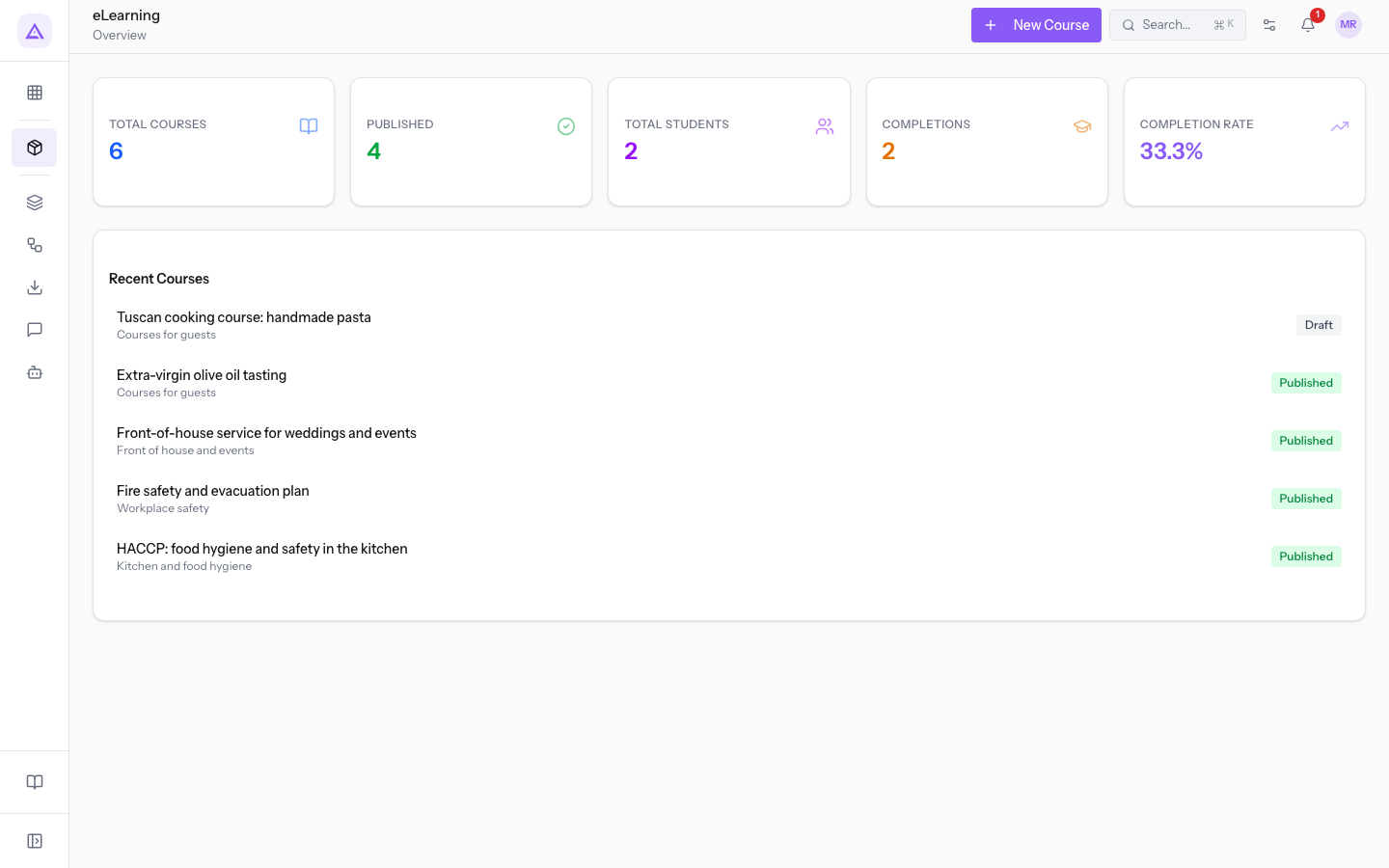
- Total Courses: the number of courses, in any status.
- Published: the number of courses in the Published status.
- Total Students: the people enrolled in at least one course, counted once.
- Completions: the number of enrollments in the Completed status.
- Completion Rate: the ratio of enrollments in the Completed status to total enrollments. Enrollments in the Dropped status also lower it.
- Recent Courses: the last five courses created.
Courses
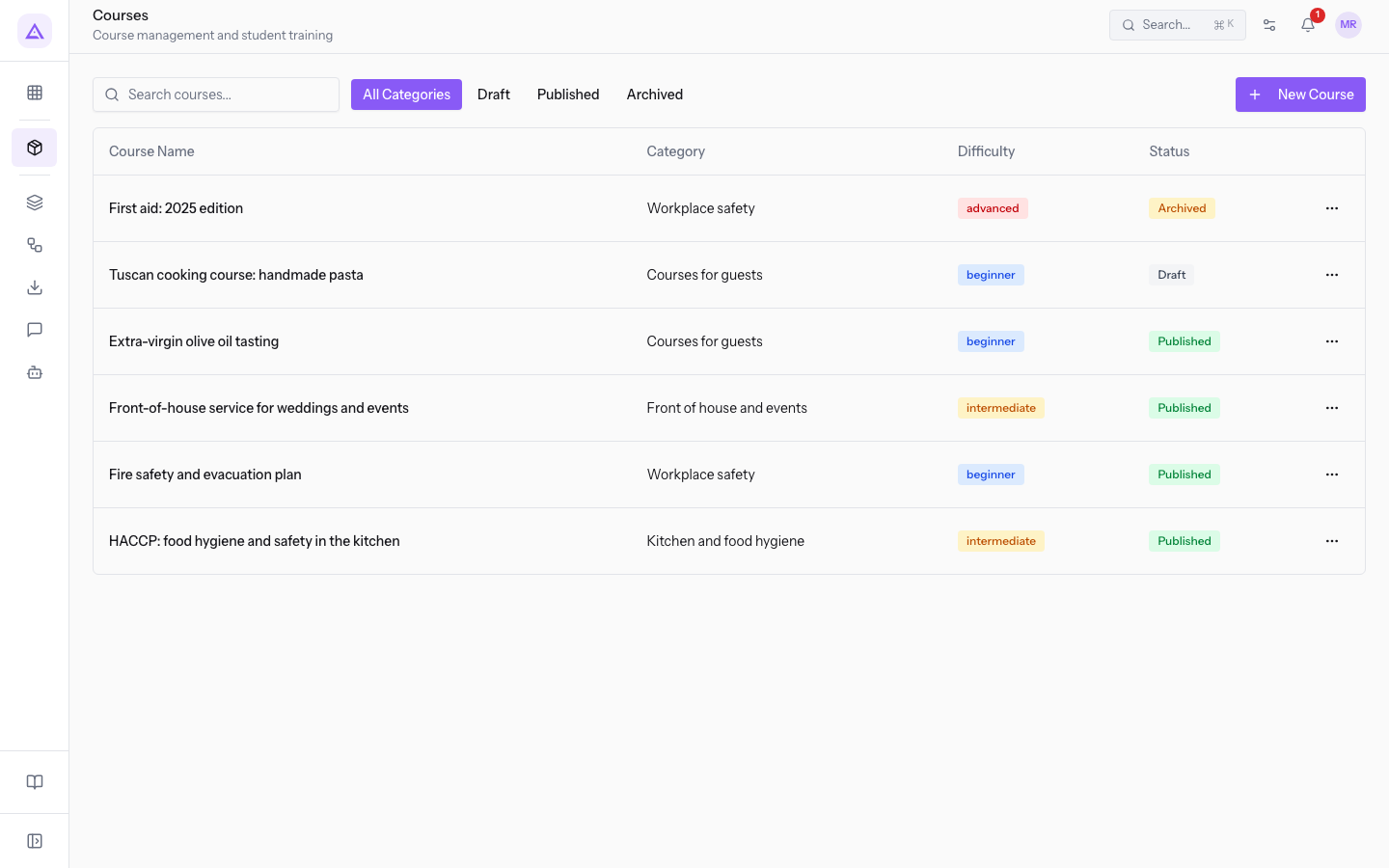
The Courses page lists all courses with Course Name, Category, Difficulty, and Status. The Search courses... field searches for a course, the Draft, Published, and Archived buttons filter by status, and All Categories shows all courses again.
The New Course button opens the creation window. Course Name is required. Difficulty offers Beginner, Intermediate, and Advanced.
The course page
Opening a course from the list shows the course page. It shows status, difficulty, category, Instructor and Tags, then the Lessons and Enrollments tabs.
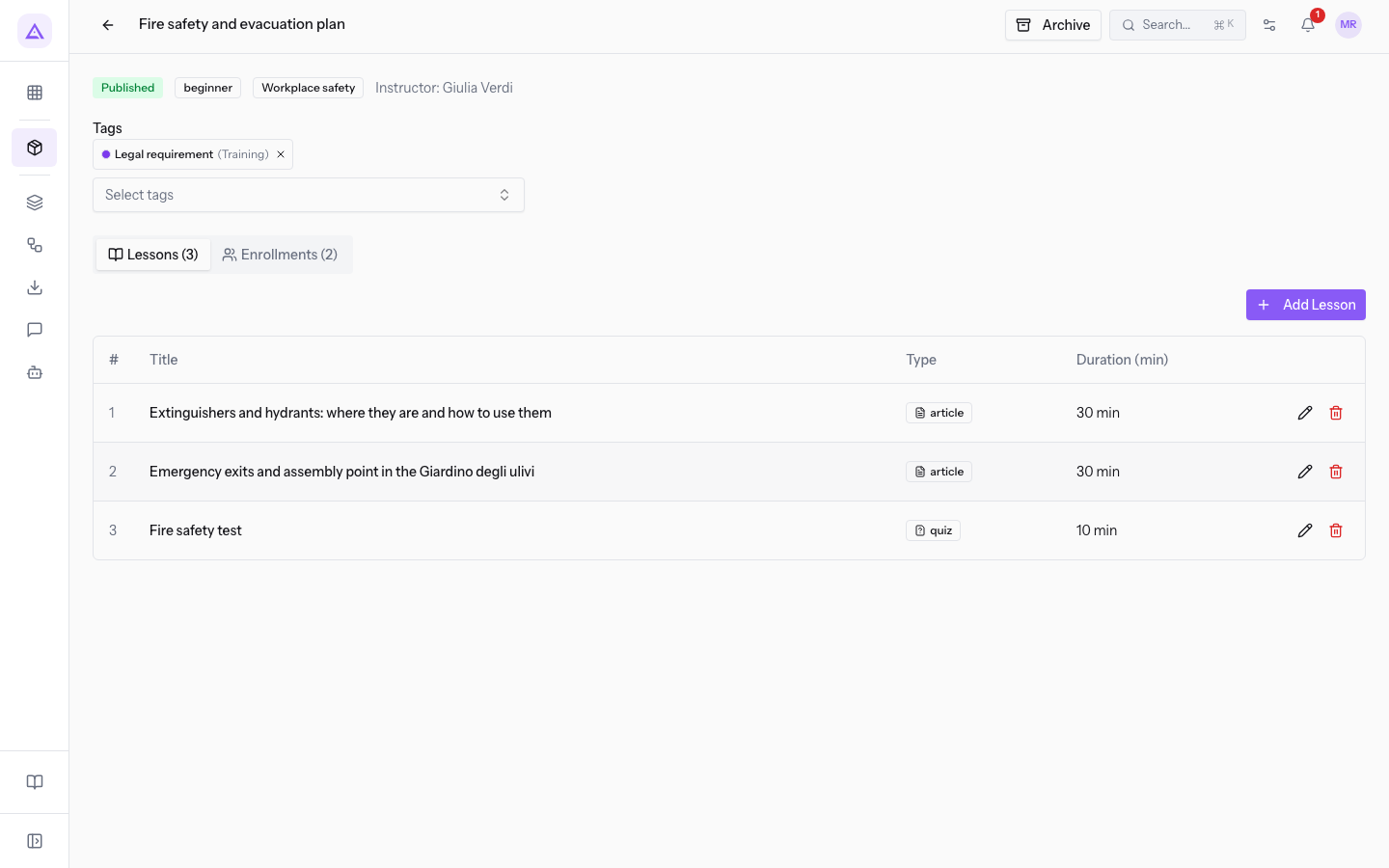
- Lessons: the list of the course's lessons. Add Lesson opens the window to create one.
- Enrollments: the people enrolled in the course, with each one's Status and Progress.
In the Add Lesson window, Title is required and Type decides which fields are shown: with Video, Video URL appears instead of Content.
The button at the top depends on the course status.
- If the course is in Draft and ready, press Publish: the course enters the catalog.
- If a Published course should no longer be offered, press Archive: the course leaves the catalog and the enrollments remain.
- An Archived course shows neither of these buttons.
Important: Publish changes the status without checking lessons, quizzes, or the instructor. Check the course content before publishing it.
Categories
The Categories page lists the categories with Name, Color, and Active. Categories group the courses and feed the catalog filter.
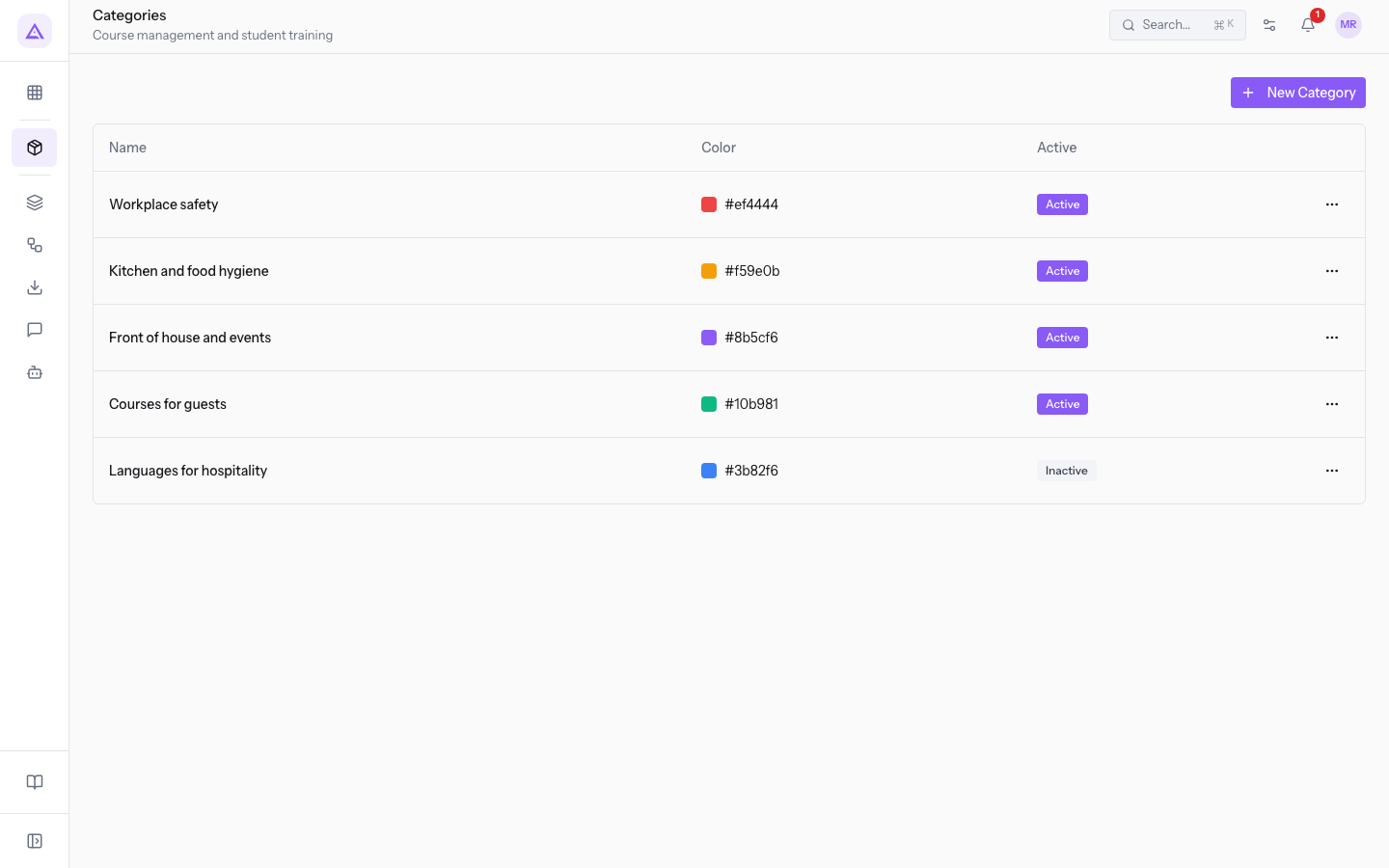
The New Category button opens a window with the fields Name, Color, Order, and Active.
Catalog
The Course Catalog page shows one card for each published course. Draft and Archived courses do not appear.
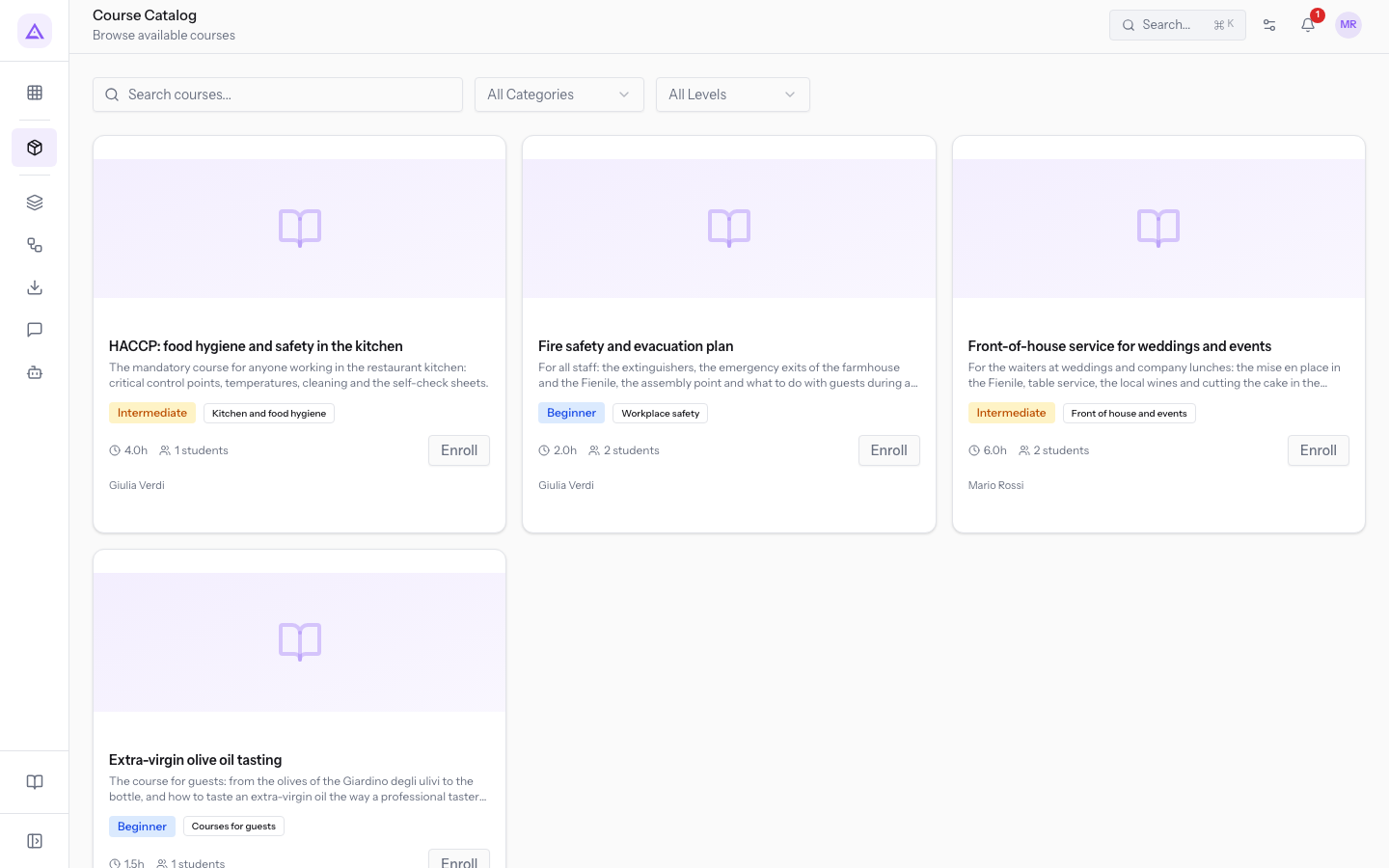
- Search courses...: searches the course name and description.
- All Categories: filters the courses by category.
- All Levels: filters the courses by difficulty.
- Enroll: enrolls you in the course, which then appears under eLearning › My Courses.
Each person has only one enrollment in a course: if you press Enroll again, the progress is not reset.
My Courses
The My Courses page lists the courses you are enrolled in. Each card shows the enrollment status, the category, and the Progress. The Course Catalog button opens the catalog.
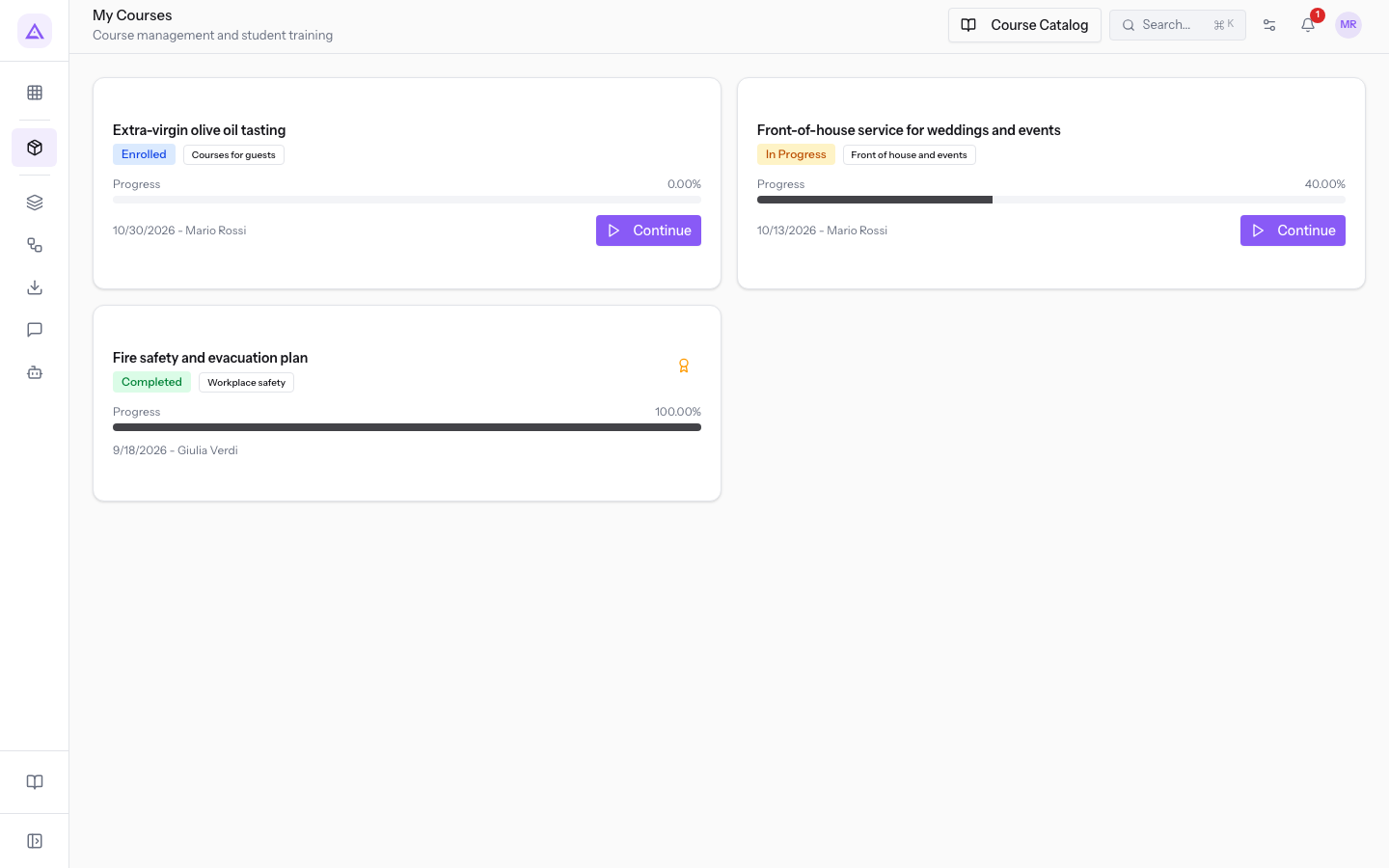
The list does not filter by course status: an enrollment in an Archived course remains visible.
Progress updates each time a lesson is completed. You cannot complete a lesson without an enrollment.
Each quiz submission records an attempt, and attempts have no limit. The quiz is passed when the percentage of points earned reaches the minimum score.
The card of an enrollment in the Completed status shows the rosette icon, which opens the Certificate page with the Download PDF and Print buttons.
Links with other modules
The eLearning module requires the Contacts module: a course's Instructor is a contact.
Course Tags are the same ones used across the rest of the application: the list does not belong only to this module. On the course page, each tag chosen in Select tags is saved immediately.
See it on your company, not on a slide deck.
In 30 minutes we map the software you use today.We show you how much work and how much margin Archimedes gives back.
Show me on my business →What industry are you in?
One tap — it lets us prepare the demo around your world.
What tools do you use today?
Pick the ones you recognise — or just type them. It helps us show you how they migrate.
Last step: your details.
We reply within one working day — and right after, if you like, you pick the demo slot yourself.
We couldn't send your request. Try again, or write to us at [email protected].
By sending, you agree to your data being processed so we can get back to you about the demo. Privacy notice.
Preview form — nothing is sent from this page.
Want to schedule the demo now?
Your call: book the slot you prefer yourself, or we'll call you to arrange it.
Live availability, 30 minutes, instant confirmation. The calendar opens in a new tab.
Lock in your slot ↗We'll get back to you within one working day — and we'll join the call already knowing your world.
The calendar is open in another tab: pick a slot and the demo is booked. Can't see it? Reopen it ↗
Preview page: nothing was sent.
Our calendar is live: take the slot that suits you and the demo is booked. 30 minutes, instant confirmation, no waiting.
Lock in your slot ↗