Helpdesk
All modules
Helpdesk
Helpdesk · 1 of 15 · 7 min read
The Helpdesk module manages customer support requests as tickets. With the module you follow each ticket through the stages of a board, meet SLA deadlines, write Knowledge base articles, and turn on the AI front desk. For example, a ticket can be Request for a copy of invoice FV/2026/0002 or Parking for the wedding guests' coaches.
This page presents the menu items, the main screens, and the links to other modules. For each task it points to the article that describes it.
The menu items
Open the module from Helpdesk. The menu has these items:
- Helpdesk › Dashboard: the main ticket figures.
- Helpdesk › Pipeline: the tickets of one board, laid out in columns by stage.
- Helpdesk › Tickets: the list of all tickets.
- Helpdesk › Reports: SLA compliance and ticket trends.
- Helpdesk › Knowledge base: the articles the front desk answers from.
- Helpdesk › Settings: boards, stages, workflows, tags, teams, custom fields, and the front desk.
Before you start: seeing and working on tickets requires the Helpdesk User group. The Knowledge base and Settings items are visible only to people with the Helpdesk Manager group. Only managers delete tickets and configure the module.
The dashboard
The dashboard summarizes the state of the tickets.
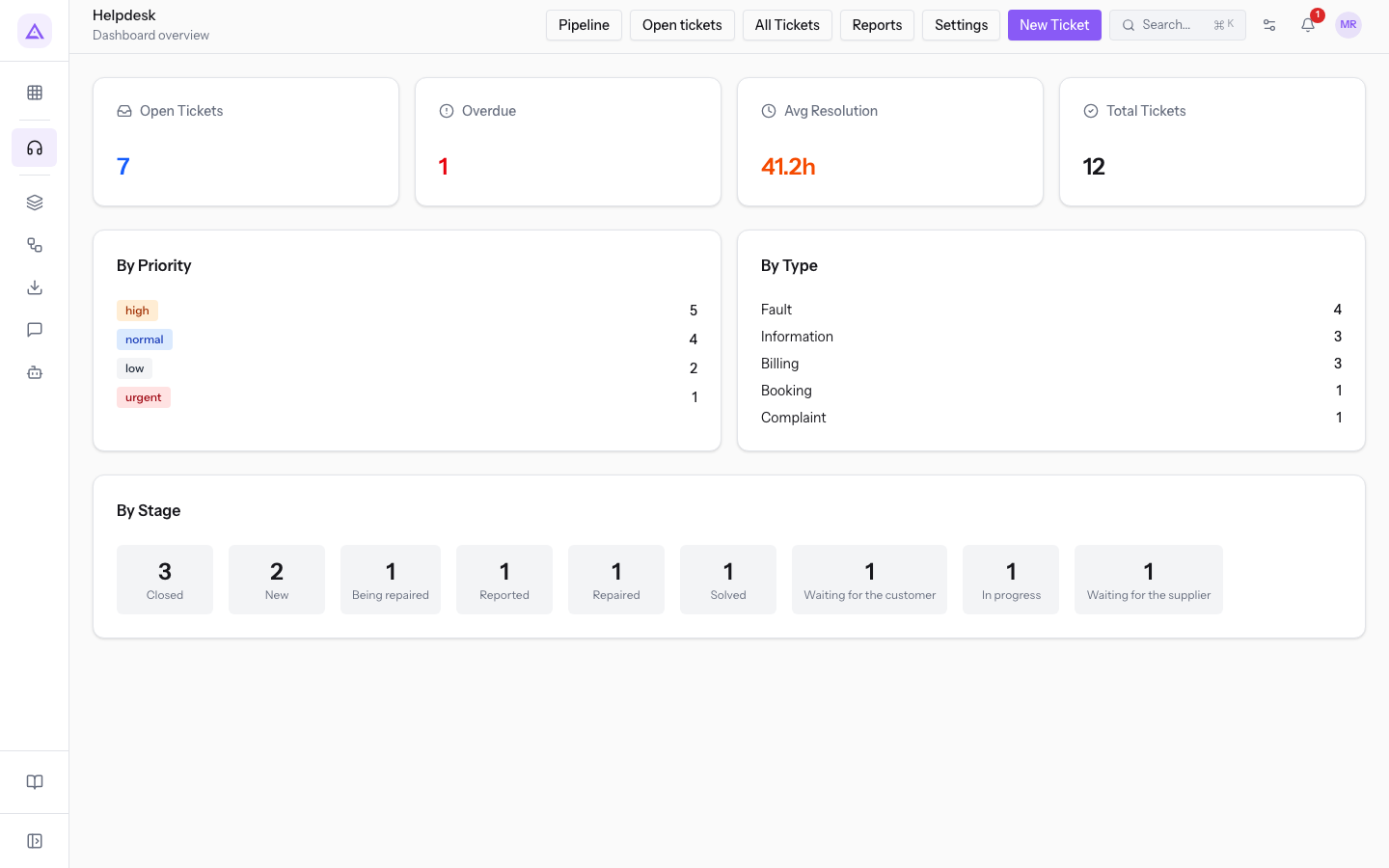
- Open Tickets: tickets not yet closed.
- Overdue: tickets that have passed their SLA deadline.
- Avg Resolution: the average resolution time, in hours.
- Total Tickets: all tickets recorded.
- By Priority: tickets split by priority.
From the dashboard the New Ticket button opens the screen to create a ticket.
The pipeline
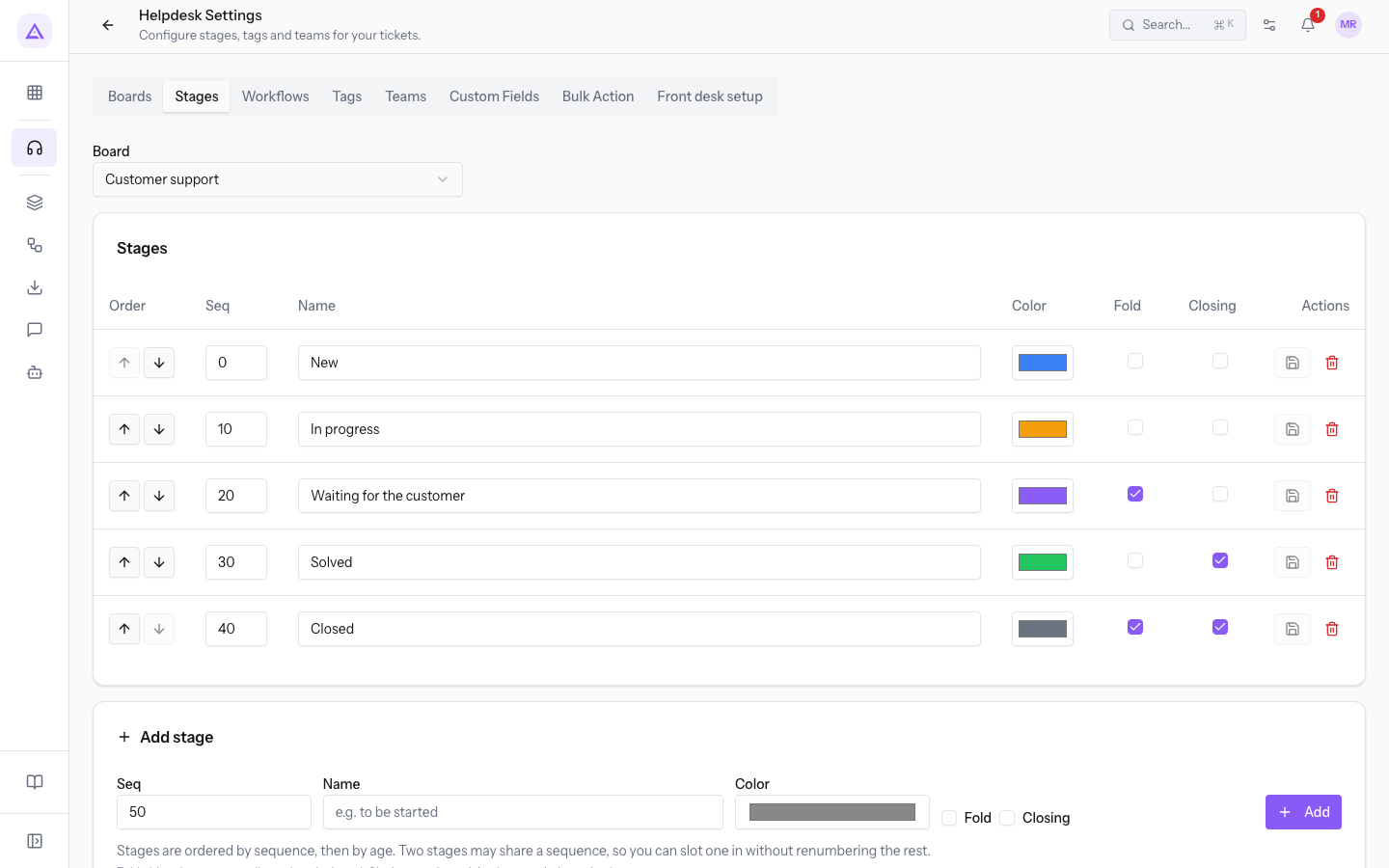
The Pipeline shows the tickets of one board as columns, one per stage. In the demo organization the board is Customer support, with the stages New, In progress, Waiting for the customer, Solved, and Closed.
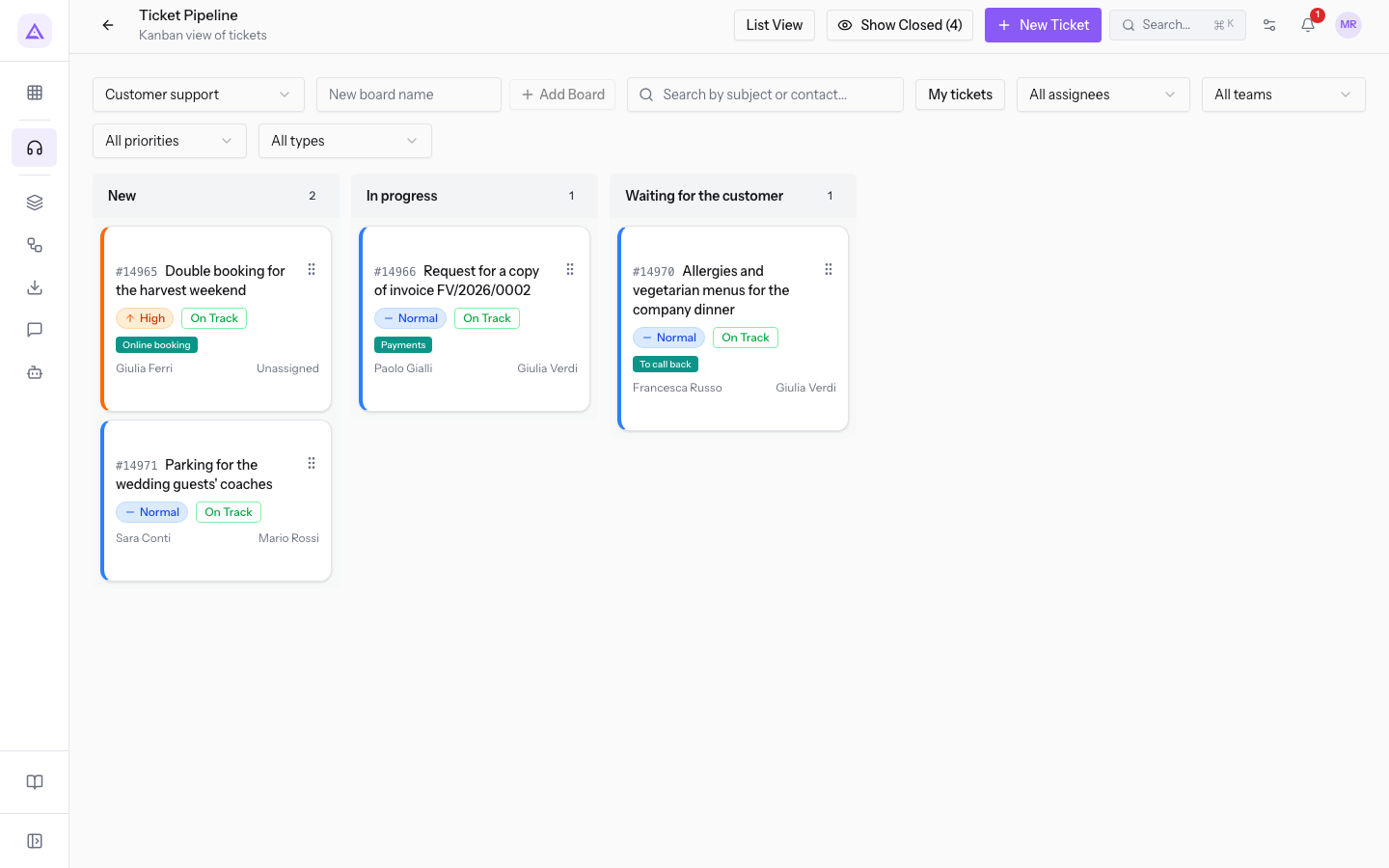
- Board selector: the board to show. Add Board creates a new board.
- Search by subject or contact...: searches the tickets of the board.
- My tickets: shows only the tickets assigned to you.
- Filters by assignee, team, priority, and type.
- Show Closed: also shows closed tickets; the button shows in brackets how many there are.
- List View: switches to the ticket list.
To move a ticket forward, drag it from one column to another. Moving it into a stage marked Closing marks it as resolved; moving it back into an open stage reopens it. Read Moving a ticket forward, closing it and reopening it. If the board has a workflow assigned, a move it does not allow is refused: read Deciding which stages a ticket can move between (workflows).
The ticket list
The list shows all tickets with number, subject, contact, stage, priority, assignee, tags, due date, and creation date.
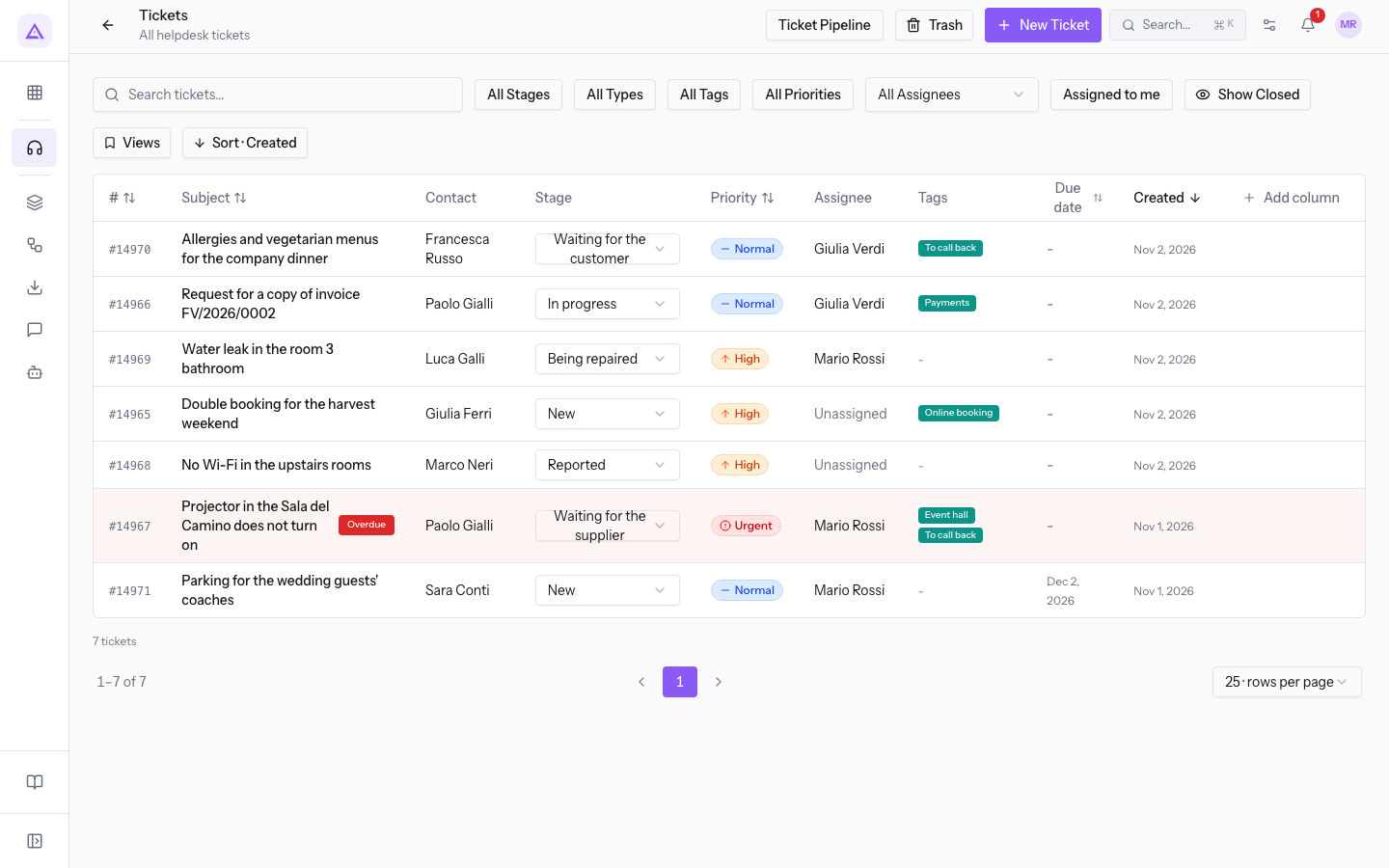
- Search tickets...: searches for a ticket.
- Filters All Stages, All Types, All Tags, All Priorities, and by assignee.
- Assigned to me and Show Closed: narrow or widen the list.
- Views and Add column: choose the view and the columns to show.
- Each row has a menu with the ticket's stage, from which you change stage without opening the ticket.
- Trash: deleted tickets, which you can restore. They are removed permanently after the retention period.
Open a ticket to read and write messages and internal notes, and to change assignee, team, or stage. Read Assigning a ticket and updating its details.
How a ticket is created
A ticket is created by hand from New Ticket, with the Create Ticket button. The Subject field is required.
A ticket can also come from other sources:
- a chat message; the link to the ticket is posted in the message thread;
- a request from the CRM requests board;
- the front desk, when it cannot answer a customer;
- incoming email on the routed mailboxes;
- the customer portal.
When assigning, you choose a team, a user, both, or neither: without a team or user the ticket stays in the unassigned queue. With a team, the ticket is distributed among the members according to the team's assignment method.
SLA deadlines
Each ticket receives a deadline from the applicable SLA: the creation date plus the policy's resolution hours. The policy is chosen in this order: the one for the ticket's type and priority, then the type's default SLA, then the general policy. The deadline is recalculated when type or priority changes.
- If no policy applies, the ticket shows No SLA deadline set and does not count in SLA compliance.
- A resolved or closed ticket keeps its deadline, so the report for past months does not change.
The reports
The reports show ticket totals and SLA compliance month by month.
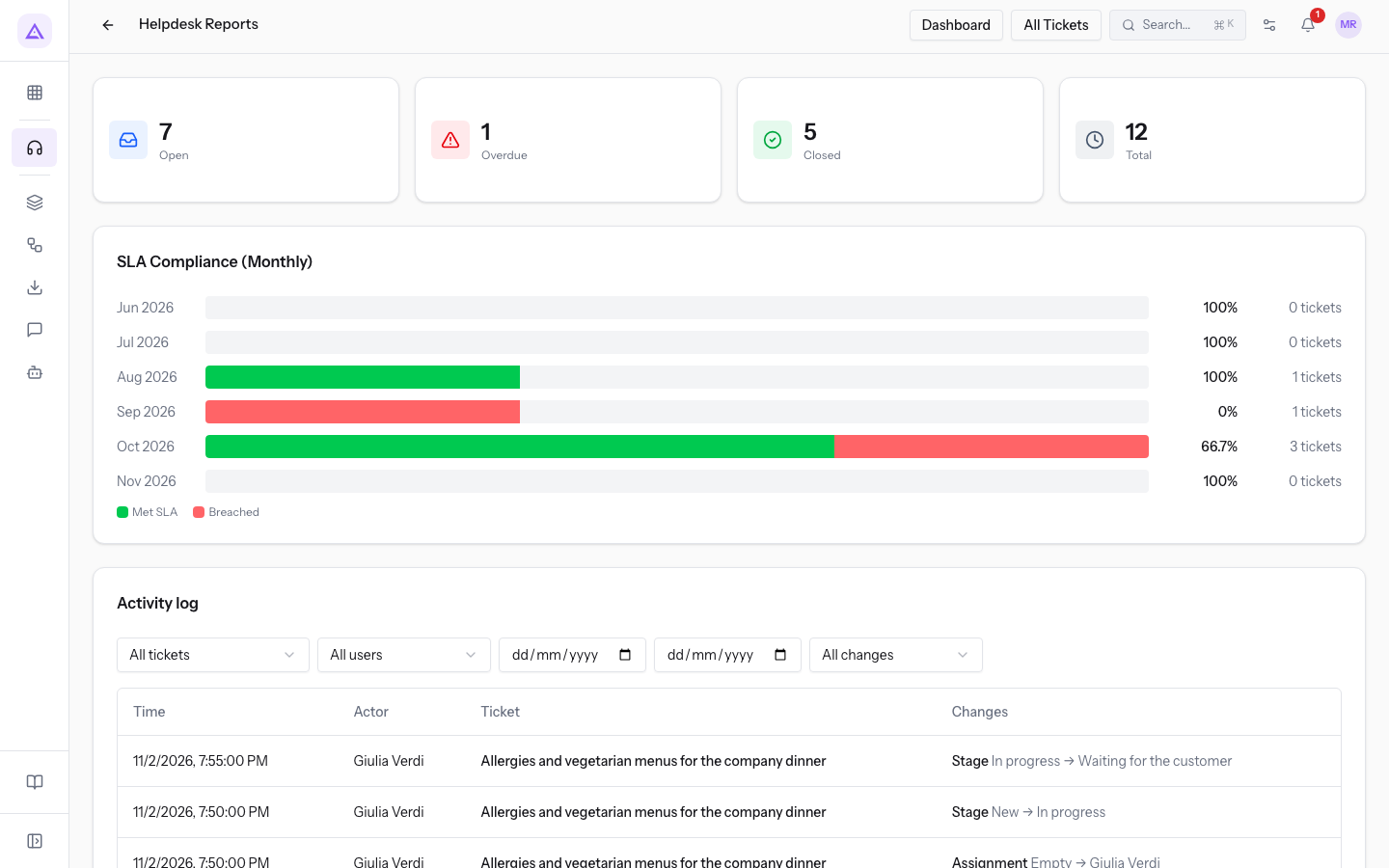
- Open, Overdue, Closed, Total: the ticket counts.
- SLA Compliance (Monthly): the percentage of tickets resolved by the deadline, for each month.
- The list of ticket changes, filterable by ticket, user, From date, To date, and Change type.
The Knowledge base
The Knowledge base collects the articles the front desk answers from. Only published articles are used: drafts and archived articles are never used.
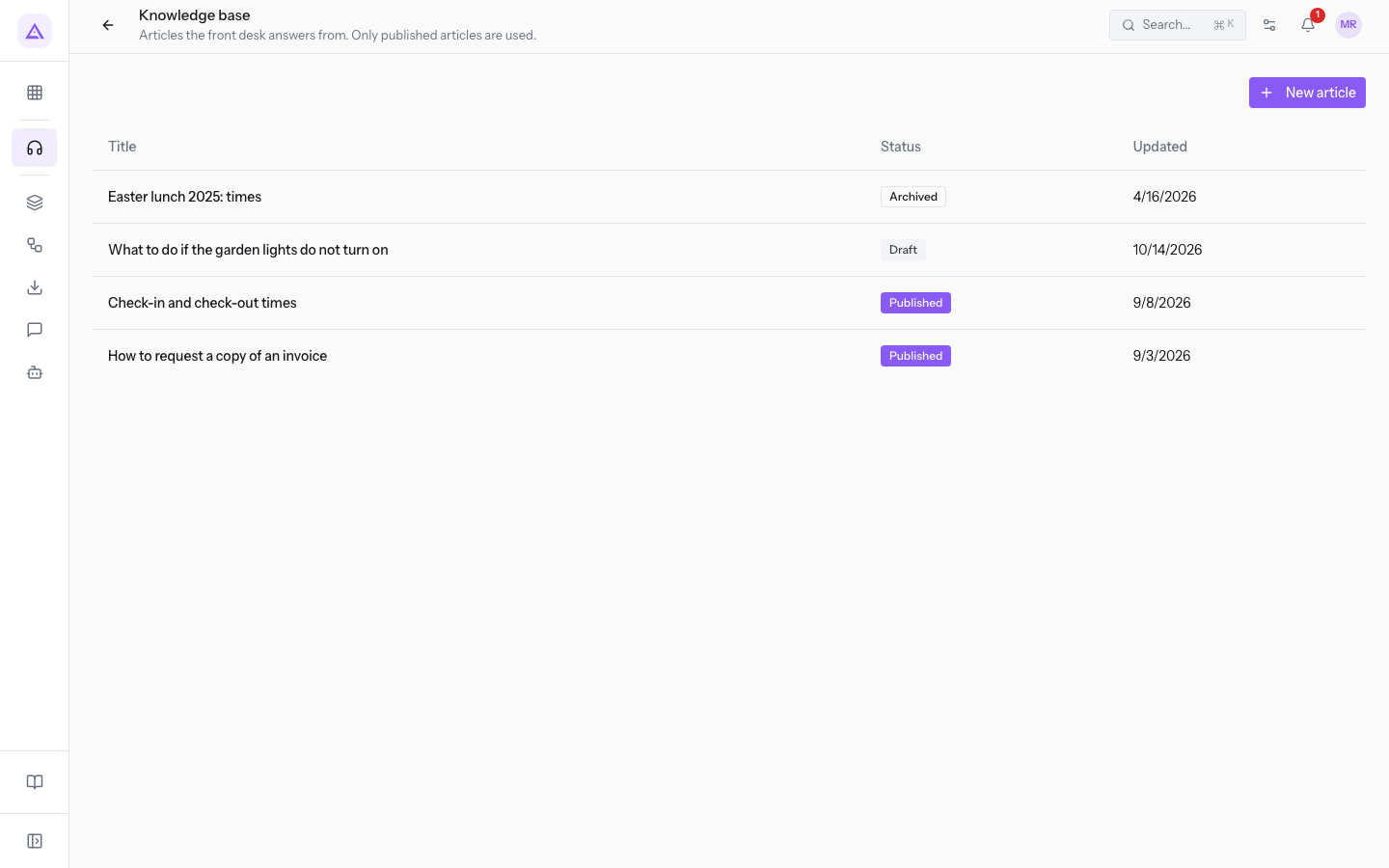
- The list shows Title, Status, and Updated for each article. For example
Easter lunch 2025: times, status Archived. - New article creates an article.
- Knowledge gaps: customer questions that no published article answers, from the most frequent. Draft article hands the topic to the agent that writes article drafts.
Read Writing knowledge base articles.
Settings
Settings configure stages, tags, and teams for tickets. They are split into tabs.
- Boards: create, sort, and delete boards. A new board starts with the five default stages. The default board receives tickets created without naming one.
- Stages: the columns of a board, with the options Fold (the column starts collapsed) and Closing (moving a ticket here marks it as resolved). On the
Customer supportboard,SolvedandClosedare closing stages. - Workflows: the allowed transitions between stages, valid only for boards the workflow is assigned to.
- Tags: the old tag list reserved for support. Tickets use the workspace's shared tag catalog.
- Teams: the groups to assign tickets to and the assignment method, for example Least tickets. Members are managed on the company Teams page.
- Custom Fields: additional ticket fields of several types, including Dropdown.
- Bulk Action: moves in one action all tickets of one stage to another stage, even only those with a tag.
- Front desk setup: the channels the AI agent answers on.
Important: a board or stage that still contains tickets cannot be deleted. Move the tickets first, even with Bulk Action.
The front desk
The front desk is the support AI agent. It has two switches, one for the Customer portal and one for email, and both are off by default.
- On the customer portal it answers customers right away. With the portal off, customers see no assistant and their questions reach the team as tickets.
- On email it handles the mail of the mailboxes routed to the agent, and replies wait for approval. Without routed mailboxes, nothing is handled.
- Turning a channel off does not delete conversations, gaps, or tickets already recorded.
Note: only a support manager can change the front desk switches.
Links with other modules
- Contacts: every ticket is linked to a contact.
- CRM: from a request on the CRM requests board you create a ticket, which receives the subject, the customer's text, the contact and the channel, and shows Opened from the CRM request. Each request generates at most one ticket.
- Email: incoming mailboxes are routed to the front desk from the mail settings, among the incoming addresses.
- Chat: from a chat message you create a ticket.
- Automation: flow actions to create and close tickets.
- Customer portal: where the front desk replies to customers.
See it on your company, not on a slide deck.
In 30 minutes we map the software you use today.We show you how much work and how much margin Archimedes gives back.
Show me on my business →What industry are you in?
One tap — it lets us prepare the demo around your world.
What tools do you use today?
Pick the ones you recognise — or just type them. It helps us show you how they migrate.
Last step: your details.
We reply within one working day — and right after, if you like, you pick the demo slot yourself.
We couldn't send your request. Try again, or write to us at [email protected].
By sending, you agree to your data being processed so we can get back to you about the demo. Privacy notice.
Preview form — nothing is sent from this page.
Want to schedule the demo now?
Your call: book the slot you prefer yourself, or we'll call you to arrange it.
Live availability, 30 minutes, instant confirmation. The calendar opens in a new tab.
Lock in your slot ↗We'll get back to you within one working day — and we'll join the call already knowing your world.
The calendar is open in another tab: pick a slot and the demo is booked. Can't see it? Reopen it ↗
Preview page: nothing was sent.
Our calendar is live: take the slot that suits you and the demo is booked. 30 minutes, instant confirmation, no waiting.
Lock in your slot ↗