Calendar
All modules
Calendar
Calendar · 1 of 13 · 5 min read
The Calendar module brings together the deadlines, events and appointments of the organization on a single screen. It helps you see what needs to be done and when: the validity of a quote, the goods arriving on a purchase order, an employee's medical check-up.
How it works
Calendar items come in three types.
- Automatic deadlines: they are created from records in the other modules, such as invoices, events, documents, purchase orders, quotes, project tasks and support tickets. They follow the record they come from.
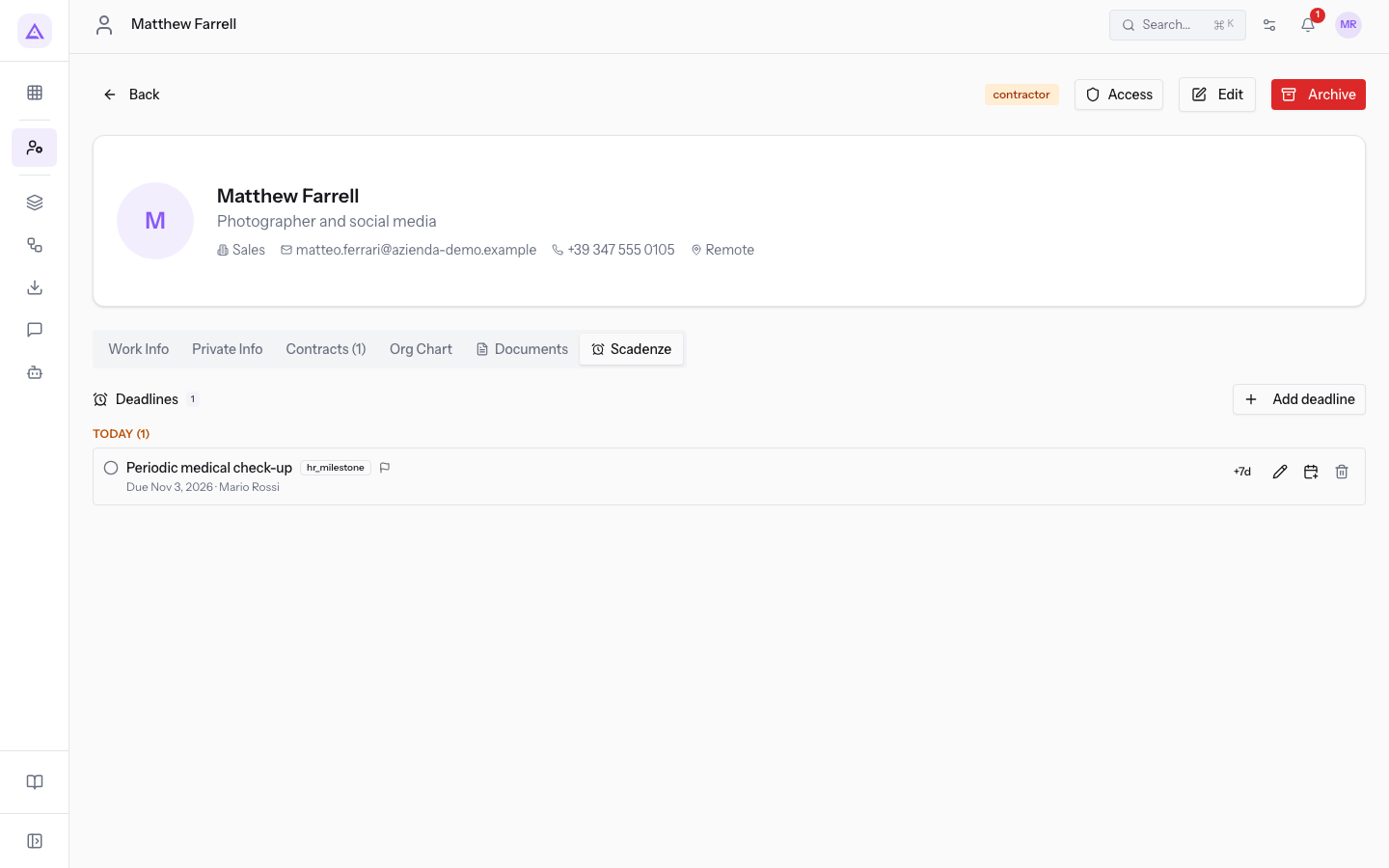
- Deadlines entered by hand by a user and linked to a record, for example "Periodic medical check-up" on the employee Matthew Farrell.
- Events and appointments.
Some rules work automatically.
- Tax and payment deadlines that fall on a Saturday, a Sunday, a public holiday or a closure move to the next working day. "Monthly VAT payment (F24)" falls on a Saturday and moves to Monday. Appointments and events stay on their day.
- Every day an automatic process marks open deadlines whose date has passed as Overdue.
- Reminders arrive by email before the deadline, with a lead time that depends on the category. The details are in Why a tax deadline shows on the first working day.
The Calendar screen
Press Calendar in the main menu. The calendar opens on today's date, in the Agenda view or the last view you chose.
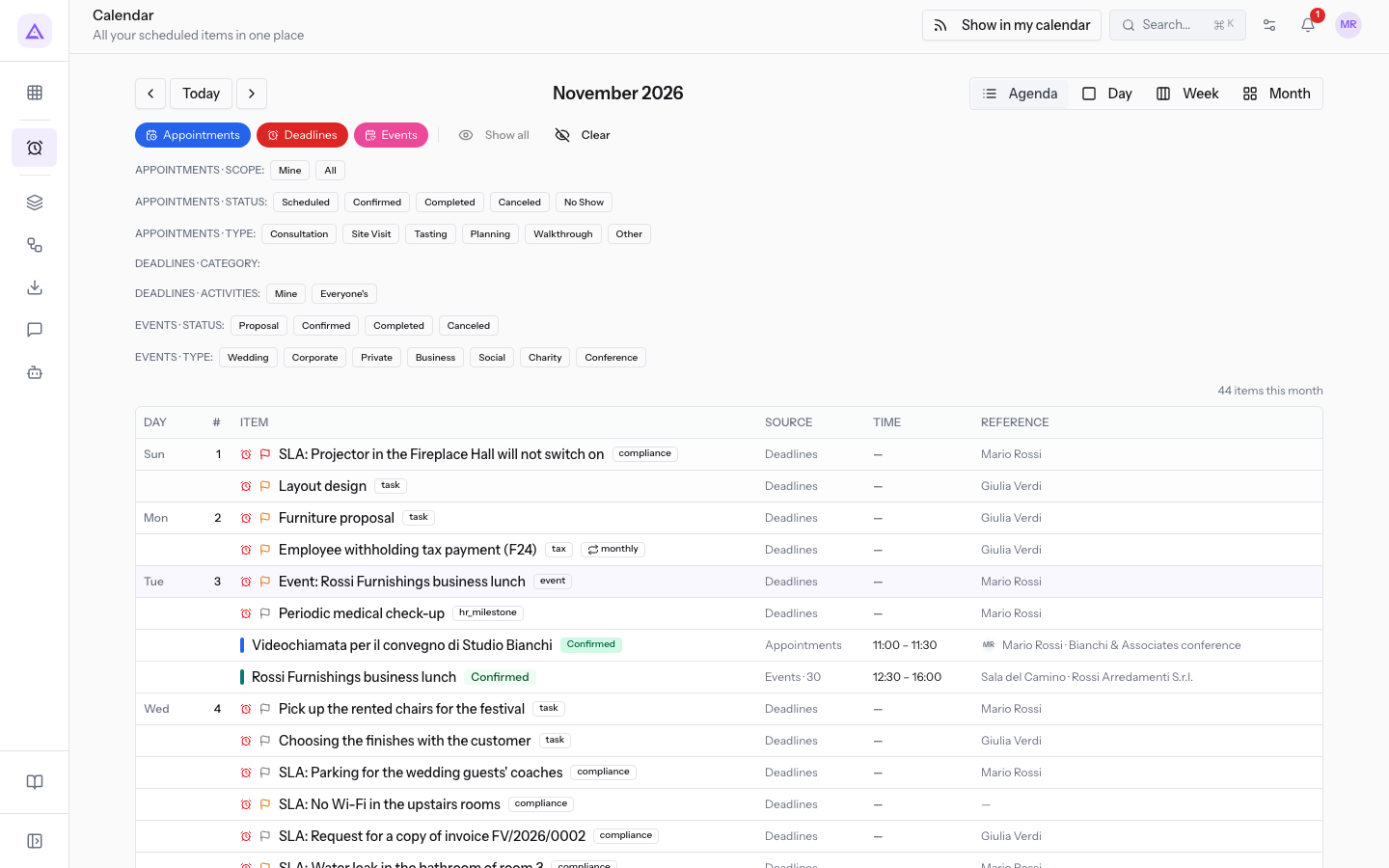
The controls at the top are these:
- Previous period and Next period: move the view back or forward by one period.
- Today: opens the Choose a date selector, from which you go to a day or return to today with Go to today.
- Agenda, Day, Week, Month: choose how to lay out the items.
- Appointments, Deadlines, Events: turn each source on and off.
- Show all and Clear: turn all sources on or off.
- The filter rows below the buttons: narrow the items of each active source. For deadlines see Filter deadlines by category.
- Show in my calendar: creates a link to view the agenda in an external calendar. See the section Showing the agenda in Google, Apple or Outlook.
The views
Choose the view based on what you need to check.
- Agenda: the list of items in date order. Use it to scroll through upcoming deadlines one after another.
- Month: the month grid, with items on their day. Use it to get the overview of the month.
- Week: the seven days of the week with times, for example "Rossi Furnishings business lunch 12:30 – 16:00". Use it for events and appointments with a time.
- Day: the items of a single day.
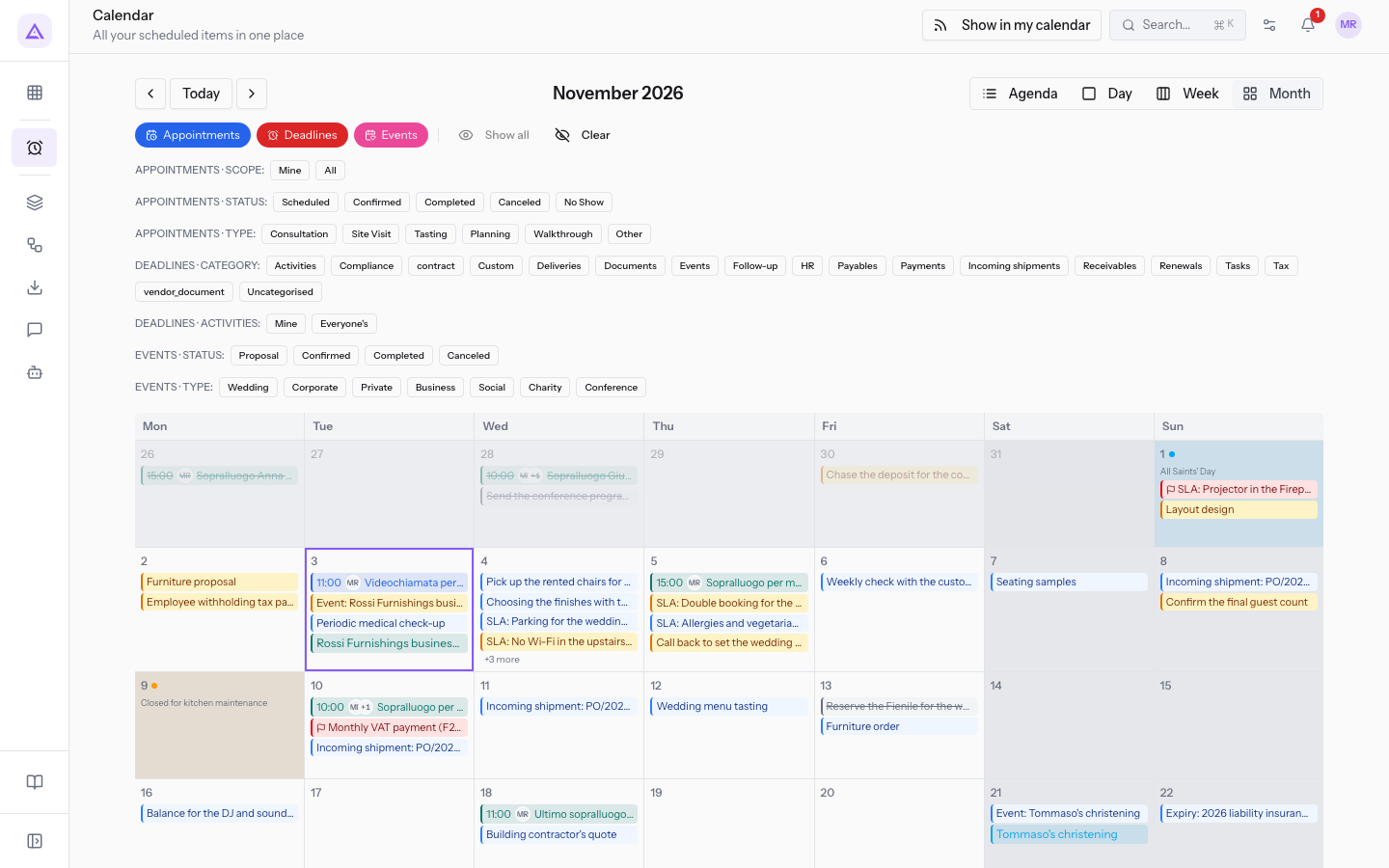
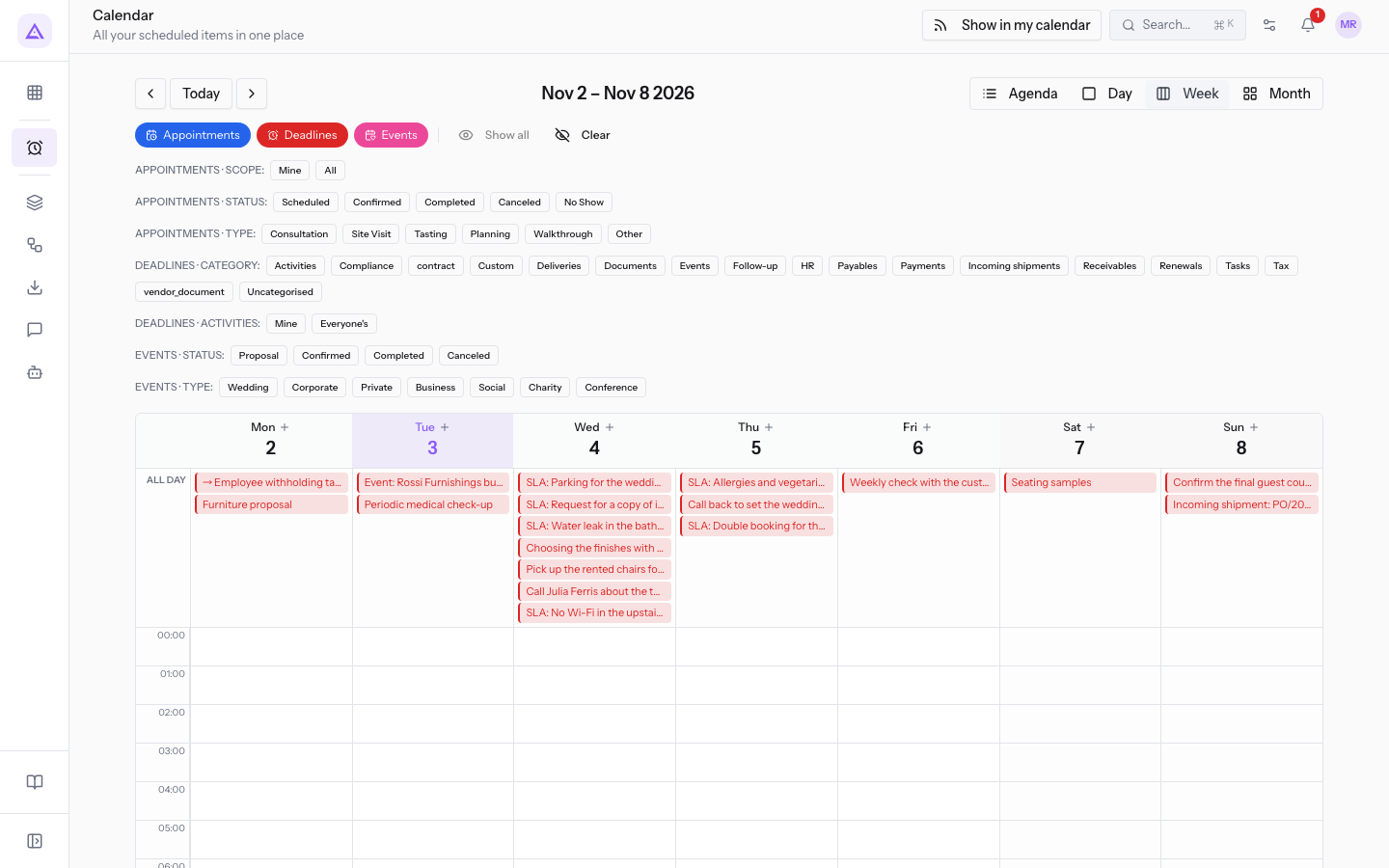
Opening a deadline
A deadline linked to a record opens on the record itself.
- Press the deadline in the calendar, for example "Periodic medical check-up".
- The page of the linked record opens, in this case the employee Matthew Farrell. The employee's deadlines are in the Deadlines tab.
Note: an automatic deadline follows the record it comes from. If you move it by hand, it keeps the day you chose and no longer changes when that record changes.
Adding an appointment
From the calendar you can add an appointment on a day, with the Appointments source turned on. Deadlines are instead added from the record page: see Adding a deadline to a customer, an employee or an event.
- In the Month view press the empty space of the day. In the Week and Day views press the + symbol next to the day. The Add to window opens, followed by the date.
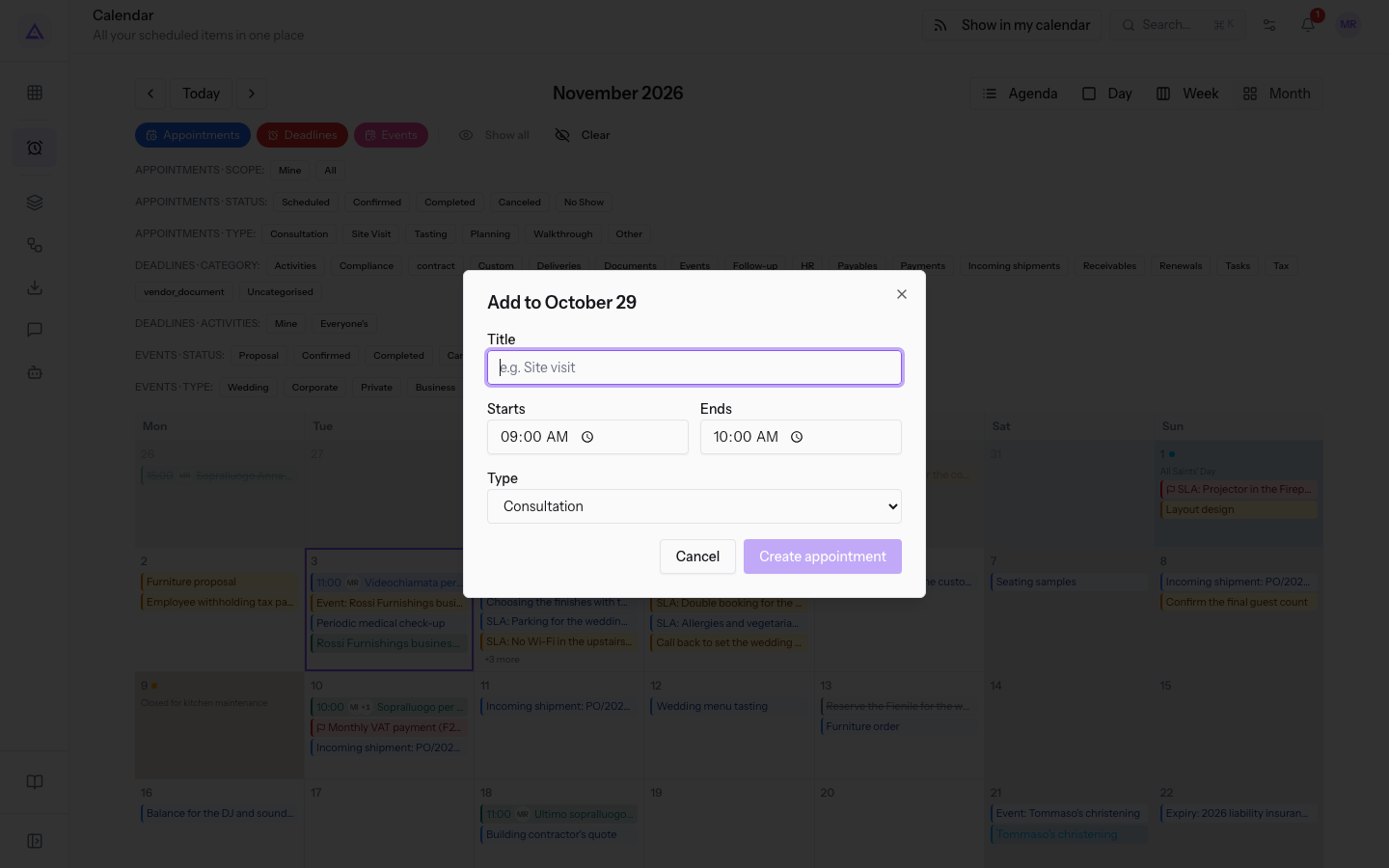
- Fill in the fields and press Create appointment. To leave without saving press Cancel.
The fields in the window are these:
- Title: the name of the appointment. The field is required.
- Starts: the start time. The suggested value is 09:00. The field is required.
- Ends: the end time. The suggested value is 10:00.
- Type: the type of appointment. The suggested value is Consultation.
- Consultation
- Site Visit
- Tasting
- Planning
- Walkthrough
- Other
Showing the agenda in Google, Apple or Outlook
You can create a private read-only link that Google Calendar, Apple Calendar or Outlook subscribe to. The chosen items appear in the external calendar, not immediately but when that calendar rereads the link. Changes made in the external calendar do not come back to Archimedes.
- Press Show in my calendar.
- Fill in the fields and press Create link.
- Copy the link that appears: for security it is not shown again. The window indicates where to paste it in Google Calendar and in Apple Calendar.
The fields in the window are these:
- Name: the name of the link. The field is required.
- What to include: the sources to bring into the link. If you choose none, the link includes everything.
- Include event services and menus: intended for the kitchen, it makes every event carry its complete guests, services and menus.
The links you create remain under Your links. From there you can revoke them with the trash icon: the calendars that use them stop updating.
Links with other modules
The calendar receives automatic deadlines from the modules active for the organization, including these:
- Invoices: payments from customers and payments to suppliers.
- Events: events proposed or confirmed with a date.
- Documents: documents with an expiry or review date.
- Purchasing: goods arriving from purchase orders.
- Sales: the validity of quotes.
- CRM: opportunities.
- Projects: project tasks.
- Support: the SLA deadlines of open tickets.
- Human Resources: renewals of employees' work permits, for example "Work permit renewal: Ivan Petrov".
The organization's Working hours, with working days and closures, and the public holidays decide on which day tax and payment deadlines fall. If closures or working hours change, the dates of open deadlines in these categories are recalculated.
See it on your company, not on a slide deck.
In 30 minutes we map the software you use today.We show you how much work and how much margin Archimedes gives back.
Show me on my business →What industry are you in?
One tap — it lets us prepare the demo around your world.
What tools do you use today?
Pick the ones you recognise — or just type them. It helps us show you how they migrate.
Last step: your details.
We reply within one working day — and right after, if you like, you pick the demo slot yourself.
We couldn't send your request. Try again, or write to us at [email protected].
By sending, you agree to your data being processed so we can get back to you about the demo. Privacy notice.
Preview form — nothing is sent from this page.
Want to schedule the demo now?
Your call: book the slot you prefer yourself, or we'll call you to arrange it.
Live availability, 30 minutes, instant confirmation. The calendar opens in a new tab.
Lock in your slot ↗We'll get back to you within one working day — and we'll join the call already knowing your world.
The calendar is open in another tab: pick a slot and the demo is booked. Can't see it? Reopen it ↗
Preview page: nothing was sent.
Our calendar is live: take the slot that suits you and the demo is booked. 30 minutes, instant confirmation, no waiting.
Lock in your slot ↗