Documents
All modules
Documents
Documents · 1 of 15 · 7 min read
The Documents module is the organization's file archive. It lets you upload files, sort them into folders, tag them, keep their versions, write pages inside the module, share them with customers, and ask external contacts for files. It can hold, for example, a vendor contract (Framework contract Forniture Neri 2026) or an insurance policy (2026 liability insurance policy).
This page presents the menu items, the main screens, and the links with other modules. For each task it points to the article that describes it.
The menu items
Open the module from Documents. The menu has these items:
- Documents › All Documents: the list of all documents, with search, folder filter, and the preview panel.
- Documents › Workspace: folders laid out in columns, to browse level by level. Read Browse documents by column in the Workspace.
- Documents › Folders: management of the folder tree.
- Documents › Pending Uploads: files sent by customers that are waiting for review. Read Approve or reject files uploaded by customers.
- Documents › Document Requests: requests for files sent to external contacts.
Note: Documents › Pending Uploads is visible only to staff with the module management permission.
Who uses the module
What you can do depends on the permission you have on the module.
- Basic permission: you see, upload, edit, and share documents, and create document requests. You see folders and tags, but you don't create or edit them. You don't delete documents.
- Management permission: you have full access to documents, folders, and tags, you manage folder sharing, and you approve or reject received files.
- Customers with portal access: they see, in read-only mode, the folders shared with their company and those published to all customers. They respond to document requests.
- External contact without an account: uploads the requested file from the public request page, without signing in.
All documents
The Documents › All Documents screen lists the organization's documents with the name, folder, size, and date columns. In the demo the list has 14 results, for example Invoice FV/2026/0002 in the folder of Rossi Arredamenti S.r.l.
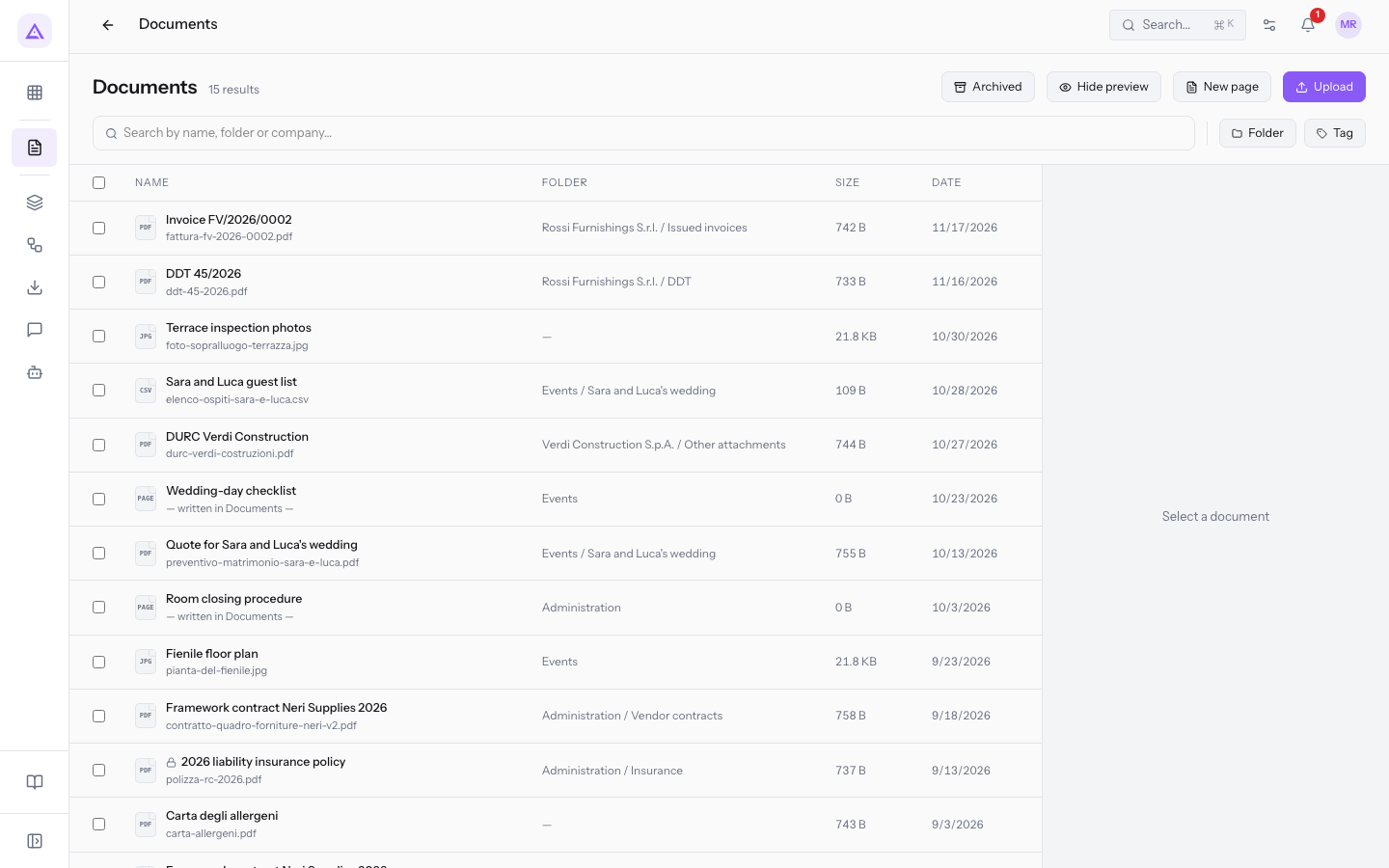
The elements of the screen:
- Search by name, folder or company…: searches documents by name, folder, or company.
- Folder and Tag: filter the list by folder or by tag.
- Archived: shows archived documents.
- Hide preview: closes the preview panel of the selected document.
- Upload: uploads one or more files, up to 100 MB per file.
- New page: creates a document written directly in the module, such as
Wedding-day checklist. - Select all and Select document: select documents. On the selection you can move, apply tags, archive, restore, delete, and download a ZIP file.
To upload files and write pages read Upload documents and create a page.
The document page
Open in the preview panel opens the document's page, with the details, the preview, the link to the Previous Version and the Share Links. From the page you can:
- upload a new version with Upload New Version. The previous version stays reachable from Previous Version. For example
Framework contract Forniture Neri 2026is at version 2. - set a Deadline. Saved deadlines sync with the Calendar.
- lock the document, like
2026 liability insurance policy, locked by Giulia Verdi. - create a public link with Create Link and cancel it with Revoke, as for
Wedding price list 2026.
Read New versions, deadlines and locking a document.
Folders and the Workspace
Folders contain subfolders at any level. A document without a folder appears under Unfiled, for example Terrace inspection photos. In the demo the top-level folders include Customers, Administration, and Events.
The Documents › Folders screen shows the folder tree, with pinned folders at the top.
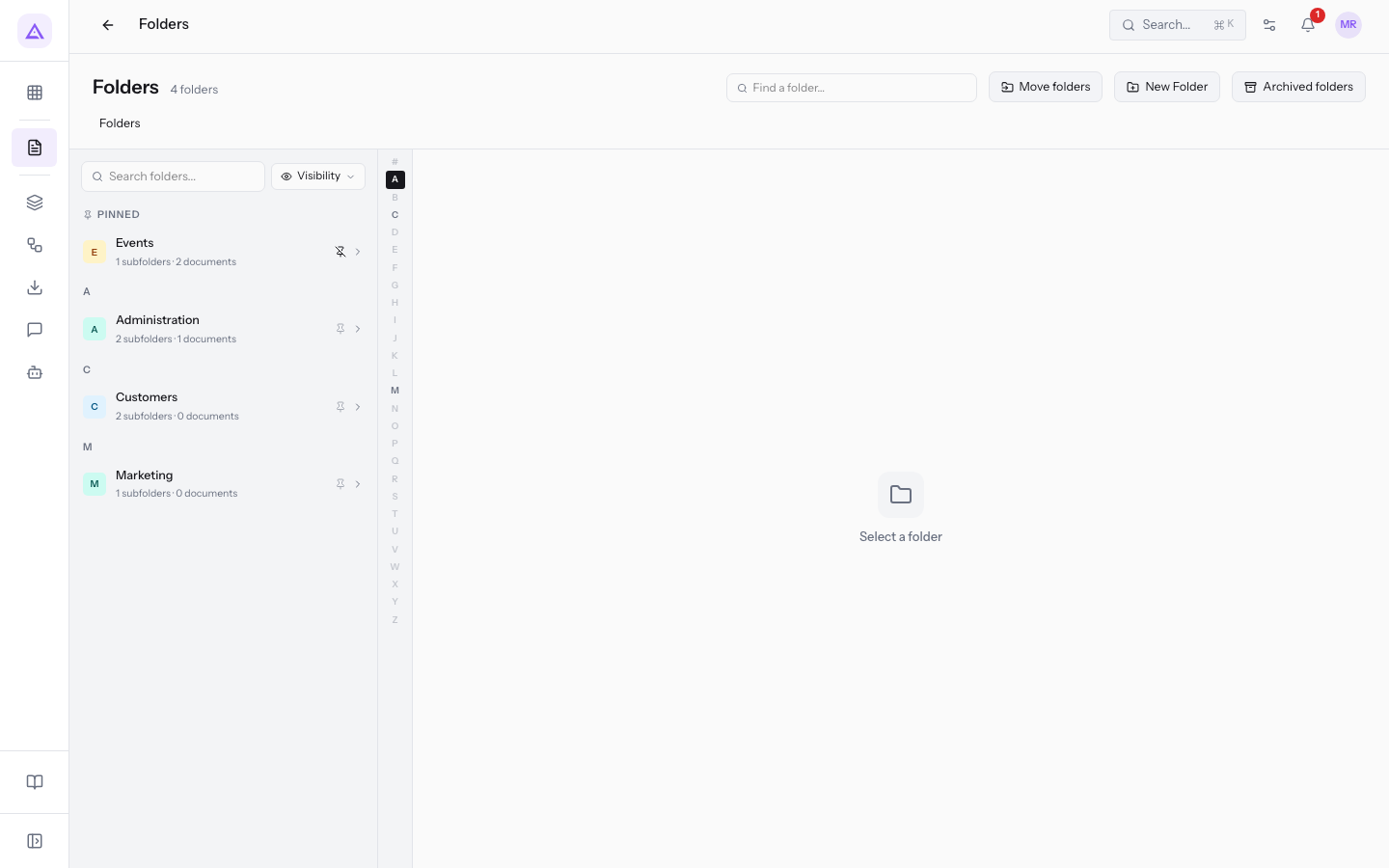
- New Folder: creates a folder.
- Move folders: moves folders to another point in the tree.
- Archived folders: shows archived folders, which you can restore.
- Pin this folder and Unpin this folder: add or remove a folder from the Pinned group.
- Visibility: shows who can see the folder in the portal.
Important: a folder that contains documents or subfolders cannot be deleted. Move or delete the content first. Archiving a folder instead removes it from the tree and the portal along with all its content, and you can restore it.
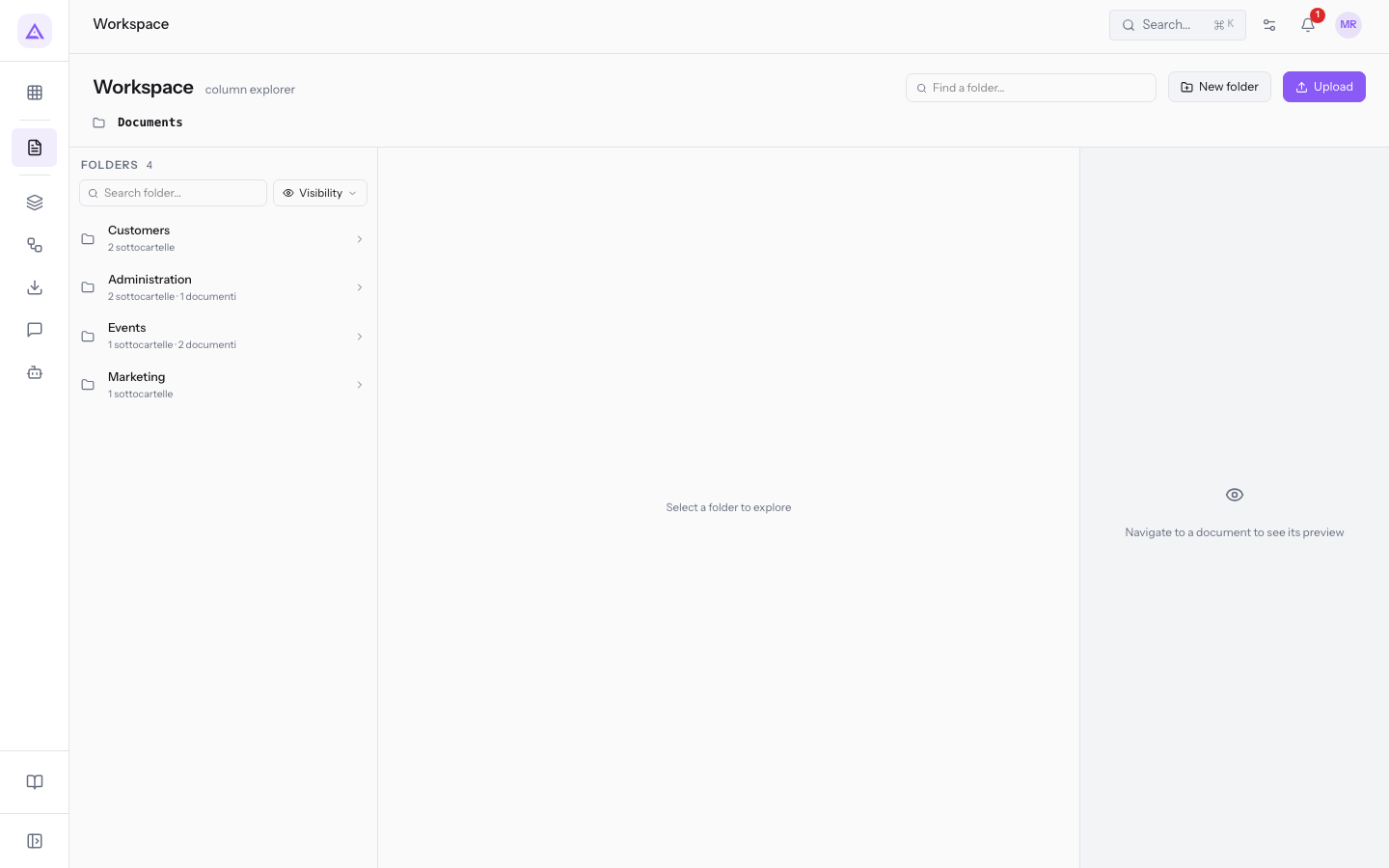
The Workspace shows the same folders in columns: each column opens on the folder chosen in the previous one. From here too you can create a folder with New folder and upload files with Upload.
Client folders
A client folder belongs to a contact or a company. It is created with a predefined subfolder structure. In the demo, under Customers there are the folders of Rossi Arredamenti S.r.l. and Verdi Costruzioni S.p.A., each with Issued invoices, DDT, Received invoices, and Other attachments.
You create the folder from the contact page with Create this customer's folder. The predefined subfolders are set in the Documents settings. Read Set up the client folder structure and portal visibility.
Note: changing the structure applies only to folders created from then on. Existing folders keep their structure.
Sharing with customers
You can share in two ways. The choice depends on who needs to receive the file.
- If the file is for portal customers, share the folder: with a company, with all companies that have a tag (Share by tag), or with all customers (Broadcast to all portal users). In the demo the folder of Rossi Arredamenti S.r.l. is shared with the customer, and
Price lists 2026is published to all customers. - If the file is for a person without portal access, create a share link from the document page.
Documents inherit the visibility of the folder. A document without a folder never appears in the portal. A share includes all subfolders, unless you turn off Include subfolders.
Important: sharing a folder that contains other client folders, such as
Customers, would give access to all the folders inside it.
Portal folders are read-only: customers send files only in response to a document request. Read Sharing folders with customers in the portal.
Document requests and pending uploads
A document request asks an external contact for a file. You set a description, the destination folder, the tags to apply, a deadline, and a date after which the link no longer works. You create it from Documents › Document Requests. You can resend it, send a reminder, or cancel it.
A request accepts files only while it is pending and has not passed its validity date. In the demo Updated company register extract (last six months) is pending for Rossi Arredamenti S.r.l., with destination Other attachments.
The request decides whether the received file goes straight into the archive or first passes through Documents › Pending Uploads. In that queue the manager approves or rejects each file, for example visura-rossi-arredamenti.pdf uploaded by Paolo Gialli.
- An approved file becomes a document at version 1, in the folder of the request, linked to the contact who sent it and with the request's tags.
- A rejected file is not deleted. The sender receives a notice and the request reopens. A request that expired during review does not reopen.
Read Approve or reject files uploaded by customers.
Links with other modules
- Contacts: client folders, sharing per company, recipients of requests and authors of uploads. To enable portal access, the contact must have an email address.
- Customer portal: the documents area of the portal, read-only folders and responding to requests.
- Calendar: document deadlines sync with the Calendar.
- Email: notifications to customers depend on the Email settings.
- Printed documents for customers: the module manages cover and back images, footer and contact details of the documents customers receive, for example from quote templates.
- Other records: a document can be linked to a record from another module.
See it on your company, not on a slide deck.
In 30 minutes we map the software you use today.We show you how much work and how much margin Archimedes gives back.
Show me on my business →What industry are you in?
One tap — it lets us prepare the demo around your world.
What tools do you use today?
Pick the ones you recognise — or just type them. It helps us show you how they migrate.
Last step: your details.
We reply within one working day — and right after, if you like, you pick the demo slot yourself.
We couldn't send your request. Try again, or write to us at [email protected].
By sending, you agree to your data being processed so we can get back to you about the demo. Privacy notice.
Preview form — nothing is sent from this page.
Want to schedule the demo now?
Your call: book the slot you prefer yourself, or we'll call you to arrange it.
Live availability, 30 minutes, instant confirmation. The calendar opens in a new tab.
Lock in your slot ↗We'll get back to you within one working day — and we'll join the call already knowing your world.
The calendar is open in another tab: pick a slot and the demo is booked. Can't see it? Reopen it ↗
Preview page: nothing was sent.
Our calendar is live: take the slot that suits you and the demo is booked. 30 minutes, instant confirmation, no waiting.
Lock in your slot ↗