Accounting
All modules
Accounting
Accounting · 1 of 17 · 4 min read
The Accounting module keeps the organization's double-entry bookkeeping: chart of accounts, journals, journal entries, bank reconciliation, reports and VAT obligations. You can use it, for example, to record a manual journal entry such as Inventory adjustment, reconcile the payment of FV/2026/0002, or prepare the VAT settlement for the period.
This page presents the dashboard, the menu items and the links with other modules, and points to the articles that describe each activity.
The dashboard
Open the module from Accounting. The dashboard shows the main accounting figures and the list of journals.
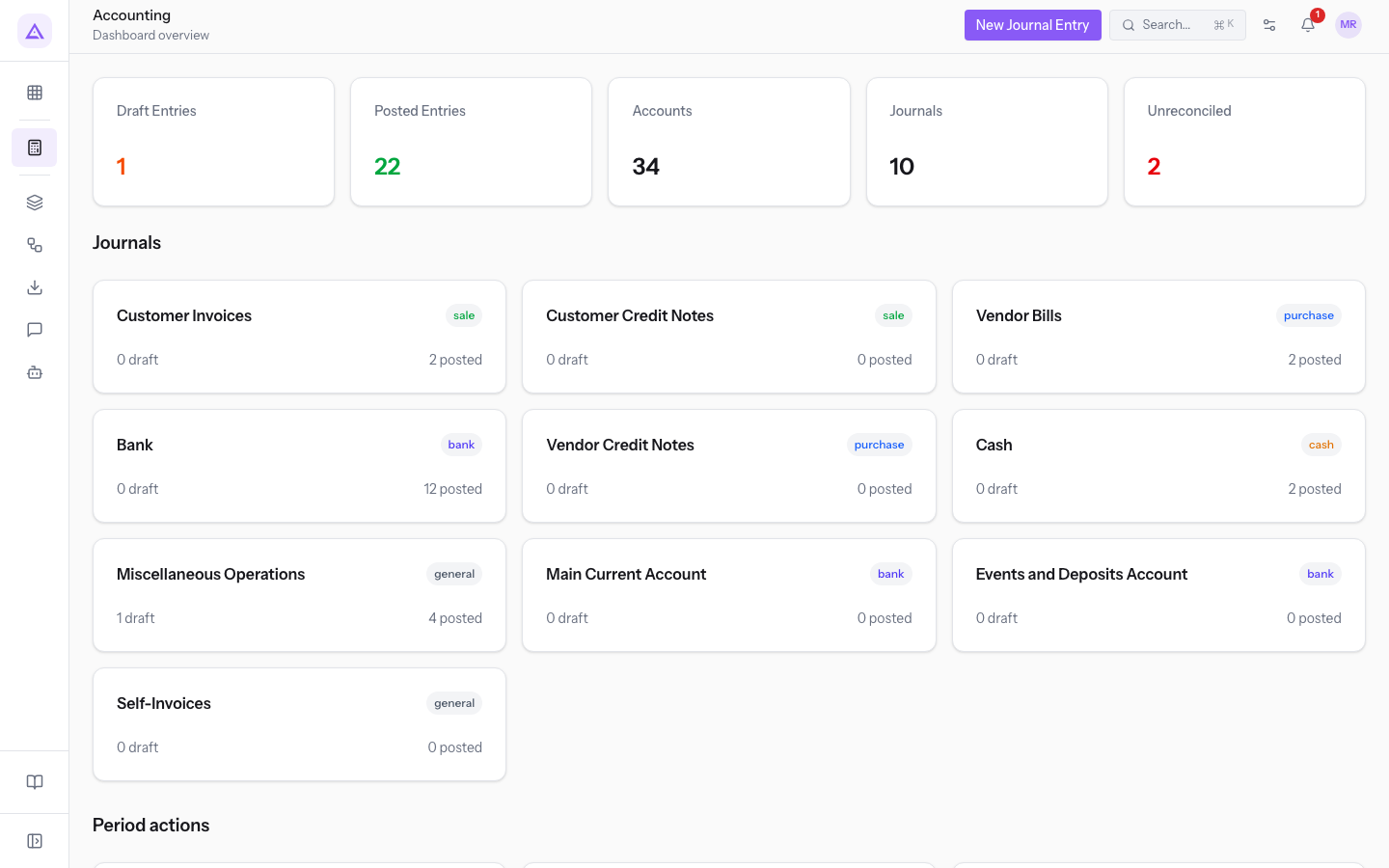
- Draft Entries: the entries not yet posted.
- Posted Entries: the posted entries.
- Accounts: the accounts in the chart of accounts.
- Journals: the accounting journals. In the Journals section each journal shows how many drafts and how many posted entries it contains, for example Customer Invoices.
- Unreconciled: the lines still to be reconciled.
- Period actions: the section with the period-end activities.
To create a manual journal entry, press New Journal Entry.
The menu items
The module menu has these items:
- Accounting › Dashboard: the main figures and the journals.
- Accounting › Journal Entries: the journal entries with debit and credit lines, in the Draft, Posted and Cancelled statuses.
- Accounting › Prima nota: the cash book, with running balance and single-line entries.
- Accounting › Payroll entry: records the month's salaries, starting from the consultant's summary. In the demo the
This month's salariesentry comes from here. - Accounting › Fixed Assets: the depreciable assets and their depreciation schedule, for example
Landini Rex 4-080 tractor. - Accounting › Reports: trial balance, profit and loss and balance sheet. Read Reading the trial balance, profit and loss and balance sheet.
- Accounting › Extended Reports: the reports on receivables, payables and movements. Read Check receivables, payables and movements with extended reports.
- Accounting › VAT Register: sales and purchases grouped by rate.
- Accounting › VAT Period Close: closes the VAT period with an entry on the settlement account.
- Accounting › VAT Annual Summary: aggregates the year and exports the LIPE.
- Accounting › Bank Reconciliation: matches the bank statement lines to invoices and entries.
- Accounting › Budgets: the budgets by period, such as
Budget 2026. - Accounting › Subledgers: the movements by customer and supplier.
- Accounting › Grants and Accounting › Grant reports.
- Accounting › Statutory Books: the journal book and its final printout.
- Accounting › Period packages: the package to download for the accountant.
- Accounting › Audit Log: the history of operations on the accounting.
- Accounting › Settings: VAT settlement and profit or loss for the year accounts, accounts for exchange differences, fiscal year and locking of entries.
Note: the Bank Reconciliation and Audit Log items are visible only to users with full accounting access. Users with read-only access see entries and reports, but cannot create or change data.
How to work in the module
A journal entry starts in Draft and is the only status that can be edited. To post it, it must have at least one line, be balanced (debit equal to credit) and have a date after the lock date. Reports read only posted entries.
- If a posted entry is wrong, cancel it and reset it to Draft: it keeps its number.
- If you want to leave a trace of the correction, make a reversal: it reverses the entry by swapping debit and credit. A reversal can be made only once.
- If the entry was generated by another item, such as a depreciation or a VAT settlement, cancel it from that item.
Every posted entry is sealed in a control chain per journal, which makes it possible to verify that no entry has been altered. Read Close the fiscal year and verify the integrity of the ledgers.
To get started, set up the chart of accounts, journals and opening balances. In the demo the starting situation is the entry Opening balances at 1 January. Read Set up accounting: chart of accounts, journals and opening balances.
Links with other modules
The module depends on Contacts and Invoicing.
- Invoicing: when a customer or supplier invoice is issued or recorded, the module creates and posts the entry with the same number as the invoice, for example
FV/2026/0001orBILL/2026/00001. The payment of an invoice also generates an entry in the bank journal. - Invoicing: a lock date set in Invoicing also locks the accounting.
- Contacts: customers and suppliers are the counterparts of the credit and debit lines and of the subledgers.
- Entries linked to an event show its name and code, such as
Deposit for the Sara and Luca wedding (EV-0002).
See it on your company, not on a slide deck.
In 30 minutes we map the software you use today.We show you how much work and how much margin Archimedes gives back.
Show me on my business →What industry are you in?
One tap — it lets us prepare the demo around your world.
What tools do you use today?
Pick the ones you recognise — or just type them. It helps us show you how they migrate.
Last step: your details.
We reply within one working day — and right after, if you like, you pick the demo slot yourself.
We couldn't send your request. Try again, or write to us at [email protected].
By sending, you agree to your data being processed so we can get back to you about the demo. Privacy notice.
Preview form — nothing is sent from this page.
Want to schedule the demo now?
Your call: book the slot you prefer yourself, or we'll call you to arrange it.
Live availability, 30 minutes, instant confirmation. The calendar opens in a new tab.
Lock in your slot ↗We'll get back to you within one working day — and we'll join the call already knowing your world.
The calendar is open in another tab: pick a slot and the demo is booked. Can't see it? Reopen it ↗
Preview page: nothing was sent.
Our calendar is live: take the slot that suits you and the demo is booked. 30 minutes, instant confirmation, no waiting.
Lock in your slot ↗