Messages and collaboration
All modules
Messages and collaboration
Messages and collaboration · 1 of 15 · 6 min read
The Messages and collaboration module is the organization's internal communication tool. Use it to write to staff in channels, such as #weddings, and in direct messages. Use it also to discuss a record from its page, for example the quote S00003 or the event Sara and Luca's wedding.
This page introduces the module's two parts, their screenshots, and the links with other modules. For each task it points to the article that describes it.
How it works
The module has two parts.
- The staff chat: public and private channels, direct messages, group conversations, threads, mentions, scheduled messages, reminders, and bookmarks.
- The Discussion panel: it opens from a record's page and collects that record's messages, internal notes, change history, activities, and followers.
Choose the part based on the topic.
- If the topic concerns the team or a general subject, write in a channel or in a direct message.
- If the topic concerns a quote, an event, or a contact, write in that record's Discussion panel. This way the message stays on the page and reaches the followers.
Note: only users who have access take part in the chat. In the demo organization these are Martin Ross and Julia Green. Other employees cannot be added to a channel or mentioned. A group conversation requires at least three people.
The staff chat
Open the chat from Chat. On the left is the sidebar with the conversations. In the centre is the open conversation, with the composer at the bottom.
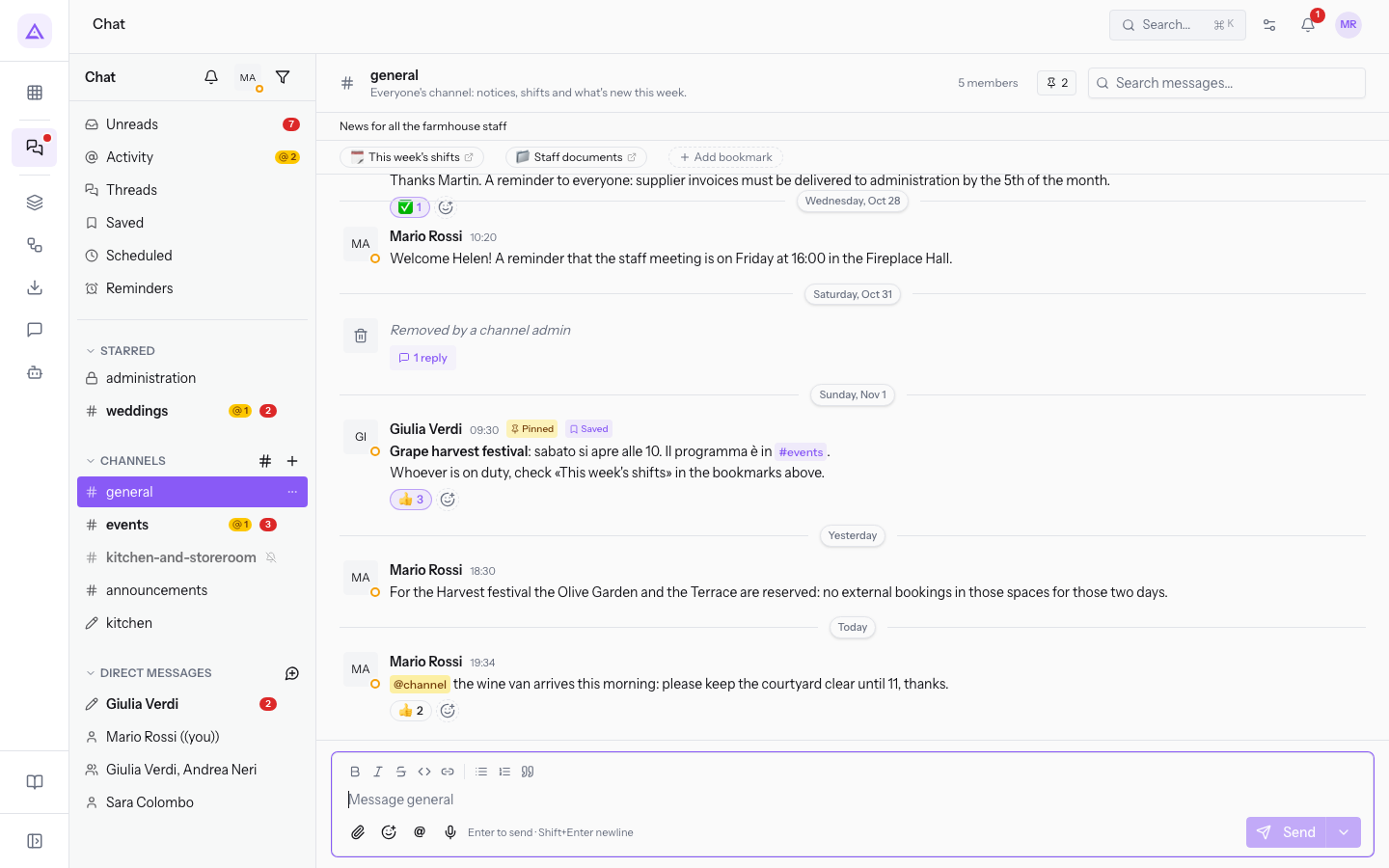
At the top of the sidebar are the views that collect messages from all conversations:
- Unreads: conversations with messages to read.
- Activity: mentions and replies that concern you.
- Threads: the threads you take part in.
- Saved: the messages you saved.
- Scheduled: the messages you scheduled for a later time.
- Reminders: the reminders you set on messages.
Below the views are the groups of conversations:
- STARRED: the channels you added to favourites. In the demo this is
weddings. - CHANNELS: the channels you belong to, for example
general,kitchen, andadmin. To find a public channel you do not belong to, press Browse channels. To create one, press New channel. - DIRECT MESSAGES: direct messages with colleagues and notes to yourself. To start one, press New direct message. Read Writing a direct message to a colleague.
In the upper part of the sidebar you also find these commands:
- Search messages…: searches messages in all conversations. The search accepts filters such as
from:@name in:#channel after:2026-01-01. - Show only unread: filters the sidebar.
- My status and availability: sets your status, or marks you as away with Set yourself as away.
- Pause notifications: pauses chat notifications.
The composer has the formatting commands (Bold (⌘B), Italic (⌘I), Strikethrough (⌘⇧X), Code (⌘⇧C), Link, Bulleted list, Numbered list, Quote), the buttons Attach file, Insert emoji, and Mention someone, and the Send button. To send the message later, use Schedule for later.
Channels
A channel gathers the conversation around a topic. Choose the type when you create the channel.
- Public: anyone in the organization finds it in Browse channels and joins. Use it for topics that concern everyone, such as
#general. - Private: only members can see it. Use it for confidential topics, such as
#admin. - Announcement style: others read and react.
Important: making a channel private cannot be undone. Those who are not members no longer find it, and only members can add people.
A channel you no longer need is archived. An archived channel remains readable and can be restored. In the demo organization #harvest-2025 is archived.
Channel owners change the members' role, archive the channel, and transfer it. A channel can have more than one owner.
The Discussion panel of a record
On a record's page the Discuss button opens the Discussions panel. In the demo organization you find it on quotes, events, and contacts.
- Open the record's page, for example the quote
S00003of Bianchi & Associates. - Press Discuss.
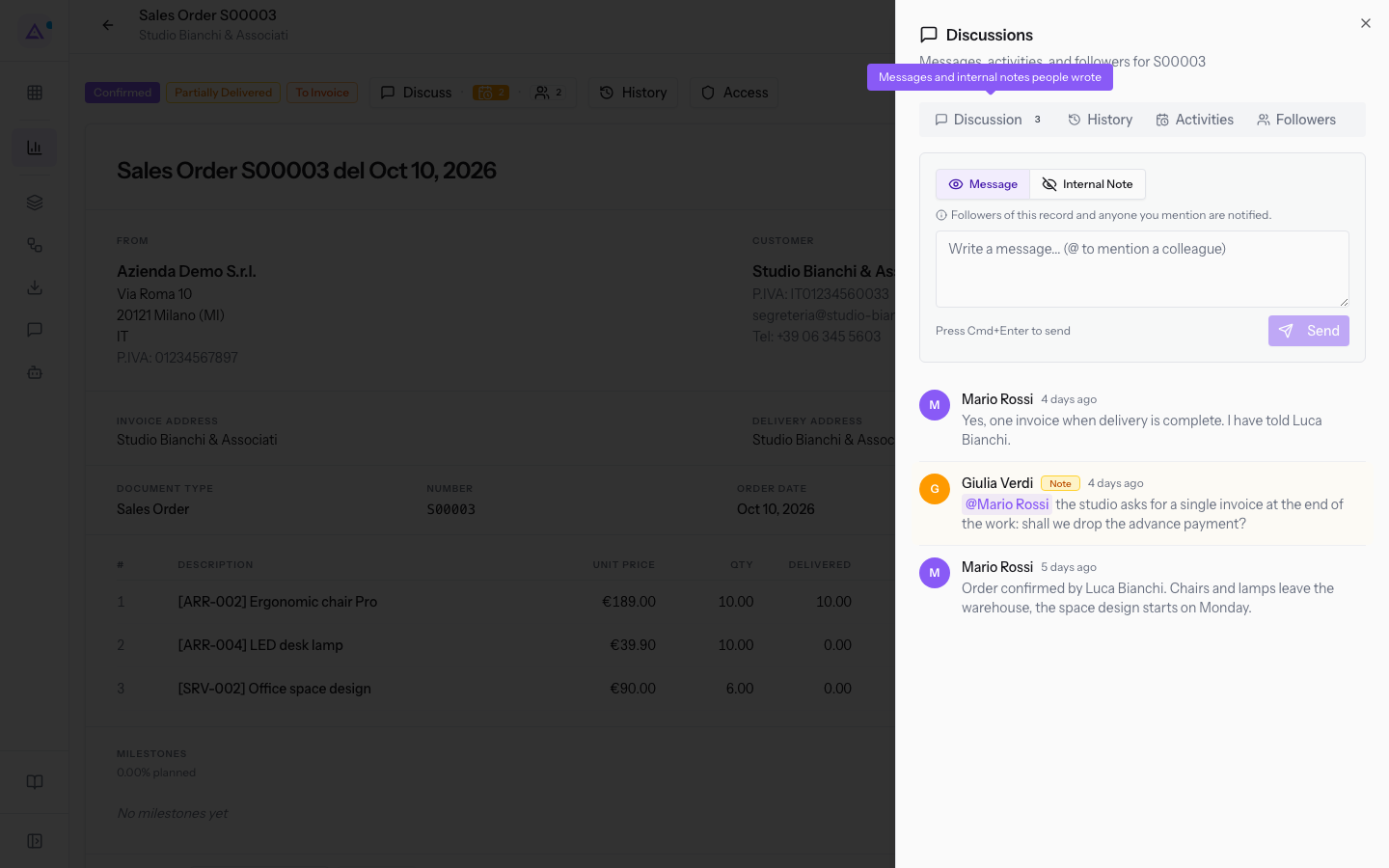
The panel has these tabs:
- Discussion: the record's messages and notes. The number next to the name shows how many there are.
- History: the history of changes to tracked fields, such as the status of a document.
- Activities: the actions to do on the record, with type, Due Date, assignee, summary, and note.
- Followers: users who receive a notification when a message is published on the record or a field changes.
In the Discussion tab, choose how to write:
- Message: notifies the record's followers and anyone you mention.
- Internal Note: visible only to your team and notifies only the colleagues you mention. Use it when the information is for staff only.
Note: whoever creates a record automatically becomes its follower. They receive notifications for every message and every change to tracked fields until they stop following it.
The status of an activity is calculated automatically from the Due Date: planned, due today, or overdue. An activity is closed with Complete Activity or cancelled. When you schedule or complete an activity, a line appears in the record's Discussion panel.
Before you start: to schedule an activity, at least one activity type is required.
Notifications
Mentions and messages on records you follow appear among the app notifications, for example «Julia Green mentioned you on S00003». They also arrive by email, with an excerpt of the message.
In your account settings, the Notifications section lets you enable or disable each notification in the app and by email. The module's notifications are these, each with an In-app and an Email switch:
- Chat: new message.
- Chat: reminder.
- Discussion: you were mentioned.
- Discussion: message on a record you follow.
In the same section you also find Sound on new message and Desktop notifications. Desktop notifications arrive for direct messages and mentions when Archimedes is in the background. With Pause notifications you pause them.
Links with other modules
- The Discussion panel appears on the pages of the modules that integrate it: in the demo organization on Sales quotes, events, and contacts.
- Activities scheduled on records also appear in the Deadlines Calendar.
- The module is part of the product core and is always installed.
See it on your company, not on a slide deck.
In 30 minutes we map the software you use today.We show you how much work and how much margin Archimedes gives back.
Show me on my business →What industry are you in?
One tap — it lets us prepare the demo around your world.
What tools do you use today?
Pick the ones you recognise — or just type them. It helps us show you how they migrate.
Last step: your details.
We reply within one working day — and right after, if you like, you pick the demo slot yourself.
We couldn't send your request. Try again, or write to us at [email protected].
By sending, you agree to your data being processed so we can get back to you about the demo. Privacy notice.
Preview form — nothing is sent from this page.
Want to schedule the demo now?
Your call: book the slot you prefer yourself, or we'll call you to arrange it.
Live availability, 30 minutes, instant confirmation. The calendar opens in a new tab.
Lock in your slot ↗We'll get back to you within one working day — and we'll join the call already knowing your world.
The calendar is open in another tab: pick a slot and the demo is booked. Can't see it? Reopen it ↗
Preview page: nothing was sent.
Our calendar is live: take the slot that suits you and the demo is booked. 30 minutes, instant confirmation, no waiting.
Lock in your slot ↗