Proxima
All modules
Proxima
Proxima · 1 of 15 · 10 min read
The Proxima module manages a network of digital screens hosted in merchants' premises. With the module you sell plays to advertisers, compose and publish the schedule of each screen, record the plays delivered and keep the credit balance.
How it works
The module's work is based on these elements.
- Screen: the physical device. The statuses are Draft, Paired, Active and Retired. The connection is read separately: On, Off or Never connected.
- Merchant: a contact that takes part in the network. It hosts screens, buys plays or does both.
- Hosting agreement: sets how the host of a screen is compensated.
- Plan: defines the monthly price, the plays per hour on each screen and the guaranteed plays per month. In the demo a plan is
Neighbourhood. - Campaign: an advertiser's subscription, with plan, coverage, tags and time slot. The statuses are Draft, Awaiting creative, Active, Paused, Suspended and Ended.
- Creative: the spot of a campaign. The filter statuses are Requested, Generating, Ready, On air, Rejected and Archived. Moderation can mark it Flagged.
- Neighbourhood content: the material that fills the schedule. The types are Editorial, Event, Host promo and Network promo. The statuses are Draft, Active and Archived.
- Play: one playback recorded by the screen. It counts for credits and guaranteed plays only if it happens within opening hours.
- Schedule: the one-hour sequence that the screen repeats. It is published in versions that the screen downloads so it can work offline.
- Credit: the unit of barter. The balance and the Accrual and Spend movements are kept per merchant.
Menu items
The module opens from Proxima › Screens. The menu has these items:
- Proxima › Screens: the network's screens, their hosts and their status. The list flags plays outside opening hours and those beyond the physical capacity of the loop.
- Proxima › Merchants: who takes part in the network, with roles, agreement and credit balance.
- Proxima › Contracts: opens the Contracts module list.
- Proxima › Campaigns: the advertisers' subscriptions and their coverage.
- Proxima › Creatives: the production queue, from advertisers' requests to going on air.
- Proxima › Content: the neighbourhood content that fills the schedule between one creative and the next.
- Proxima › Plans: the plans offered to advertisers.
- Proxima › Contract templates: opens the Contracts module templates.
- Proxima › Network settings: the values that apply to all screens in the network.
The workflow
The module follows this order, from screen installation to the report. Some steps happen automatically.
- Create the screen from New screen, then pair it: open
/totem-playeron the screen and enter the Pairing code. Then set the Status to Active from Edit screen. With Unpair the screen goes back to the pairing screen and needs a new code. - Create the hosting agreement with the host of the screen and issue the hosting contract with Issue contract. Signing activates the agreement. From then on credits are earned, if the Compensation is Credits (barter).
- Create the campaign for an advertiser: choose the plan, then set coverage, tags and time slot.
- Check the creative. Every 5 minutes an automatic job moves Requested to Generating and then to Ready. If generation fails, the creative goes back to Requested and is retried. The advertiser approves from the portal. In the back office you have Approve, Reject, Upload asset and Upload portrait.
- Check the schedule. Active screens receive it every hour automatically. The screen's Schedule tab shows Next hour's loop and Schedule preview. With Publish schedule you publish it manually.
- Read the results in the campaign's Monthly report and in Plays delivered this month. The advertiser reads the report from the portal.
Every 5 minutes the system checks the screens. If a screen is off during opening hours, the host receives an email. At 04:10 the system calculates the previous day's credits, so credits appear the day after the play.
Note: commands to the screen, such as Reload player, are executed at the next contact, within 60 seconds.
Choosing compensation and payment
Barter has two sides: the agreement sets how the host is compensated, the campaign sets how the advertiser pays.
- If the host must earn credits, choose Credits (barter) in the agreement's Compensation.
- If the host works for a percentage, choose Revenue share and fill in Revenue share percent.
- If the advertiser pays with credits earned by hosting, enable Credit (barter) campaign on the campaign. The campaign is not paid in money.
- If the advertiser pays in money, choose the Billing cycle: Monthly or Annual (12 months for the price of 10).
Important: a credit campaign leaves the schedule when the advertiser's balance drops below 1 and returns when more credits are earned. The campaign's status does not change.
The Merchants page
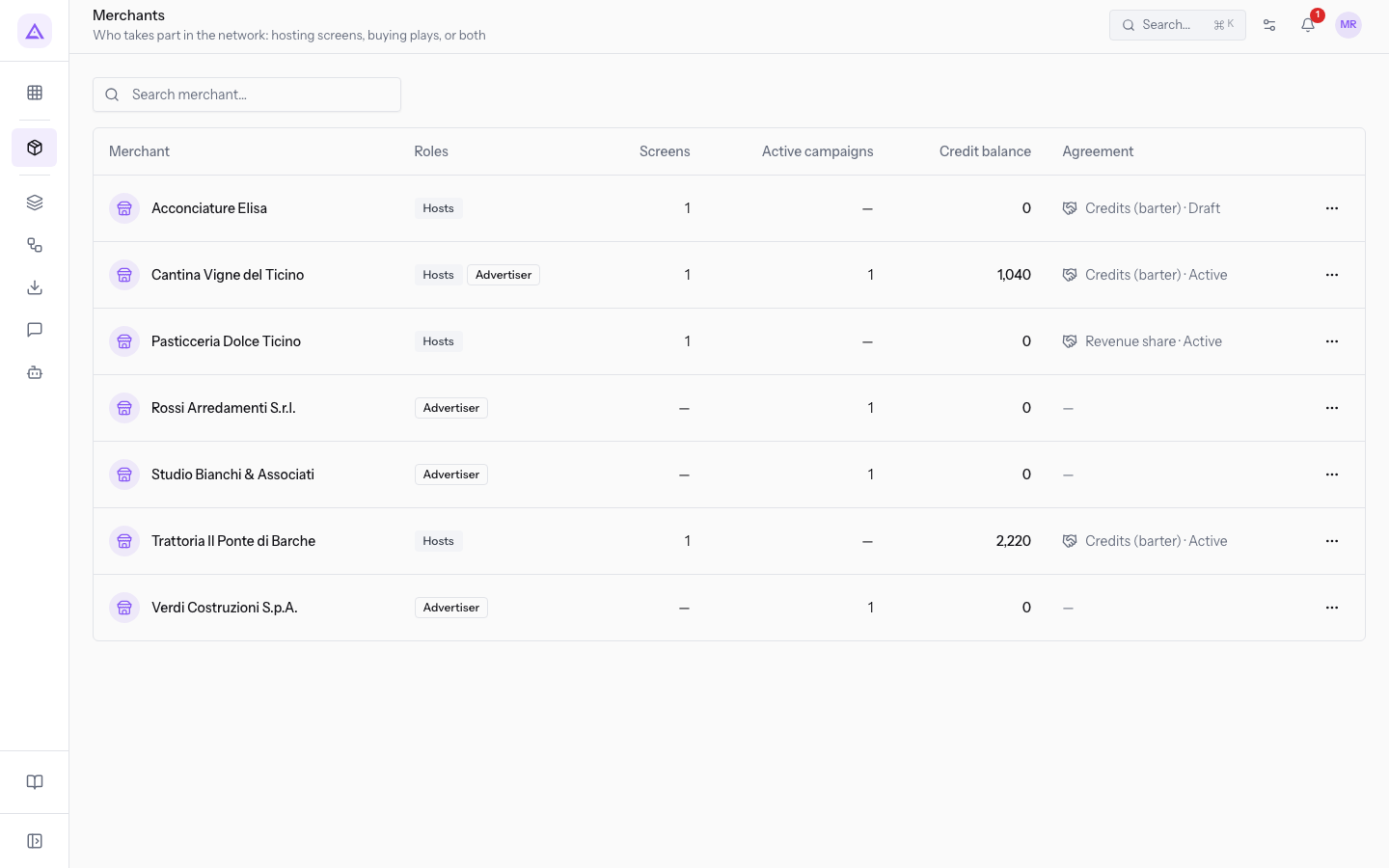
Proxima › Merchants lists the contacts that take part in the network. From here you open each merchant's page. The columns are Merchant, Roles, Screens, Active campaigns, Credit balance and Agreement. Use Search merchant… to find a name.
The merchant's page shows Balance, Roles (Hosts, Advertiser or both), Agreement, Hosted screens and Campaigns. Open contact opens the contact's page in the Contacts module.
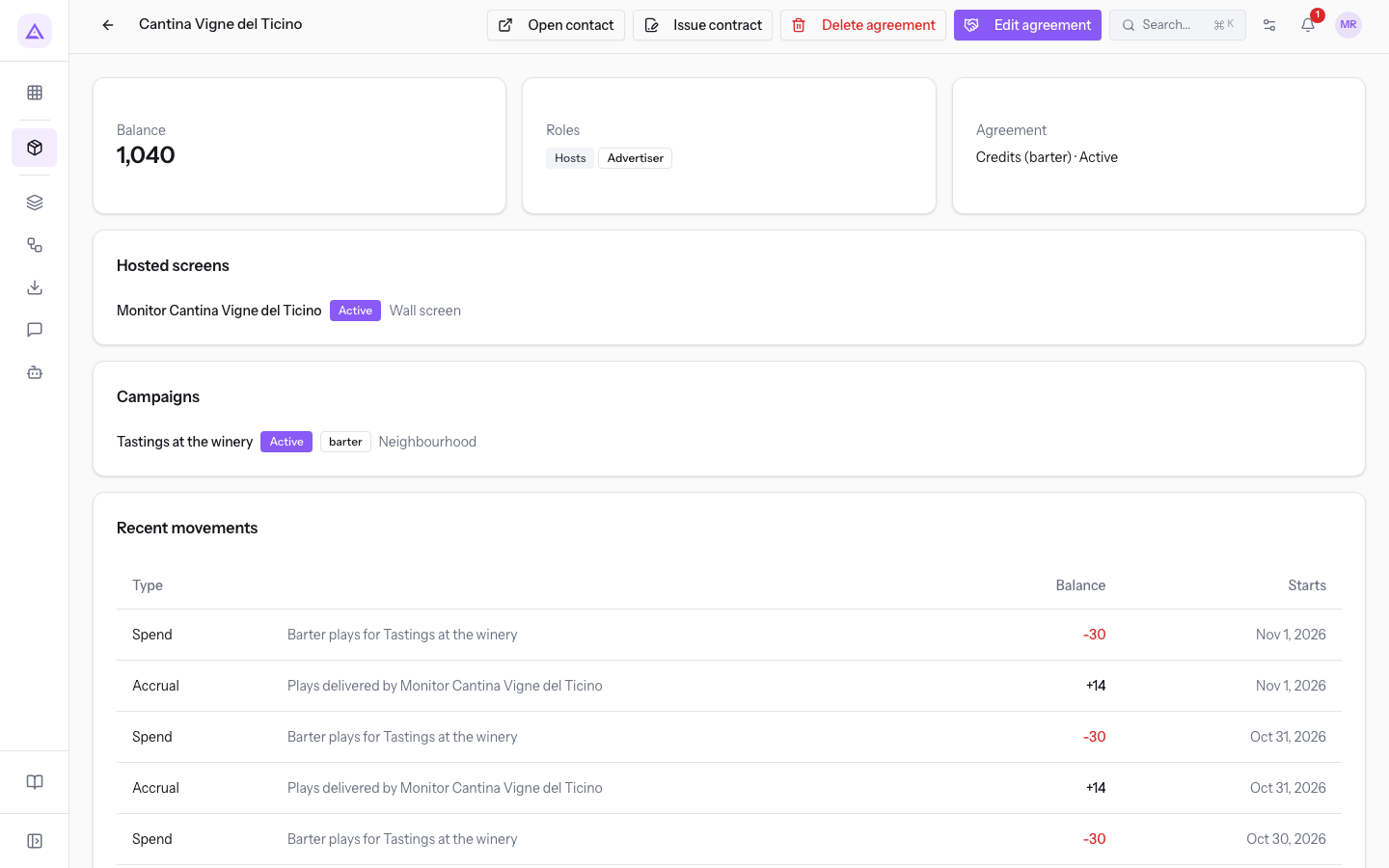
The agreement buttons depend on the merchant:
- Without an agreement, New agreement appears.
- With an agreement, Issue contract, Edit agreement and Delete agreement appear.
Note: a hosting agreement with screens attached cannot be deleted: set its Status to Terminated.
The agreement fields
The New agreement and Edit agreement windows have the same fields.
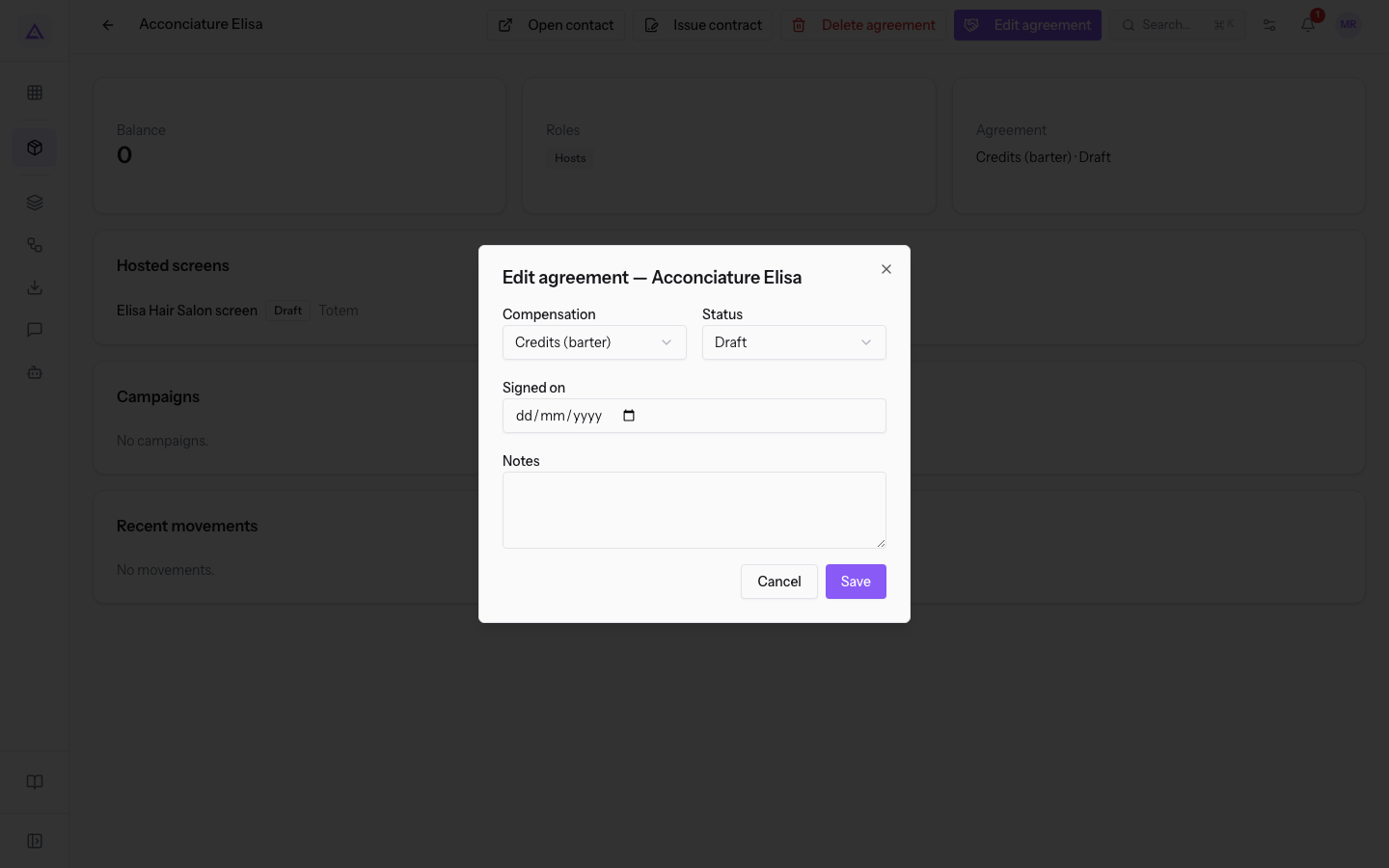
- Compensation: how the merchant is compensated.
- Credits (barter): the merchant earns credits.
- Revenue share: the merchant receives a percentage.
- Status: the agreement's status. In New agreement the proposed value is Active.
- Draft
- Active
- Terminated
- Revenue share percent: appears only if Compensation is Revenue share.
- Signed on: the signing date.
- Notes: free text.
If you want the agreement to activate when the contract is signed, choose Draft before saving.
The network contracts
The network's contracts belong to the Contracts module. Proxima issues them and adds its own placeholders. Frozen text, signing via link, renewals, terminations and the signed PDF belong to the Contracts module.
The list shows all the organization's contracts, with the columns Reference, Title, Counterparty, Type, Valid until, Amount and Status. The page of a draft contract has the Send for signature button.
The two contracts that originate from Proxima have different effects:
- Hosting contract: the title is «Hospitality agreement — » followed by the merchant's name. It is created by Issue contract on the merchant's page. Signing, including via email link without an account, activates the agreement. The end of the contract closes the agreement and stops credits.
- Campaign contract: the title is «Condizioni di inserzione — » followed by the campaign's name. It changes nothing on the campaign.
What decides when a campaign airs
A campaign airs on a screen only if all of these conditions are true. If one is false, the screen stays out and the campaign does not change status.
- The campaign is Active and today's date falls between Starts and Ends.
- The screen is Active and has coordinates.
- The screen is within Radius (km) of the Coverage center. A campaign without a coverage center does not go on any screen.
- The profile matches: with an empty Editorial profile the screen accepts every campaign, with a profile it accepts only campaigns that share at least one tag.
- The advertiser is not a competitor: if the host and the advertiser have the same industry on their contact page, the campaign does not run on that screen. If the industry is missing on either one there is no conflict, and the host can always air its own campaigns.
- The advertiser is not blocked on that screen.
At least one approved creative that is not Flagged is also needed.
Other rules apply automatically:
- The plan's Max screens (empty = unlimited) limit keeps the screens with the highest Heat score. Distance decides only when scores are tied.
- The schedule quotas are ceilings. Whatever the commercial classes do not use goes to editorial.
- If campaigns ask for more than the ceiling, the requests are reduced in proportion. The remaining slots rotate hour by hour among the campaigns.
- Campaigns that are behind on guaranteed plays receive an increase of up to double the hourly plays.
- Content without tags is neutral and runs everywhere. A campaign without tags stays out of screens with a profile.
- A Host promo airs only on the screen it is linked to. Network promo, Editorial and Event air on all compatible screens.
Opening hours and credits
The Opening hours of a screen are calendars from the Calendar module. Only screens with a host and an active credit-based agreement earn credits, and only for plays inside these hours.
- If the screen has no calendar, the plays do not earn credits.
- If the screen has no Host venue, it does not earn credits: this is the case of
Reception farm stay screen. - The credit day is the host's: a place that stays open past midnight counts its last hour on the correct day.
Settings
Proxima › Network settings applies to the whole network.
- Spot duration (seconds): the length of each slot in the schedule.
- Offline after (minutes): the silence after which the screen shows as Off.
- Schedule validity (hours): how long the screen can work offline.
- Network timezone: decides when the day starts for counts and credits.
- Default loop mix: the split of plays between campaigns, Host promo, Network promo and editorial. Editorial is calculated and absorbs the rest. Save it with Save.
- Heat bands: for each band, Multiplier and Contacts per play. The bands depend on the screen's Heat score and affect campaign prices, earned credits and the audience estimate in reports.
On the individual screen you set Loop quotas, Editorial profile and Opening hours.
Note: a plan used by campaigns is not deleted: it is deactivated. Deleting a campaign or a screen keeps the plays already recorded in the history.
Who uses the module
The module has two access levels in the back office and a reserved area for merchants.
- Network operators: read and edit screens, campaigns, creatives, agreements and content. They do not delete, and they see plans and settings as read-only.
- Network managers: have full access, delete records, and edit plans and settings.
- Merchants, in the portal: the host sees their own screens and credits. The advertiser sees the campaigns, requests and approves or rejects creatives, uploads an asset and reads the play report.
Links to other modules
- Contacts (required): hosts and advertisers are contacts.
- Calendar (required): the Opening hours are calendars.
- Contracts (required): the network's contracts belong to that module.
- Sales (optional): activating a campaign that is not credit-based generates a sale order, monthly or annual. Without the module the step is skipped with no errors. No order (draft or barter) is the text shown when the order is missing.
- Portal: the merchants' reserved area uses portal users.
- Dashboard: a widget shows the screens online and the plays delivered.
See it on your company, not on a slide deck.
In 30 minutes we map the software you use today.We show you how much work and how much margin Archimedes gives back.
Show me on my business →What industry are you in?
One tap — it lets us prepare the demo around your world.
What tools do you use today?
Pick the ones you recognise — or just type them. It helps us show you how they migrate.
Last step: your details.
We reply within one working day — and right after, if you like, you pick the demo slot yourself.
We couldn't send your request. Try again, or write to us at [email protected].
By sending, you agree to your data being processed so we can get back to you about the demo. Privacy notice.
Preview form — nothing is sent from this page.
Want to schedule the demo now?
Your call: book the slot you prefer yourself, or we'll call you to arrange it.
Live availability, 30 minutes, instant confirmation. The calendar opens in a new tab.
Lock in your slot ↗We'll get back to you within one working day — and we'll join the call already knowing your world.
The calendar is open in another tab: pick a slot and the demo is booked. Can't see it? Reopen it ↗
Preview page: nothing was sent.
Our calendar is live: take the slot that suits you and the demo is booked. 30 minutes, instant confirmation, no waiting.
Lock in your slot ↗