Chat
All modules
Chat
Chat · 1 of 16 · 8 min read
The Chat module is the organisation's internal messaging system. It gathers team conversations in topic-based channels, public or private, and in direct messages between two people or in a group. For example, a channel for events, one for the kitchen and storeroom, or a direct message with a colleague.
What it is for
The module has three types of conversation.
- Channels: they gather the conversation around a topic and persist over time, with a name, a subject and roles. A public channel can be found and read by anyone in the organisation; a private channel is only visible to its members, and those who are not members cannot even find it. For example
#general,#events,#kitchen-and-storeroomand#administration, which is private. - Direct messages: a conversation with one person, or a group with at most 7 colleagues in addition to yourself. They have no name or roles, and no one else can join. For example, the direct message with
Giulia Verdior the groupGiulia Verdi, Andrea Neri. - Personal notes: the conversation with yourself contains drafts, links and reminders that no one else sees.
Which conversation to choose:
- If the topic concerns a department or a recurring activity, use a public channel. Anyone can find it and join.
- If the topic is restricted to a few people, use a private channel. For example
#administration. - If you need to write to one or a few people on a specific topic, use a direct message.
- If you need to communicate with everyone without opening a discussion, use a channel where only the channel owners and administrators can write: the others read, react and reply in threads. For example
#announcements.
Messages arrive in real time. A mention (@person, @team, @channel) sends a notification to the people indicated; a muted conversation, on the other hand, does not send notifications and does not count in the unread count.
Chat is different from Ari, the AI assistant: Ari answers questions and performs actions in the application, while Chat is the conversation between colleagues.
The Chat screen
Open Chat from the Chat menu item. The screen has three columns: the sidebar with conversations, the open conversation, and a panel for details or for the thread.
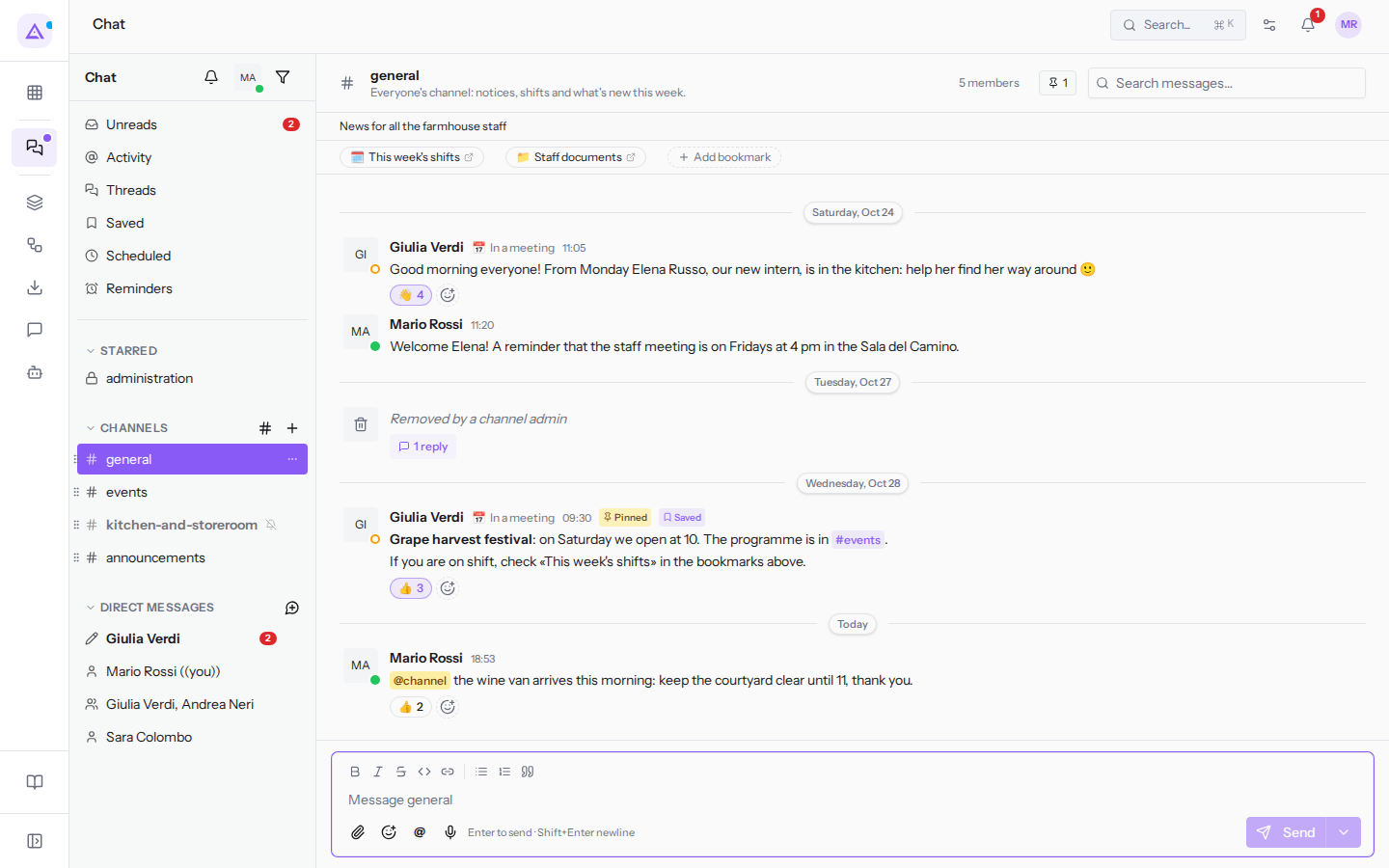
In the sidebar you find:
- the entries for finding messages: Unreads, Activity (mentions, replies and reactions), Threads, Saved, Scheduled and Reminders.
- STARRED, the CHANNELS you are subscribed to, and DIRECT MESSAGES. A muted conversation remains in the list but does not count in the unread count, for example
#kitchen-and-storeroom. - next to CHANNELS, the «#» icon to browse public channels and the «+» icon to create one; next to DIRECT MESSAGES, the icon to start a direct message.
To jump to a channel, a direct message or a person without scrolling the list, use the quick switcher (Ctrl+K, ⌘K on Mac). To search messages use Search messages… at the top, also with the filters from:@name, in:#channel and after:2026-01-01.
The order of channels in the sidebar is the same for everyone: it is decided by the owners and administrators of the organisation by dragging the channels. Each person can however star a conversation: starred conversations appear at the top only for them.
Public, private and archived channels
A public channel you are not subscribed to can be read in preview. To write and receive notifications use Join channel. For example, Mario Rossi is not subscribed to #photos.
Each channel has roles: owner, administrator and member. Owners can change anyone's role, archive the channel and hand it over. A channel can have multiple owners.
- If a channel is no longer needed but you want to keep its history, archive it. In an archived channel no one can write, the history remains readable and an owner can restore it. For example
#harvest-2025. Those with the «Chat Manager» group find archived channels in the Archived channels section of the Browse channels dialog, open them in read-only mode and can restore them. - If you make a channel private, the operation cannot be undone. Those who are not members will no longer be able to find it or join. Those who are already inside remain and are notified.
- If you leave a private channel, you can only return if an owner or admin of the channel adds you again.
- If all owners leave the organisation or are deactivated, the channel appears in Channels without an owner, in the Browse channels dialog. An organisation administrator assigns a colleague to it without entering the channel or seeing its messages. For example
#haccp-course.
For a channel's topic, members, roles, privacy and archiving, see Managing a channel: details, members and permissions.
Writing and working with messages
In the message field you write text and use formatting: bold, italic, strikethrough, code, quote and lists. With the icons below the field you attach a file (the paperclip) and record a voice message (the microphone). Unsent text is saved as a draft in each conversation, even if you change device.
When you hover over a message, a bar of icons appears: the reaction, the reply in thread, saving, and the «…» icon with the other actions. On each message you can:
- reply in the thread, so that the discussion on that message does not fill the channel. For example in
#eventsthe thread on the menu for Giulia and Marco's wedding. - add a reaction, including with a custom emoji such as
:vendemmia:: it is the fastest way to confirm you have read something without writing a message. - forward it to another conversation, with an optional note.
- pin it in the conversation, so that all members can find it from the header. For example the notice about the Grape harvest festival in
#general. - save it for later: you find it in Saved, visible only to you.
- set a reminder: at the chosen time Chat reminds you of it. For example
Answer Giulia about the waiters.
To send a message later, use the ▾ arrow next to Send and choose when it should go out, up to 30 days in advance. In Scheduled you can see it and cancel it before it goes out.
To notify someone use mentions: @person, @team (for example @assembly-crew) and mass mentions @channel, @here and @all.
To let colleagues know what you are doing, click your avatar at the top of the sidebar and set a status: it appears next to your name in messages and in the member list. For example Giulia Verdi has the status In a meeting. The bell icon next to it pauses notifications for a period.
To save the messages of a conversation to a file, use Export messages (JSON) in the conversation details.
Chat rules for the organisation
The chat rules apply to the entire organisation: they determine who can create channels and who can notify an entire channel. They are not set in Chat but in Management › Organization › Defaults, in the Chat section, and only organisation owners and administrators can change them. With the switches disabled, chat remains open to everyone.
- Only admins create public channels: other users can only create private channels, if the next rule allows it.
- Only admins create private channels: other users only create public channels; in the New channel dialog they do not see the Private channel (members only) checkbox. This is the active rule in this organisation.
- With both rules active, the «+» icon next to CHANNELS disappears for those who are not owners or administrators of the organisation.
- Only channel owners and admins use @channel, @here and @all: mass mentions written by anyone else do not notify anyone, and the message box signals this before sending.
Choose based on how the team works:
- If you want to avoid too many channels created by different people, restrict the creation of public channels.
- If you want to avoid everyone being notified for unimportant messages, restrict mass mentions.
The creation rules look at the role in the organisation; the mass mention rule looks at the role in the individual channel. In direct messages and groups there are no roles, so the mention restriction does not apply. The steps are in Setting the chat rules for the whole organization.
Custom emoji are added by the organisation's owners and administrators using Add custom emoji. Everyone in the organisation can use them to react and write. Square images up to 256 KB work best. Only administrators can remove them.
Connections with other modules
- Record cards: a link to a record from another module becomes a card in the message. For example, in
#administration, the invoiceFV/2026/0002and the taskFurniture proposal. - Teams: team mentions use the organisation's teams, for example
@assembly-crew. - Record discussion panel: in records from other modules, the panel with messages, activities and followers uses the same messaging. You can write a message or record an internal note, visible only to your team.
- Contacts: the module is based on the organisation's contacts.
Module articles
- Finding your way around the chat
- Choosing between channels, direct messages and groups
- Writing and formatting a message
- Sharing invoices, tasks and links
- Replying in a thread
- Reacting to, editing, forwarding and deleting a message
- Catching up with Unreads and Activity
- Saving, setting reminders, and scheduling a message
- Pinning important messages and channel bookmarks
- Searching messages, files and conversations
- Managing a channel: details, members and permissions
- Choosing notifications, muting conversations and setting your status
- Archiving, restoring and leaving a channel
- Setting the chat rules for the whole organization
- Using quick commands and keyboard shortcuts
See it on your company, not on a slide deck.
In 30 minutes we map the software you use today.We show you how much work and how much margin Archimedes gives back.
Show me on my business →What industry are you in?
One tap — it lets us prepare the demo around your world.
What tools do you use today?
Pick the ones you recognise — or just type them. It helps us show you how they migrate.
Last step: your details.
We reply within one working day — and right after, if you like, you pick the demo slot yourself.
We couldn't send your request. Try again, or write to us at [email protected].
By sending, you agree to your data being processed so we can get back to you about the demo. Privacy notice.
Preview form — nothing is sent from this page.
Want to schedule the demo now?
Your call: book the slot you prefer yourself, or we'll call you to arrange it.
Live availability, 30 minutes, instant confirmation. The calendar opens in a new tab.
Lock in your slot ↗We'll get back to you within one working day — and we'll join the call already knowing your world.
The calendar is open in another tab: pick a slot and the demo is booked. Can't see it? Reopen it ↗
Preview page: nothing was sent.
Our calendar is live: take the slot that suits you and the demo is booked. 30 minutes, instant confirmation, no waiting.
Lock in your slot ↗