Projects
All modules
Projects
Projects · 1 of 17 · 6 min read
The Projects module is used to plan and track work for a client, organized into tasks, phases, milestones, and logged hours. For example, you can manage an office setup, the furnishing of a new location, or the renovation of a space, and from each project monitor progress, budget, and hours.
What it's for
A project is the work container: it has a client, a manager, a phase, a status, a budget, and estimated hours. In the interface a project is also called an order.
- Tasks are the work units of the project. They can have multiple assignees, sub-tasks, dependencies, a deadline, and estimated hours.
- Phases are the board columns. Project phases are shared across the whole organization, for example
Backlog,Scoping,Execution,Handover. - The project status is distinct from the phase: a project can be in a phase and have the status On Hold, such as
Fienile renovation. - Milestones are the dates the project must meet, for example
Project approved. - Hours logged on a project or task only count after approval.
Choose the tool based on what you need to do:
- To move projects between phases, use the Projects › Project Kanban board.
- To find a project by status, manager, or tag, use the Projects › All Projects list.
- To work on your tasks across all projects, use Projects › My Tasks.
- To check which projects have issues, use Projects › Summary.
Menu items
The Projects menu contains these items.
- All Projects: the list of all projects.
- Project Kanban: the board with projects divided by phase.
- My Tasks: tasks across all projects.
- My Time: hours logged on each project.
- Summary: portfolio indicators and points of attention.
- Reports: analysis of projects, hours, and money.
- Settings: module configuration.
Note: Reports and Settings appear in the menu only for project managers. Other module users can create and edit projects, tasks, and hours, but cannot delete them.
The project Kanban board
The board displays projects as cards in phase columns. To move a project from one phase to another, drag its card; details are in Moving projects between phases in the Kanban.
Each card shows the project name, client, tags, manager, percentage of budget consumed (only if the project has a budget), and the number of tasks, for example Studio Bianchi office fit-out in the Execution column.
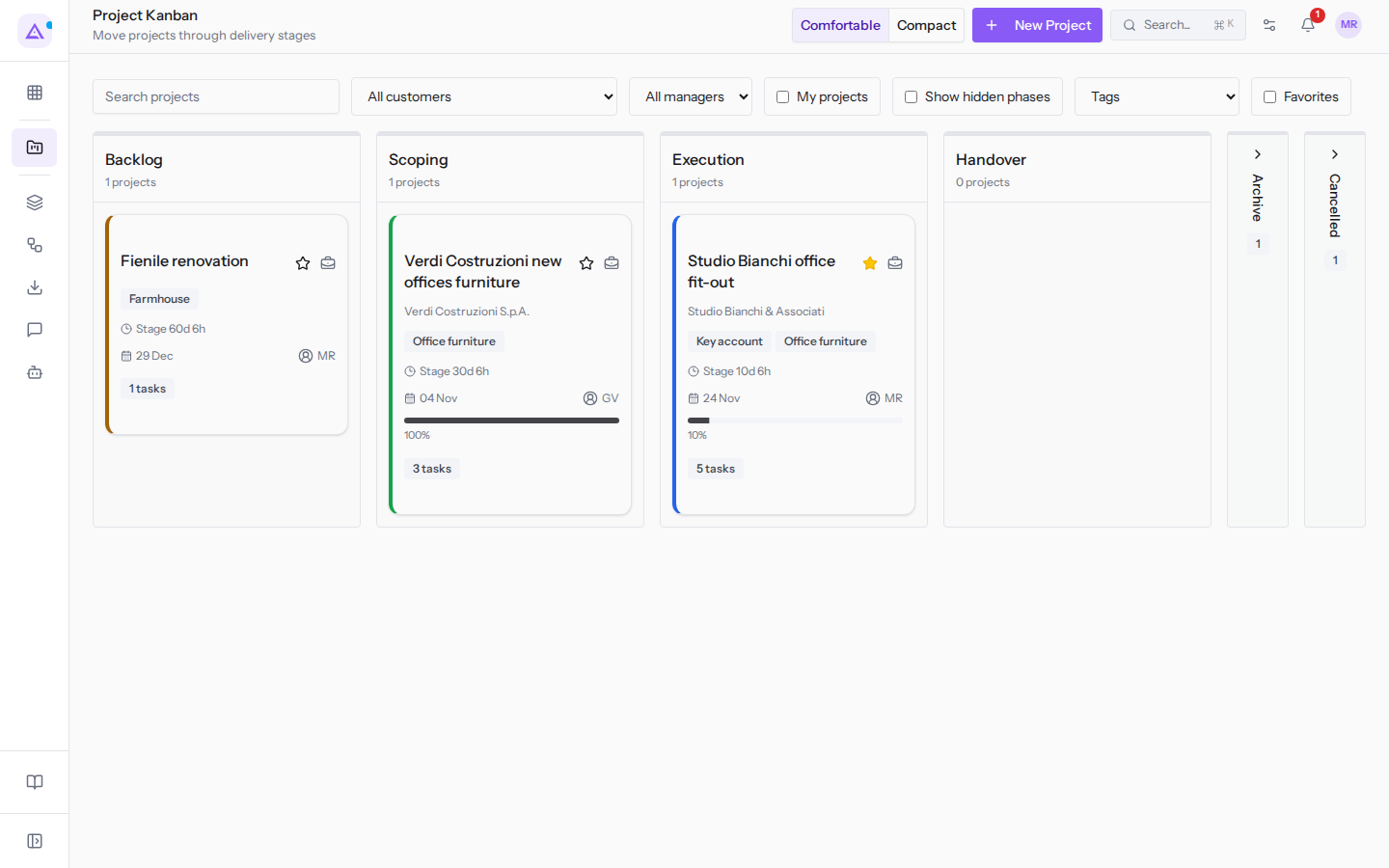
Above the columns you find these controls.
- Search projects: search for a project by text.
- All customers: shows only projects for a client, for example
Studio Bianchi & Associati. - All managers: shows only projects for a manager, for example
Mario Rossi. - My projects: shows only your projects.
- Show hidden phases: also shows columns hidden from the board.
- Tags: filters by tag, for example
Office furniture. - Favorites: shows only favorite projects.
- Comfortable and Compact: change the card density.
- New Project: creates a project.
The All Projects list
The list shows projects in rows, with status, manager, and client. To search and filter the list, see Searching and filtering projects in the list.
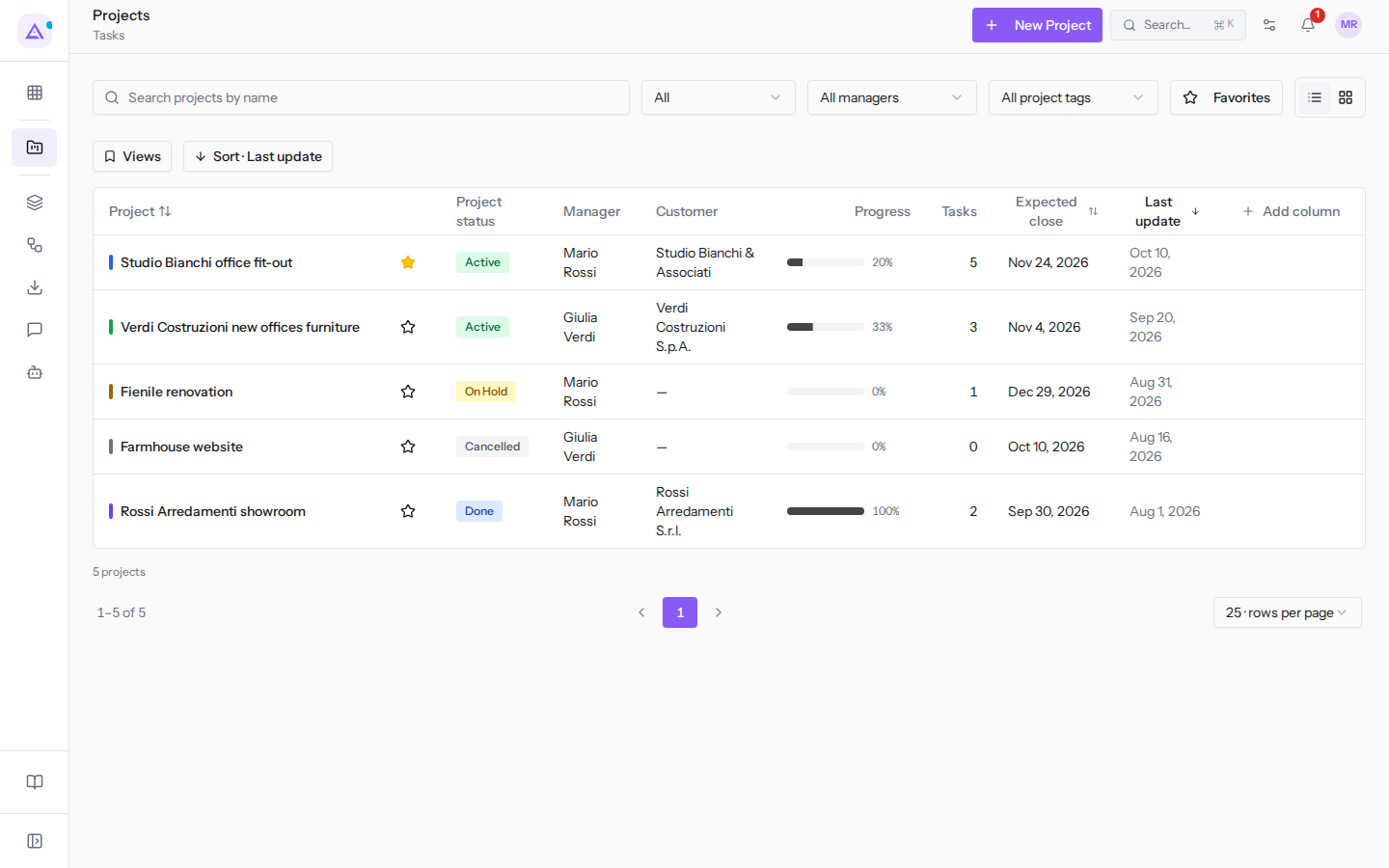
- Search projects by name: search for a project by name.
- Project status, Manager, Project tags, Favorites: filter the list.
- List view and Card view: change the presentation.
- Sort: sorts by Project, Expected close, or Last update.
- Add column: adds a column to the list.
Project detail
Opening a project shows its task board and tabs with everything related to it. At the top, the main numbers appear: completed tasks, hours logged on assigned ones, milestones reached.
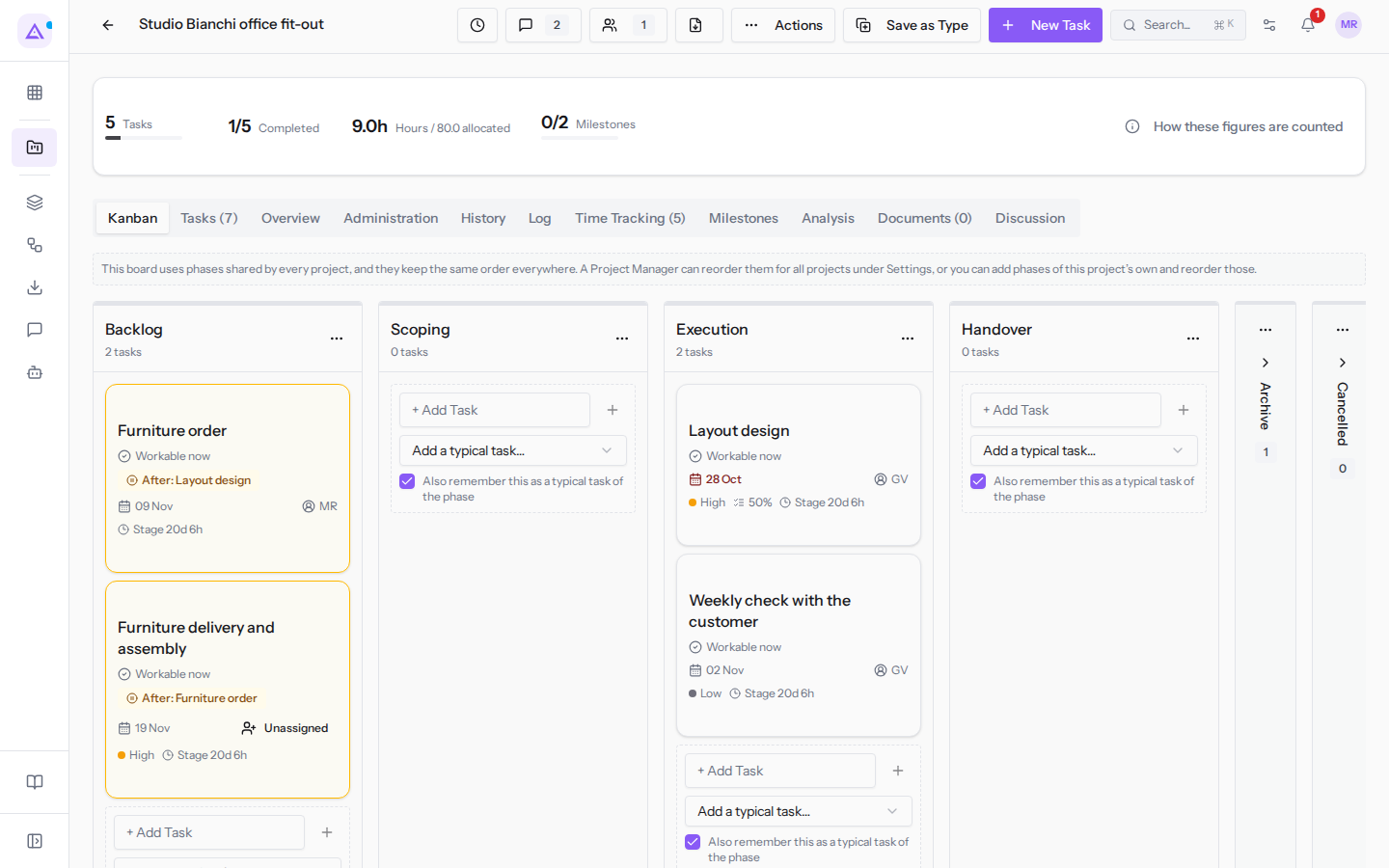
The project tabs are: Kanban, Tasks, Overview, Administration, History, Log, Time Tracking, Milestones, Analysis, Documents and Discussion.
- In the Kanban tab you organize tasks by phase; see Creating and organizing project tasks.
- The History, Log, Analysis, Documents and Discussion tabs reconstruct the project history; see Reviewing the history of a project.
- Discussion combines the project's messages with those of its tasks.
At the top there are four icon buttons: Log Time (clock), Discussion (speech bubble), Followers (people), and Export. These are followed by the Actions, Save as Type, and New Task buttons.
Note: following a project only controls its visibility and does not activate any notifications.
My tasks and My time
Projects › My Tasks gathers everything assigned to you, across every project. At the top, choose between My tasks, To assign, for my teams, and All tasks.
- Project: limits the list to one project.
- Priority: Low, Normal, High, or Urgent.
- Status: In Progress, Changes Requested, Approved, Cancelled, or Done.
- Deadline from and Deadline to: limit the list to a deadline range.
- Overdue only, Waiting only, Include closed: quick filters.
Note: users who are not project managers see only tasks assigned to themselves.
Projects › My Time shows all the hours you have logged on each project, day by day. Choose the period with From and To.
Summary and points of attention
Projects › Summary shows projects, tasks, and the signals to watch out for. If you are a project manager or administrator, with Mine and Everyone you choose whether to see only your projects or all of them; other users see only Mine.
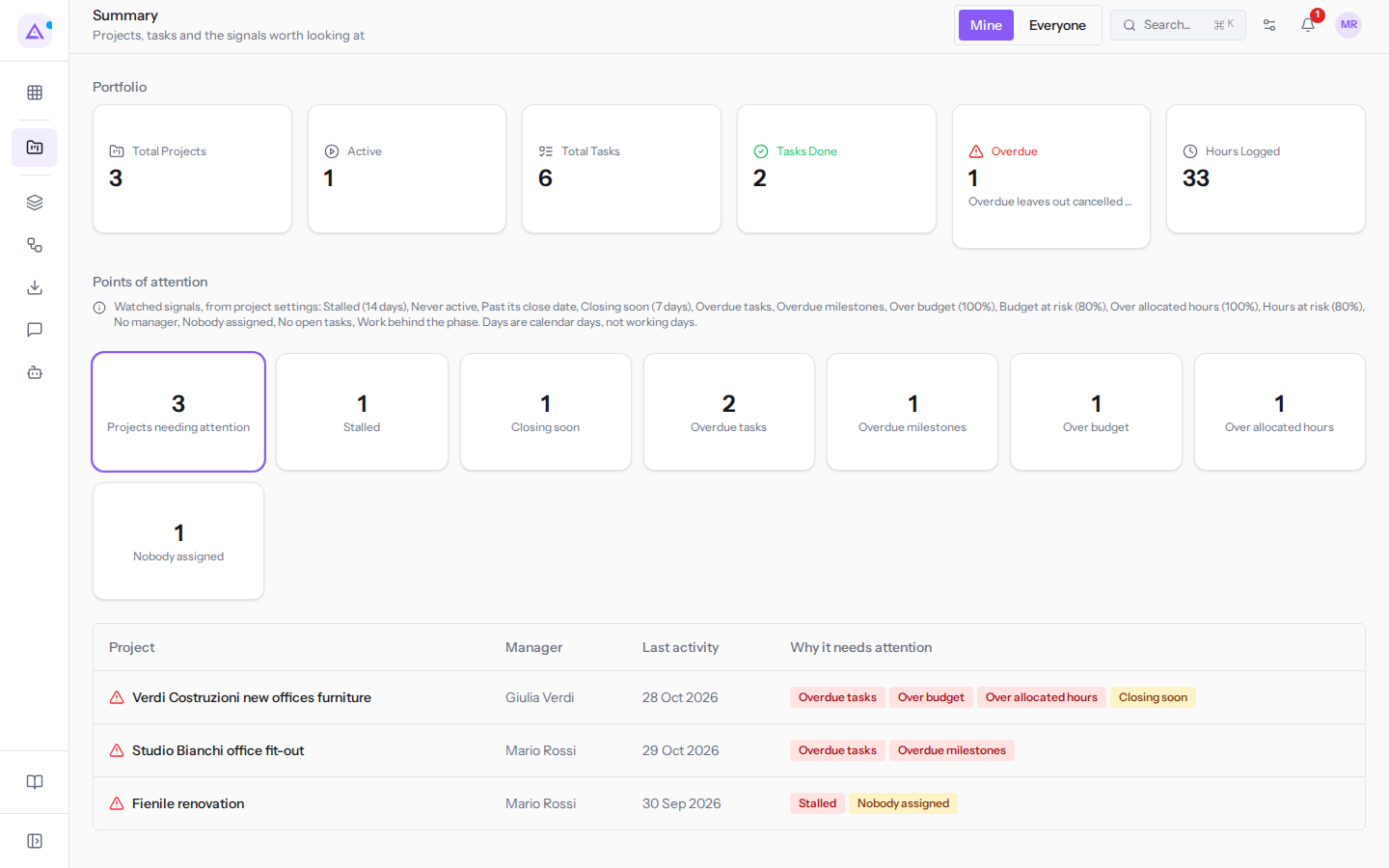
- Portfolio: the Total Projects, Active, Total Tasks, Tasks Done, Overdue, and Hours Logged indicators.
- Points of attention: the Overdue tasks, Over budget, Over allocated hours, Closing soon, Overdue milestones, Stalled, and Nobody assigned signals.
A task due today is not yet counted as overdue.
The Points of attention section lists the projects to watch, each with its reason. The signals evaluated are those chosen in the settings; see Understanding which projects need attention.
Reports
Projects › Reports offers a portfolio overview and team analysis, over a period chosen with From and To.
The tabs are Portfolio, Hours by Person, Velocity, Hours by Order, Time per Phase, Money, and Committed Work. In the Portfolio tab the Show closed option also includes closed projects.
Note: per-person data requires project manager rights.
Settings
Settings configure project flows and reusable structures, in these tabs.
- Project Types: the task templates from which to create new projects, for example
Office fit-out. See Preparing project types and typical tasks. - Typical tasks: the catalog of tasks associated with each phase.
- Custom Fields: fields added to projects and tasks, defined once for the whole organization.
- Stages: the phases of projects and tasks.
- Task Tags: task labels.
- Defaults: default module settings.
- Attention signals: which signals the organization monitors and the threshold for each.
Note: phases specific to a single project are managed from that project's board, not from settings.
Connections with other modules
The Projects module depends on the Contacts and Automation modules.
- CRM: a project links to one or more deals that fund it. When a deal is won, the module can propose creating the delivery project. If the deal is lost, the project is not closed or deleted.
- Sales: a project is created from a sales order and a quote is issued from the project. If the Sales module is not active, the quote status is unknown.
- Invoicing: an invoice is issued from the project. If the module is not active, the invoice status is unknown and project documents remain available.
Important: to issue a quote or an invoice the project must have a customer. Only one quote and one invoice are supported per project.
See it on your company, not on a slide deck.
In 30 minutes we map the software you use today.We show you how much work and how much margin Archimedes gives back.
Show me on my business →What industry are you in?
One tap — it lets us prepare the demo around your world.
What tools do you use today?
Pick the ones you recognise — or just type them. It helps us show you how they migrate.
Last step: your details.
We reply within one working day — and right after, if you like, you pick the demo slot yourself.
We couldn't send your request. Try again, or write to us at [email protected].
By sending, you agree to your data being processed so we can get back to you about the demo. Privacy notice.
Preview form — nothing is sent from this page.
Want to schedule the demo now?
Your call: book the slot you prefer yourself, or we'll call you to arrange it.
Live availability, 30 minutes, instant confirmation. The calendar opens in a new tab.
Lock in your slot ↗We'll get back to you within one working day — and we'll join the call already knowing your world.
The calendar is open in another tab: pick a slot and the demo is booked. Can't see it? Reopen it ↗
Preview page: nothing was sent.
Our calendar is live: take the slot that suits you and the demo is booked. 30 minutes, instant confirmation, no waiting.
Lock in your slot ↗