Marketing
All modules
Reviewing, approving and publishing a draft
Marketing · 10 of 10 · 7 min read
The record of a content draft shows the full text produced by the Ghostwriter, its status and the anti-slop filter flags. From here you re-read the text, approve it, copy it to publish it on the channel and mark the draft as published: for example a newsletter for guests or a LinkedIn post.
The lifecycle of a draft
From the record a draft goes through three states, always in the same direction: draft (awaiting approval), approved and posted (published). The record has no commands to go back to a previous state, nor to bring the draft to the discarded state, which you can still find on drafts in the list.
- If the text is fine as it is, approve it with Approve. The button only appears on drafts in the
draftstate. - If you have already published the text on the channel, mark it with Mark posted. The button only appears on drafts in the
approvedstate. - If the text is not needed, delete the draft with the bin icon.
Important: the product does not publish anything on the channel. You copy the text with Copy and paste it yourself on LinkedIn, X, in the blog or in the newsletter. Mark posted only changes the draft's state.
To find a draft among the others, use the list described in Finding the drafts written by the Ghostwriter.
Opening a draft record
The record brings together on one page everything needed to decide on a draft.
- Open Marketing › Content Drafts.
- Click on the draft, for example the newsletter
From the field to the table, and then to your home.
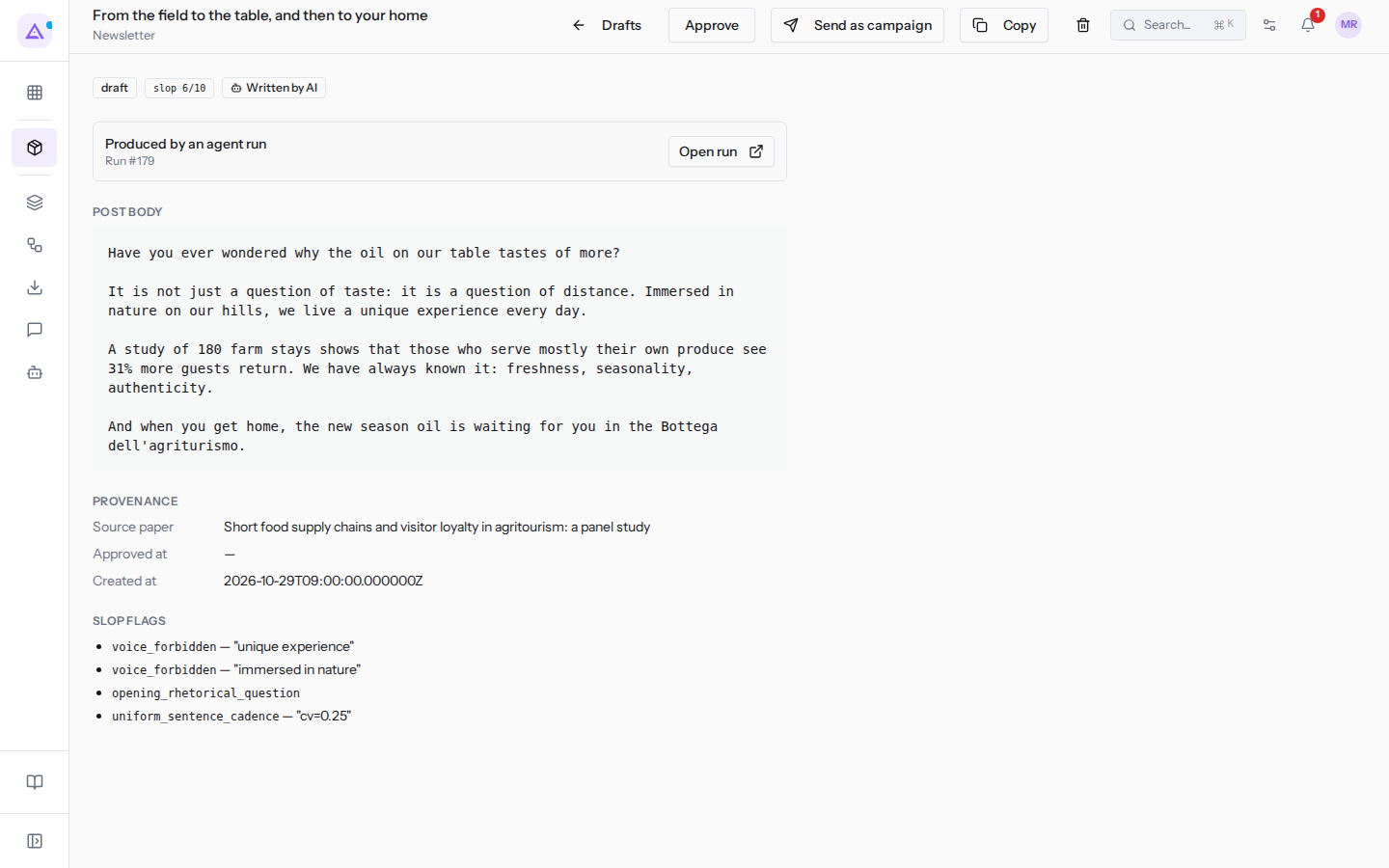
At the top the record shows:
- The title: the angle of the draft, i.e. the slant chosen for the text.
- The channel below the title, for example
NewsletterorLinkedIn. - The buttons:
- Drafts: returns to the list of drafts.
- Approve: approves the draft. Only appears in the
draftstate. - Mark posted: marks the draft as published. Only appears in the
approvedstate. - Send as campaign: creates a new campaign in the Email module with the draft's text, using the draft's title as the name and subject, and opens the campaign editor. It does not send anything: the audience and sender are chosen in the editor. Only appears on drafts of the Newsletter channel and only if the Email module is active.
- Copy: copies the draft's text to the clipboard. For a moment the button shows
Copied!. - The bin icon: deletes the draft.
Status and origin labels
Below the title, a row of labels summarises the draft.
-
The status, in its technical value:
draft,approved,postedordiscarded. -
The slop score, for example
slop 6/10: how much the text sounds like it was written by an AI, from 0 to 10. Lower is better. Only appears if the score has been calculated. -
The origin of the text:
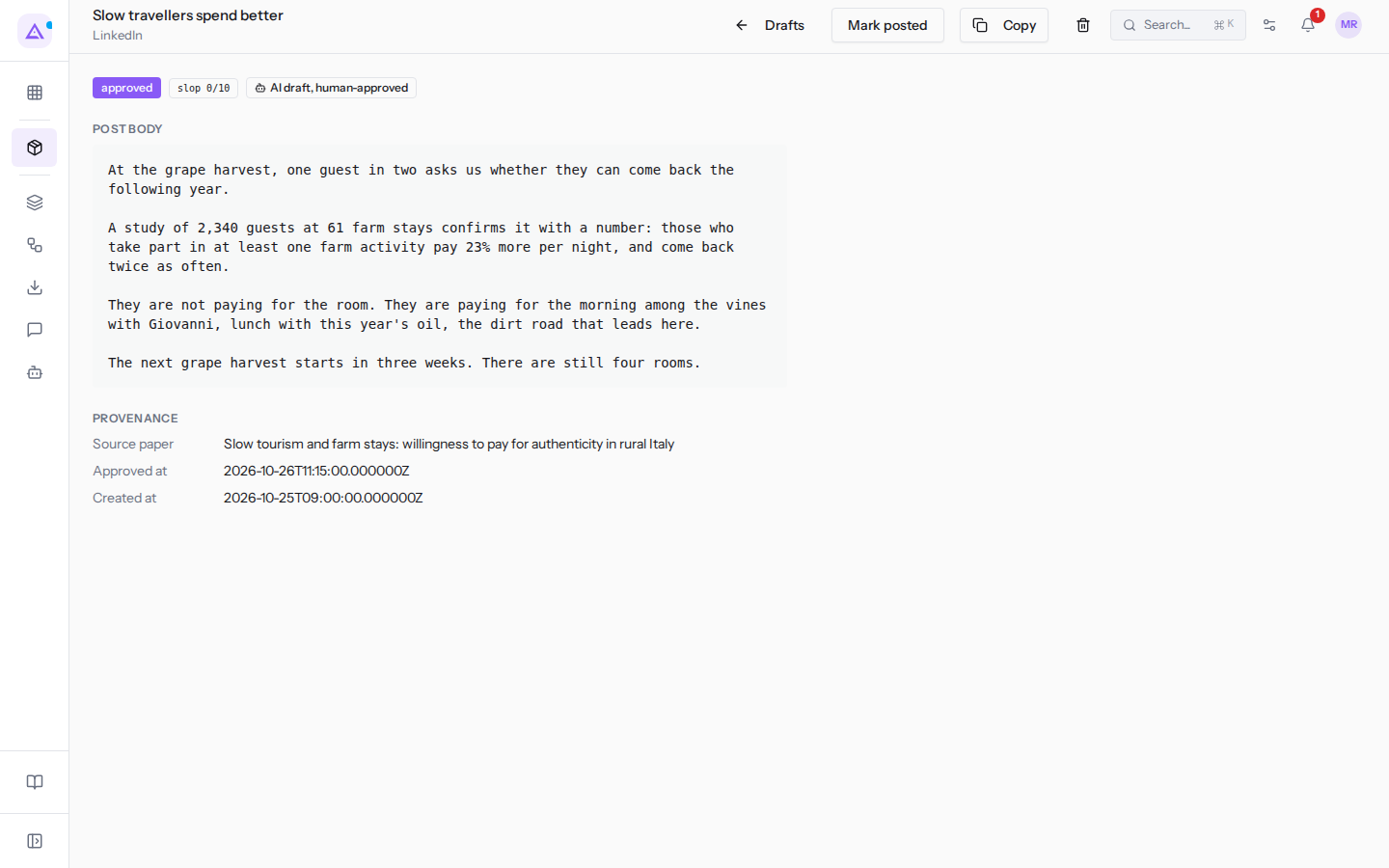
Written by AI: the text was written by the agent.AI draft, human-approved: the text was written by the Ghostwriter in conversation with Ari and saved by a person, such as the LinkedIn postSlow travellers spend better.
If the last edit to the draft was made by a person, the origin label does not appear. Even clicking Approve or Mark posted counts as a person's edit.
If the draft was written by the autonomous agent, below the labels the Produced by an agent run box appears with the run number, for example Run #14. The Open run button opens the page for that run of the Ghostwriter agent. Drafts written in conversation with Ari do not have the box.
The sections of the record
The body of the record is divided into sections.
-
Post body: the full text of the draft, with the original line breaks. This is the text that Copy copies. -
Provenance: where the draft comes from.Source paper: the title of the scientific paper from which the writing started. To read the paper see Reading a paper and its recommendation.Approved at: the time of approval, but only for drafts saved as already approved. The Approve button does not fill it in and the field stays—.Created at: the time the draft was created.
The two values appear in technical format, in UTC time, for example
2026-10-28T09:00:00.000000Z. -
Slop flags: the anti-slop filter rules that the text triggered, indicated with their technical code, for exampleopening_rhetorical_question. For some rules, the text found or a count also appears, in quotes after a dash. The section only appears if there is at least one flag.
Reading the anti-slop filter flags
The anti-slop filter checks every generated draft with fixed rules, without AI. Each rule triggered adds 1 or 2 points to the score, up to a maximum of 10.
voice_forbidden, forbidden phrases from the voice profile: the text contains one of the forbidden phrases from the voice profile used. Shows the phrase found. Worth 2 points per phrase. Phrases are set in the profile, see Managing a voice profile.hardcoded_forbidden, typical AI text phrases: the text contains a phrase from a fixed list in English, for examplegame-changing,cutting-edgeorleverage. Shows the phrase found. Worth 2 points per phrase.not_just_x_its_y, «it's not just X, it's Y» structure: the text contains the English construction «it's not just» followed by a word. Worth 2 points.opening_rhetorical_question, rhetorical question at the opening: the first line of the text ends with a question mark. Worth 1 point.rule_of_three_overuse, repeated triads: the text contains at least three lists of three elements of the type «X, Y and Z» or «X, Y or Z». The rule only recognises the English conjunctions «and» and «or». Shows how many triads it found, for example3 triads. Worth 1 point.emoji_overuse, too many emojis: the text contains more than 3 emojis. Shows how many. Worth 1 point.em_dash_overuse, too many em dashes: the text contains more em dashes (—) than the threshold. The threshold is 1; it rises to 5 if the voice profile's style notes mention the em dash. Worth up to 2 points.uniform_sentence_cadence, all sentences the same length: in a text of at least 5 sentences, the sentences have lengths that are too similar to each other. Shows a variation index, for examplecv=0.25. Worth 1 point.
Before approving, look in the Post body text for the phrases indicated in Slop flags.
Approving a draft
Approve a draft when the text is ready to be published.
- Open the record of a draft in the
draftstate, for exampleFrom the field to the table, and then to your home. - Read the text in
Post bodyand the flags inSlop flags. - Click Approve.
The status changes to approved. In place of Approve, Mark posted appears. The Written by AI label disappears, because the last edit is now yours, and Approved at stays —.
Publishing the text and marking the draft as published
Publishing on the channel is done manually, by copying the text from the record.
- Open the record of a draft in the
approvedstate, for exampleSlow travellers spend better. - Click Copy.
- Paste the text on the channel shown below the title, for example
LinkedIn, and publish it. - Return to the record and click Mark posted.
The status changes to posted.
For a newsletter, if the Email module is active, you can use Send as campaign instead of copying the text. The editor of a new campaign opens with the draft's text, and there you choose the audience and sender before sending. The draft's status does not change: to mark it as published use Mark posted anyway.
Deleting a draft
Delete a draft you do not want to publish.
Only the Marketing Manager group can delete drafts. Those who only have the Marketing User group can still see the bin icon, but the deletion does not succeed and the draft remains.
- Open the draft record.
- Click the bin icon.
- In the
Delete draft?window click Delete to confirm, or Cancel to return to the record.
After confirmation you return to the list of drafts. The deletion is logical: the draft is not physically deleted from the database.
See it on your company, not on a slide deck.
In 30 minutes we map the software you use today.We show you how much work and how much margin Archimedes gives back.
Show me on my business →What industry are you in?
One tap — it lets us prepare the demo around your world.
What tools do you use today?
Pick the ones you recognise — or just type them. It helps us show you how they migrate.
Last step: your details.
We reply within one working day — and right after, if you like, you pick the demo slot yourself.
We couldn't send your request. Try again, or write to us at [email protected].
By sending, you agree to your data being processed so we can get back to you about the demo. Privacy notice.
Preview form — nothing is sent from this page.
Want to schedule the demo now?
Your call: book the slot you prefer yourself, or we'll call you to arrange it.
Live availability, 30 minutes, instant confirmation. The calendar opens in a new tab.
Lock in your slot ↗We'll get back to you within one working day — and we'll join the call already knowing your world.
The calendar is open in another tab: pick a slot and the demo is booked. Can't see it? Reopen it ↗
Preview page: nothing was sent.
Our calendar is live: take the slot that suits you and the demo is booked. 30 minutes, instant confirmation, no waiting.
Lock in your slot ↗