eLearning
All modules
Browsing the catalog and enrolling in a course
eLearning · 10 of 14 · 3 min read
The Course Catalog lists the training courses published by the organization and lets you enroll in them.
What the catalog shows
The catalog shows only published courses. Draft and archived courses do not appear. If the course you are looking for does not appear, check in the course list that it is published: see Publishing a course and archiving it.
Open eLearning › Catalog. The Course Catalog page shows one card for each course.
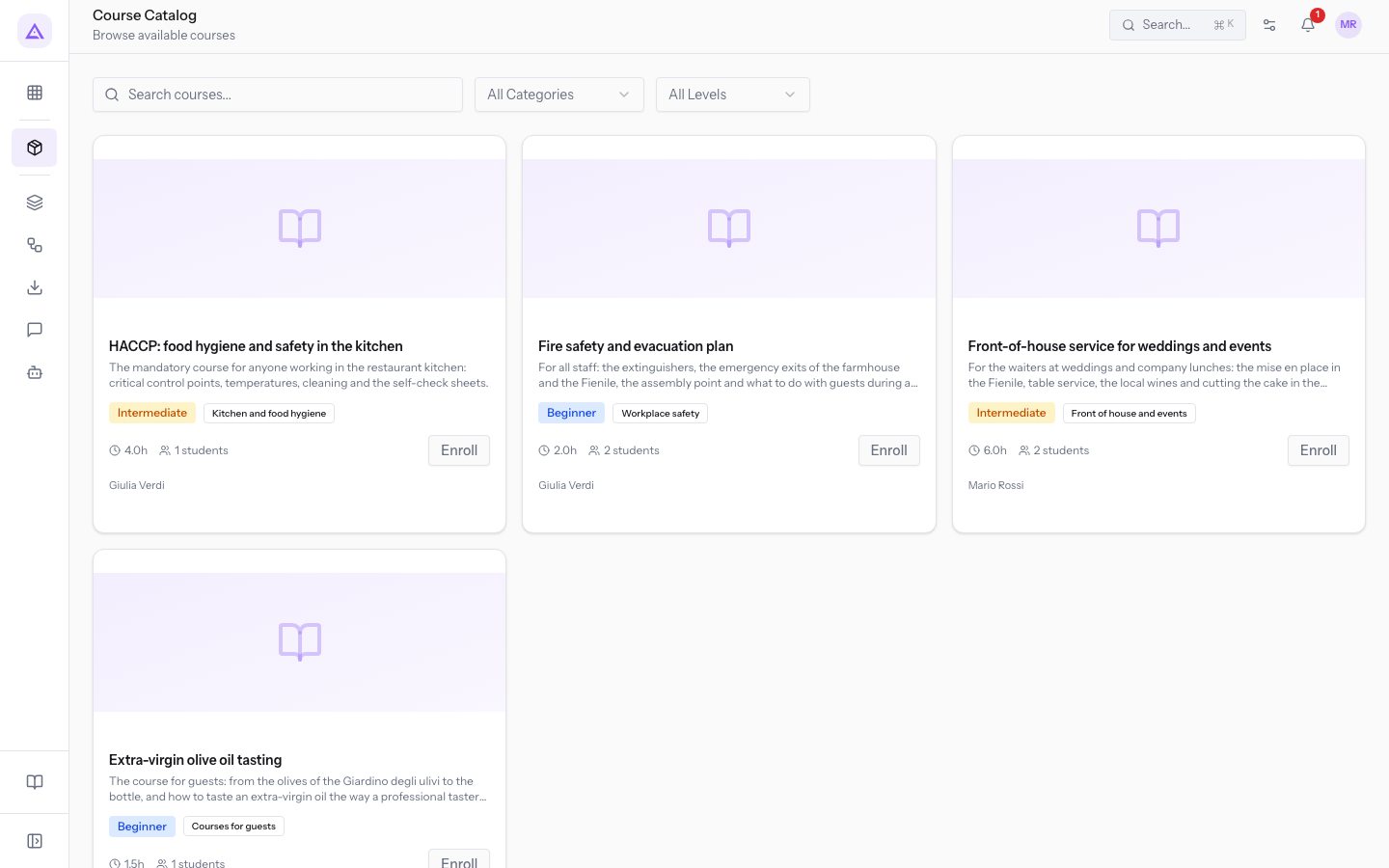
Each card shows:
- Name: the name of the course.
- Description: the first lines of the course description. Shown only if the course has a description.
- Difficulty: Beginner, Intermediate or Advanced.
- Category: the category of the course. Shown only if the course has a category.
- Duration: the duration of the course in hours. Shown only if it is specified.
- Number of students: the people enrolled in the course.
- Instructor: the name of the instructor. Shown only if the course has one.
- Enroll: the button to enroll in the course.
Press a card, outside the Enroll button, to open the course page. The content of the page is described in Viewing a course page and its enrollments.
Searching and filtering courses
The search and the two filters narrow down the cards shown. You can use them together.
- Search courses...: searches the text in the name and description of the courses. The catalog shows matching courses right away.
- All Categories: shows only the courses in the chosen category. The All Categories option removes the filter.
- All Levels: shows only the courses of the chosen difficulty, Beginner, Intermediate or Advanced. The All Levels option removes the filter.
If no course matches the search or the filters, the catalog shows No courses available.
Note: the category filter also lists inactive categories. To manage categories see Organizing courses into categories.
Enrolling in a course
Enrolling adds the course to your My Courses page.
- In the Search courses... field, type the name of the course, for example
HACCP.
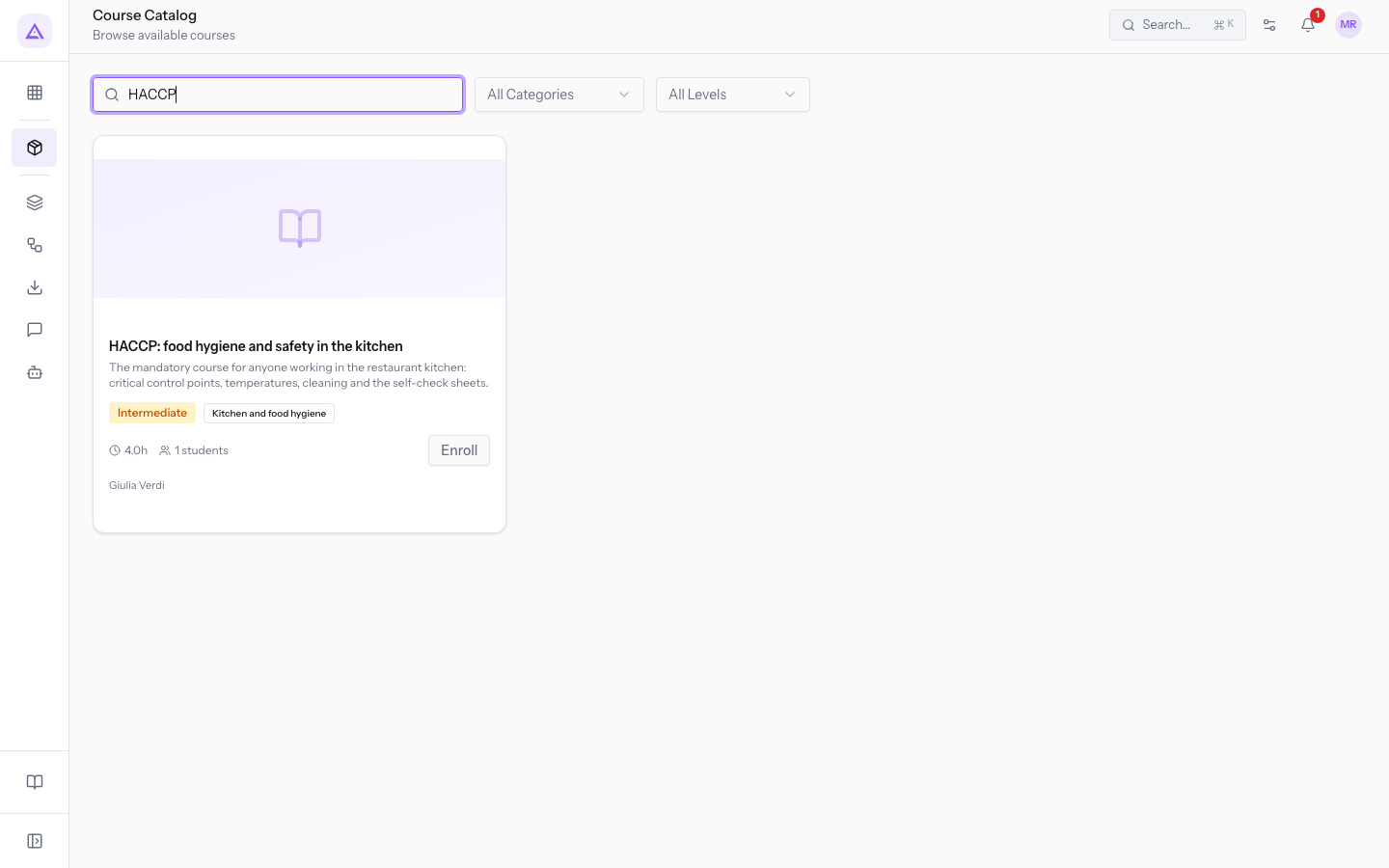
- On the course card, press Enroll. The message Enrolled successfully appears.
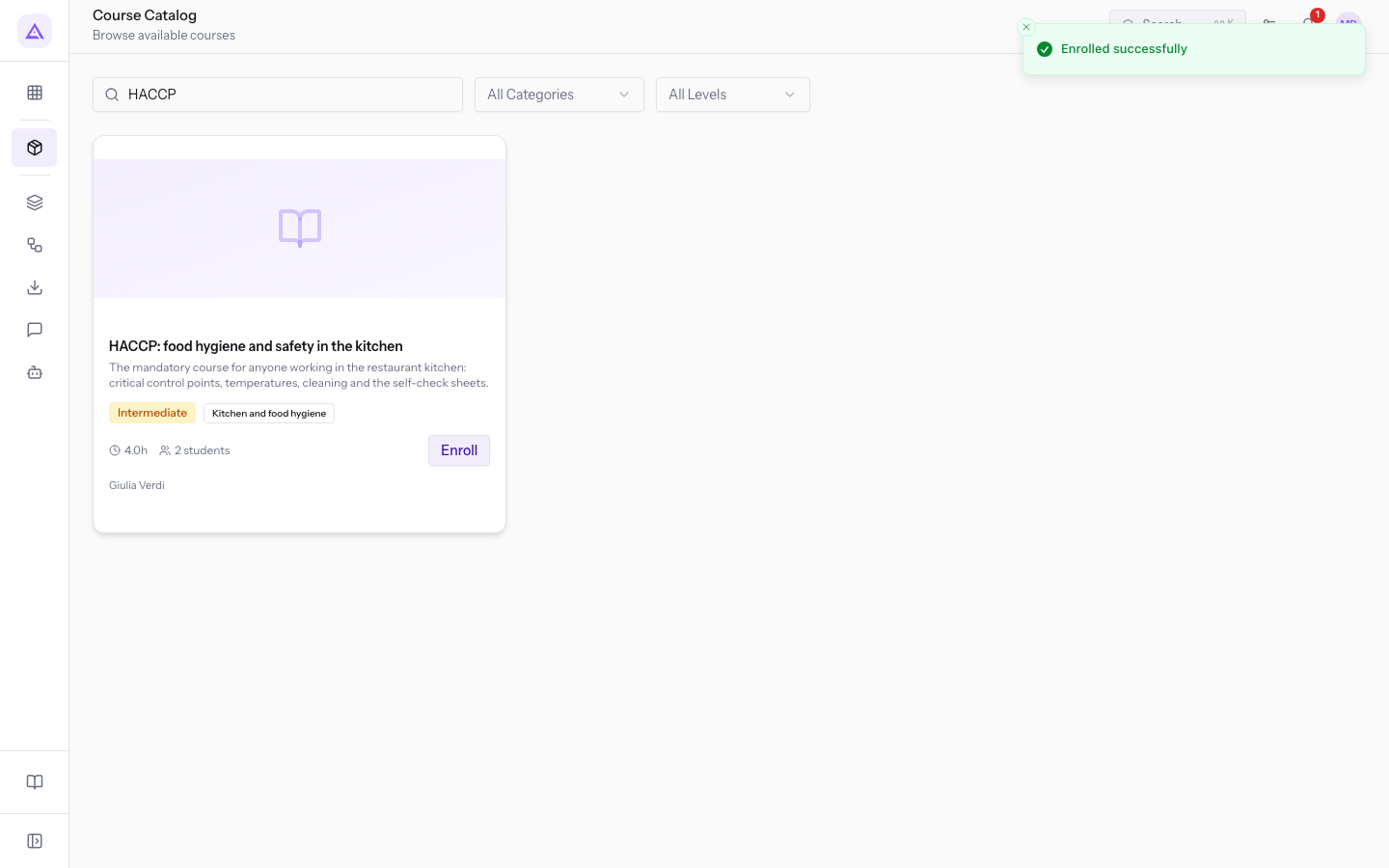
The enrollment is recorded in your name, with today's date and the initial status Enrolled. The number of students on the card updates.
The Enroll button stays visible after enrolling. If you press it again, Enrolled successfully still appears, but a second enrollment is not created.
Finding the course in My Courses
Open eLearning › My Courses. The course you just enrolled in appears first, with the status Enrolled and the Progress at 0.00%.
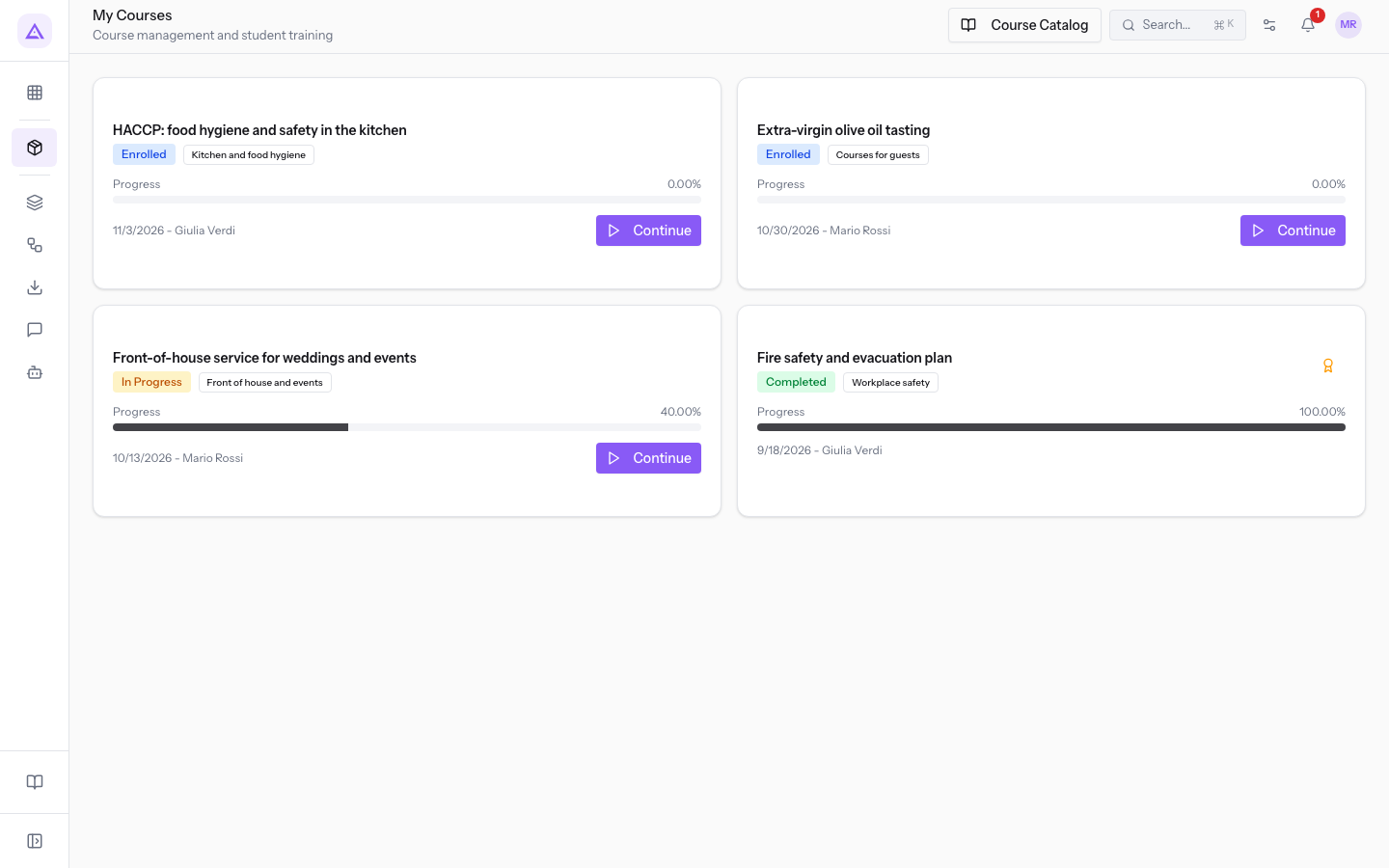
To continue, see Following your own courses in My Courses and Following the lessons of a course.
See it on your company, not on a slide deck.
In 30 minutes we map the software you use today.We show you how much work and how much margin Archimedes gives back.
Show me on my business →What industry are you in?
One tap — it lets us prepare the demo around your world.
What tools do you use today?
Pick the ones you recognise — or just type them. It helps us show you how they migrate.
Last step: your details.
We reply within one working day — and right after, if you like, you pick the demo slot yourself.
We couldn't send your request. Try again, or write to us at [email protected].
By sending, you agree to your data being processed so we can get back to you about the demo. Privacy notice.
Preview form — nothing is sent from this page.
Want to schedule the demo now?
Your call: book the slot you prefer yourself, or we'll call you to arrange it.
Live availability, 30 minutes, instant confirmation. The calendar opens in a new tab.
Lock in your slot ↗We'll get back to you within one working day — and we'll join the call already knowing your world.
The calendar is open in another tab: pick a slot and the demo is booked. Can't see it? Reopen it ↗
Preview page: nothing was sent.
Our calendar is live: take the slot that suits you and the demo is booked. 30 minutes, instant confirmation, no waiting.
Lock in your slot ↗