eLearning
All modules
Take a quiz
eLearning · 13 of 14 · 2 min read
A quiz is the assessment lesson of a course. Here you answer the questions, submit your answers, and see right away whether you passed the quiz.
Opening the quiz
The quiz belongs to a lesson of the course.
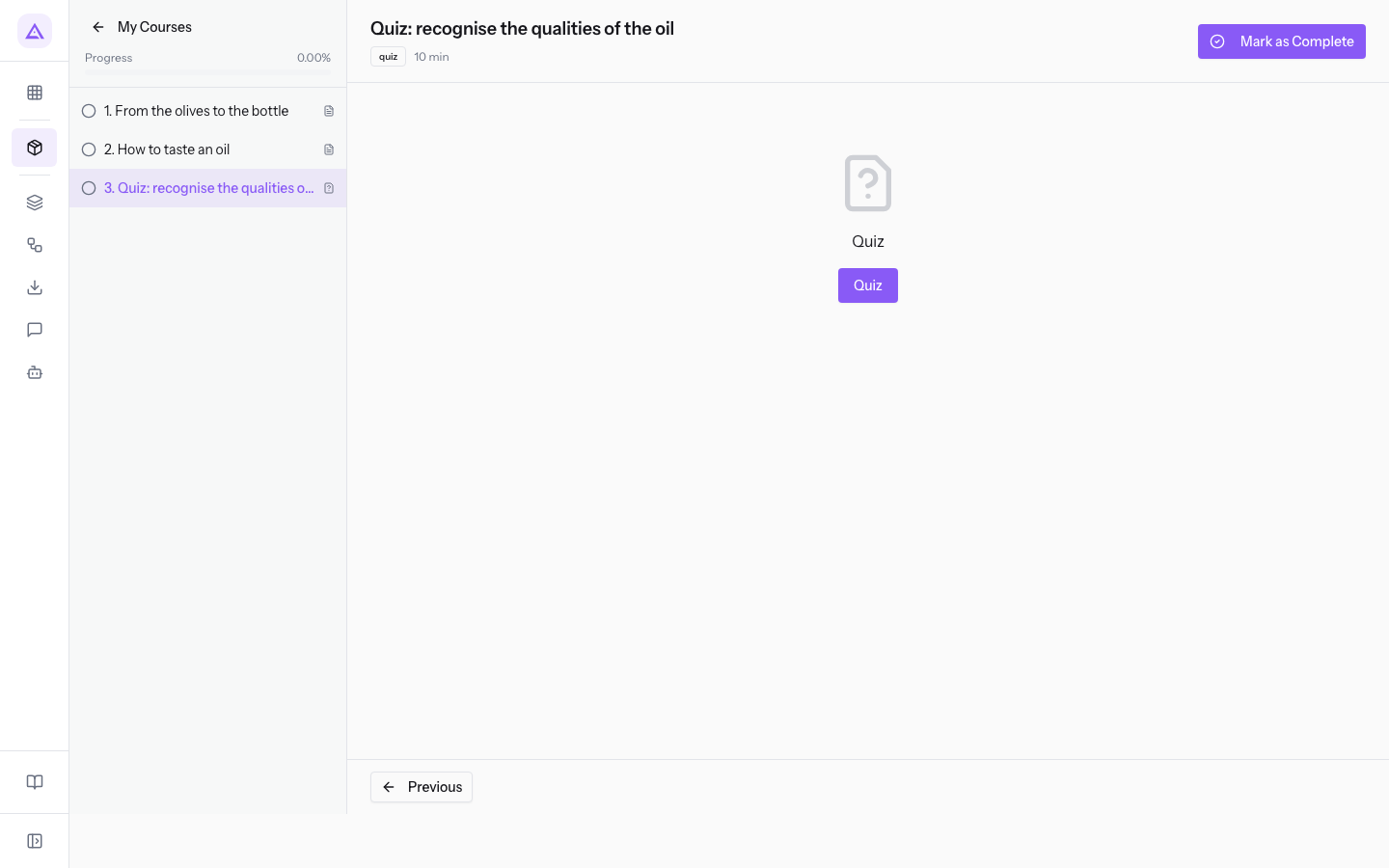
- Open the quiz lesson, as described in Follow the lessons of a course.
- On the lesson page, press Quiz.
If the lesson has no quiz, the page shows No quiz for this lesson.
Answering the questions
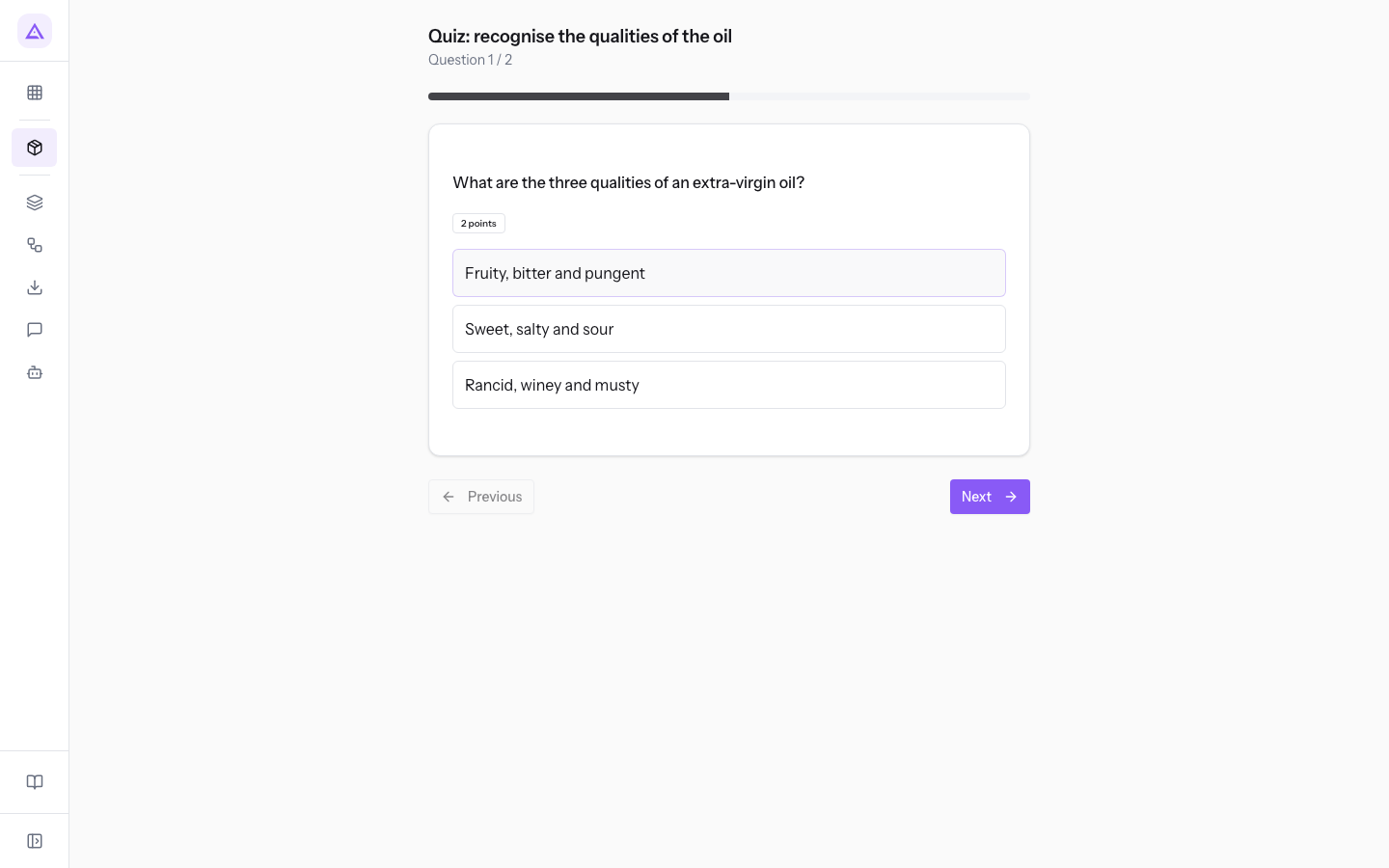
The questions appear one at a time. At the top are the title of the quiz and the position of the question, for example Question 1 / 2. Below them, a bar advances with each question.
- Answer the question in one of these ways:
- For multiple-choice and true/false questions, press one of the answers. The chosen answer is highlighted. Press another answer to change it.
- For short-answer questions, type your answer in the Your Answer box.
- Press Next to go to the next question, or Previous to go back to the previous one. Your answers are kept. Previous is disabled on the first question.
- On the last question, press Submit Quiz instead of Next.
Important: Submit Quiz submits the whole quiz. A question without an answer is submitted empty. Before submitting, check the questions with Previous.
Quizzes with a time limit
If the quiz has a time limit, a countdown in minutes and seconds appears to the right of the title, for example 14:59. The time starts when you open the quiz page.
Note: when the time runs out, the quiz is submitted automatically.
Reading the result
After submitting, the page shows the result of the attempt.
- You passed! or You did not pass. Try again.: the outcome of the attempt.
- The percentage: the share of the total points you obtained.
- Score: the points you obtained and the total points, in the form x / y.
- Previous: goes back to the page you opened the quiz from.
- Quiz: appears only if you did not pass the quiz. It takes you back to the first question with empty answers, for a new attempt.
The quiz does not complete the lesson by itself. To complete it, go back to the lesson with Previous and press Mark as Complete. For course progress, see Following your own courses in My Courses.
See it on your company, not on a slide deck.
In 30 minutes we map the software you use today.We show you how much work and how much margin Archimedes gives back.
Show me on my business →What industry are you in?
One tap — it lets us prepare the demo around your world.
What tools do you use today?
Pick the ones you recognise — or just type them. It helps us show you how they migrate.
Last step: your details.
We reply within one working day — and right after, if you like, you pick the demo slot yourself.
We couldn't send your request. Try again, or write to us at [email protected].
By sending, you agree to your data being processed so we can get back to you about the demo. Privacy notice.
Preview form — nothing is sent from this page.
Want to schedule the demo now?
Your call: book the slot you prefer yourself, or we'll call you to arrange it.
Live availability, 30 minutes, instant confirmation. The calendar opens in a new tab.
Lock in your slot ↗We'll get back to you within one working day — and we'll join the call already knowing your world.
The calendar is open in another tab: pick a slot and the demo is booked. Can't see it? Reopen it ↗
Preview page: nothing was sent.
Our calendar is live: take the slot that suits you and the demo is booked. 30 minutes, instant confirmation, no waiting.
Lock in your slot ↗