eLearning
All modules
Manage training from the dashboard
eLearning · 2 of 14 · 2 min read
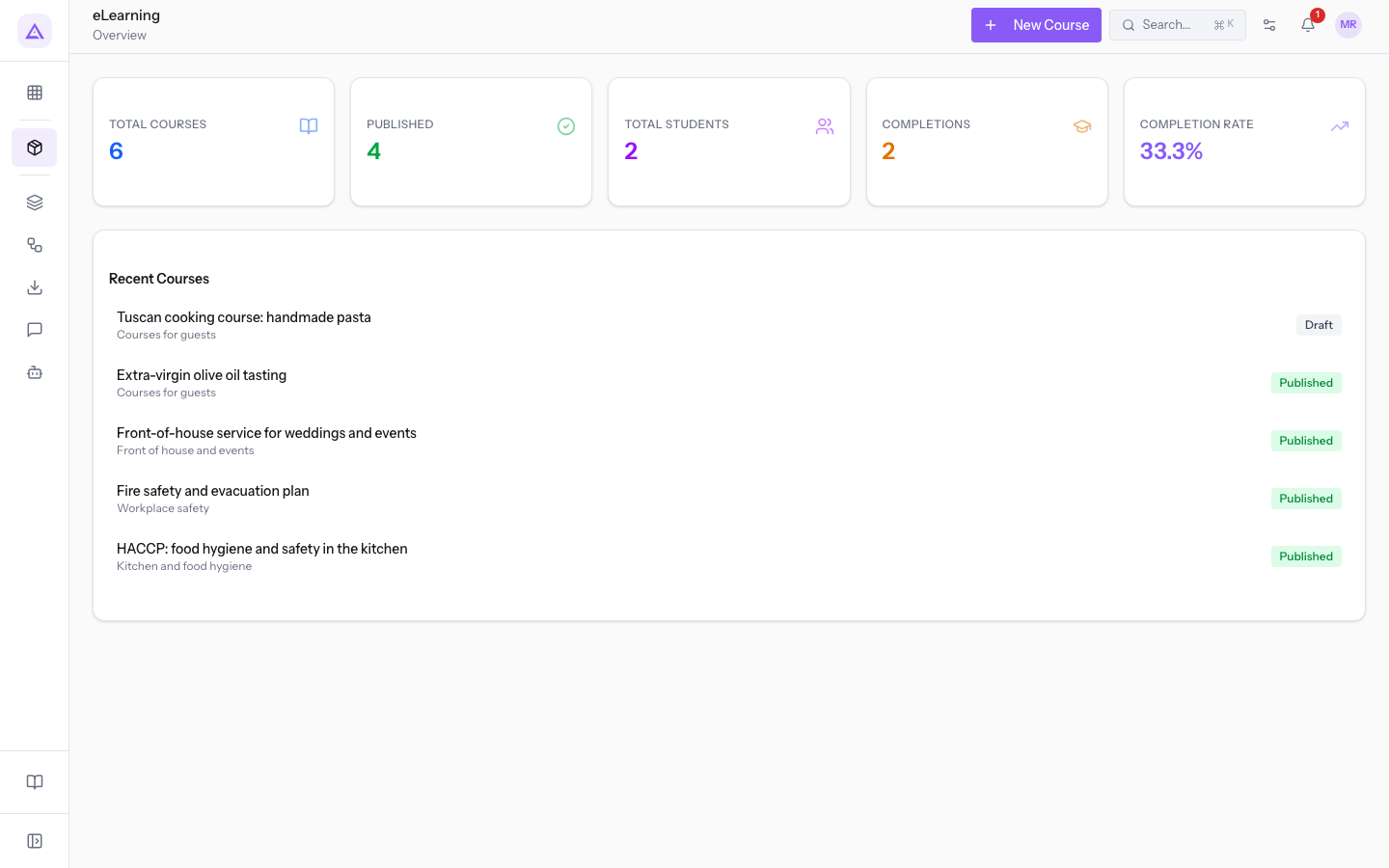
The Dashboard summarizes the status of the organization's training. It shows how many courses exist, how many people are taking them, and how many have been completed, and it opens the courses created most recently.
Opening the Dashboard
Before you start: the numbers on the Dashboard are reserved for those who manage courses.
Open eLearning › Dashboard. The page has the title eLearning and the subtitle Overview. It contains the number tiles, the Recent Courses panel, and the New Course button.
Reading the number tiles
The tiles show the totals for all courses. They do not open and have no filters.
- Total Courses: all courses, including drafts and archived courses.
- Published: courses in the Published status, the only ones shown in the catalog. See Browsing the catalog and enrolling in a course.
- Total Students: people enrolled in at least one course. A person enrolled in several courses is counted once.
- Completions: enrollments in the Completed status. A person who completes two courses is counted twice.
- Completion Rate: the percentage of enrollments in the Completed status out of all enrollments, rounded to one decimal place. If there are no enrollments, it is zero.
The Completion Rate counts all enrollments, including those in Dropped and those just started. A new enrollment lowers it until the course is completed. With 2 completions out of 6 enrollments, the tile shows 33.3%.
The Dashboard does not split the numbers by course. To see who is taking a course and how far they have got, open the Enrollments tab of the course page, described in Viewing a course page and its enrollments.
Opening a course from Recent Courses
The Recent Courses panel lists the five most recently created courses, newest first. Older courses do not appear: to find them, use the list described in Finding a course in the course list.
Each row shows:
- Name: the name of the course.
- Category: the category of the course. If the course has none, a dash appears.
- Status: Draft, Published, or Archived.
Press a row in the panel to open the course page.
Creating a course from the Dashboard
The New Course button on the Dashboard does not open the creation window directly: it takes you to the Courses list.
- Press New Course. The Courses list opens.
- Press New Course again in the list and fill in the window, as described in Create a new course.
See it on your company, not on a slide deck.
In 30 minutes we map the software you use today.We show you how much work and how much margin Archimedes gives back.
Show me on my business →What industry are you in?
One tap — it lets us prepare the demo around your world.
What tools do you use today?
Pick the ones you recognise — or just type them. It helps us show you how they migrate.
Last step: your details.
We reply within one working day — and right after, if you like, you pick the demo slot yourself.
We couldn't send your request. Try again, or write to us at [email protected].
By sending, you agree to your data being processed so we can get back to you about the demo. Privacy notice.
Preview form — nothing is sent from this page.
Want to schedule the demo now?
Your call: book the slot you prefer yourself, or we'll call you to arrange it.
Live availability, 30 minutes, instant confirmation. The calendar opens in a new tab.
Lock in your slot ↗We'll get back to you within one working day — and we'll join the call already knowing your world.
The calendar is open in another tab: pick a slot and the demo is booked. Can't see it? Reopen it ↗
Preview page: nothing was sent.
Our calendar is live: take the slot that suits you and the demo is booked. 30 minutes, instant confirmation, no waiting.
Lock in your slot ↗