eLearning
All modules
Following the lessons of a course
eLearning · 12 of 14 · 3 min read
The lesson page shows the content of a lesson and the list of the course's lessons. From here you follow the lesson, mark it as completed, and move on to the other lessons.
Opening a lesson
Open eLearning › My Courses and press Continue on the course card: the first lesson you have not completed opens. From a lesson page, you reach the others with the list in the left column and with the Previous and Next buttons.
Before you start: you must be enrolled in the course. To enroll in a course, see Browsing the catalog and enrolling in a course.
For the status of your courses, see Following your own courses in My Courses.
The left column
The left column stays visible while you follow the course. It shows where you are and lets you open the other lessons.
- My Courses: the button opens the My Courses page.
- Progress: the bar and the percentage of completed lessons.
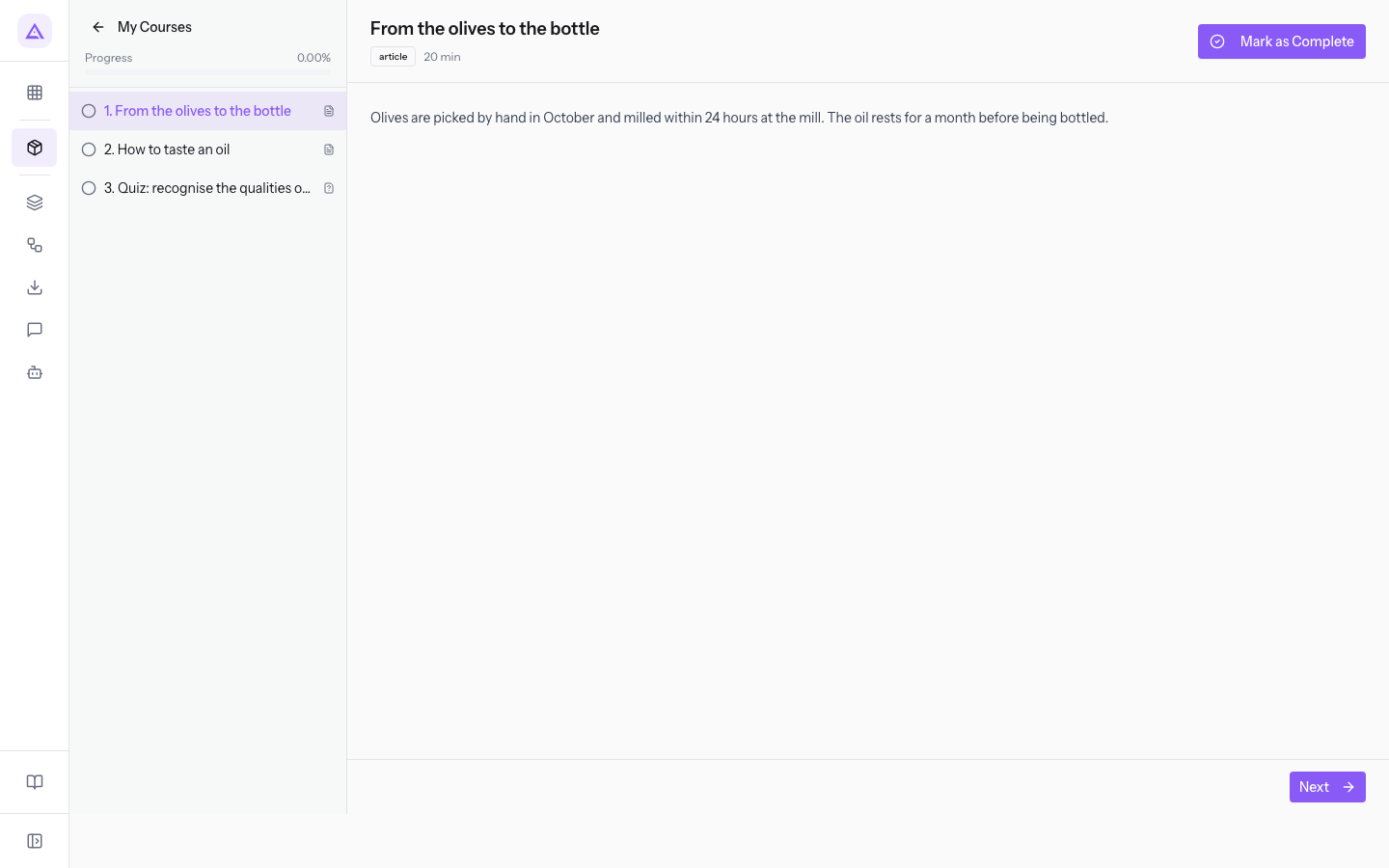
- Lesson list: the course's lessons, numbered. The open lesson is highlighted. Next to each title there is an icon that shows the type of lesson.
- Green check mark: appears next to completed lessons. The other lessons have an empty circle.
Press a lesson in the list to open it. You can open any lesson, even if you have not completed the previous ones.
Note: Progress and the lesson list appear only if you are enrolled in the course.
The lesson content
The central part of the page shows the open lesson.
- Title: the title of the lesson.
- Type: the lesson type, such as
articleorquiz. - Duration: the duration in minutes. It appears only if the lesson has a duration.
- Mark as Complete: the button appears if you have not completed the lesson.
- Completed: the badge replaces the button once you have completed the lesson.
- Previous and Next: the buttons at the bottom of the page.
Below the title is the lesson content, which depends on the lesson type.
- Article: the text of the lesson.
- Video: the video, played on the page.
- Document: the Document link, which opens the file in a new browser tab.
- Quiz: the Quiz button, which opens the quiz page. To answer the questions, see Take a quiz.
Completing a lesson
A lesson is completed only when you press Mark as Complete. Opening it or moving to another lesson does not complete it. Press the button when you have finished the lesson: the page has no button to undo this.
After you press Mark as Complete, the message Lesson completed. appears. The page stays on the same lesson. The Completed badge replaces the button, the green check mark appears next to the lesson, and Progress is updated.
When you complete the last lesson, the message is Course completed! Certificate issued. and the enrollment changes to Completed. For the certificate, see View, print and download the certificate.
Moving to another lesson
The buttons at the bottom of the page follow the order of the lesson list.
- Previous: opens the previous lesson. It does not appear on the first lesson.
- Next: opens the next lesson. It does not appear on the last lesson.
Important: Next does not complete the open lesson. Press Mark as Complete first.
See it on your company, not on a slide deck.
In 30 minutes we map the software you use today.We show you how much work and how much margin Archimedes gives back.
Show me on my business →What industry are you in?
One tap — it lets us prepare the demo around your world.
What tools do you use today?
Pick the ones you recognise — or just type them. It helps us show you how they migrate.
Last step: your details.
We reply within one working day — and right after, if you like, you pick the demo slot yourself.
We couldn't send your request. Try again, or write to us at [email protected].
By sending, you agree to your data being processed so we can get back to you about the demo. Privacy notice.
Preview form — nothing is sent from this page.
Want to schedule the demo now?
Your call: book the slot you prefer yourself, or we'll call you to arrange it.
Live availability, 30 minutes, instant confirmation. The calendar opens in a new tab.
Lock in your slot ↗We'll get back to you within one working day — and we'll join the call already knowing your world.
The calendar is open in another tab: pick a slot and the demo is booked. Can't see it? Reopen it ↗
Preview page: nothing was sent.
Our calendar is live: take the slot that suits you and the demo is booked. 30 minutes, instant confirmation, no waiting.
Lock in your slot ↗