Purchase DDT
All modules
Resolving a submission rejected by the ERP
Purchase DDT · 12 of 12 · 4 min read
When the ERP rejects a confirmed DDT, the document moves to the Errore status and shows the ERP's message. From this page you understand why the submission was rejected, review the calls made to the ERP, and retry the submission after resolving the problem.
Note: these screens currently use Italian interface labels. The instructions preserve the control names shown on screen; the screenshots also show those labels.
Document statuses after confirmation
On confirmation, the submission to the ERP starts automatically. There is no second send button on the document. From that moment the document can be in three statuses, which you can filter in the list with Tutti gli stati.
- Inviati al gestionale: the lines have been written in the ERP and the document is waiting for Business Central to post the receipt.
- Registrati: Business Central has confirmed the posting of the receipt. Registrato il appears in the header. DDT 1452 from Caseificio Colle Alto is in this status.
- Errori: the ERP has rejected the submission. The document has the Riprova invio button.
The transition from sent to posted does not depend on you: there is no button to post a sent document. Sent and posted documents are locked: quantities cannot be changed and Riesegui match is disabled.
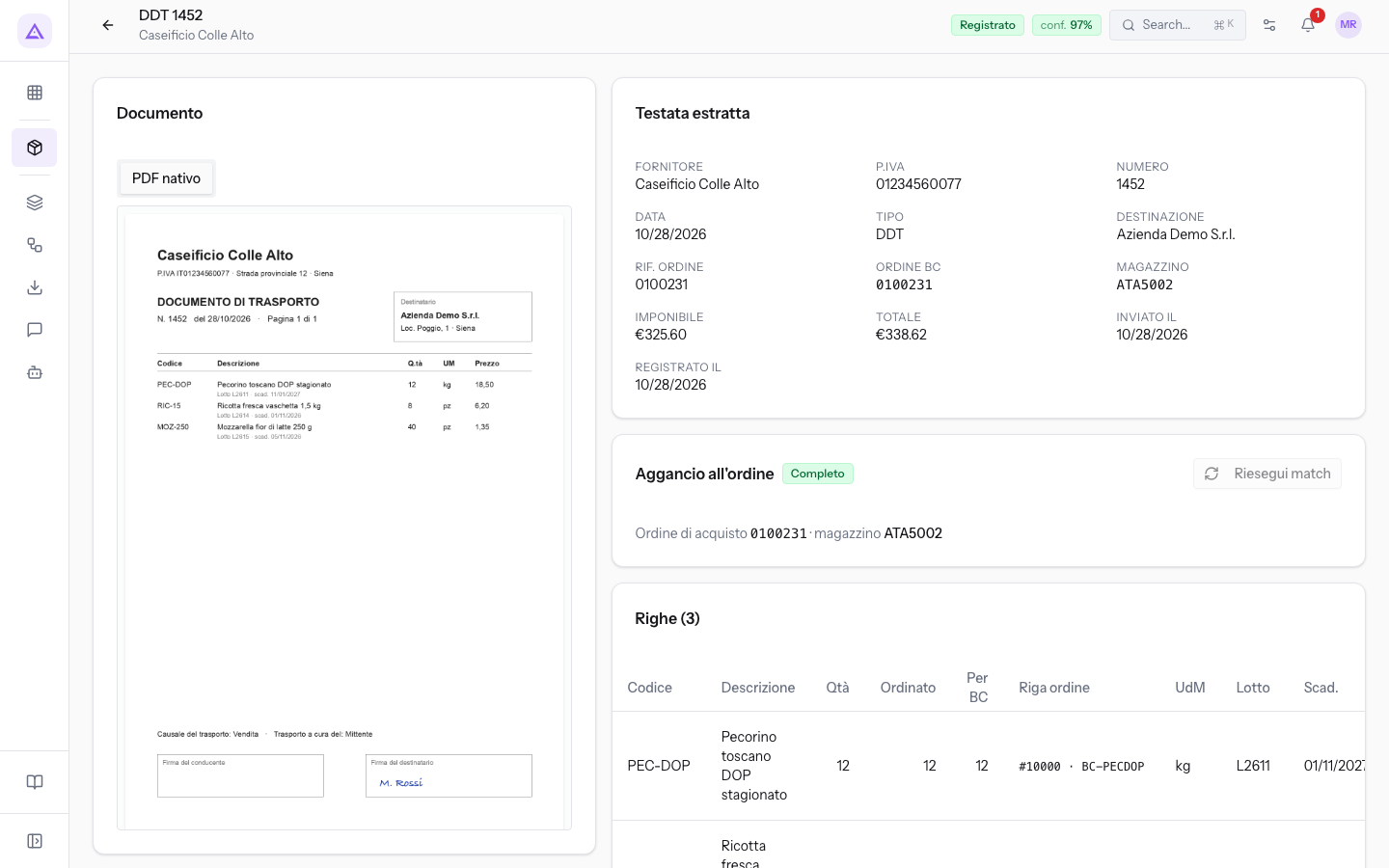
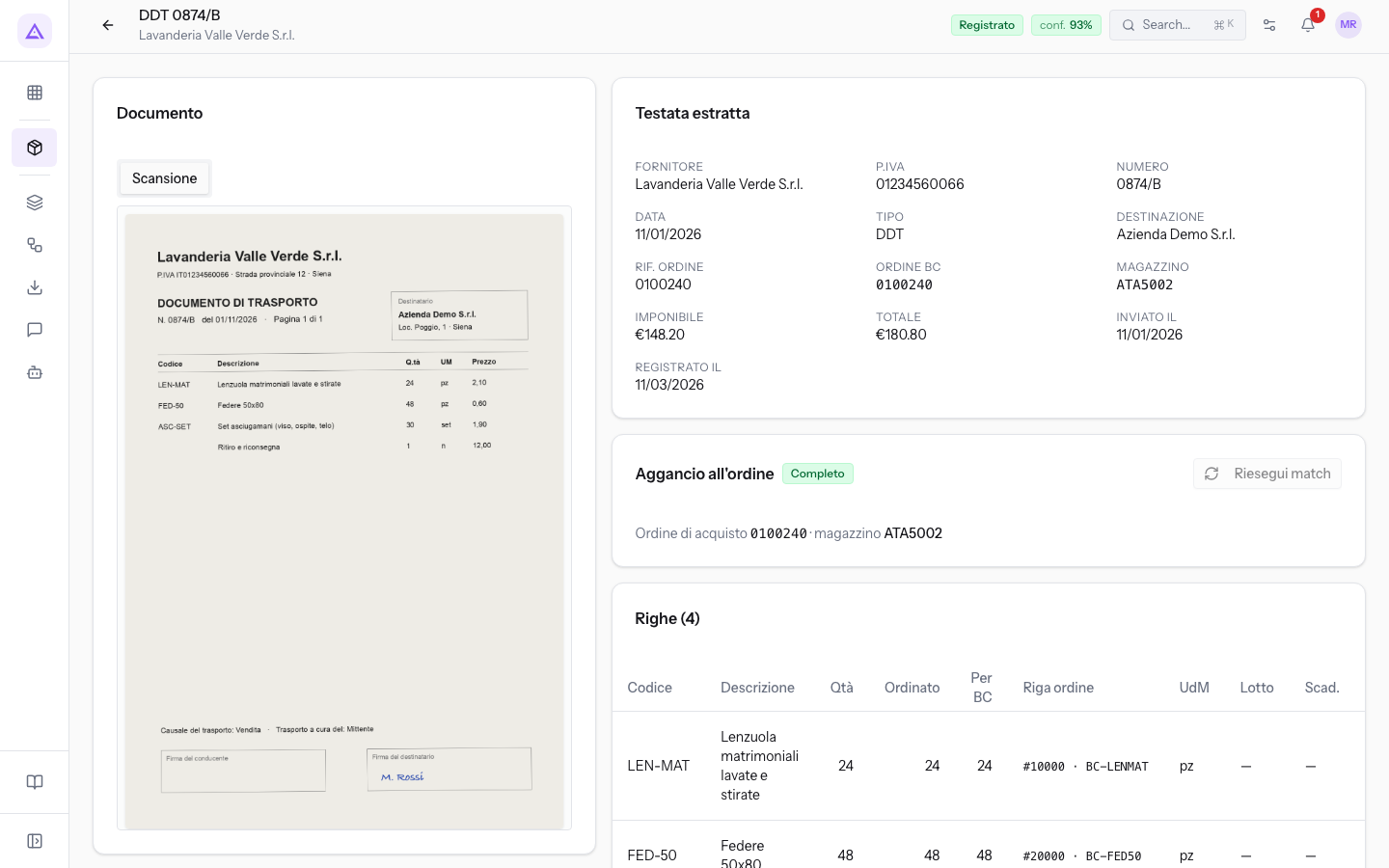
DDT 0874/B from Lavanderia Valle Verde S.r.l. is also Registrato.
Finding rejected documents
Rejected documents can be reached from the DDT di acquisto list in two ways.
- In the Da tenere d'occhio panel, look at the Rifiutati dal gestionale column. It shows how many documents have been rejected and the first five, each with supplier, DDT number, and ERP message. When there are none, it shows Nessun documento rifiutato.
- Click a document in the column to open its card. Alternatively, choose Errori in the Tutti gli stati filter and click the document row.
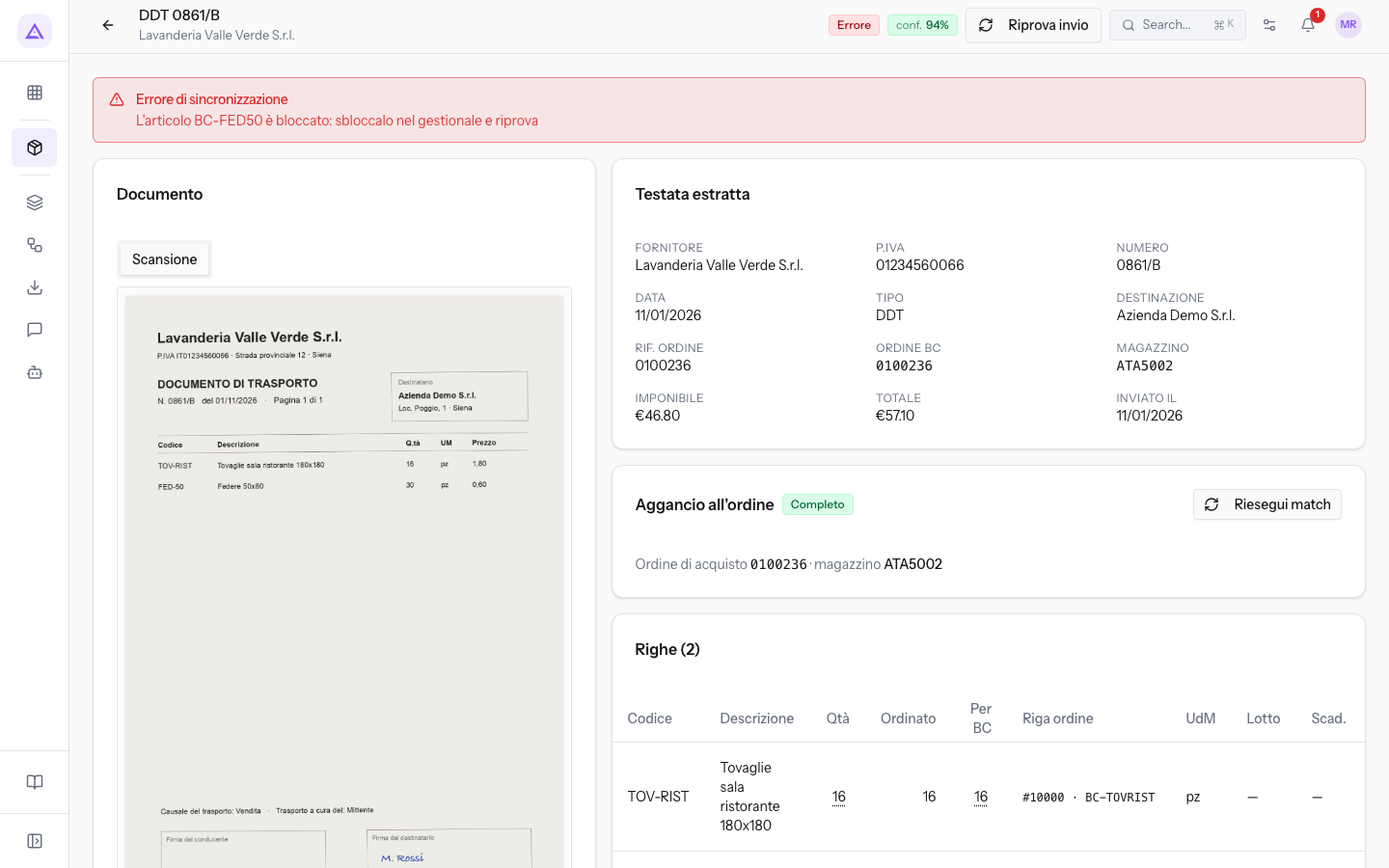
In the demo, the rejected document is DDT 0861/B from Lavanderia Valle Verde S.r.l.
Reading the rejection reason
The card of a document in Errore shows at the top the Errore di sincronizzazione alert with the message returned by the ERP. The message says what is wrong in the ERP: for DDT 0861/B it is «L'articolo BC-FED50 è bloccato: sbloccalo nel gestionale e riprova».
The Verso il gestionale panel lists the calls made to the ERP for that document, one per panel. Each call shows:
- the method and address called;
- the response code, in green if the call succeeded and in red if it failed;
- the submission step:
- Token Entra: access to the ERP.
- Riga interfaccia: writing the lines in the ERP. Below appears the number returned by the ERP. When an already-written line is updated, the step is called Aggiornamento riga.
- Comando registrazione: the request to post the receipt.
- Verifica esito: the check of the posting outcome.
- the duration in milliseconds.
The first call with the code in red indicates the step where the submission stopped. A document with no calls shows Nessuna chiamata registrata.
Retrying the submission
Riprova invio repeats the submission of the document to the ERP. It appears only on documents in Errore.
Important: first remove the cause in the ERP. If you retry the submission without having removed it, the ERP will reject it again.
- Read the Errore di sincronizzazione alert message and resolve the issue in the ERP. For DDT 0861/B, unblock item BC-FED50 in the ERP.
- Go back to the document card and press Riprova invio. If the request goes through, the message Reinvio effettuato appears; if it does not, Reinvio fallito.
- Check the new calls in the Verso il gestionale panel.
To send multiple documents together from an upload session, see Sending the session to Business Central. If the rejection concerns the matching of a line to the order, see Link lines to the purchase order.
See it on your company, not on a slide deck.
In 30 minutes we map the software you use today.We show you how much work and how much margin Archimedes gives back.
Show me on my business →What industry are you in?
One tap — it lets us prepare the demo around your world.
What tools do you use today?
Pick the ones you recognise — or just type them. It helps us show you how they migrate.
Last step: your details.
We reply within one working day — and right after, if you like, you pick the demo slot yourself.
We couldn't send your request. Try again, or write to us at [email protected].
By sending, you agree to your data being processed so we can get back to you about the demo. Privacy notice.
Preview form — nothing is sent from this page.
Want to schedule the demo now?
Your call: book the slot you prefer yourself, or we'll call you to arrange it.
Live availability, 30 minutes, instant confirmation. The calendar opens in a new tab.
Lock in your slot ↗We'll get back to you within one working day — and we'll join the call already knowing your world.
The calendar is open in another tab: pick a slot and the demo is booked. Can't see it? Reopen it ↗
Preview page: nothing was sent.
Our calendar is live: take the slot that suits you and the demo is booked. 30 minutes, instant confirmation, no waiting.
Lock in your slot ↗