Purchase DDT
All modules
Check the rows of a session
Purchase DDT · 7 of 12 · 7 min read
The Verifica step of an upload session collects the lines and documents that the agent flagged for review. Here you compare each line with the scan and resolve quantities and order links. Completing a review can already send the document to Business Central; sending does not always wait for the final session step.
Important: with an ERP connected, confirming a document or settling its last flagged line can send it immediately. Check the other data first; quantities and order links are locked after sending.
Note: these screens currently use Italian interface labels. The instructions preserve the control names shown on screen; the screenshots also show those labels.
Opening the verification step
When processing finishes, the session moves on its own to the Verifica step. When you resume, the page opens processing or verification according to the uploaded batches and their progress.
- In the DDT di acquisto list press Inizia sessione di carico. The Sessione di carico DDT page opens with the Sessioni recenti. For the starting page see Starting an upload session.
- Press Riprendi on the Da verificare session, in the demo a Farmhouse session marked for review. The Verifica step opens.
At the top of the step, a line counts the session's documents by outcome, in the form «N ready · N to fix · N in error».
The step has three parts, from top to bottom: the Righe da verificare panel, the Documenti da confermare per intero panel, and the session document table. If there is nothing left to check, instead of the two panels the message «Nothing to check: all documents are ready for Business Central.» appears.
Lines requiring review
The panel shows one flagged line at a time. Next to the title is the position, for example «1 of 6».
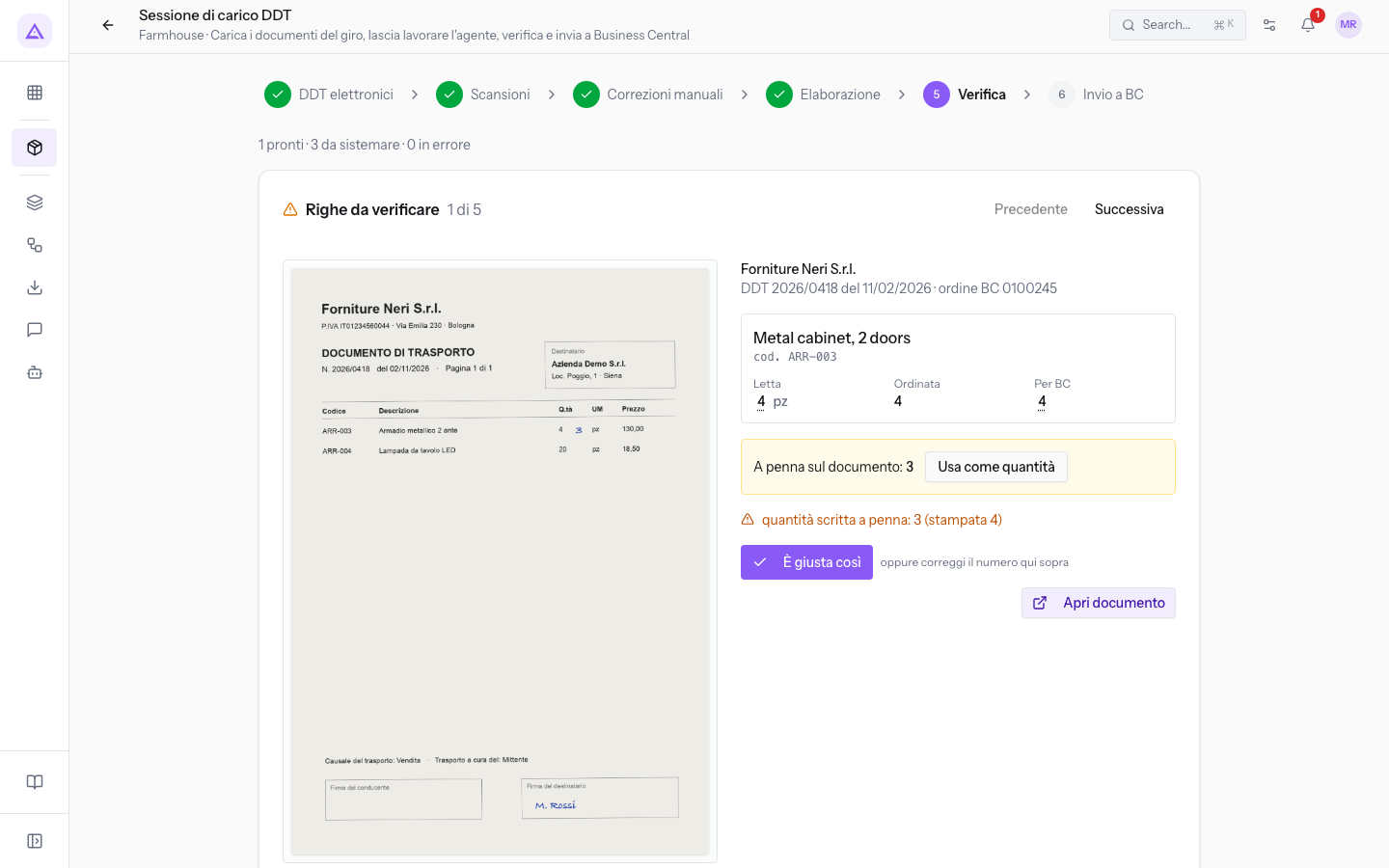
The panel contains:
- Precedente and Successiva: scroll through the lines to check. Precedente is disabled on the first line, Successiva on the last.
- The scan, on the left: the document page the line comes from. If the document has no scan, «No scan for this document» appears.
- The document, top right: the supplier, «Unknown supplier» if unreadable, then the DDT number, the date, and the BC order the document is linked to.
- The line: the description and, if present, the supplier code (cod.).
- Letta: the quantity read from the document, with the unit of measure read. If goods arrived in packages, the number of packages appears below. The value can be corrected.
- Ordinata: the quantity from the linked order line. Shows «—» if the line has no ordered quantity. Cannot be changed.
- Per BC: the quantity that will be sent to Business Central. It may already include an inferred conversion or one learned from an earlier delivery. It can be corrected only if the line is linked to an order line; otherwise shows «—».
- A penna sul documento: appears when a handwritten number is found next to the printed quantity, and reports that number.
- The line's issue, in orange: the reason the line needs checking.
- È giusta così: confirms the line as it was read.
- Apri documento: opens the document card, described in Review and confirm a DDT.
Confirm or correct a line
For each line, decide whether the reading is correct or needs to be changed. Choose based on the issue shown in orange:
- If the quantity read matches the goods received, press È giusta così.
- If the agent read the wrong number, correct the quantity in Letta.
- If the line is in a different unit from the order, leave Letta as is and correct Per BC.
- If the supplier corrected the quantity by hand at delivery, press Usa come quantità.
- If the line is not linked to the order or you need to see the whole document, press Apri documento.
- Read the issue in orange and compare the line with the scan.
- If the reading is correct, press È giusta così.
- Otherwise click the number in Letta or Per BC and type the correct value, as suggested by the note «or correct the number above».
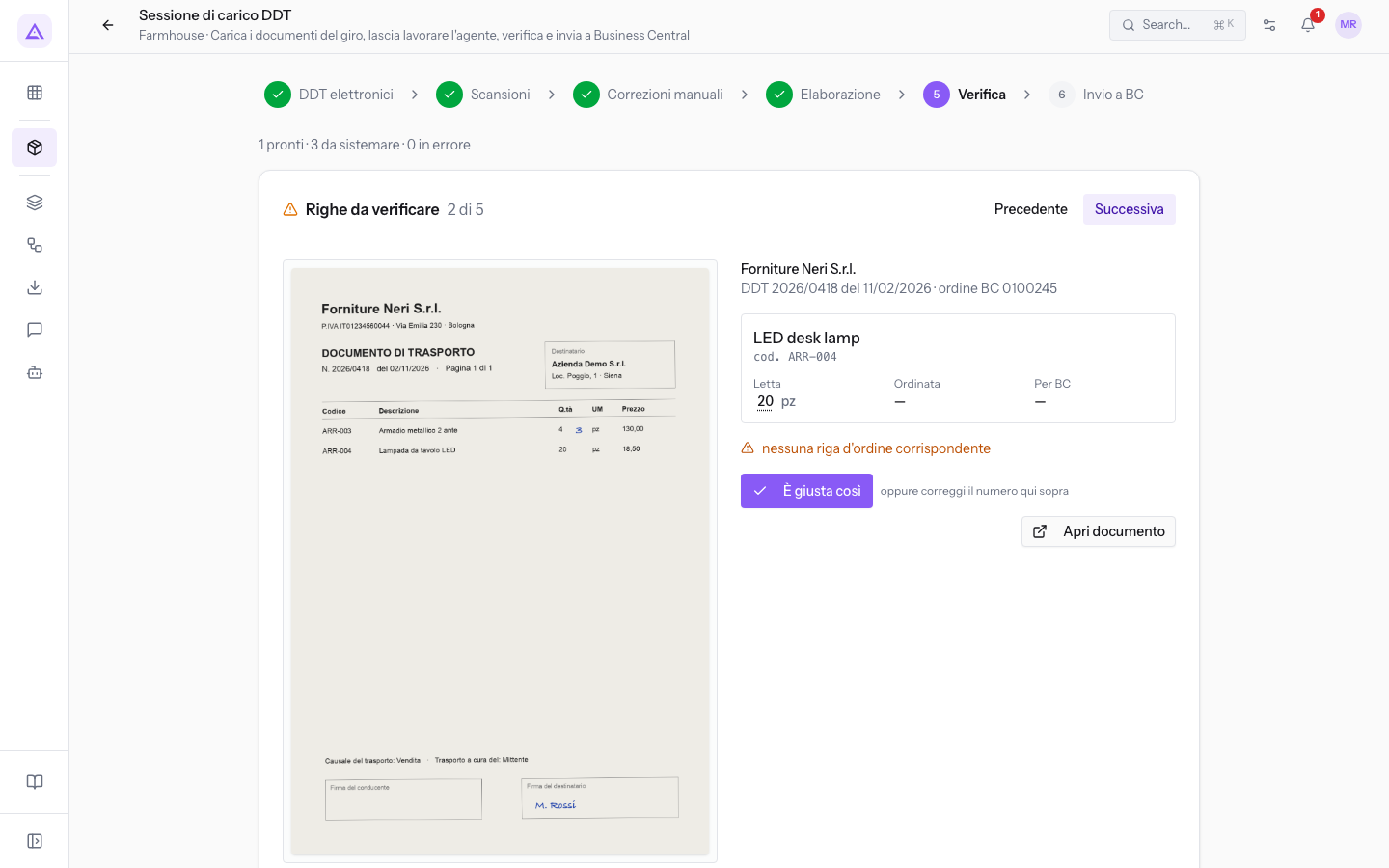
After each confirmation or correction, a message shows how far along the document is:
- «Documento completato: pronto per Business Central»: it was the last line of the document.
- «Riga sistemata; restano altre righe su questo documento»: the document has more lines to check.
- «Riga sistemata; il documento resta da confermare per intero»: the document must be confirmed in the Documenti da confermare per intero panel.
- «Riga sistemata; il documento aspetta l’aggancio all’ordine delle righe rimaste»: some lines are not yet linked. To link them see Link lines to the purchase order.
Using the handwritten quantity
The A penna sul documento panel appears on a regular scan when a handwritten number is found next to the printed quantity. On the Metal cabinet, 2 doors line from Forniture Neri S.r.l. 2026/0418, Letta shows the printed 4 and the panel shows the handwritten 3.
- Compare the handwritten number with the scan.
- Press Usa come quantità: the handwritten number becomes the Letta quantity.
Note: the panel does not apply to blocks loaded as Correzioni manuali. On those documents, handwritten values already take precedence over printed ones and are the read quantity.
Correct the quantity for Business Central
Use Per BC when the supplier states the goods in a different unit from the order, for example packages instead of pieces. On the Ergonomic chair Pro line from Metalnord 77821, 3 packages are read against 12 pieces ordered: leave 3 in Letta and enter 12 in Per BC.
Important: the Per BC quantity factor also applies to future deliveries of the same supplier item code.
Documents requiring confirmation
Some documents remain pending as a whole document, not for a single line. Next to the panel title is the number of pending documents.
For each document the panel shows:
- The supplier, the DDT number, and the date.
- The reasons for the pending state, in orange.
- A badge with the number of lines to check, for example «2 lines to check», if the document still has lines in the Righe da verificare panel.
- Apri: opens the document card.
- Conferma: confirms the document and immediately starts sending it to the connected ERP. Check the resulting status as well as the confirmation message.
- Read the reasons in orange. If checks on the document are needed, press Apri.
- For a delivery note, complete the required order links and checks, then press Conferma. The message indicates that the request was processed; sending may already have started. Check the document status. Do not confirm summary invoices: they are not goods receipts to post.
Note: Conferma remains disabled while the document has lines to check. First fix its lines in the Righe da verificare panel.
The session document table
The table lists all documents extracted in the session with their outcome. Click a document row to open its detail page; from the card, the Documento precedente and Documento successivo arrows scroll through the session's documents.
Columns:
- Fornitore: the supplier name, «unknown» if unreadable.
- Numero: the document number.
- Data: the document date.
- Righe: the number of lines.
- Totale: the total amount, if the document reports it.
- Esito: what happens to the document on submission. An orange triangle next to the outcome signals a warning; hovering over it shows the first one.
- Pronto: the document is submitted with the send to Business Central.
- Da sistemare: the document has lines not linked to the order or only partially linked. It is held back.
- Errore: the system rejected a previous submission.
- Già inviato: the document is already in the system, submitted or posted.
If the session has no documents, the table shows «No documents extracted in this session».
Proceed to submission
Press Avanti to open Invio a BC. First resolve the checks in Righe da verificare and Documenti da confermare per intero: the table’s Pronto outcome summarises status and order matching, and does not prove every check is complete. Some documents may already have been sent during review. For sending, see Sending the session to Business Central.
See it on your company, not on a slide deck.
In 30 minutes we map the software you use today.We show you how much work and how much margin Archimedes gives back.
Show me on my business →What industry are you in?
One tap — it lets us prepare the demo around your world.
What tools do you use today?
Pick the ones you recognise — or just type them. It helps us show you how they migrate.
Last step: your details.
We reply within one working day — and right after, if you like, you pick the demo slot yourself.
We couldn't send your request. Try again, or write to us at [email protected].
By sending, you agree to your data being processed so we can get back to you about the demo. Privacy notice.
Preview form — nothing is sent from this page.
Want to schedule the demo now?
Your call: book the slot you prefer yourself, or we'll call you to arrange it.
Live availability, 30 minutes, instant confirmation. The calendar opens in a new tab.
Lock in your slot ↗We'll get back to you within one working day — and we'll join the call already knowing your world.
The calendar is open in another tab: pick a slot and the demo is booked. Can't see it? Reopen it ↗
Preview page: nothing was sent.
Our calendar is live: take the slot that suits you and the demo is booked. 30 minutes, instant confirmation, no waiting.
Lock in your slot ↗