Purchase DDT
All modules
Viewing purchase delivery notes
Purchase DDT · 2 of 12 · 5 min read
The DDT di acquisto list collects the supplier delivery notes extracted by the agent. Here you search for a document, filter by site and by status, check confidence and purchase order link, and open the document to review.
Note: these screens currently use Italian interface labels. The instructions preserve the control names shown on screen; the screenshots also show those labels.
The document list
Open the list with DDT di acquisto in the sidebar. Below the title DDT di acquisto appears the subtitle «Documenti di trasporto estratti dall'agente».
Below the subtitle there is a summary line with three numbers: the processed documents, those under review, and those with errors. The first number counts the documents in the list with the active filters. The other two always count all documents, even when you filter the list. In the demo, with the Errori filter, the line shows 1 processed document and 6 under review.
The summary boxes, Da tenere d'occhio and Attività verso il gestionale, are above the table and are described in Keeping an eye on DDT intake.
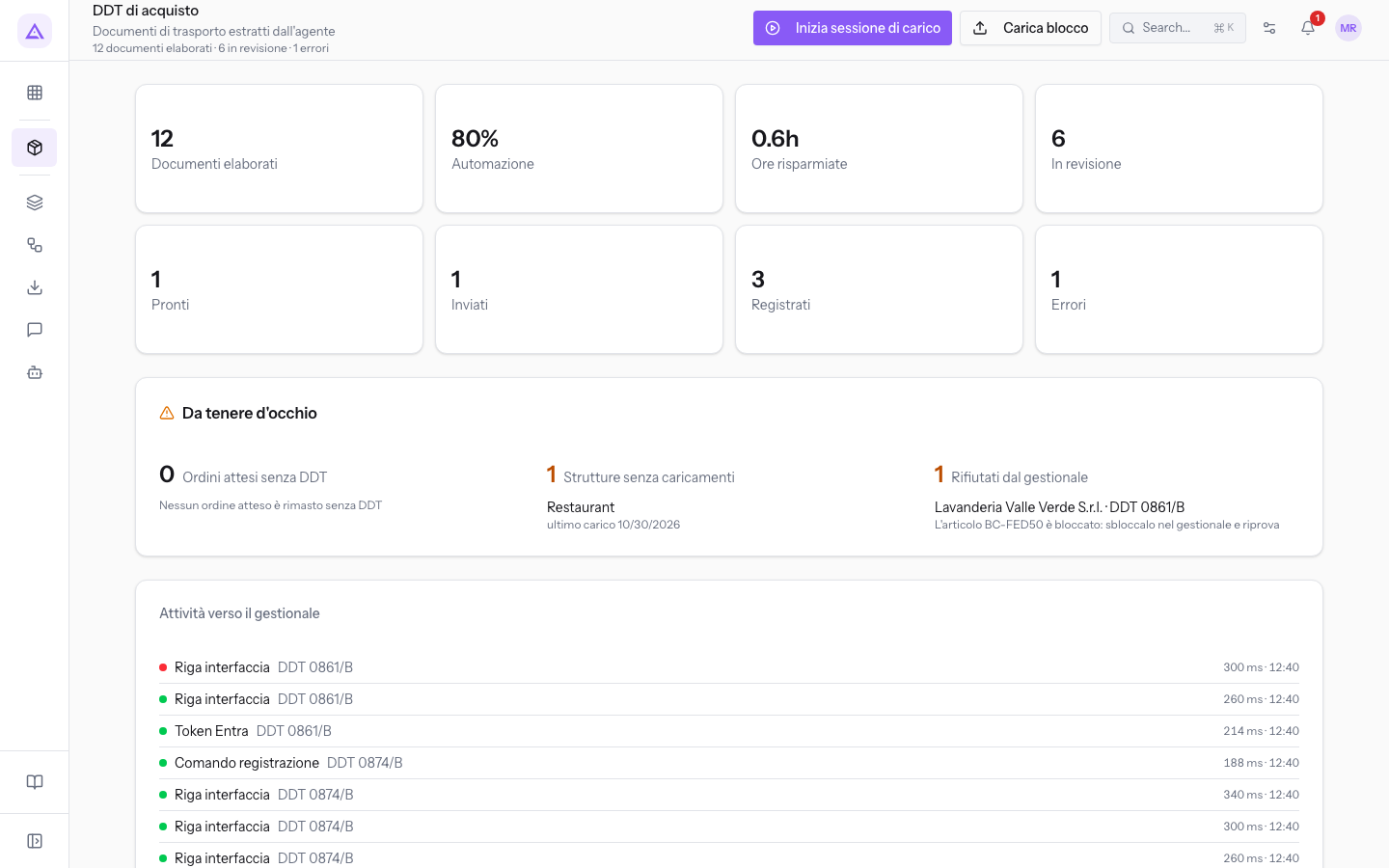
In the header there are two buttons, which are used to bring new documents into the list:
- Inizia sessione di carico: opens the guided flow that goes from upload to sending to Business Central. See Starting an upload session.
- Carica blocco: opens the page to upload a PDF with one or more documents. See Upload a DDT block.
Note: an operator only sees documents from their own sites and those without a site. The supervisor sees documents from all sites.
Searching and filtering documents
The search and filters are above the table and can be combined. Each change immediately updates the list and brings it back to the first page.
- Type the supplier name in Fornitore…. The list updates as you type: with the value
Forniture Nerithe summary line shows 2 processed documents. - Choose a site in the Tutte le strutture filter.
- Choose a status in the Tutti gli stati filter.
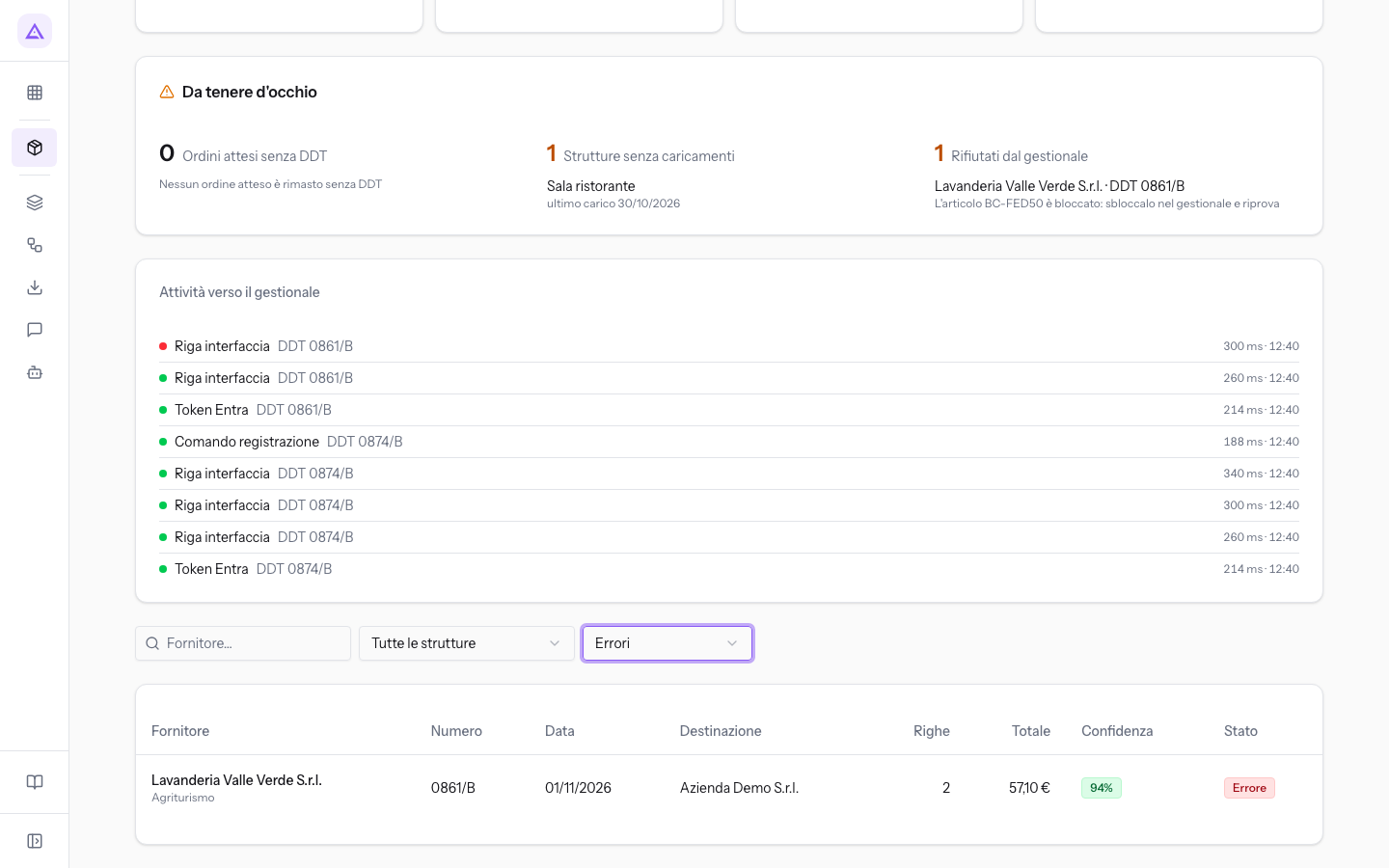
The filters:
- Fornitore…: searches documents by supplier name.
- Property filter: appears only if you have access to more than one site.
- Tutte le strutture: shows documents from all sites you have access to.
- Agriturismo, Sala ristorante: show only documents for the chosen site. These are the demo sites.
- Status filter:
- Tutti gli stati: no filter on status.
- In revisione, Pronti, Inviati al gestionale, Registrati, Errori: show only documents in that status.
Use the In revisione filter to work on documents waiting for a check. Use the Errori filter to find submissions rejected by the ERP.
The table columns
Each line in the table is a document. When a value is missing, the cell shows a dash. If no documents match the filters, the table shows «Nessun documento».
- Fornitore: the supplier name read from the document. If you have access to more than one site, the site appears below the name. When the supplier cannot be read, the cell shows «sconosciuto».
- Numero: the document number.
- Data: the document date.
- Destinazione: the delivery location read from the document.
- Righe: the number of extracted lines.
- Totale: the total amount of the document, when indicated.
- Confidenza: the confidence of the extraction, as a percentage. See the section on confidence colours.
- Stato: the document status and, if needed, the Match incompleto badge.
When there are many documents, the list is divided into pages. Below the table Precedente and Successiva appear, with the current page indicated.
Document statuses
The status shows where in the journey toward the ERP the document is. The badge in the Stato column has a different colour for each status.
- In revisione: the document is waiting for a person to check it. This is the only status in which the document can be confirmed. Yellow badge.
- Pronto: the document is eligible for sending after automatic checks or supervisor review. Blue badge.
- Inviato al gestionale: the lines have been written to the ERP. The document is waiting for Business Central to record the receipt. Purple badge.
- Registrato: Business Central has confirmed that it recorded the receipt. Green badge.
- Errore: sending to the ERP failed. The DDT 0861/B from Lavanderia Valle Verde S.r.l. is in this status, with the message «L'articolo BC-FED50 è bloccato: sbloccalo nel gestionale e riprova». Red badge.
Inviato al gestionale and Registrato documents are locked: quantities can no longer be changed. To fix a document with an error, see Resolving a submission rejected by the ERP.
The Match incompleto badge
Each goods line of the document must be linked to a line in the open purchase order in the ERP. The Match incompleto badge appears next to the status when the document is only partially linked or not linked at all.
Until all lines are linked, the document cannot be confirmed. DDT 2026/0418 from Forniture Neri S.r.l. is In revisione with Match incompleto: the LED desk lamp does not have an order line. To complete the link, see Link lines to the purchase order.
Confidence colours
Confidence measures how certain the agent's reading of the document is. The colour of the value indicates how much checking is needed.
- Green: confidence from 85% and above.
- Yellow: confidence from 60% to 84%.
- Red: confidence below 60%.
Check documents in yellow and red more carefully. The illegible document in the demo has 42% confidence, in red. In the Fornitore column it shows «sconosciuto» and has no number. To handle it, see Managing conflicts, manual corrections, and summary invoices.
Opening a document
Click on a line in the table to open the document card. In the card you check the header and extracted lines, complete the link to the order, and confirm the document. See Review and confirm a DDT.
See it on your company, not on a slide deck.
In 30 minutes we map the software you use today.We show you how much work and how much margin Archimedes gives back.
Show me on my business →What industry are you in?
One tap — it lets us prepare the demo around your world.
What tools do you use today?
Pick the ones you recognise — or just type them. It helps us show you how they migrate.
Last step: your details.
We reply within one working day — and right after, if you like, you pick the demo slot yourself.
We couldn't send your request. Try again, or write to us at [email protected].
By sending, you agree to your data being processed so we can get back to you about the demo. Privacy notice.
Preview form — nothing is sent from this page.
Want to schedule the demo now?
Your call: book the slot you prefer yourself, or we'll call you to arrange it.
Live availability, 30 minutes, instant confirmation. The calendar opens in a new tab.
Lock in your slot ↗We'll get back to you within one working day — and we'll join the call already knowing your world.
The calendar is open in another tab: pick a slot and the demo is booked. Can't see it? Reopen it ↗
Preview page: nothing was sent.
Our calendar is live: take the slot that suits you and the demo is booked. 30 minutes, instant confirmation, no waiting.
Lock in your slot ↗