Purchase DDT
All modules
Review and confirm a DDT
Purchase DDT · 9 of 12 · 4 min read
The document card shows the DDT read by the agent alongside the extracted data. Here you check the header and lines, complete the order matching, and confirm the document, which is sent to the ERP.
Important: with an ERP connected, confirming a document or settling its last flagged line can send it immediately. Check the other data first; quantities and order links are locked after sending.
Note: these screens currently use Italian interface labels. The instructions preserve the control names shown on screen; the screenshots also show those labels.
The document card
The card opens by clicking a line in the DDT di acquisto list. The title shows the document type and number, for example DDT 2026/0418, with the supplier below.
The header shows:
- Documento precedente and Documento successivo: the arrows that scroll through documents in review. If you opened the card from an upload session, they scroll through the session's documents. Next to it is the position, for example 3 of 5.
- The document status, for example In revisione.
- The extraction confidence, for example conf. 88%.
- The number of documents still in the review queue, for example in queue: 5.
- Conferma: sends the document to the ERP. It only appears on In revisione documents.
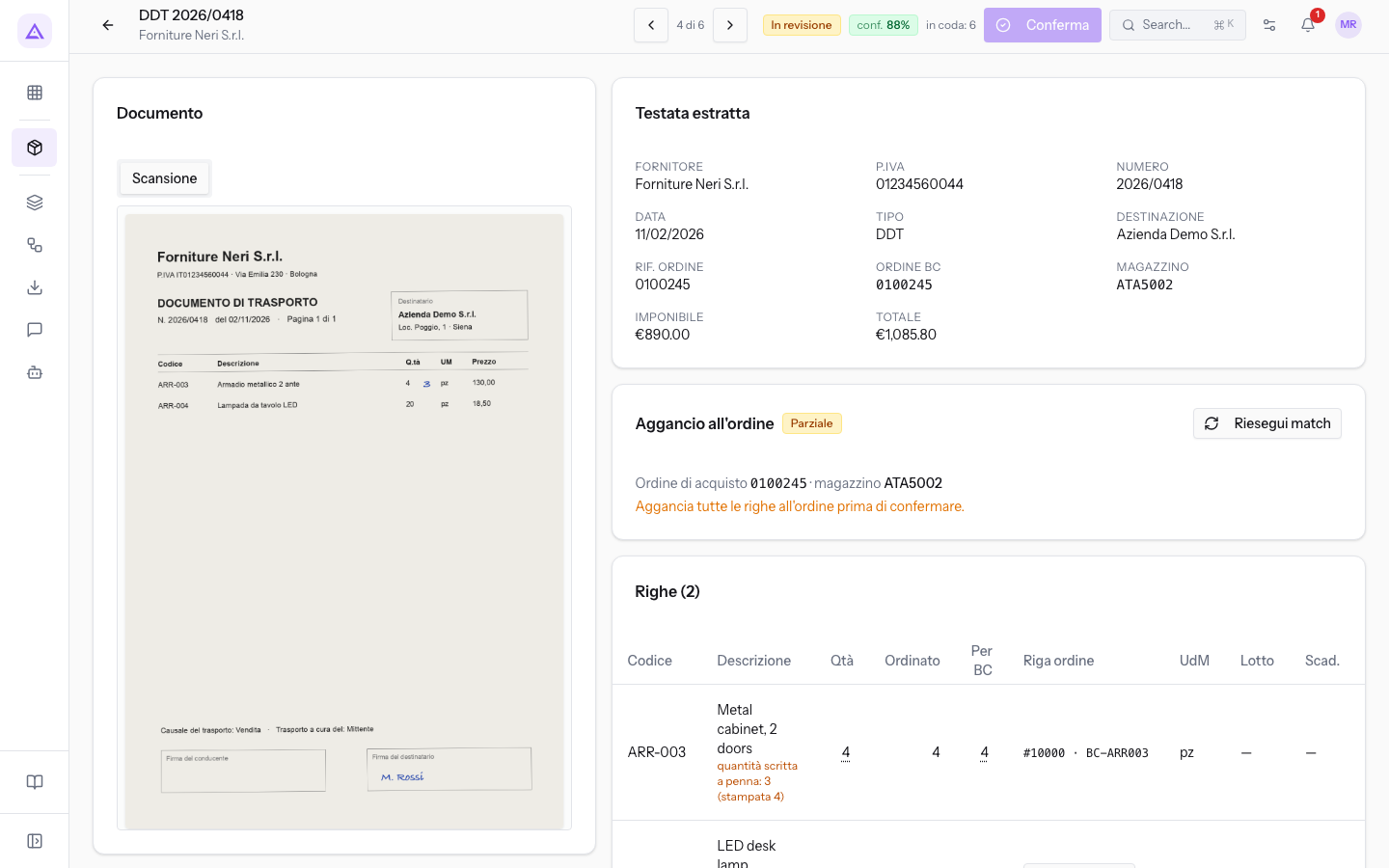
On the left is the Documento pane with the source from which the agent read the data. The Scansione tab shows the scanned pages and the PDF nativo tab shows the supplier's PDF. A document that arrived through both channels has both tabs. On the right are Testata estratta, Aggancio all'ordine, Righe and Verso il gestionale, which lists the calls to the ERP.
Check the extracted header
The header shows the general data the agent read from the document. Compare it with the source on the left.
- Fornitore: the company name read from the document, for example Forniture Neri S.r.l.
- P.IVA: the supplier's VAT number. Together with the number and date it is used to identify duplicates.
- Numero: the DDT number.
- Tipo: the document type.
- DDT
- Bolla valorizzata
- Fattura accompagnatoria
- Fattura riepilogativa: lists DDTs already received and must never be loaded again into the ERP.
- Altro
Note: For summary invoices, source conflicts, and handwritten corrections, read Managing conflicts, handwritten corrections, and summary invoices.
Check and correct the lines
The Righe table lists the items read, with quantity, unit of measure, lot, expiry, price, and VAT. Each line must be matched to a line of the open purchase order in the ERP.
- Compare each line with the source in the Documento pane.
- If a quantity is incorrect, correct it on the line. If this settles the last flagged line and no document-level checks remain, the correction can send the document to the ERP immediately. Check the resulting status before continuing.
- If the supplier states the quantity in a different unit, set the Per BC quantity. On Metalnord 77821 the Ergonomic chair Pro is read as 3 packages, while the order shows 12 pieces. The factor also applies to future deliveries of the same supplier item code.
- For a line with no order line, press Aggancia. The Aggancia all'ordine window opens. Choose the order line and press Aggancia, or Annulla. For 2026/0418, select #20000 BC-ARR004 LED desk lamp. Do not select #10000 BC-ARR003: that line is for the metal cabinet, a different item.
- If you have changed data that the matching needs, press Riesegui match to repeat the automatic matching.
Important: The match chosen in Aggancia all'ordine is saved for the future documents with the same supplier item code.
Lines that the agent excludes from matching, such as lines that are not goods, are marked with Esclusa (non merce).
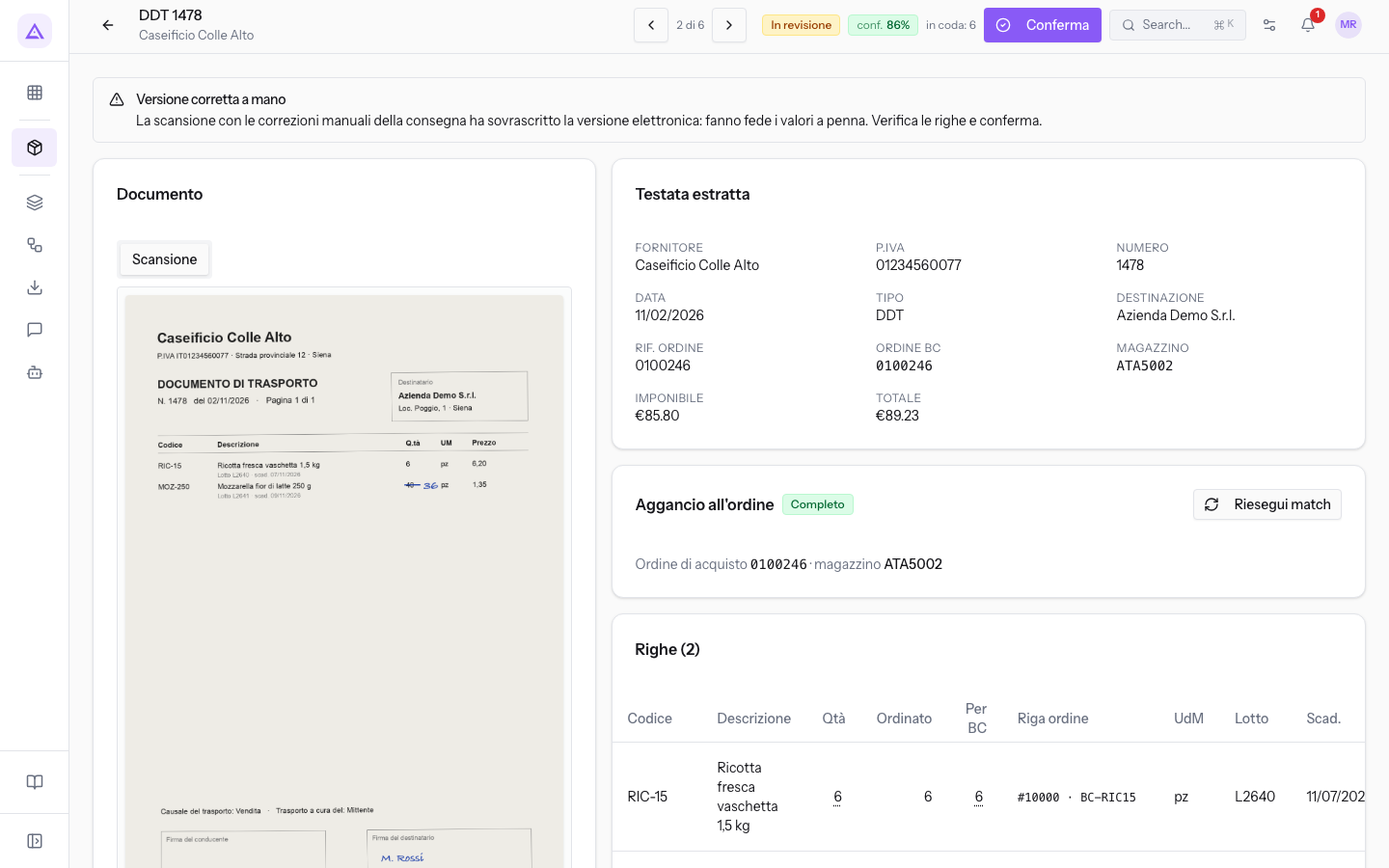
The Avvisi di estrazione pane summarises what the agent asks you to check. On 2026/0418 the warning indicates that only one of the two lines is matched to the order. On 1478 from Caseificio Colle Alto it notes that the block has manual corrections and that the electronic version was overwritten by the hand-corrected scan.
For the matching badges and the Aggancia all'ordine window, read Matching lines to the purchase order.
Confirm the document
Confirming sends the document to the ERP. There is no second send button.
- Check that all lines are matched to the order. While the match is incomplete, Conferma remains disabled, because the ERP records the receipt against the order lines.
- Press Conferma. The document is sent to the ERP and the next document in the queue opens, or the next in the session if you opened the card from an upload session.
After sending, the document moves to Inviato al gestionale. When Business Central confirms the posting, it moves to Registrato. In these two states the document is locked: quantities cannot be changed and Riesegui match is disabled. If the send fails, the document goes into error: read Resolving a send rejected by the ERP.
See it on your company, not on a slide deck.
In 30 minutes we map the software you use today.We show you how much work and how much margin Archimedes gives back.
Show me on my business →What industry are you in?
One tap — it lets us prepare the demo around your world.
What tools do you use today?
Pick the ones you recognise — or just type them. It helps us show you how they migrate.
Last step: your details.
We reply within one working day — and right after, if you like, you pick the demo slot yourself.
We couldn't send your request. Try again, or write to us at [email protected].
By sending, you agree to your data being processed so we can get back to you about the demo. Privacy notice.
Preview form — nothing is sent from this page.
Want to schedule the demo now?
Your call: book the slot you prefer yourself, or we'll call you to arrange it.
Live availability, 30 minutes, instant confirmation. The calendar opens in a new tab.
Lock in your slot ↗We'll get back to you within one working day — and we'll join the call already knowing your world.
The calendar is open in another tab: pick a slot and the demo is booked. Can't see it? Reopen it ↗
Preview page: nothing was sent.
Our calendar is live: take the slot that suits you and the demo is booked. 30 minutes, instant confirmation, no waiting.
Lock in your slot ↗