Purchase DDT
All modules
Link rows to the purchase order
Purchase DDT · 10 of 12 · 6 min read
Every merchandise line in a DDT must be linked to a line of the open purchase order in the ERP, because the ERP records the receipt against the order lines. On this page you will find the link status, how to manually link a line, and how to set the quantity to send to Business Central.
Note: these screens currently use Italian interface labels. The instructions preserve the control names shown on screen; the screenshots also show those labels.
Order matching
The Aggancio all'ordine panel is found on a document's card, below the Testata estratta. It shows the purchase order the module found in the ERP and indicates whether all lines are linked.
- Status badge: the result of the document's link.
- Completo: all lines are linked to an order line.
- Parziale: only some of the lines are linked.
- Non trovato: no lines are linked.
- Order line: shows «Ordine di acquisto» followed by the order number and, if known, «magazzino» followed by the warehouse code. In the demo the warehouse is ATA5002. If the module does not find an order, the line says Nessun ordine di acquisto individuato nel gestionale.
- Riesegui match: repeats the automatic link for the entire document. The button is disabled when the document is Inviato al gestionale or Registrato.
- Aggancia tutte le righe all'ordine prima di confermare.: the warning appears when the badge is Parziale or Non trovato and the document has not yet been sent.
In these two cases the Conferma button at the top remains disabled. It becomes active only when the badge is Completo. Under Avvisi di estrazione the document also shows how many lines are linked. DDT 2026/0418 from Forniture Neri S.r.l., for example, shows «Match ordine incompleto».
How to choose between the two ways of linking:
- To repeat the automatic link for the entire document, press Riesegui match.
- To link a single line that the automatic link did not connect, press Aggancia on that line.
For a full review of the document read Review and confirm a DDT.
Manually linking a line
Use this procedure when a DDT line has no linked order line.
- In the DDT di acquisto list open a document with the Match incompleto badge, for example Forniture Neri S.r.l. 2026/0418.
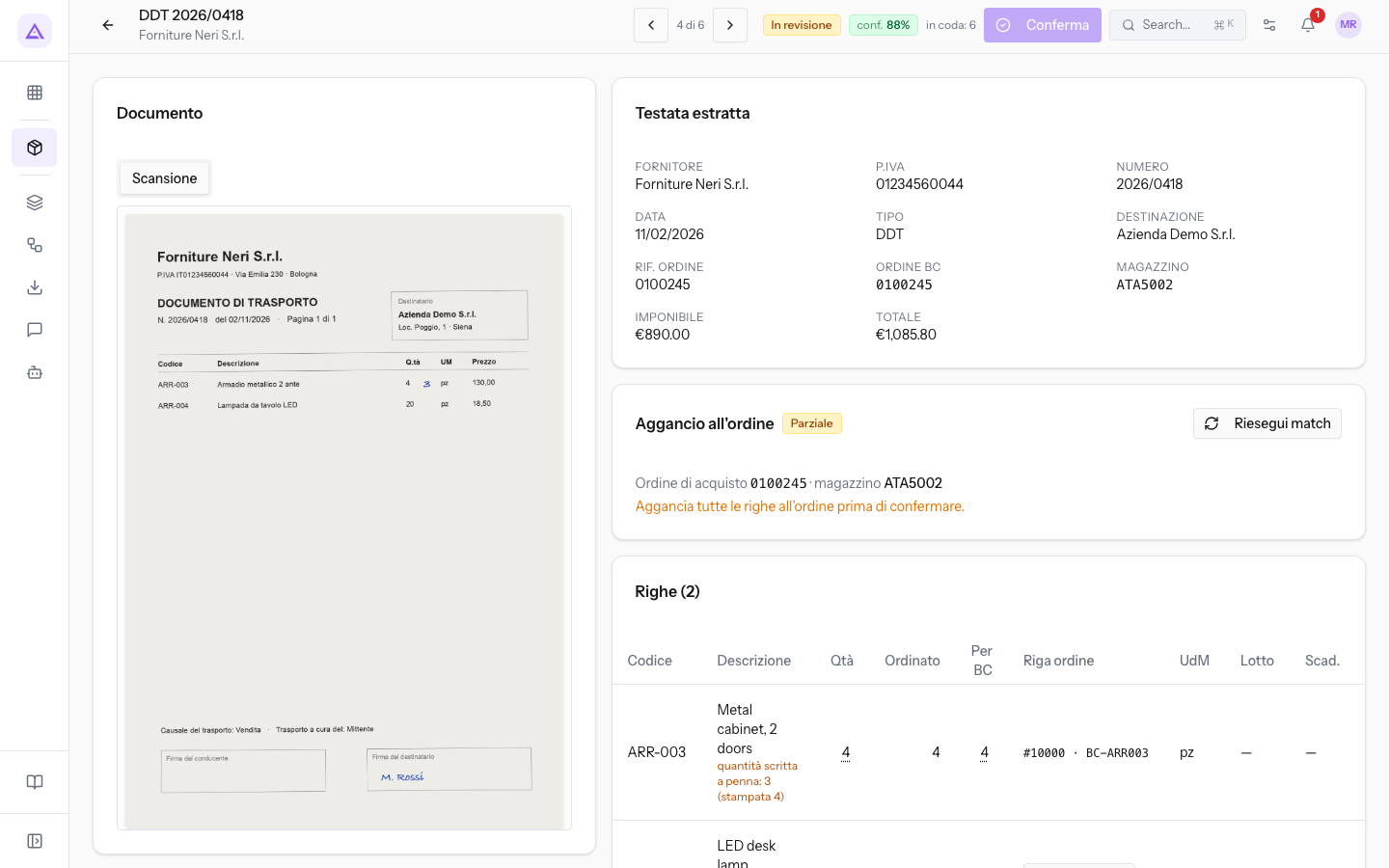
- In the Righe table find the line with no link and press Aggancia in the Riga ordine column. In document 2026/0418 this is the LED desk lamp line.
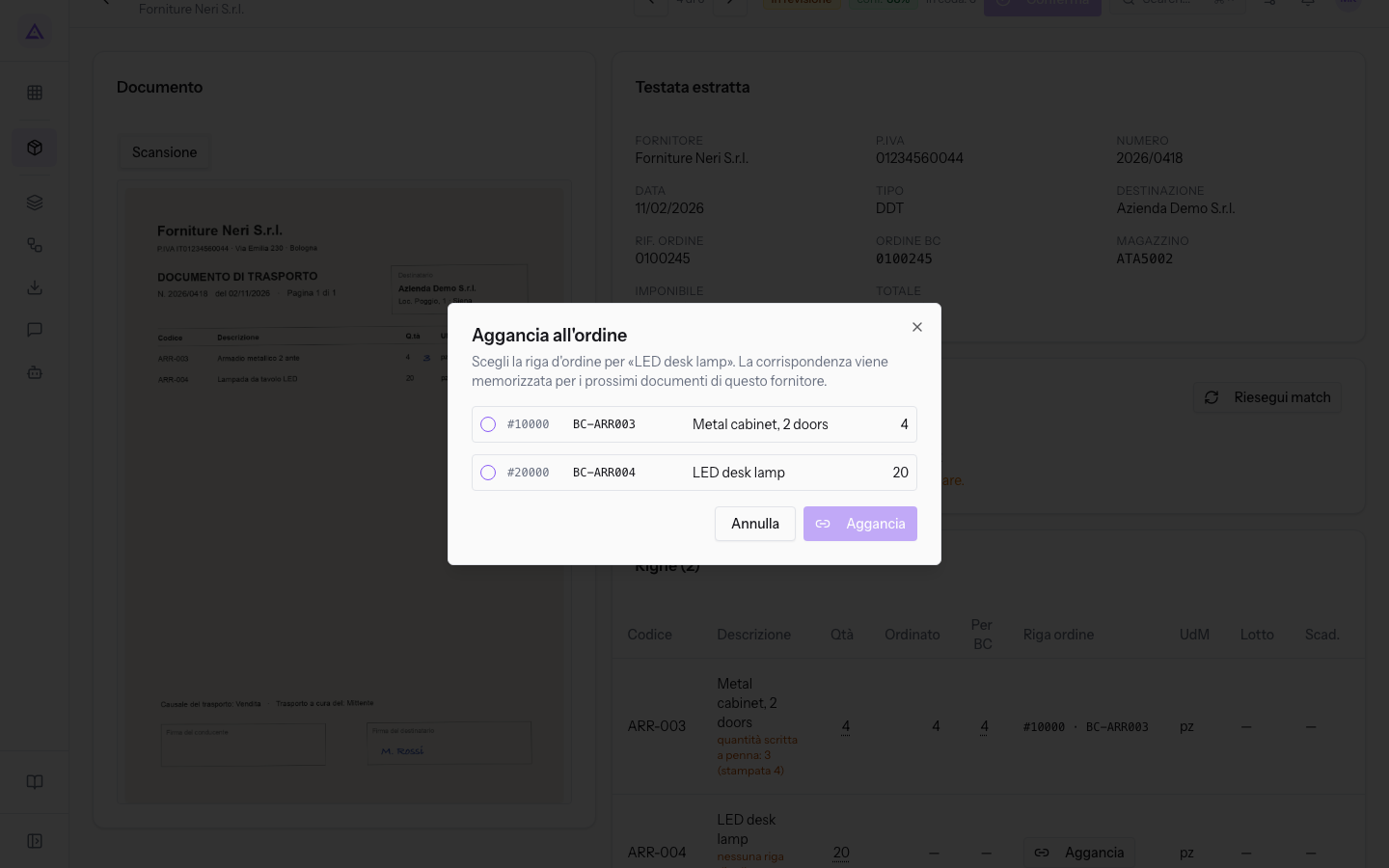
- If the supplier has more than one open order in the ERP, choose the order in the Ordine menu.
- Select the correct order line and press Aggancia. The Riga ordine column shows the selected line.
The Aggancia all'ordine window contains these elements:
- Ordine: the open purchase order from which to take the line. Each entry shows the order number, date, and warehouse. The menu only appears when the supplier has more than one open order. With a single order, the window immediately shows its lines. If the supplier has no open orders, Nessun ordine aperto trovato per questo fornitore nel gestionale. appears.
- Order lines: one entry for each line, with the line number, the item code in the ERP, the description, and the ordered quantity. In document 2026/0418 the order has lines #10000 BC-ARR003 Metal cabinet, 2 doors (4) and #20000 BC-ARR004 LED desk lamp (20). You can select only one line.
- Annulla: closes the window without linking the line.
- Aggancia: links the DDT line to the selected order line. The button remains disabled until you select a line.
Important: the match is saved for future documents with the same supplier item code. If you select the wrong line, the error will repeat on subsequent DDTs from that supplier.
In the Riga ordine column each line shows one of these values:
- Order line number and item code, for example #10000 · BC-ARR003: the line is linked.
- Aggancia: the line is not linked. The button does not appear on Inviato al gestionale or Registrato documents.
- Esclusa (non merce): the line is not merchandise and does not need to be linked.
Setting the quantity for Business Central
The Per BC column shows the quantity the ERP receives for a linked line. It usually matches Qtà, the quantity read from the DDT. It differs when the supplier indicates a different unit, for example cartons instead of pieces.
The quantity-related columns in the Righe table:
- Qtà: the quantity read from the document.
- Ordinato: the quantity of the linked order line. Shows a dash on non-merchandise lines.
- Per BC: the quantity to send to the ERP. Can only be edited on linked lines and shows a dash on unlinked or non-merchandise lines. The value is shown in yellow when the unit of measure needs to be verified. A note explaining where the quantity comes from may appear below the value.
When the Per BC quantity exceeds the Ordinato quantity, the Qtà and Ordinato values are shown in yellow.
In DDT 77821 from Metalnord Forniture Industriali S.p.A. the Ergonomic chair Pro line has the unit to be verified. The document reads 3 cartons and the order expects 12 pieces.
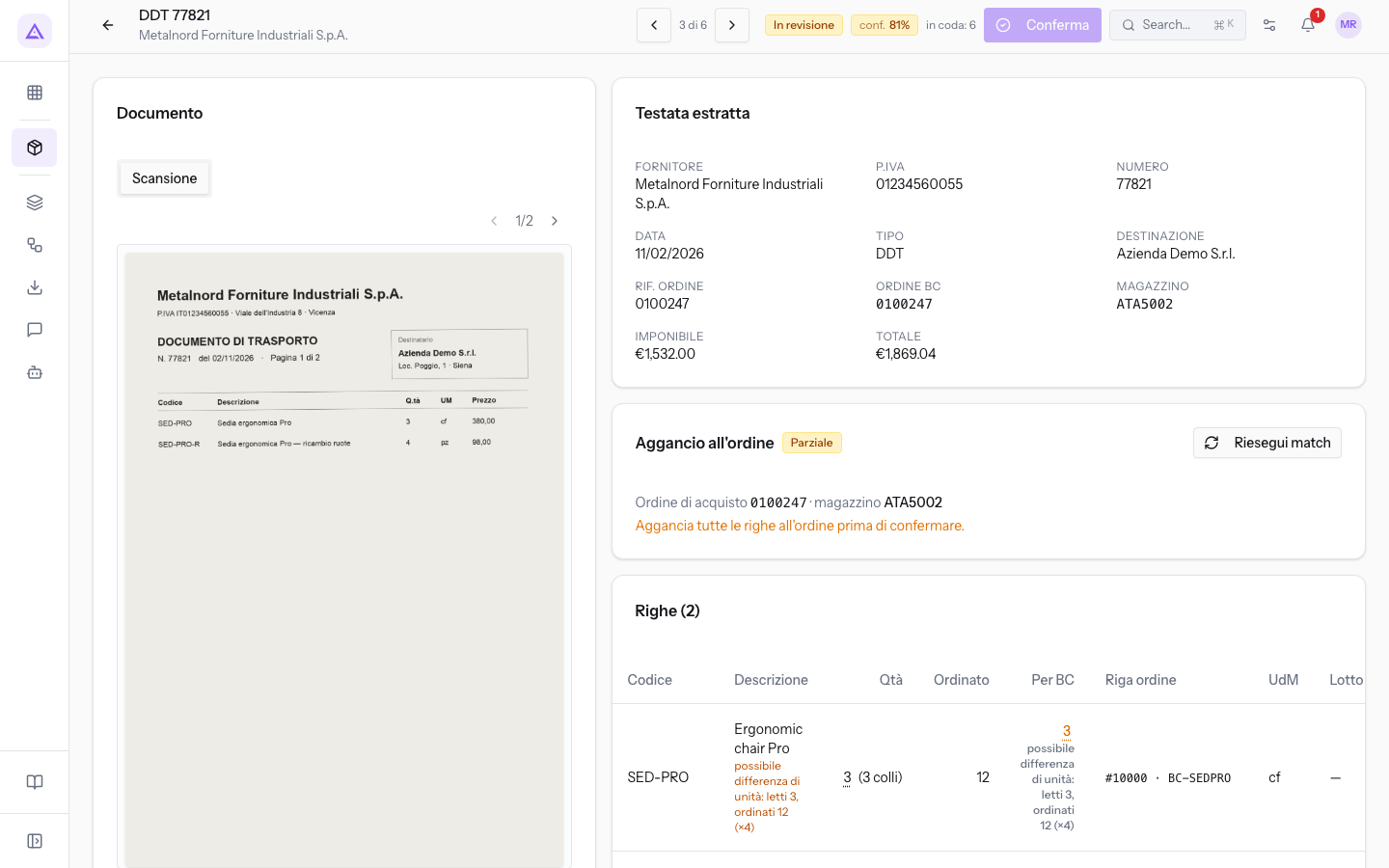
- Click on the value in the Per BC column. The value becomes an editable field.
- Enter the quantity to send to the ERP and press Enter. If the 3 cartons read correspond to the 12 pieces ordered, enter 12. The Esc key cancels the edit.
Upon confirmation the message Quantità per BC impostata: il fattore vale anche per le prossime consegne appears.
Important: the ratio between the read quantity and the Per BC quantity also applies to future deliveries of the same supplier item code. Set the value only after verifying on the document how many pieces a carton contains.
Note: on Inviato al gestionale and Registrato documents quantities cannot be edited.
You can also verify the same lines within an upload session: read Check the lines of a session.
Warnings on linked lines
The Avvisi di estrazione panel, at the bottom of the card, lists the differences between the DDT and the order by line number. An orange warning also appears below the description of the affected line.
- Unit to be verified: in DDT 77821 the warning says «Riga 1: unità da verificare — letti 3 colli, sull'ordine 12 pezzi». To fix it, set the Per BC quantity as described above.
- Price different from order: in the same document the warning says «Riga 2: prezzo DDT 98,00, sull'ordine 95,00».
See it on your company, not on a slide deck.
In 30 minutes we map the software you use today.We show you how much work and how much margin Archimedes gives back.
Show me on my business →What industry are you in?
One tap — it lets us prepare the demo around your world.
What tools do you use today?
Pick the ones you recognise — or just type them. It helps us show you how they migrate.
Last step: your details.
We reply within one working day — and right after, if you like, you pick the demo slot yourself.
We couldn't send your request. Try again, or write to us at [email protected].
By sending, you agree to your data being processed so we can get back to you about the demo. Privacy notice.
Preview form — nothing is sent from this page.
Want to schedule the demo now?
Your call: book the slot you prefer yourself, or we'll call you to arrange it.
Live availability, 30 minutes, instant confirmation. The calendar opens in a new tab.
Lock in your slot ↗We'll get back to you within one working day — and we'll join the call already knowing your world.
The calendar is open in another tab: pick a slot and the demo is booked. Can't see it? Reopen it ↗
Preview page: nothing was sent.
Our calendar is live: take the slot that suits you and the demo is booked. 30 minutes, instant confirmation, no waiting.
Lock in your slot ↗