Purchase DDT
All modules
Sending the session to Business Central
Purchase DDT · 8 of 12 · 5 min read
The Invio a BC step is the last step of the upload session. From here you send all the ready documents in the session to Business Central at once. You then check which documents were sent and which were left behind.
Note: these screens currently use Italian interface labels. The instructions preserve the control names shown on screen; the screenshots also show those labels.
What is sent and what is left behind
The final step sends eligible documents that have not already been sent. Some may have been sent during automatic processing or review. The table’s Pronto outcome summarises status and order matching; it does not guarantee all checks are complete. Resolve the review panels first. Summary invoices are excluded from sending even if the table classifies them as ready.
- Pronto: the document is a candidate for sending. Resolve any outstanding checks first; the ERP may still reject it.
- Da sistemare: the document has lines not linked to the order or only partially linked. It is not sent and is left behind.
- Errore: a previous send was rejected by Business Central. The document is left behind.
- Già inviato: the document is already in Business Central, as sent or posted. It is not sent again. It is excluded from the preview count of documents needing attention, but can appear under Rimasti indietro in the immediate result with the reason “già inviato al gestionale” (already sent to the ERP). This is not a new failure.
What to do before sending:
- If you want a Da sistemare document to go out with the session, link its lines at the Verifica step before sending (see Check the lines of a session and Linking lines to the purchase order).
- If a document is in Errore, first fix the cause in Business Central (see Resolving a send rejected by Business Central).
- Once the required checks are complete, you can send the eligible documents. Resolve excluded documents separately from their detail pages.
Sending the ready documents
Before you begin: the session must have completed processing. You can find it on the Sessione di carico DDT page, in the Sessioni recenti list: in the demo it is the Da verificare session of the Farmhouse (see Starting an upload session).
- Press Riprendi on the session. The session resumes from the step it is at: if processing is complete, from the Verifica step.
- At the Verifica step press Avanti. The Invio a BC step opens.
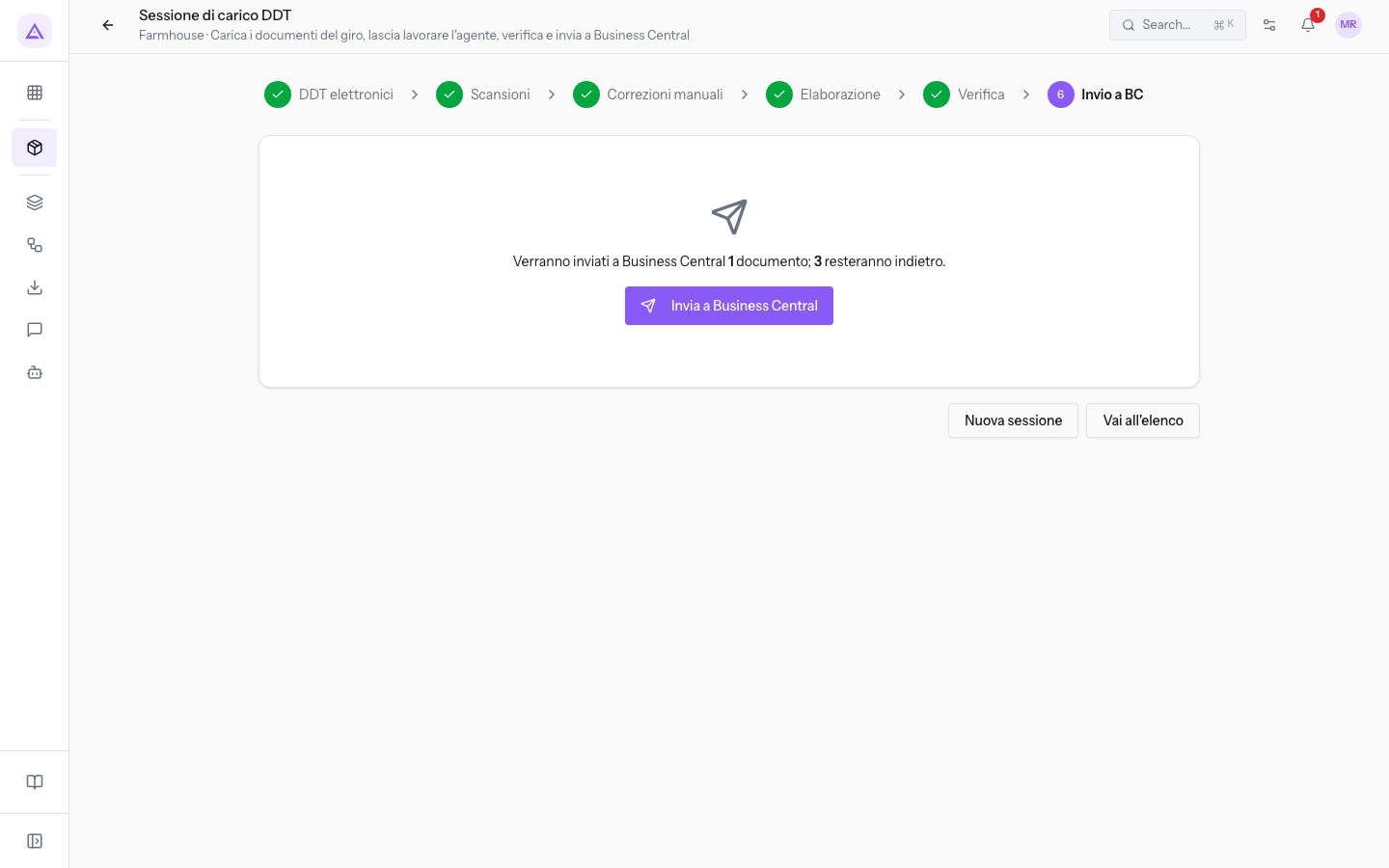
- Read the proposed counts. N counts Pronto outcomes; M counts Da sistemare and Errore outcomes. This is a preview: server-side exclusions or sending errors can change the result.
- Press Invia a Business Central. The ready documents are sent to Business Central.
When no document is ready, the Invia a Business Central button is disabled. Below the button the message «Nessun documento pronto: sistema i documenti nel passo Verifica prima di inviare» appears. In this case go back to the Verifica step and fix the documents.
Note: after sending, the document shows Inviato al gestionale (sent to the ERP). It changes to Registrato (posted) when Business Central confirms that the receipt was posted.
Important: sent documents are locked. You can no longer modify quantities and you cannot redo the link to the order. Check quantities at the Verifica step before sending.
Reading the send result
After sending, the step shows the Invio completato panel. The panel shows the outcome of every document in the session.
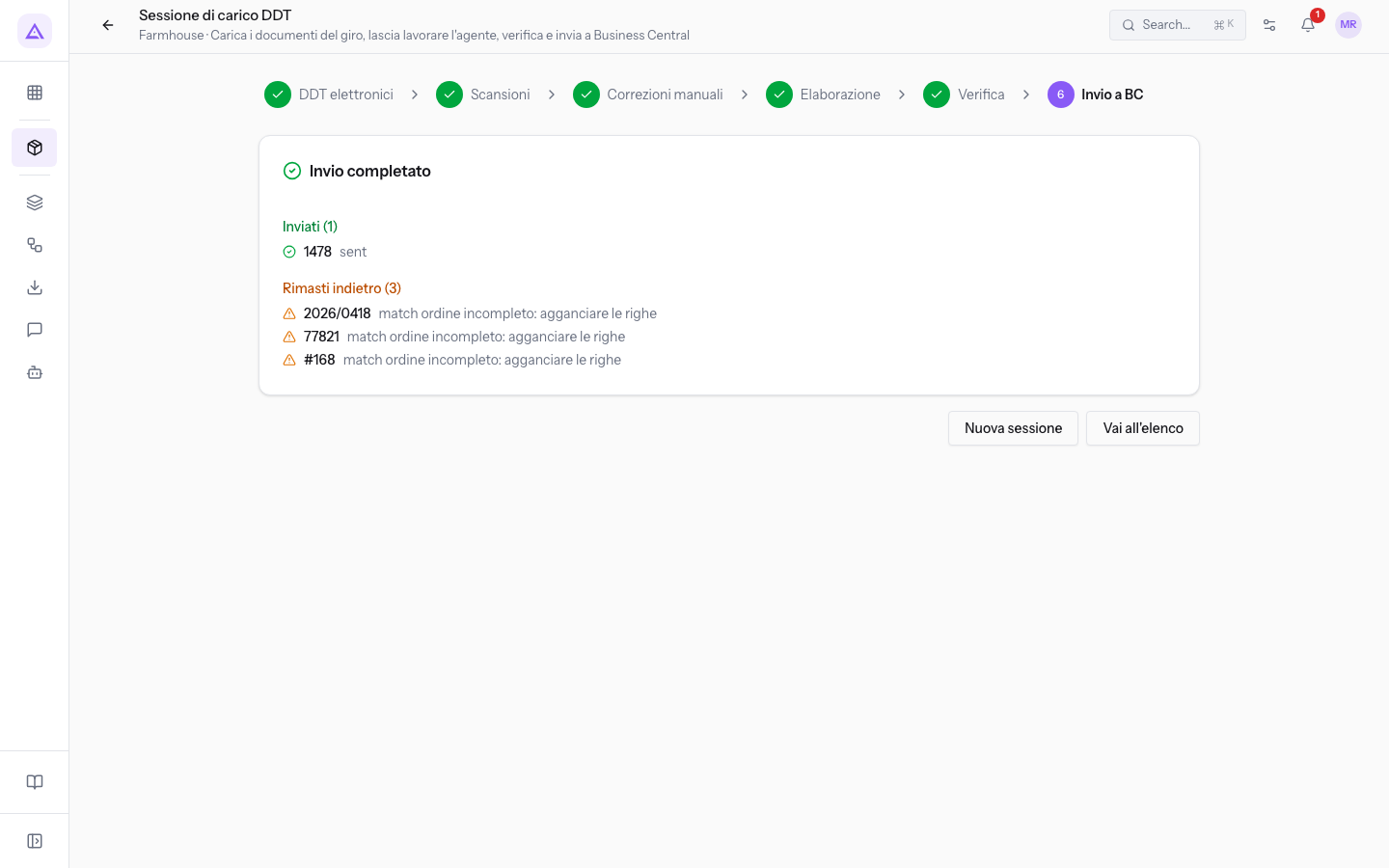
- Inviati: the documents sent to Business Central, with their number. Next to the header is the number of documents. If no document was sent, the section shows Nessun documento inviato.
- Rimasti indietro: documents excluded from this attempt, with their numbers and reasons. This can include documents sent earlier: read the reason before treating an entry as a problem. The section appears only when there are excluded documents.
- Nuova sessione: takes you back to the starting page of the upload session, where you can start a new session.
- Vai all'elenco: opens the DDT di acquisto list. Here you can find the sent documents with the Inviati al gestionale or Registrati status filter.
If the send fails, the message «Invio a Business Central fallito» appears. In this case the page does not show the result.
Reopening an already sent session
A sent session moves to the Inviata status in the Sessioni recenti list. This session has the Apri button instead of Riprendi.
- In Sessioni recenti press Apri on the Inviata session. In the demo use a Farmhouse session marked as sent. The session opens directly at the Invio a BC step.
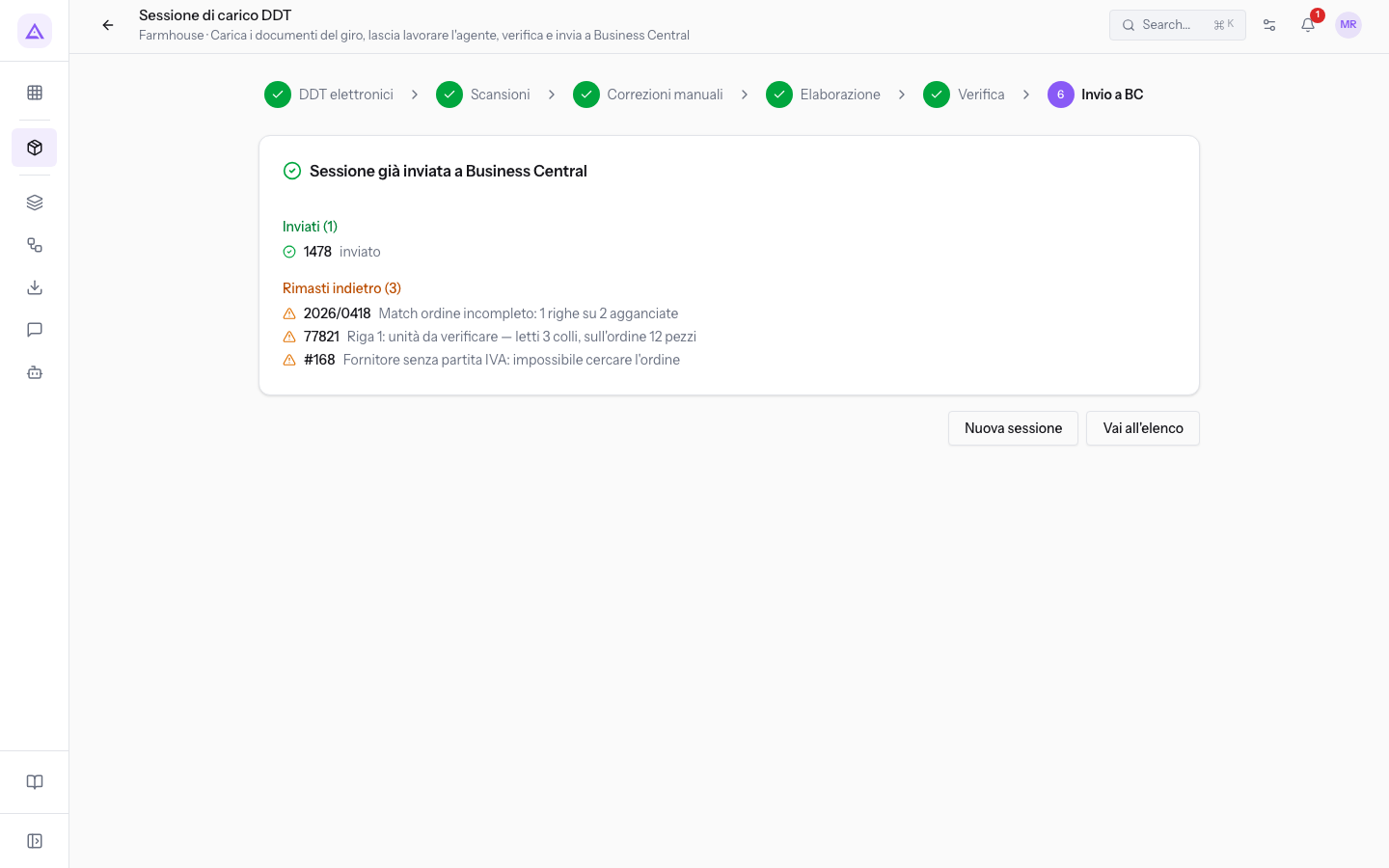
The Sessione già inviata a Business Central panel shows the current status of the documents in the session:
- Inviati: documents already in Business Central. Next to each number is «inviato», if Business Central has not yet posted the document, or «registrato», if Business Central has confirmed the posting.
- Rimasti indietro: the documents in the session that are not in Business Central, with the document's first warning.
From here you cannot send the session again. You can only press Nuova sessione or Vai all'elenco.
See it on your company, not on a slide deck.
In 30 minutes we map the software you use today.We show you how much work and how much margin Archimedes gives back.
Show me on my business →What industry are you in?
One tap — it lets us prepare the demo around your world.
What tools do you use today?
Pick the ones you recognise — or just type them. It helps us show you how they migrate.
Last step: your details.
We reply within one working day — and right after, if you like, you pick the demo slot yourself.
We couldn't send your request. Try again, or write to us at [email protected].
By sending, you agree to your data being processed so we can get back to you about the demo. Privacy notice.
Preview form — nothing is sent from this page.
Want to schedule the demo now?
Your call: book the slot you prefer yourself, or we'll call you to arrange it.
Live availability, 30 minutes, instant confirmation. The calendar opens in a new tab.
Lock in your slot ↗We'll get back to you within one working day — and we'll join the call already knowing your world.
The calendar is open in another tab: pick a slot and the demo is booked. Can't see it? Reopen it ↗
Preview page: nothing was sent.
Our calendar is live: take the slot that suits you and the demo is booked. 30 minutes, instant confirmation, no waiting.
Lock in your slot ↗