Purchase DDT
All modules
Starting a loading session
Purchase DDT · 5 of 12 · 4 min read
An upload session guides you through uploading, reviewing and sending a delivery round’s DDTs to Business Central. From here you choose the site, start a new session or resume an already open session, and upload the files for each channel.
Note: these screens currently use Italian interface labels. The instructions preserve the control names shown on screen; the screenshots also show those labels.
The upload session page
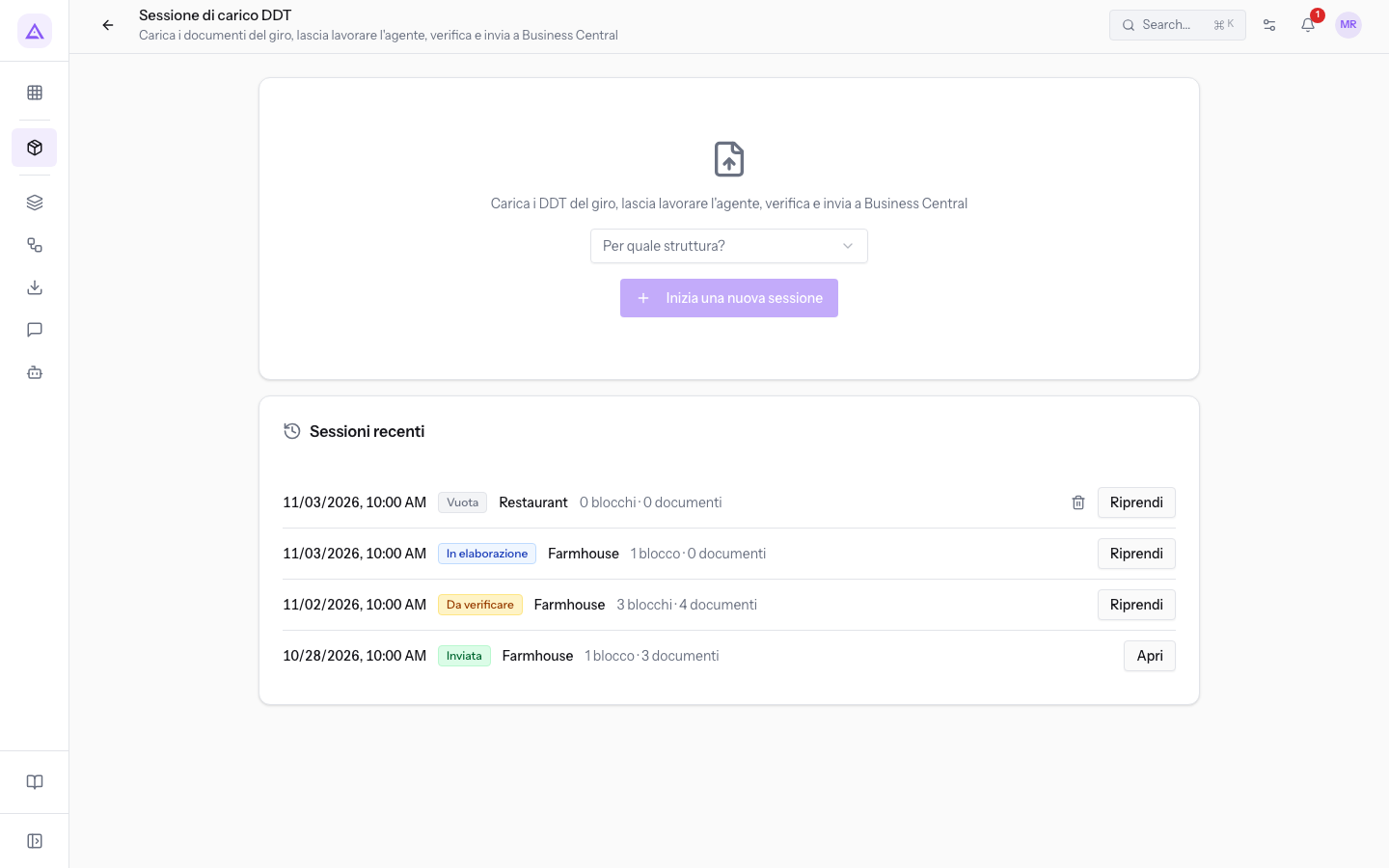
The Sessione di carico DDT page opens with the Inizia sessione di carico button in the DDT di acquisto list. Below the title the phrase «Carica i documenti del giro, lascia lavorare l'agente, verifica e invia a Business Central» appears.
The page shows:
- Per quale struttura?: the site for which you upload documents. In the demo the options are Farmhouse and Restaurant. The choice only appears if you have access to more than one site: with a single site the session takes it automatically and shows Struttura: followed by the name.
- Inizia una nuova sessione: starts a session for the chosen site.
- Sessioni recenti: the sessions already started, each with its status.
Note: an operator only sees the sessions for their sites. The supervisor sees them all.
Resuming or deleting a recent session
Each session in the Sessioni recenti list has one of these statuses:
- Vuota: the session does not yet contain any documents. In the demo it is the Restaurant session.
- In elaborazione: the agent is processing the uploaded files.
- Da verificare: processing is done and the documents are waiting for review.
- Inviata: the documents have been sent to Business Central.
Choose how to proceed:
- If the session has not been sent, press Riprendi. With no uploaded batches, it opens the first upload channel. With batches still being processed, it opens Elaborazione. Once all batches finish, it opens Verifica.
- If the session is Inviata, press Apri to view it. The contents are described in Sending the session to Business Central.
- If the session is Vuota and you don't need it, press the bin icon Elimina sessione vuota. Only empty sessions can be deleted.
Tip: before starting a new session for a site, check whether you already have a Vuota one among the Sessioni recenti and resume that one.
Starting a new session
A new session collects the documents for a single site.
- In Per quale struttura? choose the site, for example Restaurant.
- Press Inizia una nuova sessione. The page shows the step bar and, next to the title, the name of the site.
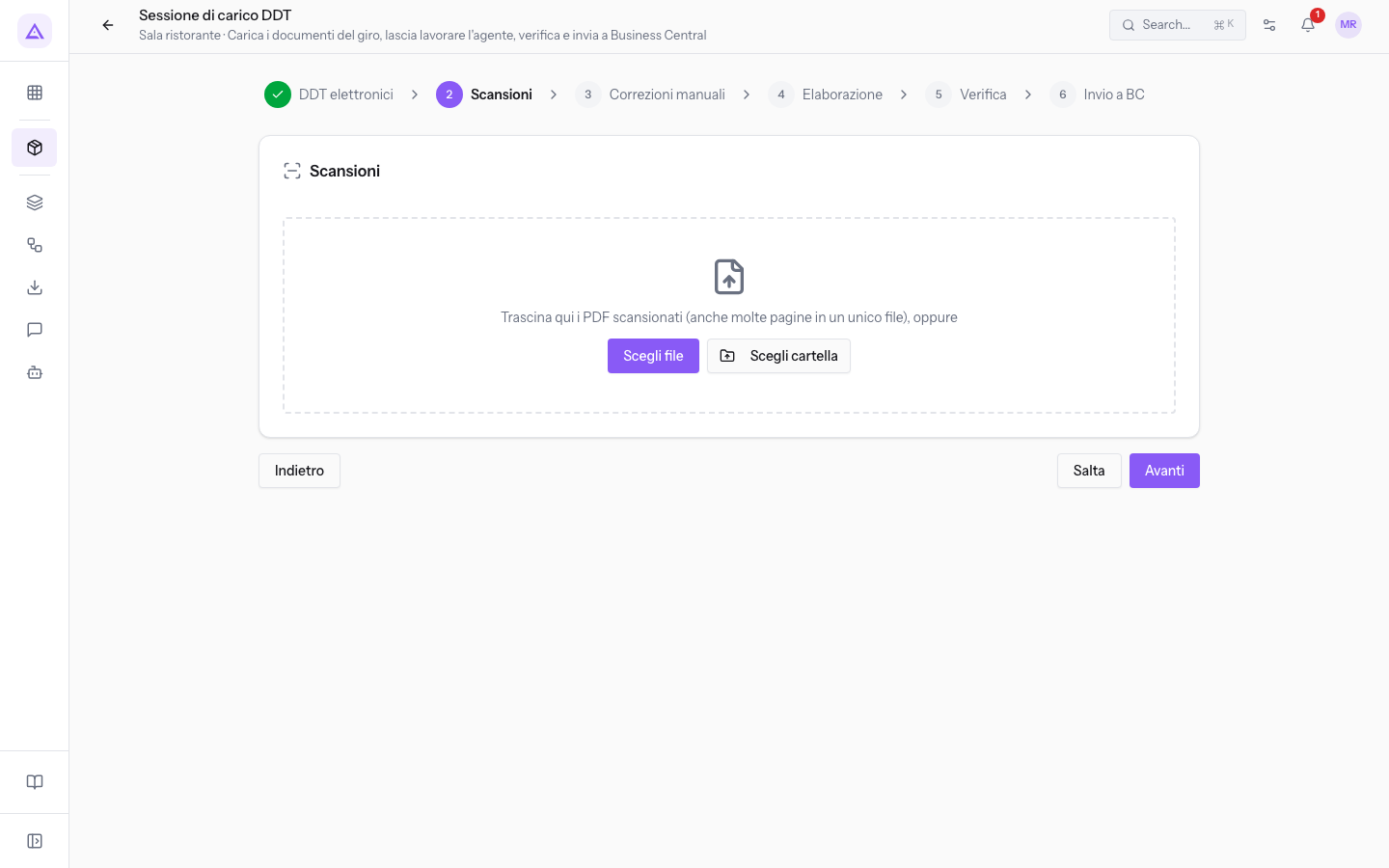
The bar at the top lists the session steps in the order you go through them:
- DDT elettronici: native PDFs sent by the supplier.
- Scansioni: scan batches, even multi-page ones in a single PDF.
- Correzioni manuali: scans of DDTs corrected by hand at delivery. Handwritten values take precedence over printed ones.
- Elaborazione: the agent splits the pages into documents and reads the header and lines of each. See Following the processing of uploaded documents.
- Verifica: you check the outcome of each document. See Checking the lines of a session.
- Invio a BC: you send the ready documents to Business Central. See Sending the session to Business Central.
Note: the upload steps depend on the channels configured for the company. If no channel is configured, there is only Scansioni.
Uploading the files for each step
At each upload step you add the files for that channel. Only PDF files are accepted, chosen one by one with Scegli file or all at once from a folder with Scegli cartella.
- At the DDT elettronici step upload the native PDFs, then press Avanti. If you have no electronic DDTs, press Salta.
- At Scansioni, upload the scan batches and press Avanti. Salta is available on intermediate channels with no files. To leave the final upload channel for processing, the session needs at least one uploaded file and all uploads must have finished.
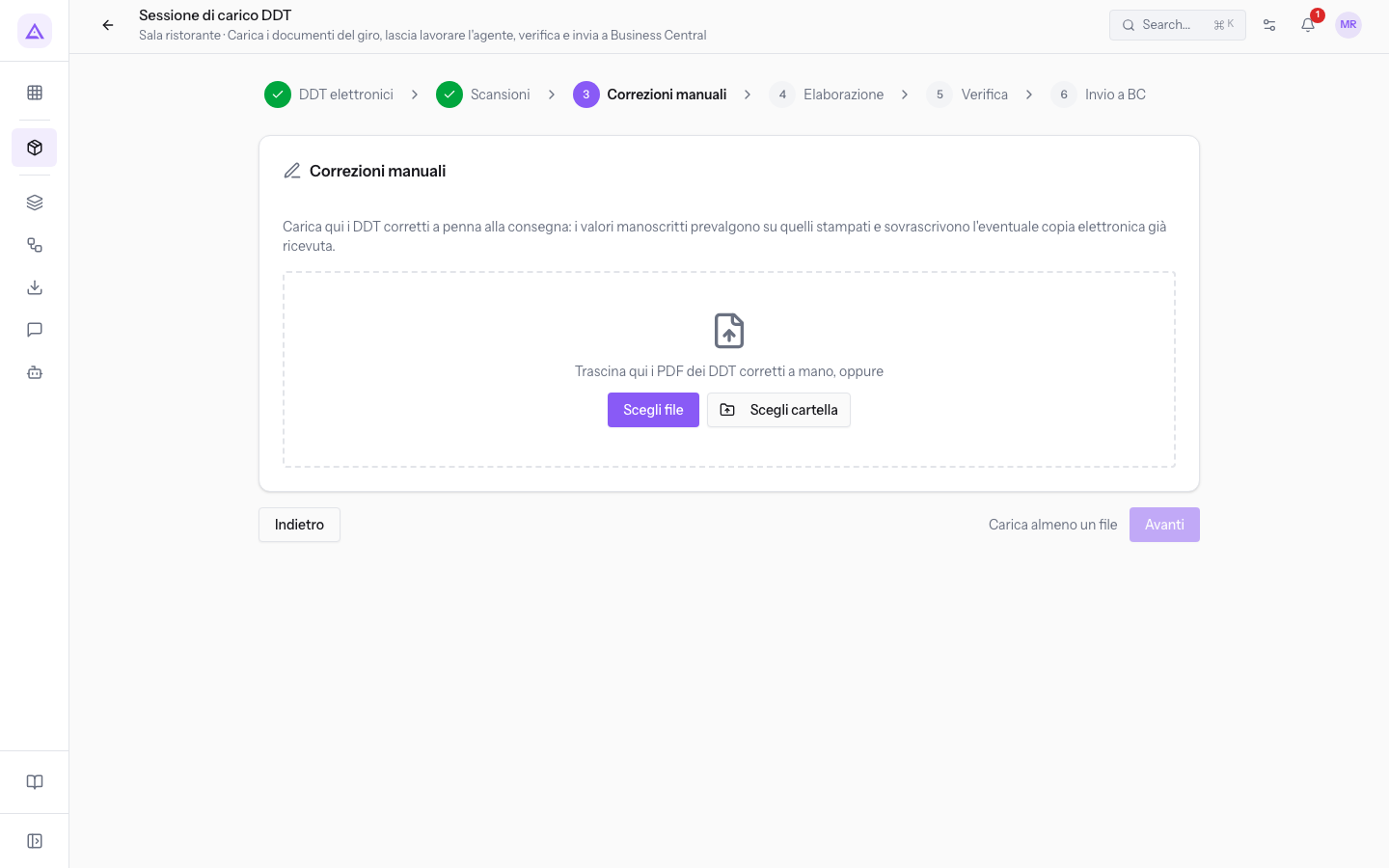
- At the Correzioni manuali step upload the scans of the hand-corrected DDTs and press Avanti.
To go back to the previous step press Indietro.
Important: upload to Correzioni manuali only the DDTs with handwritten corrections. The corrections overwrite the electronic copy already received. The cases are described in Managing conflicts, manual corrections and summary invoices.
After the last upload step, the session moves to Elaborazione. If you leave during upload, find it under Sessioni recenti. Riprendi selects a step from the batches and their progress; it does not necessarily restore the upload channel you last opened.
To upload a batch outside a session use Carica blocco instead, described in Upload a DDT block.
See it on your company, not on a slide deck.
In 30 minutes we map the software you use today.We show you how much work and how much margin Archimedes gives back.
Show me on my business →What industry are you in?
One tap — it lets us prepare the demo around your world.
What tools do you use today?
Pick the ones you recognise — or just type them. It helps us show you how they migrate.
Last step: your details.
We reply within one working day — and right after, if you like, you pick the demo slot yourself.
We couldn't send your request. Try again, or write to us at [email protected].
By sending, you agree to your data being processed so we can get back to you about the demo. Privacy notice.
Preview form — nothing is sent from this page.
Want to schedule the demo now?
Your call: book the slot you prefer yourself, or we'll call you to arrange it.
Live availability, 30 minutes, instant confirmation. The calendar opens in a new tab.
Lock in your slot ↗We'll get back to you within one working day — and we'll join the call already knowing your world.
The calendar is open in another tab: pick a slot and the demo is booked. Can't see it? Reopen it ↗
Preview page: nothing was sent.
Our calendar is live: take the slot that suits you and the demo is booked. 30 minutes, instant confirmation, no waiting.
Lock in your slot ↗