Purchase DDT
All modules
Keeping an eye on DDT intake
Purchase DDT · 3 of 12 · 5 min read
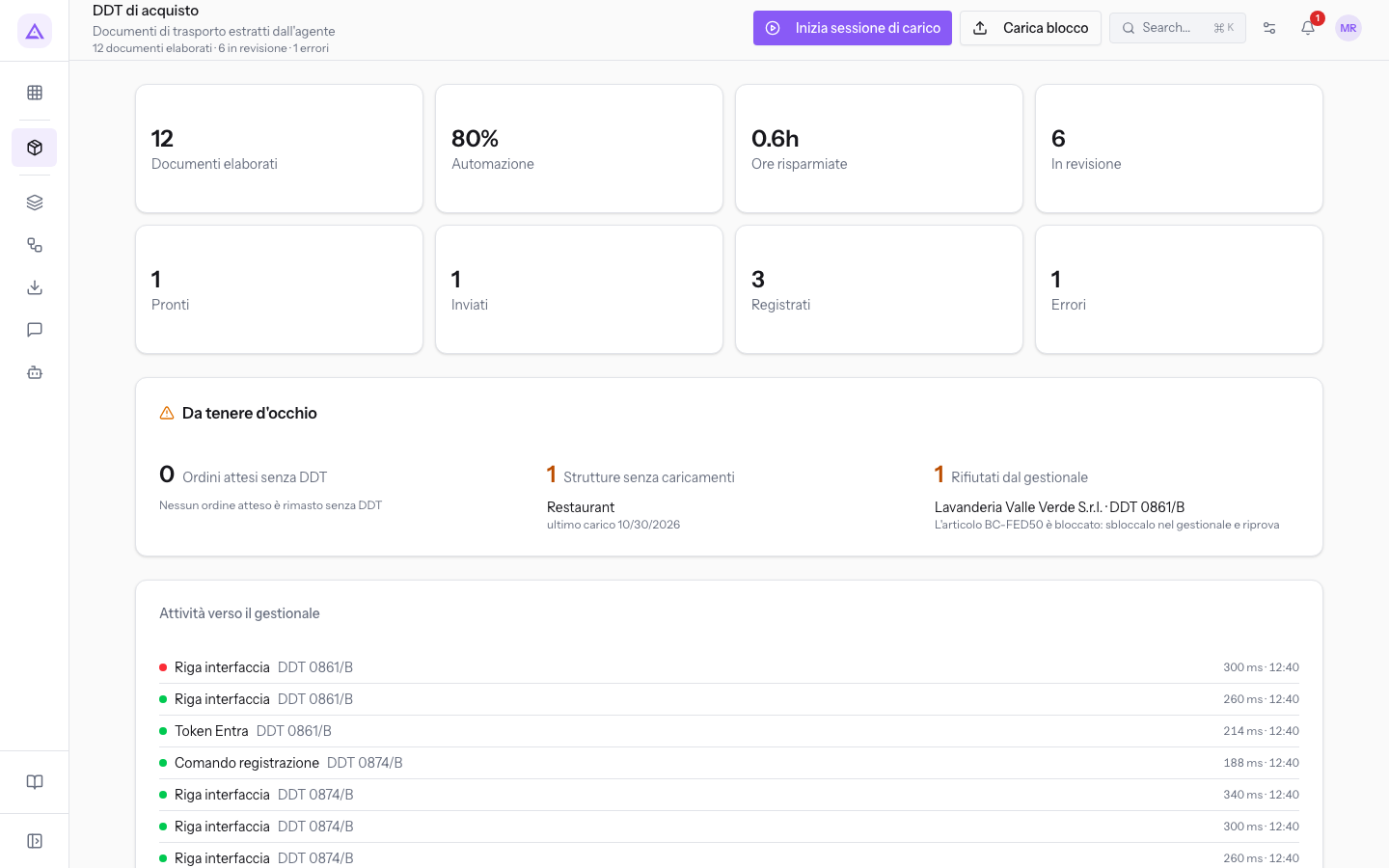
The top of the DDT di acquisto list summarises where documents stand and flags what needs attention: orders without DDTs, sites that are not uploading, documents rejected by the ERP. It also shows the most recent calls to the ERP.
Open the list with DDT di acquisto in the sidebar. The panels are above the Fornitore… search and the document table.
Note: an operator sees the document counts for their own sites and for those without a site. A supervisor sees all sites.
Note: these screens currently use Italian interface labels. The instructions preserve the control names shown on screen; the screenshots also show those labels.
Summary panels
Eight panels count documents by status and measure the work done by the agent. For each status, filter the list using the same name in the Tutti gli stati filter to see the counted documents.
- Documenti elaborati: all extracted documents, meaning the sum of those under review, ready, sent, posted, and in error. In the demo there are 12.
- Automazione: the share of ready, sent, or posted documents that passed through without a person confirming them. In the demo this is 80%.
- When the company works in supervised mode, Senza correzioni (7 gg) appears in its place: the share of documents sent in the last 7 days without any correction. In this case, the Verso l'automazione panel also appears below the panels, with one line per day.
- Ore risparmiate: the manual entry time saved. The count is 7 minutes for each ready, sent, or posted document.
- In revisione: documents waiting for a person to check them.
- Pronti: documents eligible for sending after automatic checks or supervisor review.
- Inviati: documents written to the ERP and not yet posted by Business Central.
- Registrati: documents for which Business Central has confirmed posting.
- Errori: documents whose sending to the ERP failed.
The line below the title also shows the total and the two numbers that require action: documents under review and those in error.
Tip: for documents counted in In revisione, follow Checking the lines of a session or Matching lines to a purchase order.
Items needing attention
The Da tenere d'occhio panel collects cases that no one would notice from the document list. It has three columns. Each column shows a number, in orange when it is greater than zero, and the first five cases. A green tick appears next to the title when all three columns are empty, otherwise a warning triangle.
- Ordini attesi senza DDT: open orders in the ERP with a delivery expected in recent days (up to yesterday) for which no DDT has arrived. This may be a delivery that arrived but was not scanned, or a delivery that never arrived. Each case shows the supplier and order number, the expected date and how many days have passed. The most overdue orders are at the top. With no cases, the column shows «Nessun ordine atteso è rimasto senza DDT», as in the demo.
- Strutture senza caricamenti: active sites that have not uploaded a batch for a few days, or that have never uploaded. Below the name, «ultimo carico» appears with the date, or «mai caricato». In the demo there is the Restaurant, with the last upload 4 days ago. With no cases, the column shows «Tutte le strutture hanno caricato di recente».
- Rifiutati dal gestionale: documents in Errore status, from the most recent. Each case shows the supplier and DDT number, with the ERP's message below. In the demo it is Lavanderia Valle Verde S.r.l. · DDT 0861/B, with the message «L'articolo BC-FED50 è bloccato: sbloccalo nel gestionale e riprova». With no cases, the column shows «Nessun documento rifiutato».
A rejected document can be opened from the panel.
- In the Rifiutati dal gestionale column, click the document. The document card opens, showing the Errore di sincronizzazione warning and the Riprova invio button.
- Resolve the cause in the ERP, then follow Resolving a submission rejected by the ERP.
For a site with no uploads, check with those who work there that the DDTs for the round have been uploaded. Uploading is done with a session, as in Starting an upload session.
Recent ERP activity
The Attività verso il gestionale panel lists the eight most recent calls from the application to the ERP, from the most recent. The panel only appears when there is at least one call. Each line has:
- a green dot if the call succeeded, red if it did not;
- the sending step:
- Token Entra: login to the ERP;
- Riga interfaccia: writing a document line to the ERP;
- Aggiornamento riga: editing a line that has already been written;
- Comando registrazione: the request to the ERP to post the receipt;
- Verifica esito: checking that the ERP has posted the document;
- the DDT number the call refers to, when available;
- the duration in milliseconds and the time of the call.
Hover over a line to see the method and address of the call. The calls for a single document are also in the Verso il gestionale panel of its card.
See it on your company, not on a slide deck.
In 30 minutes we map the software you use today.We show you how much work and how much margin Archimedes gives back.
Show me on my business →What industry are you in?
One tap — it lets us prepare the demo around your world.
What tools do you use today?
Pick the ones you recognise — or just type them. It helps us show you how they migrate.
Last step: your details.
We reply within one working day — and right after, if you like, you pick the demo slot yourself.
We couldn't send your request. Try again, or write to us at [email protected].
By sending, you agree to your data being processed so we can get back to you about the demo. Privacy notice.
Preview form — nothing is sent from this page.
Want to schedule the demo now?
Your call: book the slot you prefer yourself, or we'll call you to arrange it.
Live availability, 30 minutes, instant confirmation. The calendar opens in a new tab.
Lock in your slot ↗We'll get back to you within one working day — and we'll join the call already knowing your world.
The calendar is open in another tab: pick a slot and the demo is booked. Can't see it? Reopen it ↗
Preview page: nothing was sent.
Our calendar is live: take the slot that suits you and the demo is booked. 30 minutes, instant confirmation, no waiting.
Lock in your slot ↗