Calendar
All modules
Filter deadlines by category
Calendar · 7 of 13 · 2 min read
The Category filter on the Calendar limits the items from the Deadlines source to the categories you choose. Use it to see only one group of deadlines in the open period.
Choosing categories
The filter belongs to the Deadlines source. To see only deadlines, without events and appointments, choose the sources as described in Choose which sources to show: deadlines, events, appointments.
- In Calendar, check that the Deadlines source is turned on.
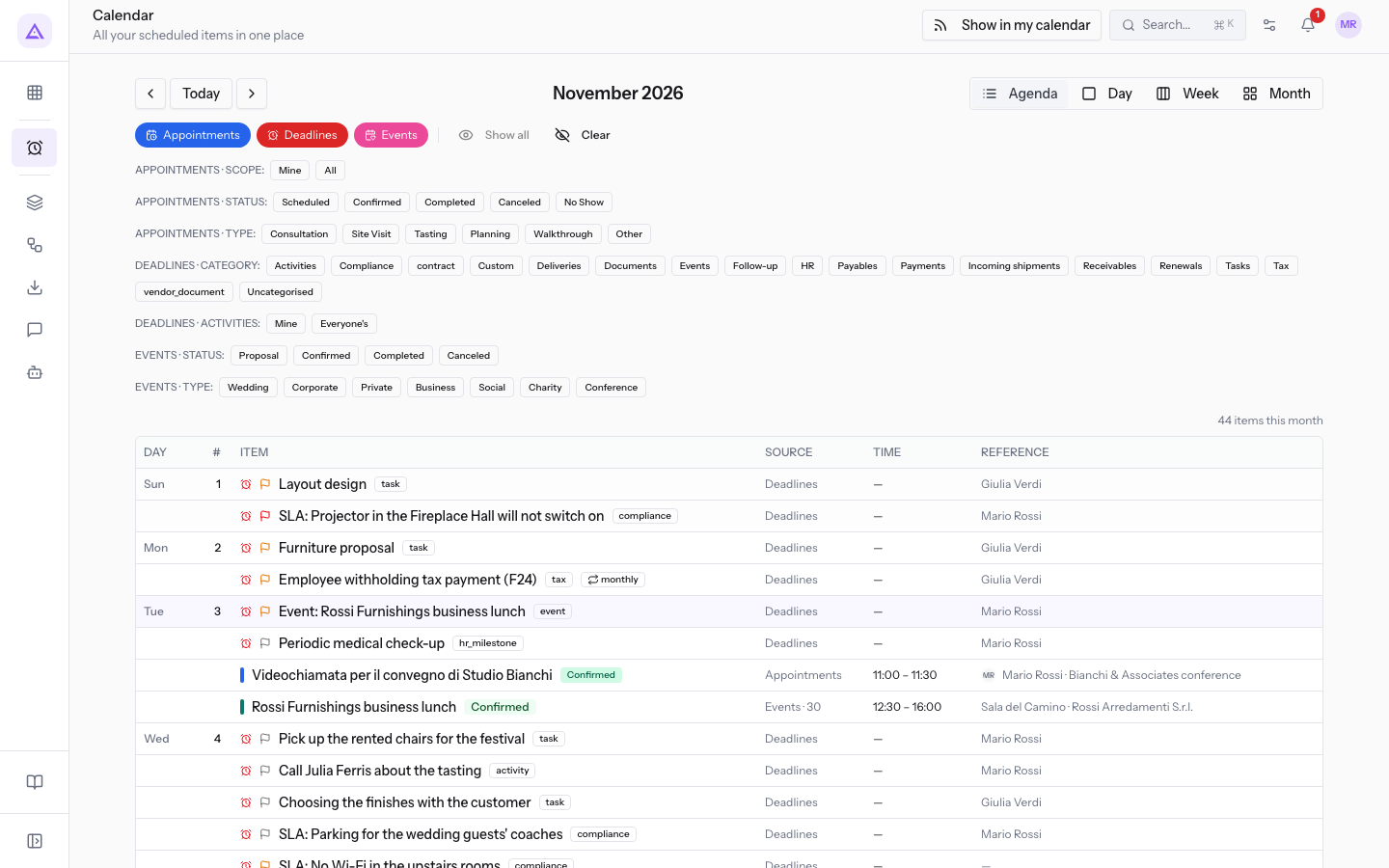
- In the Deadlines · Category row, press the category you want to see. You can choose more than one at a time.
If you don't choose any category, the filter does not apply.
The categories in the list
The list is not fixed: it is built for each organization from the categories of the active modules and from those already saved in the deadlines. For this reason it can change over time.
- A category that an active module starts using enters the list.
- A category written by hand leaves the list when the last deadline that uses it is deleted.
- The categories of a module leave the list when the module is deactivated.
The labels of the module categories are:
- Activities
- Tax
- Payments
- Payables
- Receivables
- Events
- Documents
- Renewals
- Deliveries
- Incoming shipments
- HR
- Compliance
- Follow-up
- Tasks
- Custom
- Uncategorised
Note: in your organization the list may contain only some of these categories.
Saved selection
The calendar saves the chosen categories in the browser and applies them again the next time it opens.
If a saved category is no longer in the list, the calendar removes it from the filter. If no chosen category remains, the filter does not apply.
See it on your company, not on a slide deck.
In 30 minutes we map the software you use today.We show you how much work and how much margin Archimedes gives back.
Show me on my business →What industry are you in?
One tap — it lets us prepare the demo around your world.
What tools do you use today?
Pick the ones you recognise — or just type them. It helps us show you how they migrate.
Last step: your details.
We reply within one working day — and right after, if you like, you pick the demo slot yourself.
We couldn't send your request. Try again, or write to us at [email protected].
By sending, you agree to your data being processed so we can get back to you about the demo. Privacy notice.
Preview form — nothing is sent from this page.
Want to schedule the demo now?
Your call: book the slot you prefer yourself, or we'll call you to arrange it.
Live availability, 30 minutes, instant confirmation. The calendar opens in a new tab.
Lock in your slot ↗We'll get back to you within one working day — and we'll join the call already knowing your world.
The calendar is open in another tab: pick a slot and the demo is booked. Can't see it? Reopen it ↗
Preview page: nothing was sent.
Our calendar is live: take the slot that suits you and the demo is booked. 30 minutes, instant confirmation, no waiting.
Lock in your slot ↗