Calendar
All modules
Why a tax deadline shows on the first working day
Calendar · 10 of 13 · 4 min read
The calendar moves tax and payment deadlines that fall on a non-working day to the next working day. "Monthly VAT payment (F24)", due on a Saturday, appears on the Monday.
This page explains when the move happens, how to spot it in the calendar, and what it depends on.
Which deadlines are moved
The move only applies to deadlines in the Tax, Payments, Receivables and Payables categories. If one of these falls on a Saturday, a Sunday, a public holiday or a closure, the calendar shows it on the next working day, as the law requires.
- "Monthly VAT payment (F24)", with category Tax: the calendar shows it on the first working day from the legal date.
- "Event: Grape harvest festival", with category Events: it stays on its day, like appointments and events.
The day the deadline is shown on is the effective date.
Note: the list of categories that follow working days is a system setting. Today it contains the categories Tax, Payments, Receivables and Payables.
Spotting a postponed deadline
A postponed deadline appears on its effective date. The legal date can be read in the Week and Day views.
- In Calendar, press Month.
- Use Next period and Previous period to go to the month of the deadline.
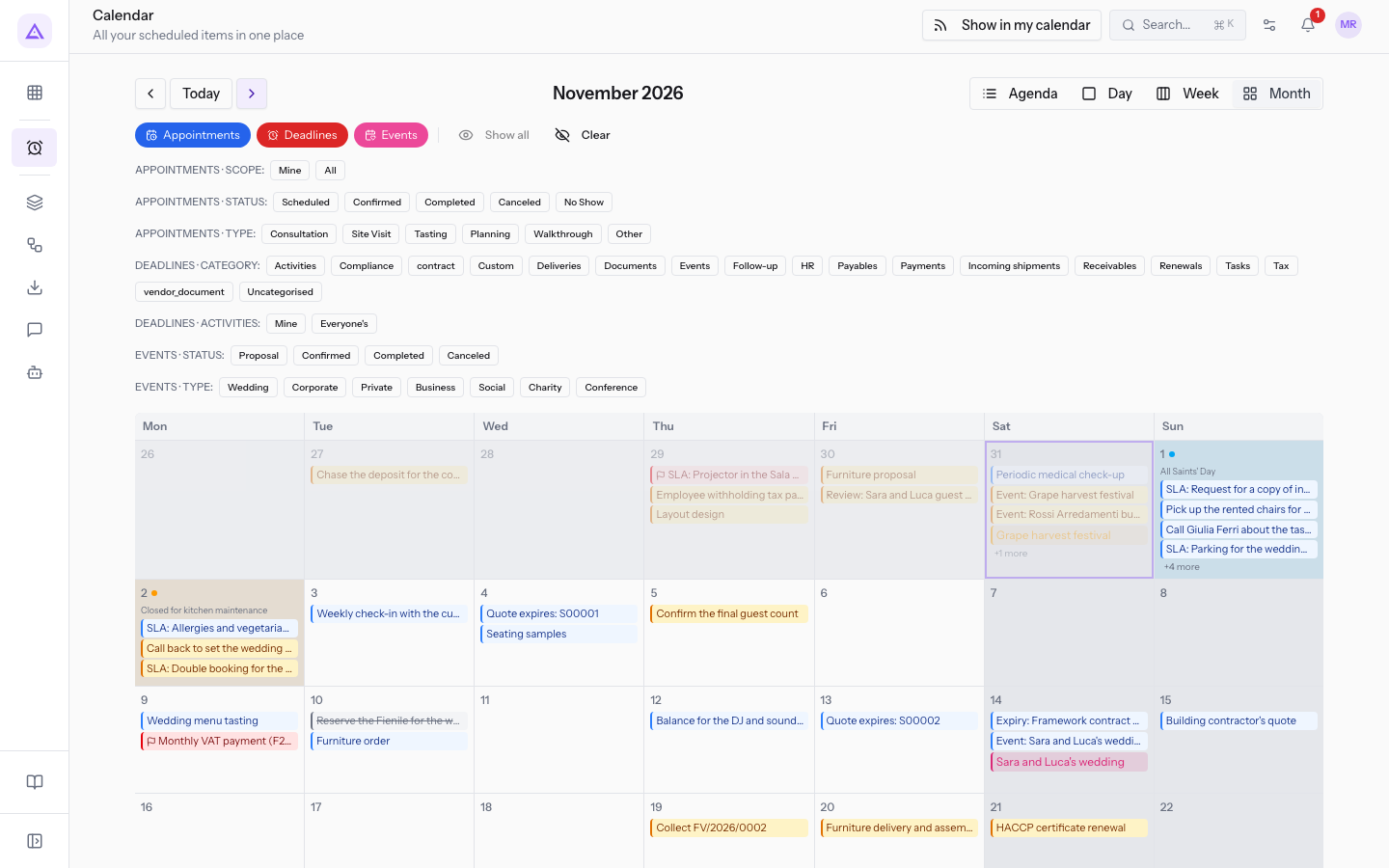
- Press Week or Day, go to the day of the deadline and hover over the item. The note "moved from …" appears with the legal date. In these two views the item also has an arrow before the title.
"Monthly VAT payment (F24)" falls on Saturday, November 7, and the calendar shows it on Monday, November 9. Press the item to open the page of the employee Julia Green, on which the deadline was entered.
To switch between views and move through months, see Moving between Agenda, Day, Week and Month, and navigating through time.
Non-working days in the calendar
In the Month view, non-working days are colored. If you hover over the day, the reason appears:
- Weekend: Saturday and Sunday.
- A public holiday: the name of the holiday, also written on the day, for example
All Saints' Day. Public holidays are already set up, you don't have to enter them yourself. - A closure of the whole organization: the name of the closure, also written on the day.
Closures are set in the organization's Working hours. If an administrator adds or changes a closure, the effective dates of open deadlines in the categories that move are recalculated.
Reminders and overdue start from the effective date
Reminders and the Overdue status are based on the effective date, not the legal date.
- Reminders arrive by email before the effective date, with a lead time that depends on the category:
- Tax and
contract: 30, 14, 7 and 1 day before, and on the day itself. - Payments: 7, 3 and 1 day before, and on the day itself.
- Payables: 14, 7, 3 and 1 day before, and on the day itself.
- Receivables: 7 and 1 day before, and on the day itself.
- Renewals: 120, 90, 60, 30, 14, 7 and 1 day before, and on the day itself.
vendor_document: 60, 30, 14 and 7 days before, and on the day itself.- All other categories: 7 and 1 day before.
- Tax and
- The Remind (days before) field adds a separate lead time.
- The deadline moves to Overdue only once the effective date has passed, according to the organization's time zone. At that point an overdue reminder arrives.
- While the deadline stays Overdue, reminders repeat every 3 days for Payables and every 7 days for Tax, Payments, Receivables,
contractandvendor_document. - Done and Cancelled deadlines do not receive reminders.
Tip: if you move a deadline by hand onto a non-working day, the calendar flags it with the message "Moved to … — a non-working day." To move a deadline, see Move a deadline by dragging it on the calendar.
To filter only tax deadlines, see Filter deadlines by category.
See it on your company, not on a slide deck.
In 30 minutes we map the software you use today.We show you how much work and how much margin Archimedes gives back.
Show me on my business →What industry are you in?
One tap — it lets us prepare the demo around your world.
What tools do you use today?
Pick the ones you recognise — or just type them. It helps us show you how they migrate.
Last step: your details.
We reply within one working day — and right after, if you like, you pick the demo slot yourself.
We couldn't send your request. Try again, or write to us at [email protected].
By sending, you agree to your data being processed so we can get back to you about the demo. Privacy notice.
Preview form — nothing is sent from this page.
Want to schedule the demo now?
Your call: book the slot you prefer yourself, or we'll call you to arrange it.
Live availability, 30 minutes, instant confirmation. The calendar opens in a new tab.
Lock in your slot ↗We'll get back to you within one working day — and we'll join the call already knowing your world.
The calendar is open in another tab: pick a slot and the demo is booked. Can't see it? Reopen it ↗
Preview page: nothing was sent.
Our calendar is live: take the slot that suits you and the demo is booked. 30 minutes, instant confirmation, no waiting.
Lock in your slot ↗