Calendar
All modules
Understanding automatic deadlines and opening the record they come from
Calendar · 8 of 13 · 4 min read
The calendar creates a deadline by itself for every important date in the records of other modules, and keeps it in line with the record: the collection of an invoice, a confirmed event, a document about to expire, the goods arriving from a purchase order. From every automatic deadline you open the record it comes from.
Which deadlines the calendar creates
Automatic deadlines come from records. You don't enter them yourself and they don't need updating by hand. Here are the most common types, with the titles you find in the calendar.
- Invoices to collect and to pay: "Collect FV/2026/0002", €945.50 from Rossi Furnishings S.r.l., and "Pay BILL/2026/00001", overdue, to Metalnord Industrial Supplies S.p.A.
- Events proposed or confirmed with a date: "Event: Sara and Luca's wedding" and "Event: Grape harvest festival".
- Documents with an expiry or review date: "Expiry: Framework contract Neri Supplies 2026", "Expiry: 2026 liability insurance policy" and "Review: Sara and Luca guest list".
- Goods incoming from purchase orders: "Incoming shipment: PO/2026/00003".
- Quote validity: "Quote expires: S00001".
- SLA of open tickets: "SLA: No Wi-Fi in the upstairs rooms".
- Project tasks: "Layout design" and "Furniture order".
Note: deadlines you enter by hand, for example "Monthly VAT payment (F24)", appear next to the automatic ones but do not follow any record. To add them see Adding a deadline to a customer, an employee or an event.
Finding an automatic deadline in the calendar
Automatic deadlines appear on the day of the date that comes from the record.
- In Calendar press Agenda to see the list of the month's items.
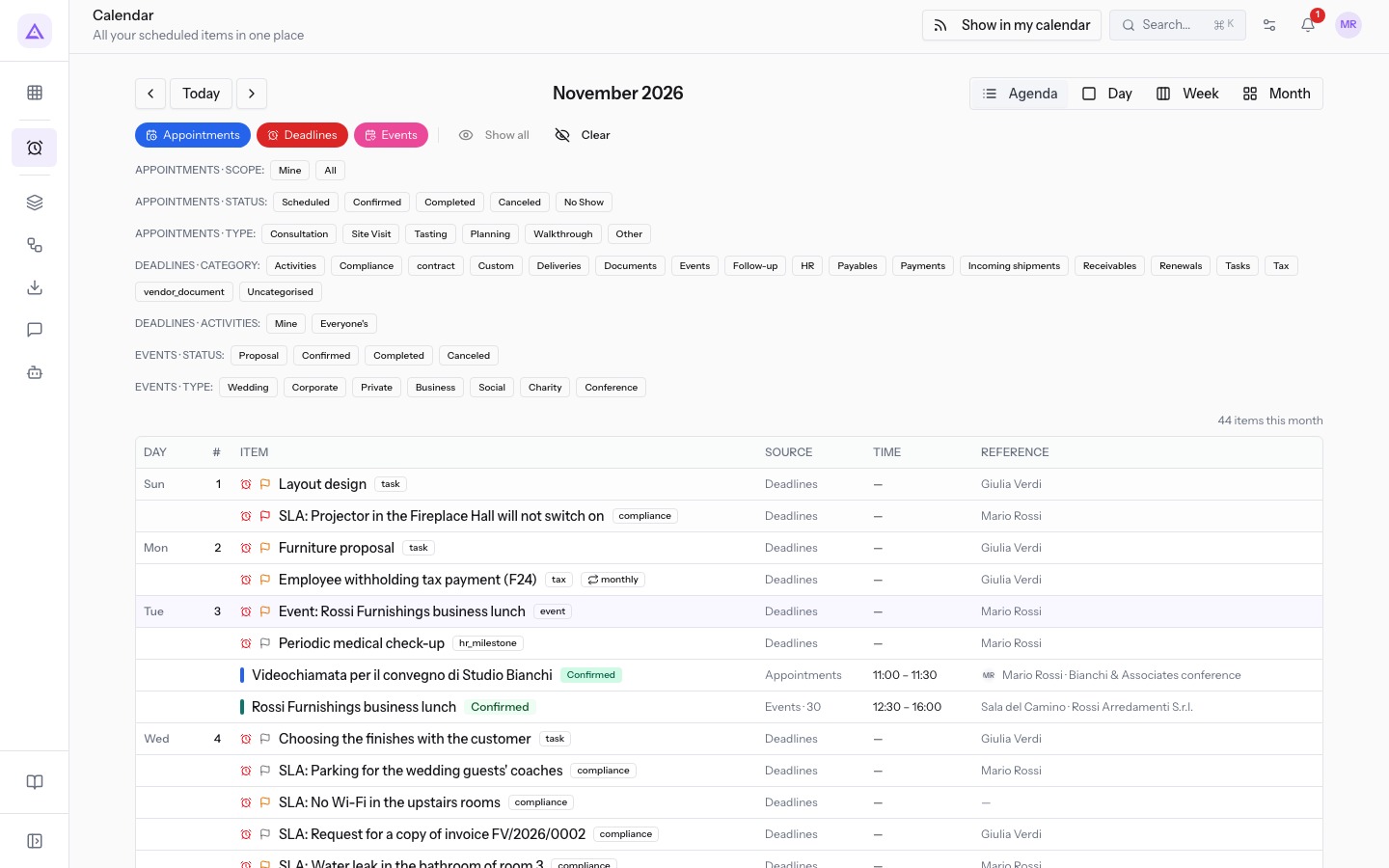
- Press Next period and Previous period to move to other months. For example "Collect FV/2026/0002" and "Quote expires: S00001" are in November 2026, "Pay BILL/2026/00001" in September 2026.
To see only deadlines, without events and appointments, see Choose which sources to show: deadlines, events, appointments.
Opening the record the deadline comes from
The title of an automatic deadline opens the page of the record it comes from. From there you check the date or close the record.
- In the Agenda view press the title of the deadline, for example "Collect FV/2026/0002".
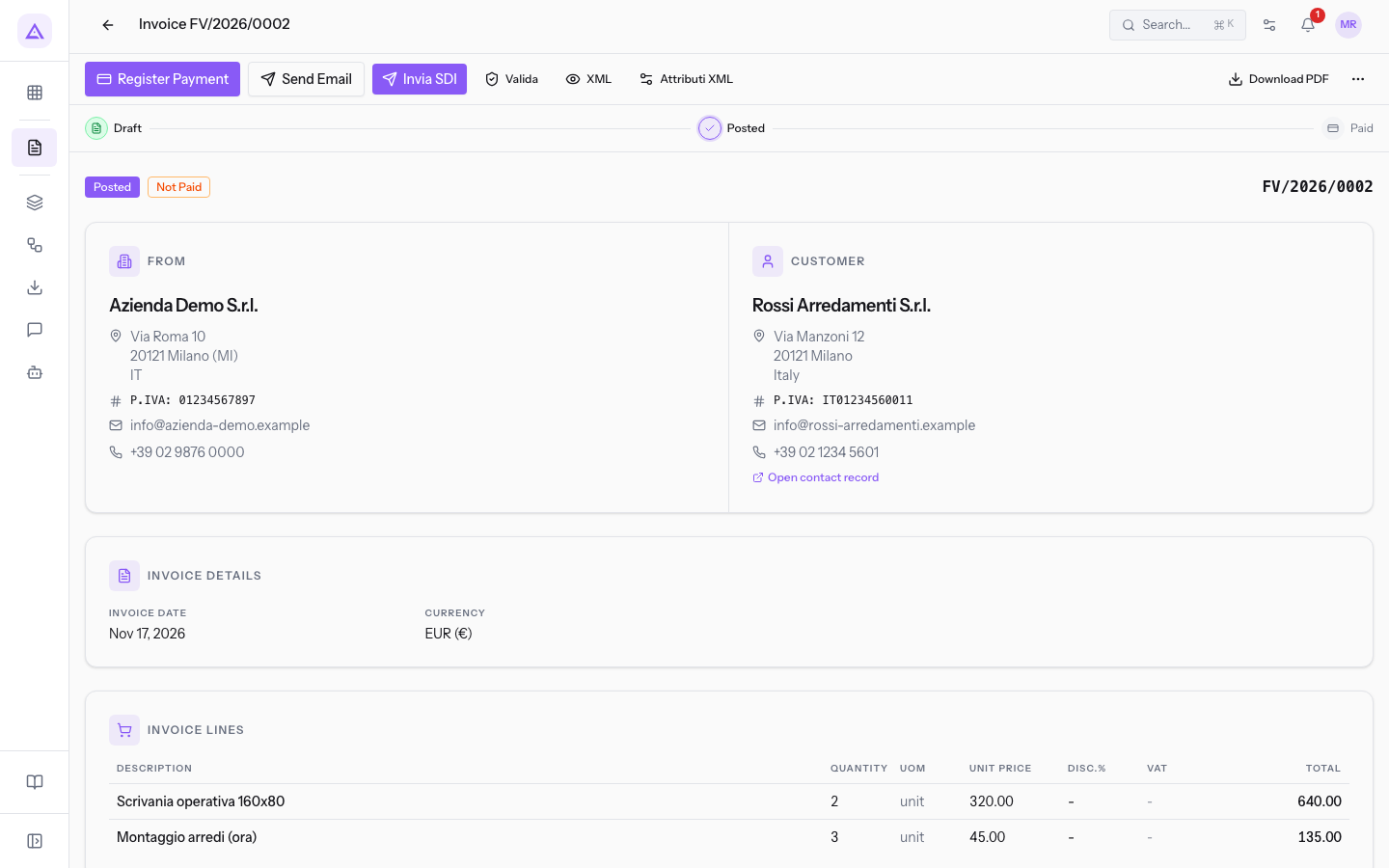
- The page of invoice FV/2026/0002 opens, with the buttons Register Payment, Send Email and Download PDF.
Each type of deadline opens its record:
- "Collect …" and "Pay …": the invoice page, with the title Invoice FV/2026/0002.
- "Event: …": the event page, where the Deadlines tab collects the event's deadlines.
- "Expiry: …" and "Review: …": the document page, with the date type Expiry.
- "Incoming shipment: …": the purchase order page, with the title Purchase Order PO/2026/00003.
- "Quote expires: …": the quote page, with the title Quotation S00001 and the field Expiration.
- "SLA: …": the ticket page, with the title Ticket #1149. See Viewing a ticket's detail page.
How the deadline follows the record
An automatic deadline stays in line with the record it comes from. You don't need to edit it in the calendar.
- If the record's date changes, the deadline moves to the new date. For example, if you change the Expiration of quote S00001, "Quote expires: S00001" moves to the new day.
- If the record no longer has a date to respect, the deadline disappears from the calendar. This happens when the invoice is paid with Register Payment, when the ticket is closed or when the event is cancelled.
- If the record gets a new date, the calendar creates the deadline again.
Important: if you move an automatic deadline by hand, it keeps the day you chose and no longer follows the record. "Quote expires: S00002" was moved by hand and no longer changes when quote S00002 changes. See Move a deadline by dragging it on the calendar.
Tip: to close an automatic deadline, close the record it comes from: register the invoice payment, close the ticket or cancel the event.
See it on your company, not on a slide deck.
In 30 minutes we map the software you use today.We show you how much work and how much margin Archimedes gives back.
Show me on my business →What industry are you in?
One tap — it lets us prepare the demo around your world.
What tools do you use today?
Pick the ones you recognise — or just type them. It helps us show you how they migrate.
Last step: your details.
We reply within one working day — and right after, if you like, you pick the demo slot yourself.
We couldn't send your request. Try again, or write to us at [email protected].
By sending, you agree to your data being processed so we can get back to you about the demo. Privacy notice.
Preview form — nothing is sent from this page.
Want to schedule the demo now?
Your call: book the slot you prefer yourself, or we'll call you to arrange it.
Live availability, 30 minutes, instant confirmation. The calendar opens in a new tab.
Lock in your slot ↗We'll get back to you within one working day — and we'll join the call already knowing your world.
The calendar is open in another tab: pick a slot and the demo is booked. Can't see it? Reopen it ↗
Preview page: nothing was sent.
Our calendar is live: take the slot that suits you and the demo is booked. 30 minutes, instant confirmation, no waiting.
Lock in your slot ↗