Calendar
All modules
Adding a deadline to a customer, an employee or an event
Calendar · 12 of 13 · 4 min read
The pages for a contact, an employee and an event have a Deadlines tab. Here you see the deadlines that concern that record and add new ones.
Where to find the Deadlines tab
The Deadlines tab opens from the record's page. Choose the record based on who the deadline concerns, for example a contact for a payment reminder or an employee for a medical check:
- If the deadline concerns a customer or a supplier, open it on the contact from Contacts.
- If it concerns a staff member, open it on the employee from Employees.
- If it concerns an event, open it on the event from Events.
To open the tab:
- Open the list of contacts, employees or events and press the record's row.
- Press the Deadlines tab.
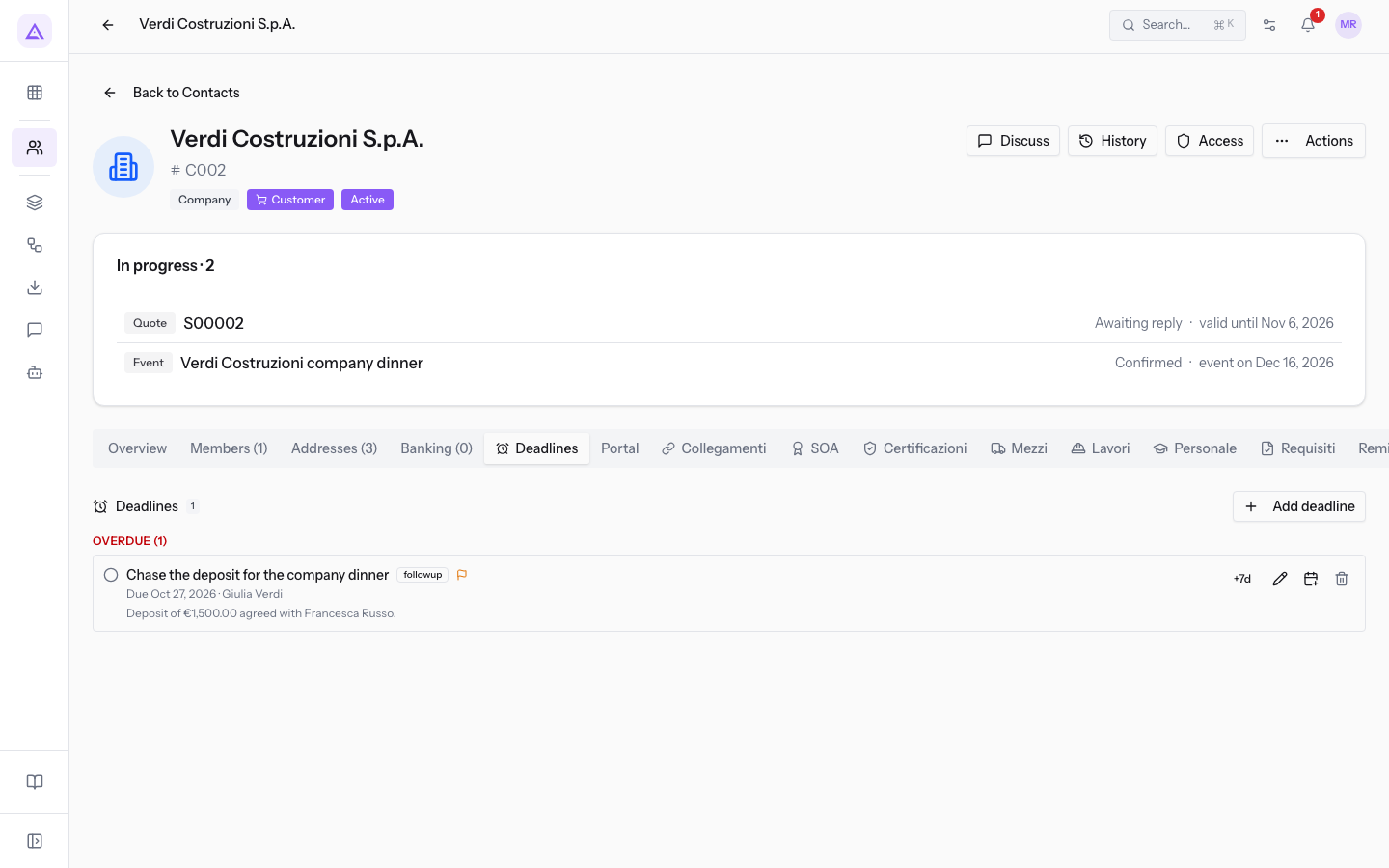
On the page of Verdi Construction S.p.A. there is the deadline "Chase the deposit for the company dinner", assigned to Julia Green and overdue. Each row has the buttons Mark as done, +7d, Edit, Add to my calendar and Delete: they are described in Complete, postpone, edit or delete a deadline.
Adding a deadline
A deadline added by hand stays linked to the record from which you create it. The example adds the deadline "Send the menu for the business lunch" to the contact Rossi Furnishings S.r.l.
- In Contacts press the row of Rossi Furnishings S.r.l. and then the Deadlines tab.
- Press Add deadline. The deadline panel opens.
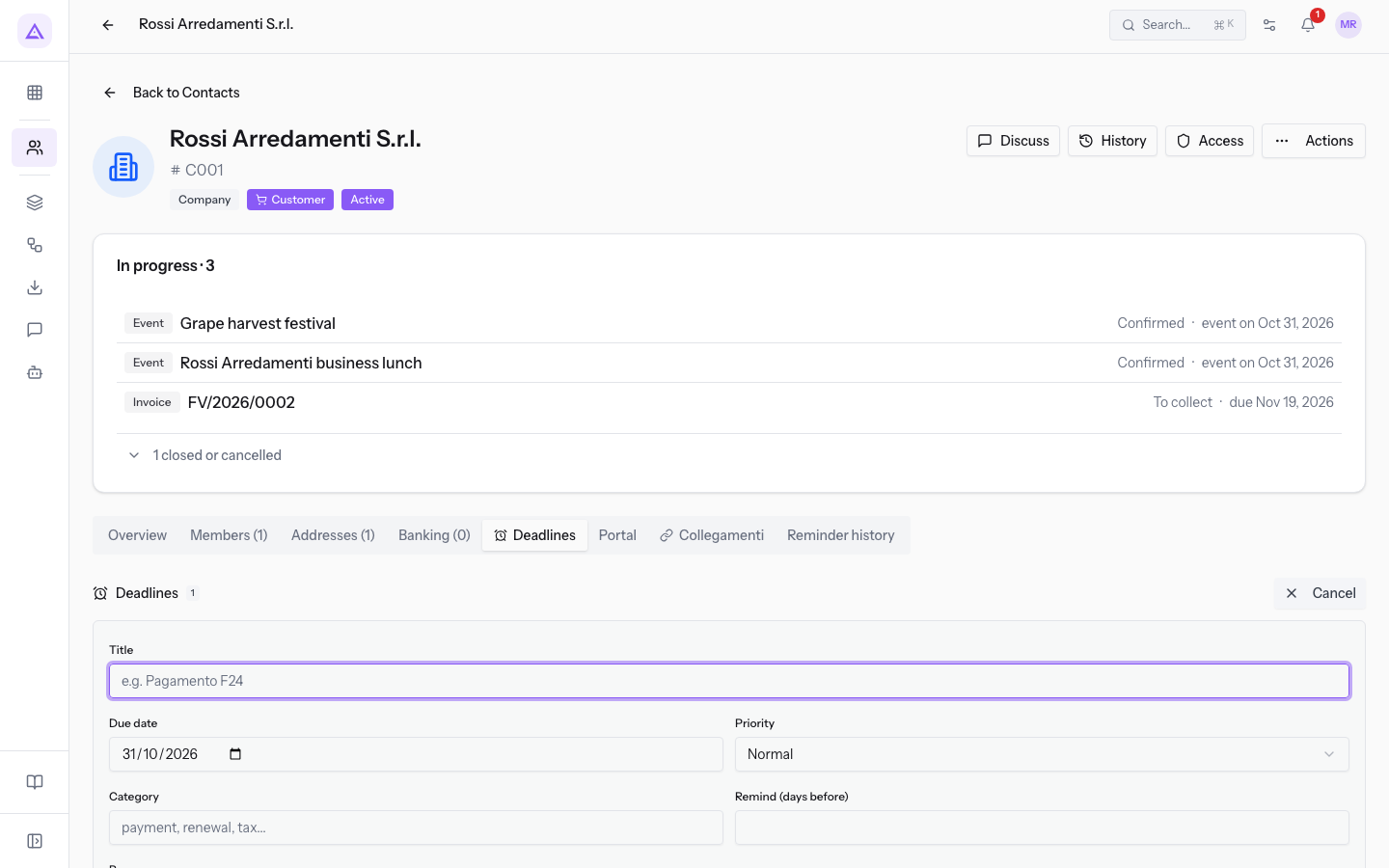
- In Title write
Send the menu for the business lunch, in Due date enter the date05/11/2026, in Priority choose High and in Category writefollowup. - Press Save deadline. To leave without saving press Cancel.
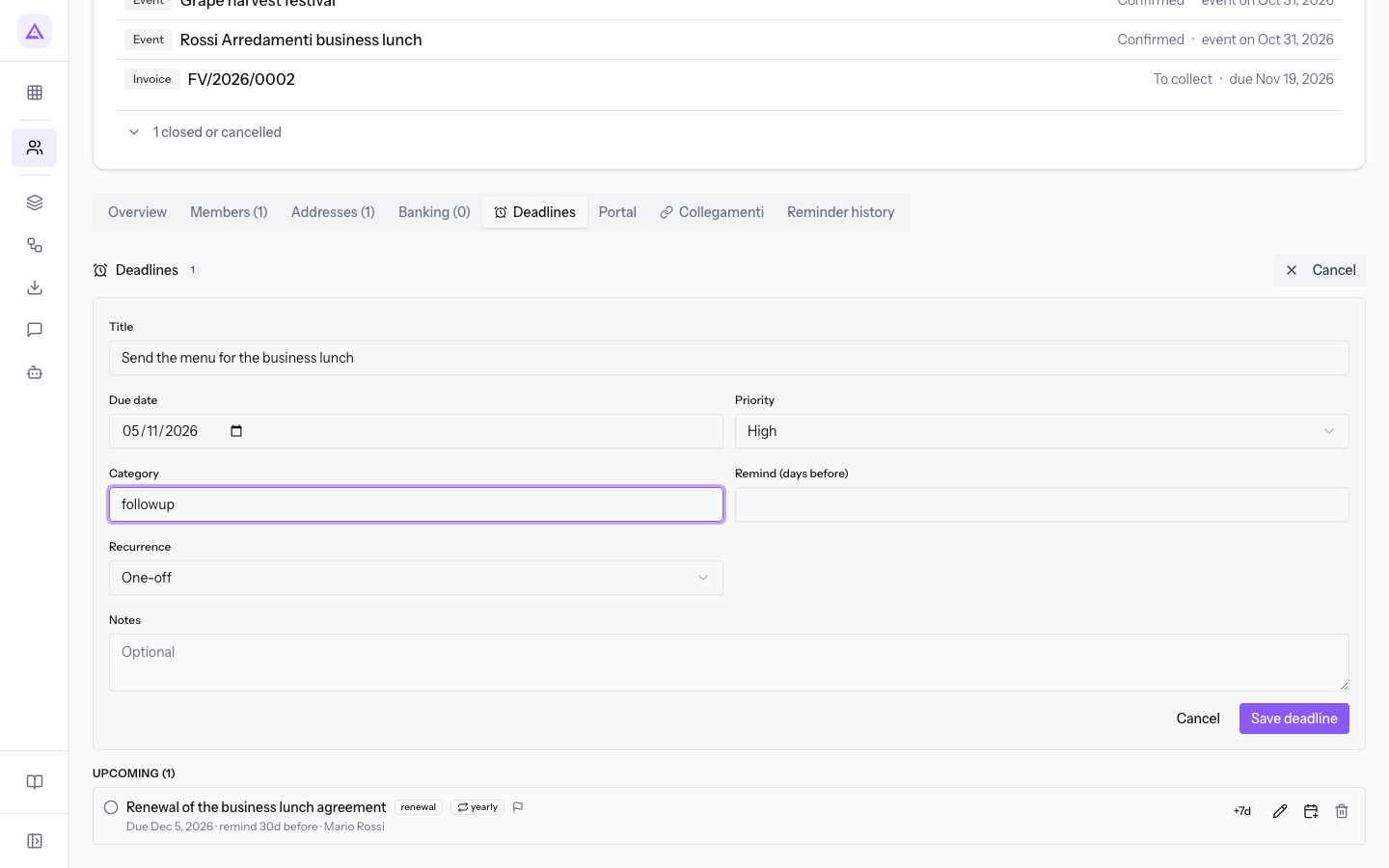
Fields of the panel
- Title: the title of the deadline, as it will appear in the tab and in the calendar.
- Due date: the day of the deadline. The field proposes today's date.
- Priority: the priority. The proposed value is Normal. The options are:
- Low
- Normal
- High
- Critical
- Category: the category, written as free text.
- Remind (days before): how many days before the deadline to receive an extra reminder. The field is empty at the start. The reminders planned for the category still arrive anyway: see Why a tax deadline shows on the first working day.
- Recurrence: the recurrence. The proposed value is One-off. The options are:
- One-off: the deadline is valid only once.
- Daily
- Weekly
- Monthly
- Yearly
- Every N: how many periods apart the deadline repeats:
1with Monthly means every month. The field appears only when you choose a recurrence other than One-off and proposes1. - Notes: free text about the deadline.
Choosing priority and recurrence
- If the deadline happens only once, leave One-off.
- If it repeats, for example an F24 payment every month, choose Monthly and leave
1in Every N. - If the deadline is an annual renewal, choose Yearly.
- Use High or Critical for deadlines that must not be missed: in the calendar they have their own color, described in Spot late, urgent and completed deadlines at a glance.
Important: tax and payment deadlines that fall on a Saturday, a Sunday or a public holiday move to the first working day. This is explained in Why a tax deadline shows on the first working day.
Deadlines of an employee
On the page of an employee the Deadlines tab collects the deadlines that concern them. The assigned person remains a user with an account, for example Julia Green.
- In Employees press the row of Julia Green and then the Deadlines tab.
- To add one, press Add deadline and fill in the deadline panel as for a contact.
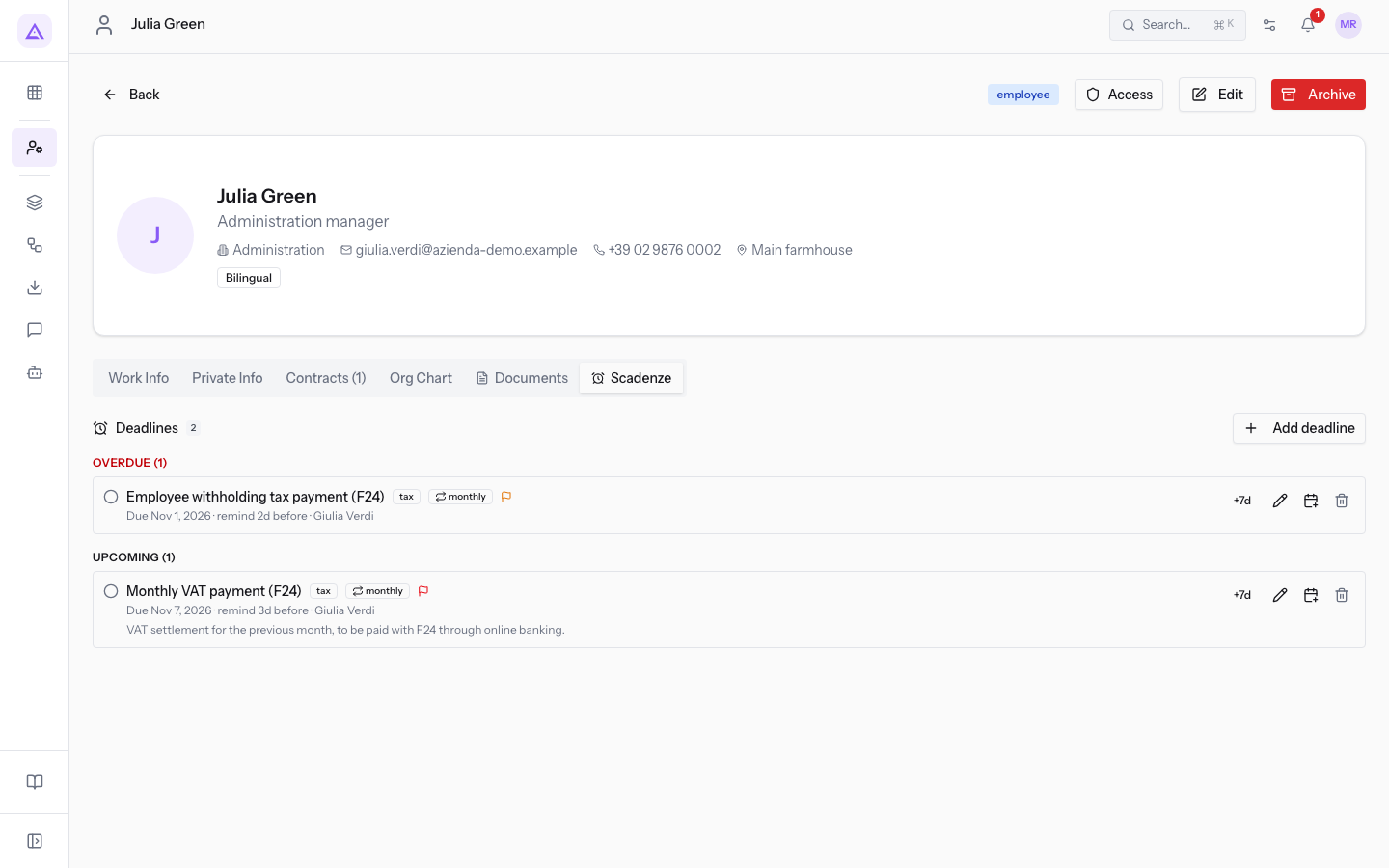
On the page of Julia Green there are "Monthly VAT payment (F24)" and "Employee withholding tax payment (F24)", both recurring; the second is overdue.
Deadlines of an event
On the page of an event the Deadlines tab shows together the deadlines entered by hand and the one the event creates by itself.
- In Events press the row of "Sara and Luca's wedding" and then the Deadlines tab.
- To add one, press Add deadline.
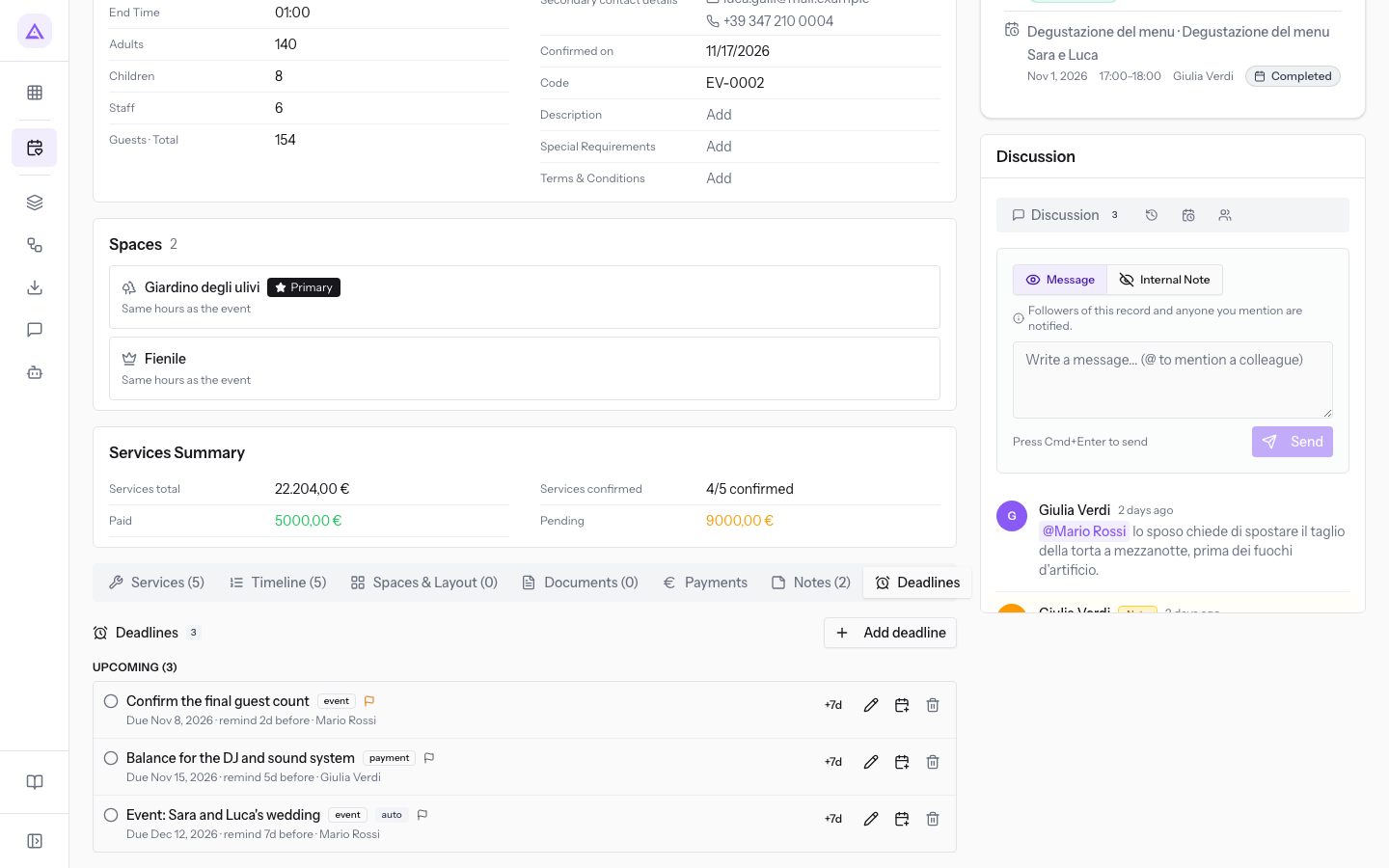
On Sara and Luca's wedding there are the deadlines entered by hand "Confirm the final guest count" and "Balance for the DJ and sound system", and the automatic deadline "Event: Sara and Luca's wedding". An automatic deadline follows the date of the event: see Understanding automatic deadlines and opening the record they come from.
The deadline in the Calendar
Every deadline added from a tab also appears in the Calendar, together with the automatic deadlines.
From the calendar you can filter deadlines by category, as explained in Filter deadlines by category, and move them to another day, as explained in Move a deadline by dragging it on the calendar.
See it on your company, not on a slide deck.
In 30 minutes we map the software you use today.We show you how much work and how much margin Archimedes gives back.
Show me on my business →What industry are you in?
One tap — it lets us prepare the demo around your world.
What tools do you use today?
Pick the ones you recognise — or just type them. It helps us show you how they migrate.
Last step: your details.
We reply within one working day — and right after, if you like, you pick the demo slot yourself.
We couldn't send your request. Try again, or write to us at [email protected].
By sending, you agree to your data being processed so we can get back to you about the demo. Privacy notice.
Preview form — nothing is sent from this page.
Want to schedule the demo now?
Your call: book the slot you prefer yourself, or we'll call you to arrange it.
Live availability, 30 minutes, instant confirmation. The calendar opens in a new tab.
Lock in your slot ↗We'll get back to you within one working day — and we'll join the call already knowing your world.
The calendar is open in another tab: pick a slot and the demo is booked. Can't see it? Reopen it ↗
Preview page: nothing was sent.
Our calendar is live: take the slot that suits you and the demo is booked. 30 minutes, instant confirmation, no waiting.
Lock in your slot ↗