Calendar
All modules
Spot late, urgent and completed deadlines at a glance
Calendar · 5 of 13 · 4 min read
In the Month and Agenda views, the calendar shows every deadline with a color based on its priority and its status. This way you can see right away which ones are urgent, which are already closed and which are overdue.
Priority and status of a deadline
Every deadline has a priority and a status. The color in the calendar depends on both.
- Priority: shows how urgent the deadline is.
- Low
- Normal
- High
- Critical
- Status: shows where the deadline stands.
- Pending: the deadline is open and its date has not passed yet.
- Overdue: the date has passed and the deadline has not been closed. You cannot set this status by hand: every day an automatic procedure moves Pending deadlines with a passed effective date to Overdue and sends the overdue reminder.
- Done: the deadline has been closed as completed.
- Cancelled: the deadline has been closed without being done.
A Done or Cancelled deadline reopens with Reopen, in the Deadlines tab of the record.
Choose the priority based on how much the deadline should stand out in the calendar.
- If the deadline must not be missed under any circumstances, for example a tax payment, choose Critical: it is the only one with the flag also in the Month view.
- If it should stand out but is not blocking, choose High.
- For all others, choose Normal or Low: in the Month view they have the same color.
Reading the colors in the Month view
In the Month view every deadline is a small label on the day it falls. The color of the background and of the left border depends on the priority. To open the view, in Calendar press Month.
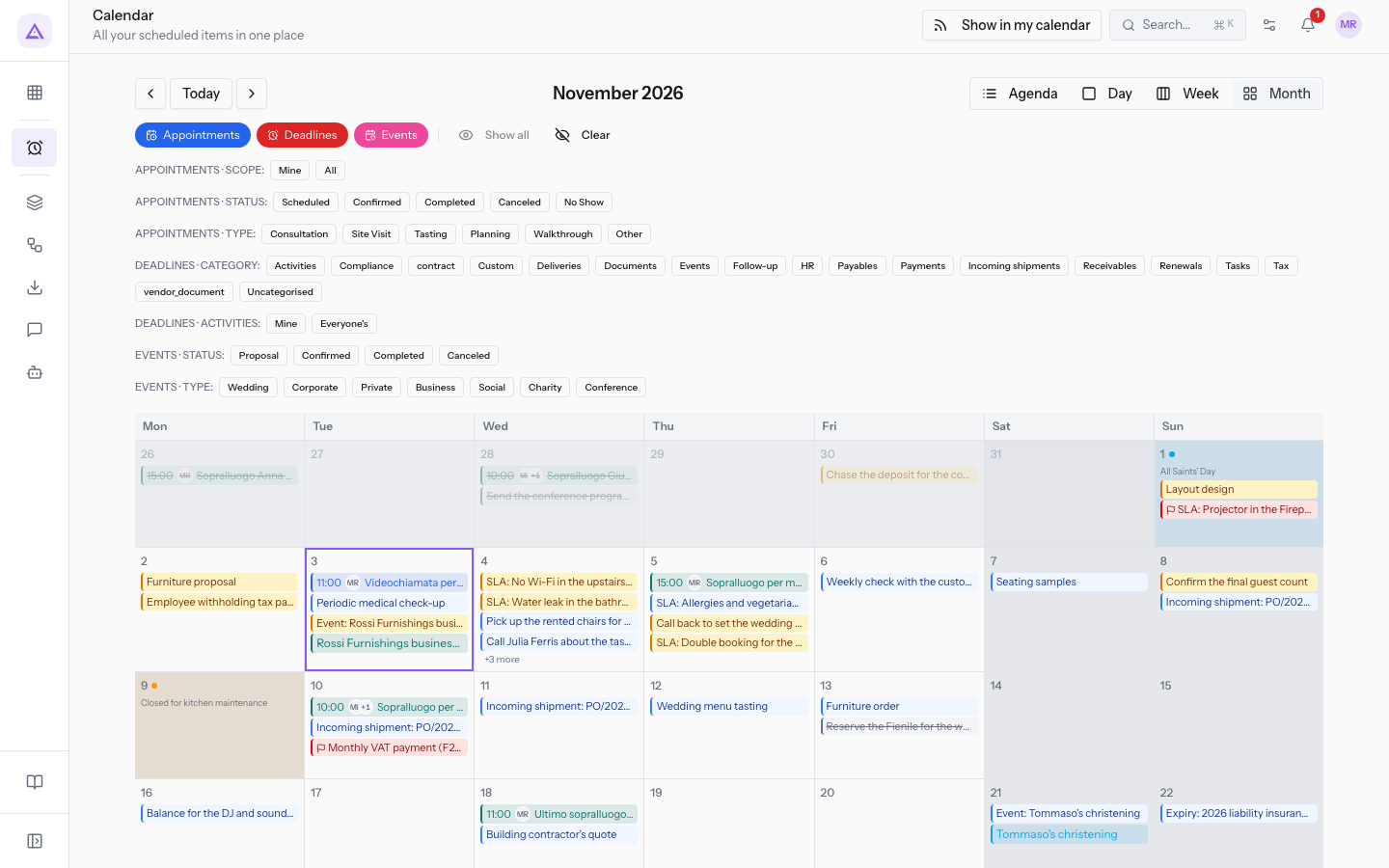
- Critical: red label with the flag before the title.
- High: amber label.
- Normal and Low: light blue label.
- Done and Cancelled: grey label with the title struck through, whatever the priority. For example "Send the conference programme" and "Reserve the Barn for the wedding".
Note: an Overdue deadline has no color of its own. It keeps the color of its priority until it is completed or cancelled.
If you hover over a label, the full title appears. Press the label to open the record the deadline is linked to.
Reading priority and status in the Agenda view
The Agenda view lists the deadlines of the month in a table. Here the priority is read from the color of the flag. To open the view, in Calendar press Agenda. For all the table columns see Read the month's agenda.
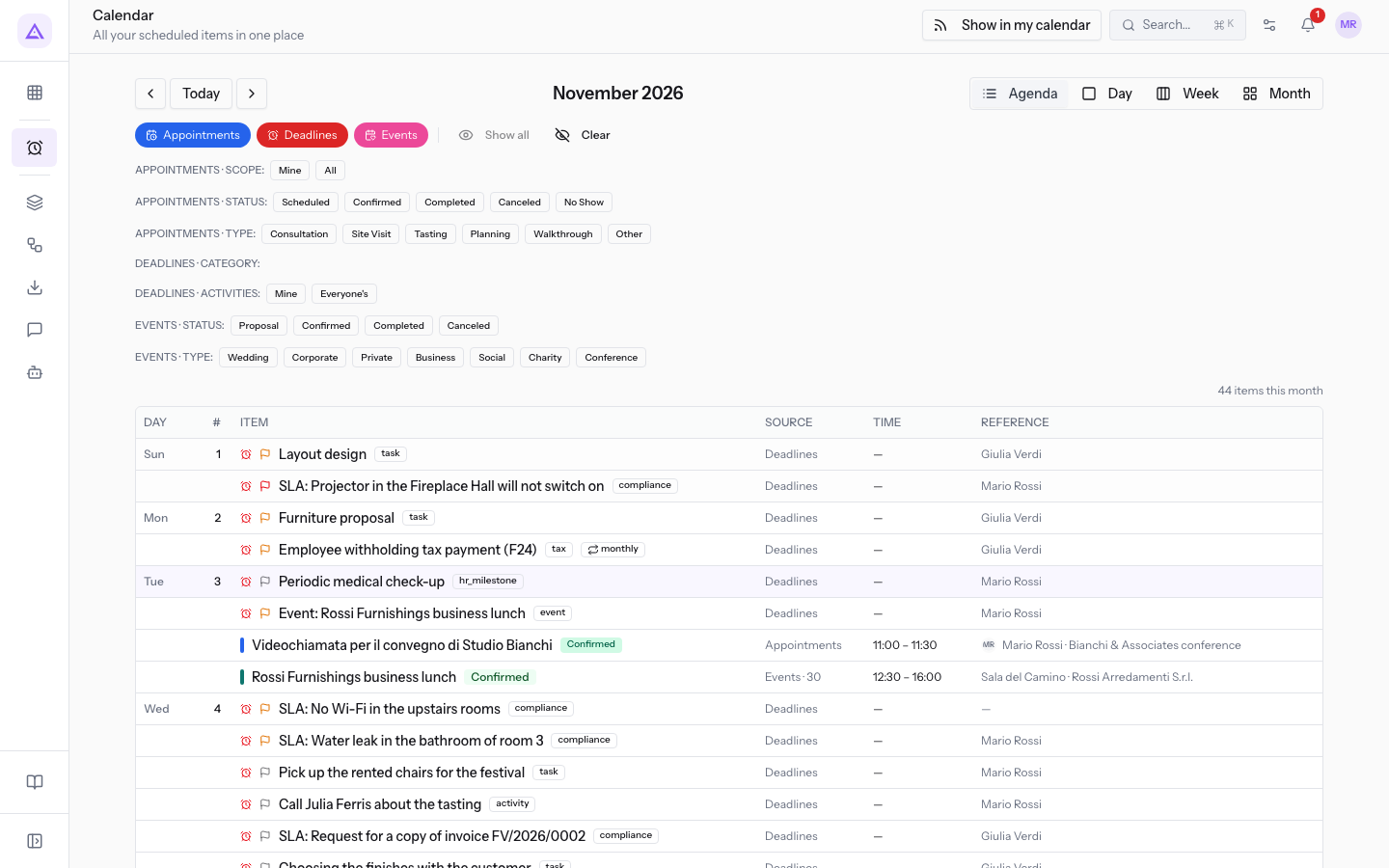
Every deadline has the red alarm clock in the Item column, followed by the priority flag:
- Critical: red flag.
- High: amber flag.
- Normal and Low: grey flag, lighter for Low.
The title of a Done or Cancelled deadline is grey and struck through.
Overdue deadlines
A past deadline that is not closed stays on the day it was due, even in the following months. It does not move to today by itself.
For tax and payment deadlines the day shown is the effective date, that is, the first working day starting from the legal date. The move to Overdue also counts from this date. For details see Why a tax deadline shows on the first working day.
For example, these are overdue: "Pay BILL/2026/00001", "Employee withholding tax payment (F24)" and "Chase the deposit for the company dinner".
To remove a deadline from the Overdue status, complete it. Automatic deadlines are closed on the record they come from: see Understanding automatic deadlines and opening the record they come from.
Note: for some categories the email reminders repeat while the deadline stays Overdue: the list is in Why a tax deadline shows on the first working day. Done and Cancelled deadlines do not receive reminders.
Completed and cancelled deadlines
Closed deadlines stay visible in the calendar, grey and struck through, on the day they were due.
Important: a Done or Cancelled deadline does not move to another day. To move it, reopen it first with Reopen. See Move a deadline by dragging it on the calendar.
In the Deadlines tab of a record, closed deadlines are grouped under Completed / Cancelled.
See it on your company, not on a slide deck.
In 30 minutes we map the software you use today.We show you how much work and how much margin Archimedes gives back.
Show me on my business →What industry are you in?
One tap — it lets us prepare the demo around your world.
What tools do you use today?
Pick the ones you recognise — or just type them. It helps us show you how they migrate.
Last step: your details.
We reply within one working day — and right after, if you like, you pick the demo slot yourself.
We couldn't send your request. Try again, or write to us at [email protected].
By sending, you agree to your data being processed so we can get back to you about the demo. Privacy notice.
Preview form — nothing is sent from this page.
Want to schedule the demo now?
Your call: book the slot you prefer yourself, or we'll call you to arrange it.
Live availability, 30 minutes, instant confirmation. The calendar opens in a new tab.
Lock in your slot ↗We'll get back to you within one working day — and we'll join the call already knowing your world.
The calendar is open in another tab: pick a slot and the demo is booked. Can't see it? Reopen it ↗
Preview page: nothing was sent.
Our calendar is live: take the slot that suits you and the demo is booked. 30 minutes, instant confirmation, no waiting.
Lock in your slot ↗