Calendar
All modules
Open the Calendar and understand what it collects
Calendar · 2 of 13 · 2 min read
The Calendar page brings together the organization's deadlines, events and appointments, so you can see what needs doing today and in the coming days.
Opening the Calendar
Press Calendar in the main menu. The page opens with the title Calendar and the subtitle "All your scheduled items in one place".
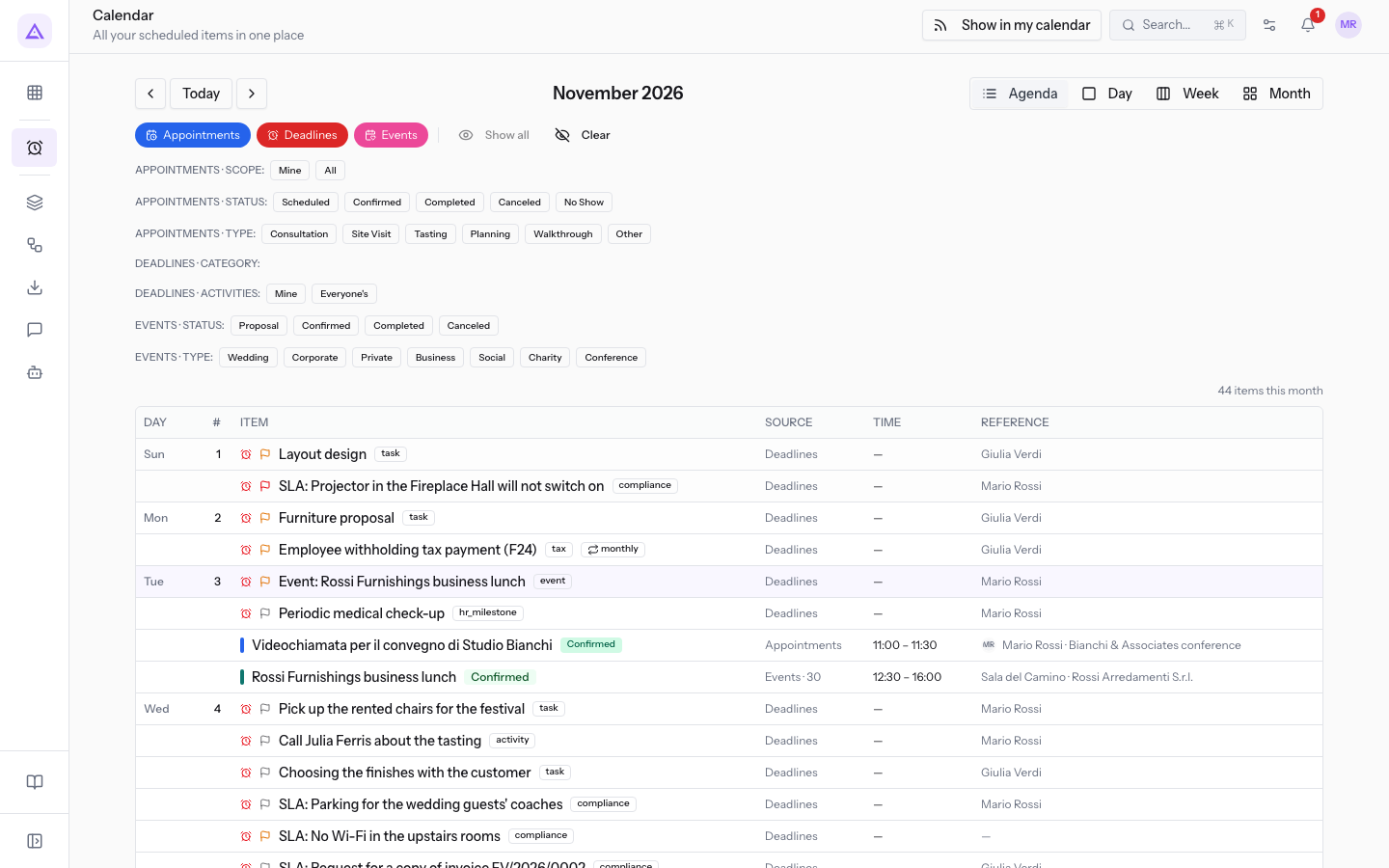
In the top right, the Show in my calendar button creates a link to view the agenda in an external calendar. Read Calendar.
Note: the old address
/deadlinesalso leads to this calendar.
What it collects
The calendar shows items from three sources. Each source has a button in the bar above the calendar.
- Deadlines: the dates you must meet. Some are created automatically from records in other modules: invoice collections and payments, events proposed or confirmed with a date, documents with an expiry or review date, incoming goods from purchase orders, quote validity dates, CRM opportunities, project tasks and SLAs on open tickets. Others are entered by hand, for example "Monthly VAT payment (F24)" for the employee Julia Green.
- Events: the hall events, with their time.
- Appointments: the appointments, with their time.
An automatic deadline follows the record it comes from. To learn more, read Understanding automatic deadlines and opening the record they come from. To add a deadline to a customer, an employee or an event, read Adding a deadline to a customer, an employee or an event.
Choosing what to see
The source buttons turn each source's items on and off.
- If you want to see only deadlines, turn off Events and Appointments.
- To turn them all on, press Show all. To turn them all off, press Clear.
Details are in Choose which sources to show: deadlines, events, appointments.
Views and period
The calendar bar lets you change the view and the period. The label in the center shows the period displayed.
- Agenda: the list of items for the month, with the label
October 2026. - Day: a single day, with the label
Saturday, October 31, 2026. - Week: the week, with the label
Oct 26 – Nov 1 2026. - Month: the whole month, with the label
October 2026. - Previous period and Next period move the period shown. Today opens the Choose a date selector.
For how to use the views, read Moving between Agenda, Day, Week and Month, and navigating through time and Read the month's agenda.
See it on your company, not on a slide deck.
In 30 minutes we map the software you use today.We show you how much work and how much margin Archimedes gives back.
Show me on my business →What industry are you in?
One tap — it lets us prepare the demo around your world.
What tools do you use today?
Pick the ones you recognise — or just type them. It helps us show you how they migrate.
Last step: your details.
We reply within one working day — and right after, if you like, you pick the demo slot yourself.
We couldn't send your request. Try again, or write to us at [email protected].
By sending, you agree to your data being processed so we can get back to you about the demo. Privacy notice.
Preview form — nothing is sent from this page.
Want to schedule the demo now?
Your call: book the slot you prefer yourself, or we'll call you to arrange it.
Live availability, 30 minutes, instant confirmation. The calendar opens in a new tab.
Lock in your slot ↗We'll get back to you within one working day — and we'll join the call already knowing your world.
The calendar is open in another tab: pick a slot and the demo is booked. Can't see it? Reopen it ↗
Preview page: nothing was sent.
Our calendar is live: take the slot that suits you and the demo is booked. 30 minutes, instant confirmation, no waiting.
Lock in your slot ↗